
Your payment statements
See what your agency pays you for each pay run in the web app, what each status means, and what the pay summary email shows.
What you'll learn
- How to see what your agency pays you for each pay run, and whether it's been paid.
Before you start
- Use a computer. The web app doesn't sign you in on a phone.
- You sign in to the web app with the same email and password you use in the mobile app.
Open your pay statements
Your Earnings tab lists 1 pay statement for each pay run that includes your work, newest first. You see it if your agency pays you through pay runs.
- Sign in to the web app at app.fluentworks.com.
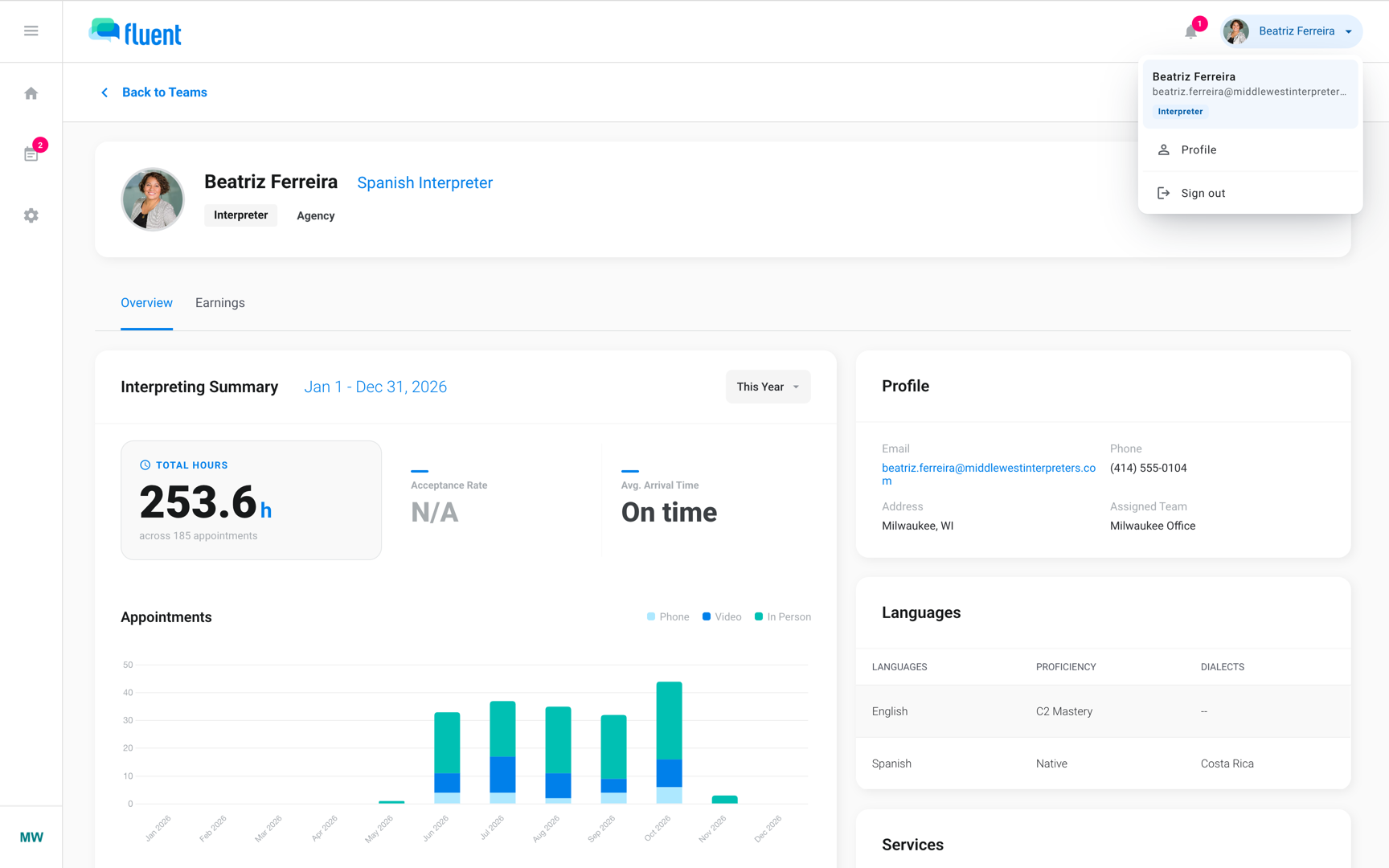
- Click your name at the top right, then click Profile.
- Click the Earnings tab.
- Click the row of the pay run you want to see.
The pay statement opens. Your own statement has no PDF download.
To keep a copy, click Print statement, which prints it with your browser.
Read a pay statement
A pay statement starts with your total for the period, then lists the appointments behind it. It leaves out the sections that don't apply to you.
- Header: Shows the pay run number, such as PR-12, the period, the pay day, and the status. Total pay follows, with your hours, travel hours, and miles.
- Breakdown: Splits Total pay into Service pay, Travel pay, Mileage reimbursement, and Adjustments, plus Corrections when your agency corrected an earlier pay run.
- Appointments: Lists each appointment that pays you, with its date, customer, hours, travel, miles, service pay, travel pay, and total pay. A line paid at a special rate shows its name, for example Rush or Holiday.
- Merged appointments: Appointments billed as one visit show as one line marked Merged, with the other appointments listed under it.
- Non-payable appointments: Lists the appointments you were assigned in the period that pay nothing, each with its reason, such as Canceled or Missed.
- Correction statement: When your agency corrects a closed pay run, the correction shows on a later statement under a heading that names that run. Each corrected appointment appears again, marked "restated", and a line starting "Previously paid on PR-12" subtracts what the earlier run paid for it.
- Adjustments: Lists the fees and credits your agency added, each with its reason.
What the status means
The status shows how far your agency is with the pay run. You see it on each Earnings row and at the top of the statement.
- Estimate: Your agency hasn't sent the pay run to payout, so the amounts can still change. "Updates until paid" shows under it.
- Processing: Your agency sent the pay run to payout.
- Paid: Your agency marked the pay run paid, and Fluent emailed you its summary.
Open the pay summary email
When your agency marks a pay run paid, Fluent emails you a summary of it. The email is headed "Your pay period summary", and its subject starts "Your payment summary for", followed by the period.
- On a computer, open the email and click View full statement.
- If Fluent asks you to sign in, enter your Fluent email and password.
The web app opens that pay run's statement on your Earnings tab.
Note: The email says your pay run "has been finalized", which means your agency marked it paid in Fluent. Ask your agency when the payment arrives.
Rules and limits
- Fluent sends the pay summary email once per pay run, when your agency marks it paid. No setting turns it off.
- Fluent doesn't send the money. Your agency pays you.
- The Fluent mobile app has no pay statements.
- An appointment with no submitted voucher is priced from its scheduled times. Your agency holds its pay until you submit the voucher or it approves the scheduled times. See Submit a voucher.
- Amounts are your gross pay. The statement and the email both say "This is not a payroll or tax document."
- Once a pay run is Processing or Paid, its amounts are locked. A fix shows as a correction on a later statement.
Troubleshooting
"No payment statements yet. Your pay shows here once a pay run includes your work."
No pay run at your agency includes your work, or your agency pays you outside Fluent. Ask your agency when it runs pay for the period and how it pays you.
"Welcome to Fluent" opens instead of my statement
You opened View full statement on a phone, and the web app doesn't sign you in there. Open the email on a computer and click View full statement again.
View full statement opened my Dashboard
When sign-in needs the code Fluent texts you, the web app opens your Dashboard after you enter it. Click your name at the top right, click Profile, click the Earnings tab, and then click the pay run's row.
An amount on my statement looks wrong
Your agency prices your pay from your vouchers and the rates it pays you. Check the appointment's hours and miles on the statement, then contact your agency.