
Billing report
What Reports › Billing shows about what you billed, paid, and kept, which figures are finalized, and how filters change the numbers.
What you'll learn
- How to see what you billed, what the work cost, and the margin you kept, and which of those numbers can still change.
What the report shows
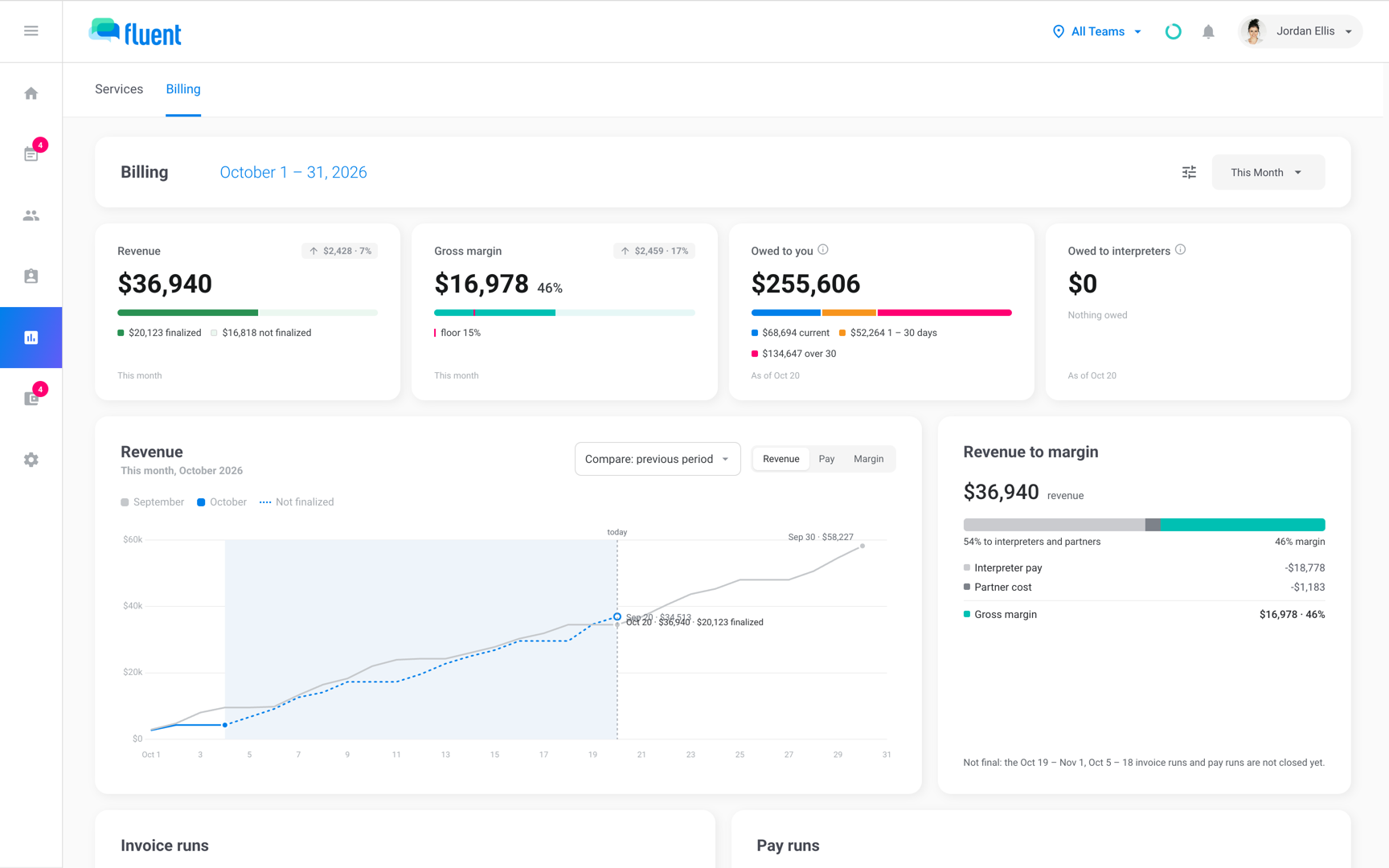
Owners and Admins see the Billing tab at Reports › Billing. The 4 tiles at the top show the month's headline numbers, and the cards below them show which runs, customers, and interpreters those numbers come from.
- Revenue: What your invoices bill customers for work in the range, invoice credits and fees included.
- Gross margin: Revenue minus interpreter pay, pay adjustments, and partner cost. A tick marks the margin floor you set in Settings › Agency defaults.
- Owed to you: Finalized invoices your customers haven't paid, by how far past due they are. Where QuickBooks tracks an invoice, the balance comes from QuickBooks.
- Owed to interpreters: Pay on Closed and Processing pay runs you haven't marked paid, including partner agencies you pay through pay runs.
- Running total: A chart of Revenue, Pay, or Margin added up across the range, beside an earlier period. Its title is the measure you pick.
- Revenue to margin: Each cost between revenue and gross margin.
- Invoice runs and Pay runs: Every run whose period overlaps the range.
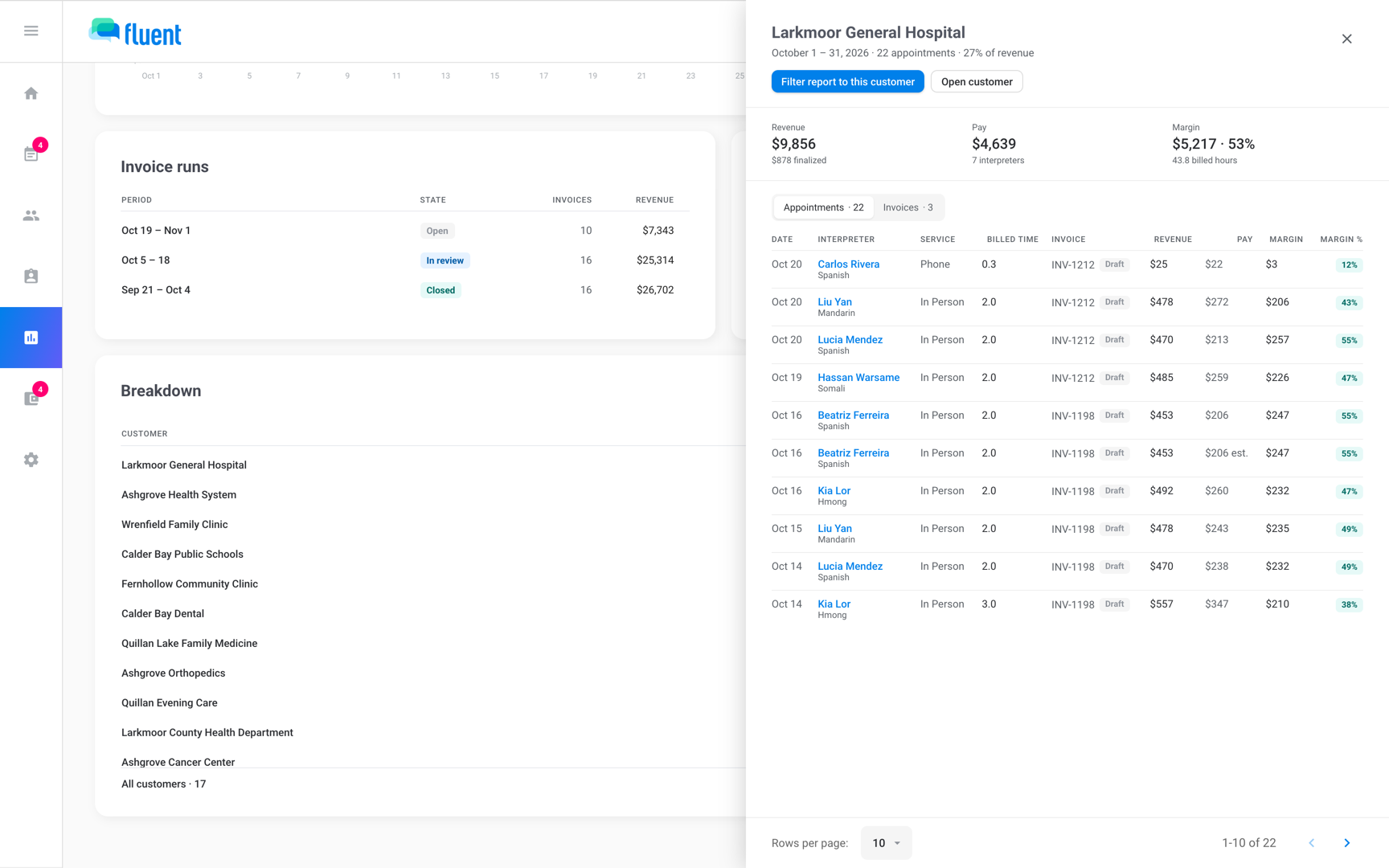
- Breakdown: The range split by customer, interpreter, partner agency, team, service type, or language.
Partner cost is your partner agencies' work priced with their partner rate cards, never a partner's own invoice to you. The 2 Owed tiles are balances on today's date, so another range doesn't change them.
How Fluent decides what's finalized
Part of the money in a range can still change, so the report splits revenue into finalized and not finalized.
- Finalized: its invoice is Approved, exported, or synced, or its invoice run is closed.
- Not finalized: everything else, including work up to today that no invoice run has picked up. Fluent prices that work, and pay that isn't on a pay run, from your rate cards.
Where the split shows:
- Revenue chart: the line turns dotted after the last finalized day.
- Revenue to margin: a note that starts "Not final:" names each run in the range that isn't closed.
- Pay and margin: have no finalized split.
Fluent leaves out work it can't price, and the Revenue tile counts it, for example "3 appointments could not be priced".
Ranges and comparisons
Pick a range to read, and compare it with an earlier one to see the change.
The range menu opens on This Month. For other dates, set Start date and End date in the filters.
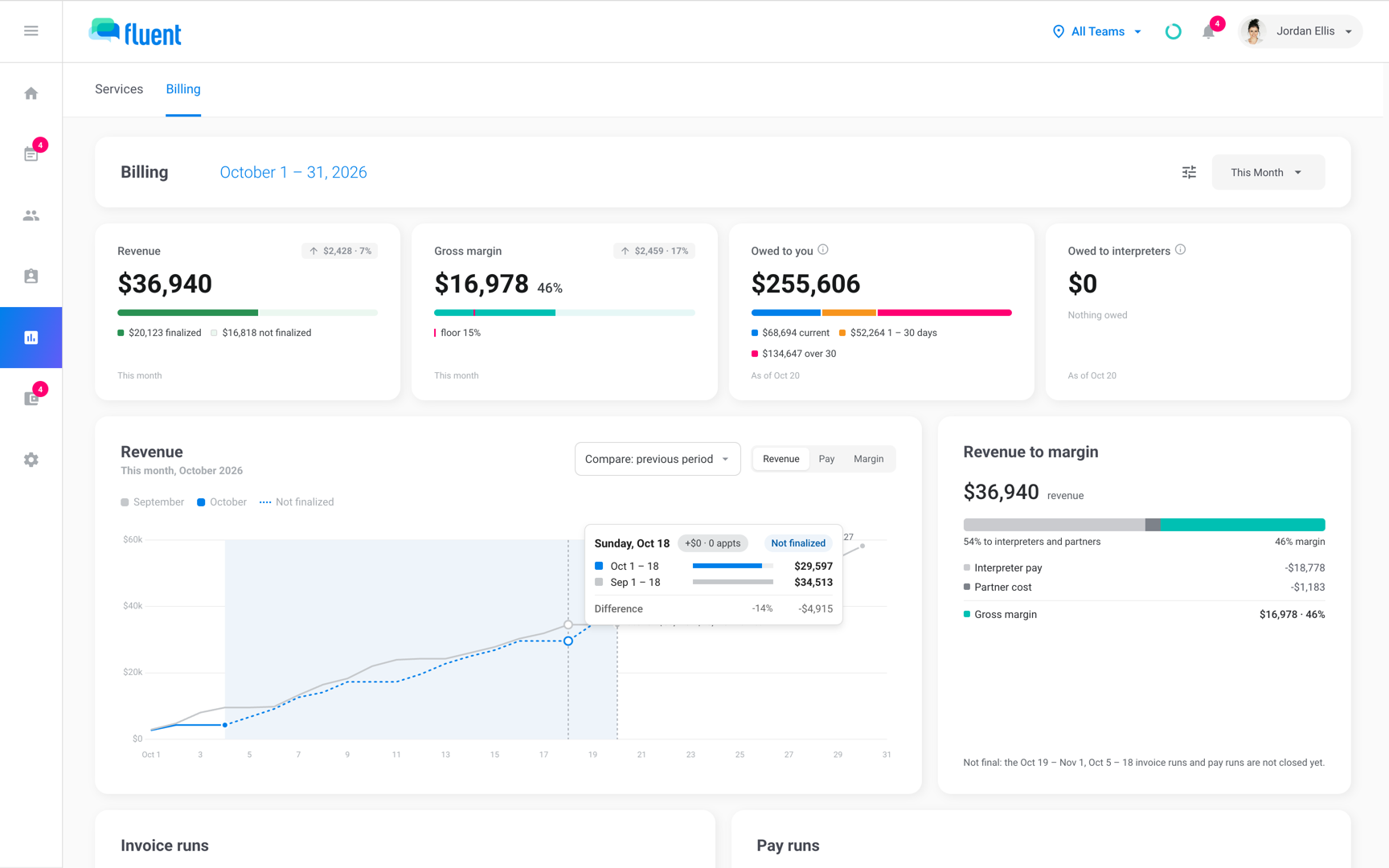
- Comparison: the chart compares with the previous period until you pick Same period last year or No comparison. The Revenue and Gross margin tiles show the change.
- A range that's still running: the change stops at the same day in the earlier period. On October 20, This Month compares October 1 to 20 with September 1 to 20.
- All Time: has no comparison.
Filters and the breakdown
Filter the page to look at one part of your business, such as one customer or one language. The breakdown splits the range without filtering it.
Click the Filters icon beside the range menu and pick a customer, interpreter, language, or another field.
Some money belongs to a whole invoice, payee, or pay run, so a filter can't split it. Gross margin leaves it out and says so:
| Filter | Note on Gross margin |
|---|---|
| Customer, Industry, or both | "Excludes pay adjustments and hourly pay." |
| Interpreter only | "Excludes invoice adjustments." |
| Any other filter or mix | "Excludes adjustments and hourly pay." |
In the breakdown:
- Interpreters: lists your interpreter team's work. Partner agencies' work is under Partner agencies.
- A customer or interpreter row: click it to see its appointments and its invoices or pay statements. A pay figure marked est. has no pay run line.
- Narrow the page: click Filter report to this customer or Filter report to this interpreter to narrow the whole page to that row.
Rules and limits
- The report counts only the invoices and pay runs that Billing creates.
- Work without an invoice counts from the day your first period starts, set in Settings › Billing runs.
- Each run in Invoice runs and Pay runs shows its whole total, even when only part of its period falls in the range.
- The Pay runs card leaves out work your partner agencies invoice you for.
- An invoice synced to an earlier QuickBooks company counts in Owed to you until you click Mark as paid on it in Billing › Review. Fluent no longer reads its payments from QuickBooks.
- The report has no export. See Export invoices and Export pay statements.
Troubleshooting
Revenue doesn't match my QuickBooks report
The report dates revenue by service day and includes work that isn't on an invoice. QuickBooks dates each invoice by its invoice date, which can fall in a later month.
- Compare the finalized part of Revenue with QuickBooks, not the total.
- In Invoice runs, check the QuickBooks column. If a run shows a count such as "2 not synced", sync those invoices. See Sync invoices to QuickBooks.
"3 appointments could not be priced"
No rate card covers those appointments, or no invoice terms apply to their customer.
- Add the missing rates. See Fix Missing rates.
- If the rates are there, set Invoice terms on the customer's rate card, or a default in Settings › Agency defaults.