
Manage teams
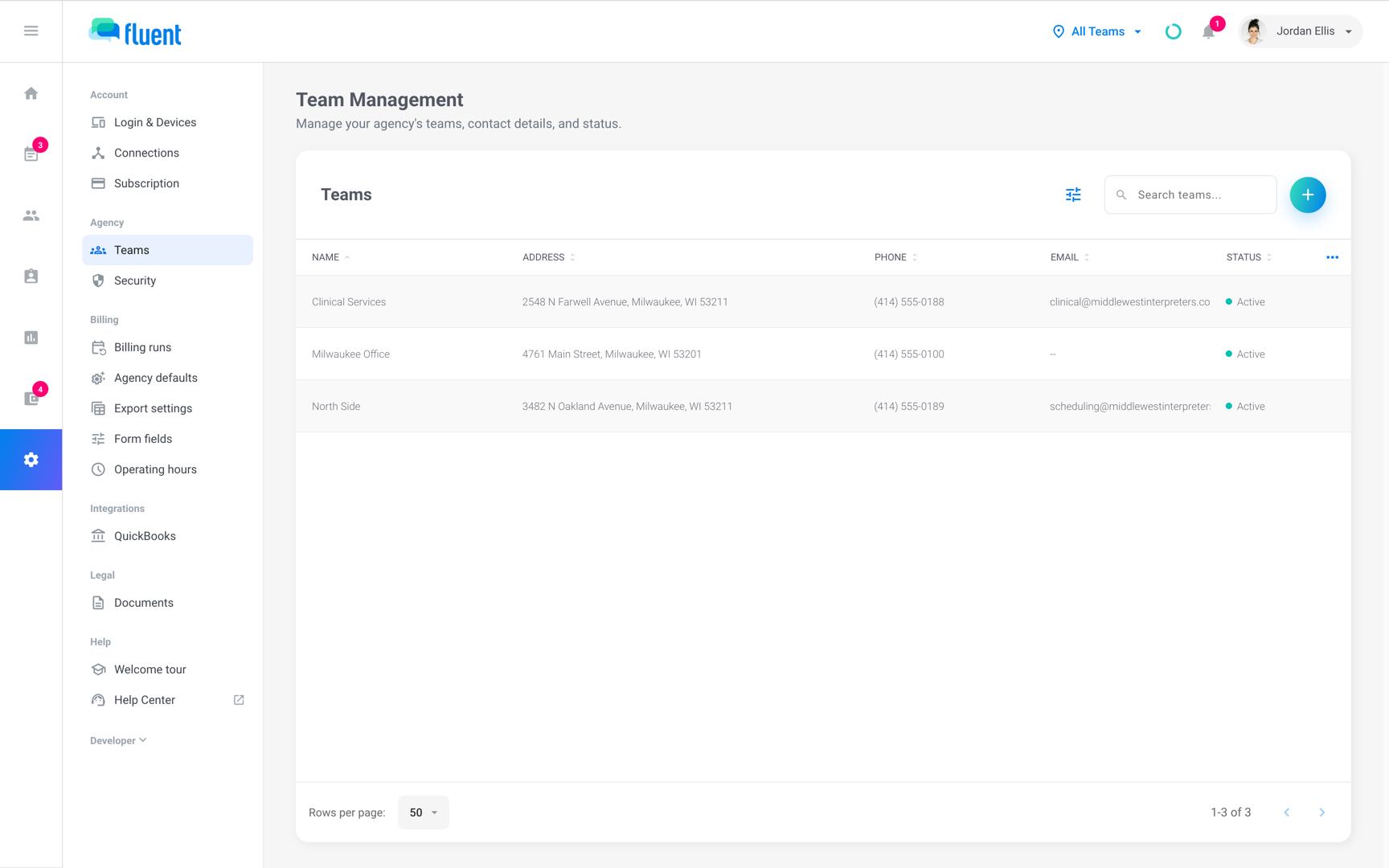
Add a team in Settings › Teams, put team members and interpreters on it, and edit, deactivate, or reactivate it.
What you'll learn
- How to set up teams for each city, region, or department you schedule separately, and choose who is on each one.
Who can manage teams
Add and change teams in Settings › Teams, which is titled Team Management. What you can do with teams depends on your role and on whether you work at an agency or an organization.
| Task | Agency | Organization |
|---|---|---|
| Open Settings › Teams | Owner, Admin | Owner, Administrator |
| Add a team | Owner | Owner, Administrator |
| Edit, deactivate, or reactivate a team | Owner, Admin | Owner, Administrator |
| Put people on teams | Owner, Admin, Manager | Owner, Administrator, Manager |
Before you start
- In an agency, a second team needs the Agency Teams plan. See Change your plan.
Add a team
Add a team for each city, region, or department you schedule separately. Your agency's first team already exists, as Teams describes.
- Go to Settings › Teams.
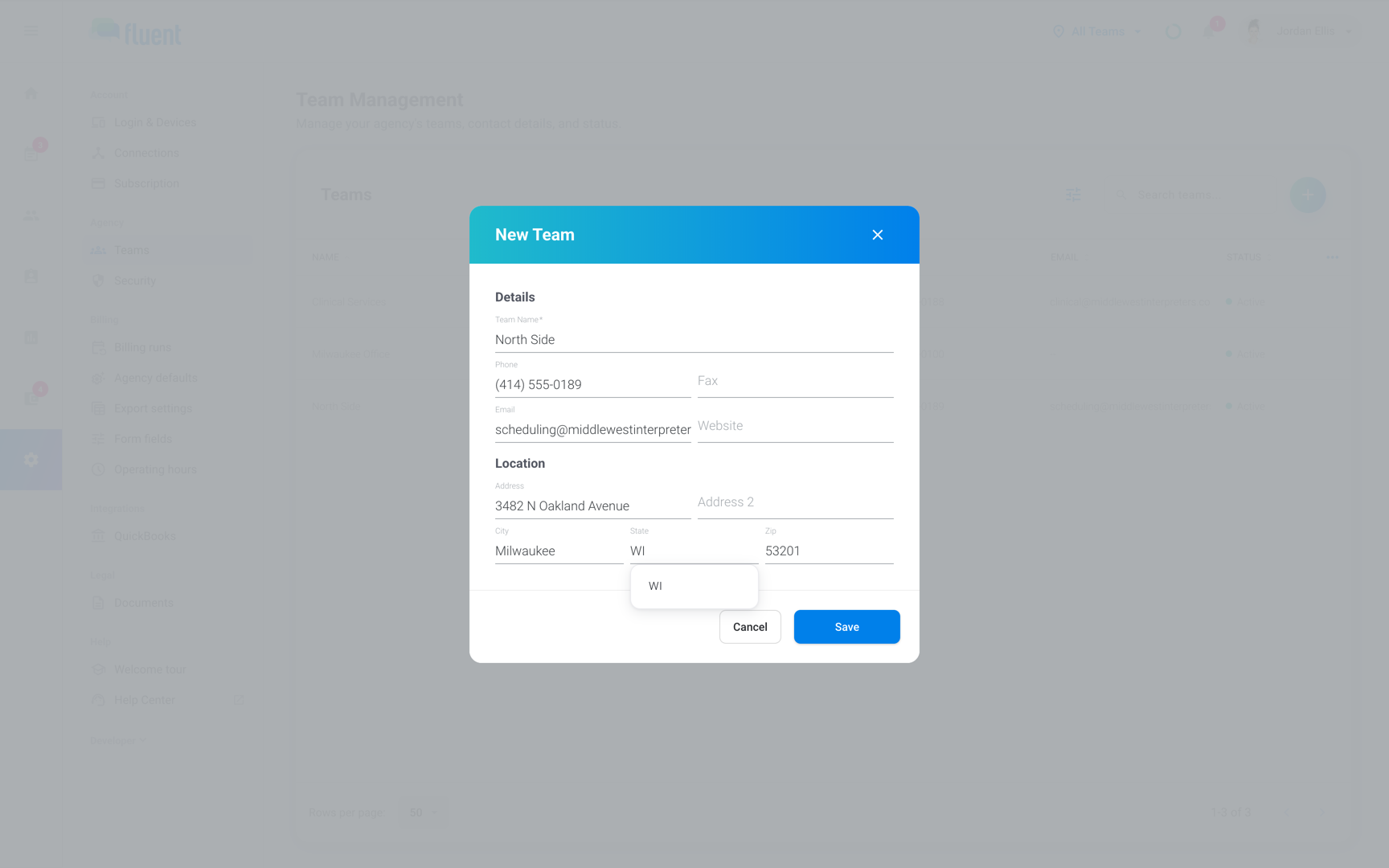
- Click + above the Teams table. The New Team dialog opens.
- In Team Name, enter the team's name.
- Add the team's phone, fax, email, website, and address if you want them on record.
- Click Save.
You see "Team Created" and the team appears in the list as Active.
Put people on teams
Fluent puts the agency's Owner on every new team, and nobody else. Put the team members and interpreters who work for that team on it, so its appointments and people show up in their lists.
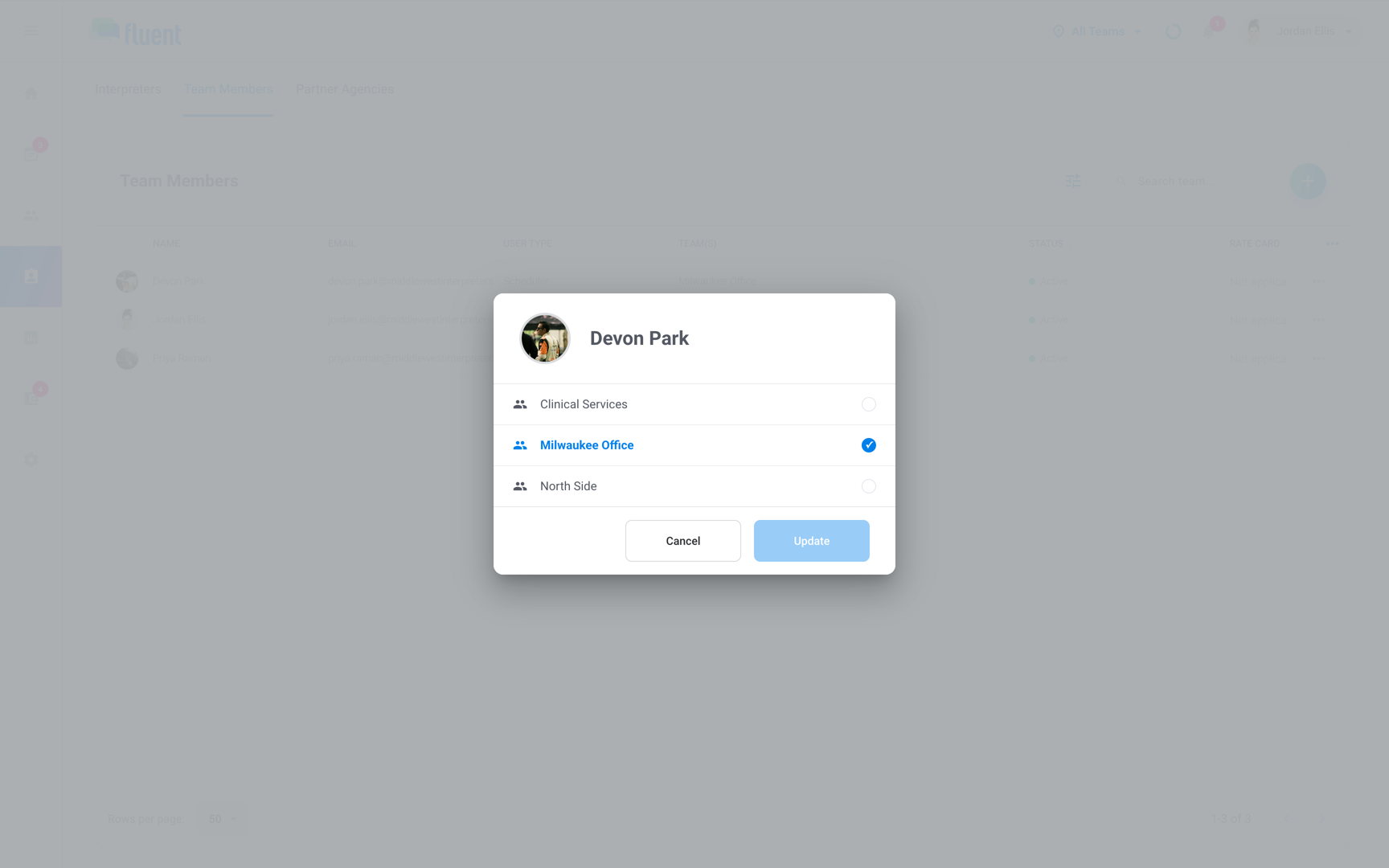
- Go to Team › Team Members, or Team › Interpreters for an interpreter.
- Open the ⋯ menu at the end of the person's row and click Team Permissions.
- Click each team the person should be on. Click a selected team to take them off it.
- Click Update.
You see "Permissions updated".
You can also choose teams when you invite someone, in the invite dialog's Teams field. The field appears when you're on more than 1 team.
Team members on more than 1 team get a team menu in the top bar, as Teams describes.
Edit, deactivate, or reactivate a team
- Edit: when the team's name or contact details change.
- Deactivate: when the team stops scheduling. You can reactivate it later.
To edit a team:
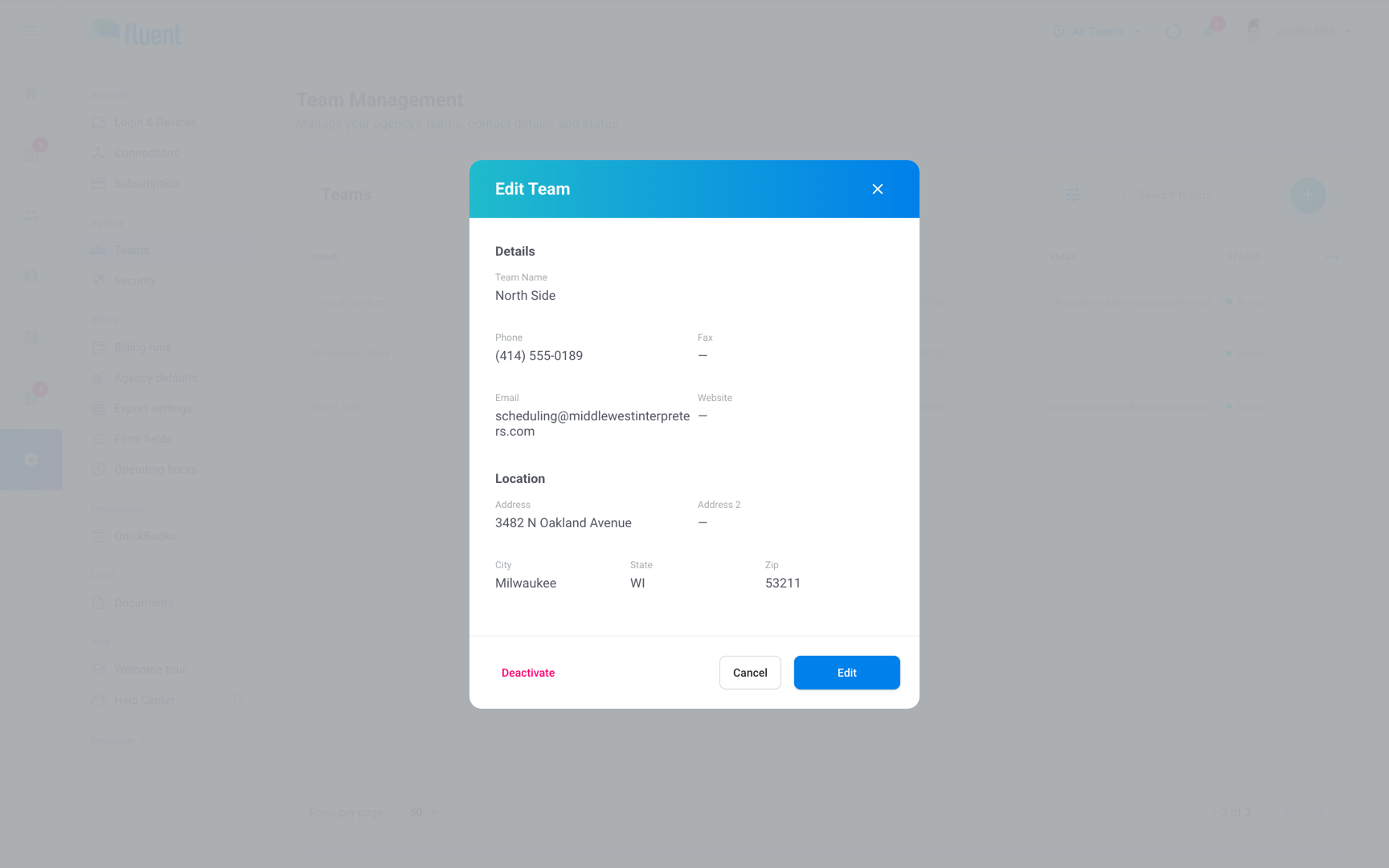
- Go to Settings › Teams and click the team's row. The Edit Team dialog opens with the team's details.
- Click Edit, change the fields, and click Update.
You see "Team Updated".
To deactivate a team:
- Go to Settings › Teams and click the team's row.
- Click Deactivate.
- In "Deactivate this team?", click Confirm.
Fluent shows "
To reactivate a team:
- Go to Settings › Teams, open the Status filter, and select Deactivated.
- Click the team's row. The dialog reads "This team is deactivated".
- Click Reactivate, then click Confirm.
Fluent shows "
In an organization workspace
A new organization has no team, and its team members see no appointments until they're on one. Create a team first, put yourself on it, then invite your team members.
- Go to Settings › Teams.
- Click Add team on the empty list, or + above the table once a team exists.
- Enter a Team Name and, if you want, a Description. Click Save.
- Go to Team › Team Members, open the ⋯ menu at the end of your own row, and click Team Permissions.
- Click the new team, then click Update.
Your organization's appointments for that team now appear in Appointments.
Important: Creating a team doesn't put you on it, the Owner included. Do steps 4 and 5, or your Appointments stays empty.
The rest works as in an agency, with these differences:
- Row menu: Each row in Settings › Teams has a ⋯ menu with Edit Team, Deactivate Team, and Reactivate Team.
- Editing: The Edit Team dialog opens ready to change. There's no Edit button. Change the fields and click Update.
- Team Permissions: The dialog lists every team in the organization, and you can take a person off all of them.
- Invites: The invite dialog has a single Team field when the organization has more than 1 team. With 1 team, Fluent uses it. An invite can't be sent until a team exists.
- No plan limit: An organization can have as many teams as it needs.
Rules and limits
- Deactivated teams don't count toward your plan's team limit.
- In an agency, a person stays on at least 1 team. Team Permissions lists the teams you're on, or every team if you're the Owner.
- In an agency, you can change the teams of people ranked below you. The Owner can change anyone's, their own included. Everyone else asks someone ranked above them to change theirs.
- When an agency has more than 1 team, the appointment form has an Office field. It sets the appointment's team.
Troubleshooting
I don't see + on Settings › Teams
In an agency, only the Owner can add a team. Ask the Owner to add it.
"Upgrade to create more teams"
Your agency's plan includes 1 team. Click Upgrade plan to move to Agency Teams, or deactivate a team you no longer use.