
Customer rate cards
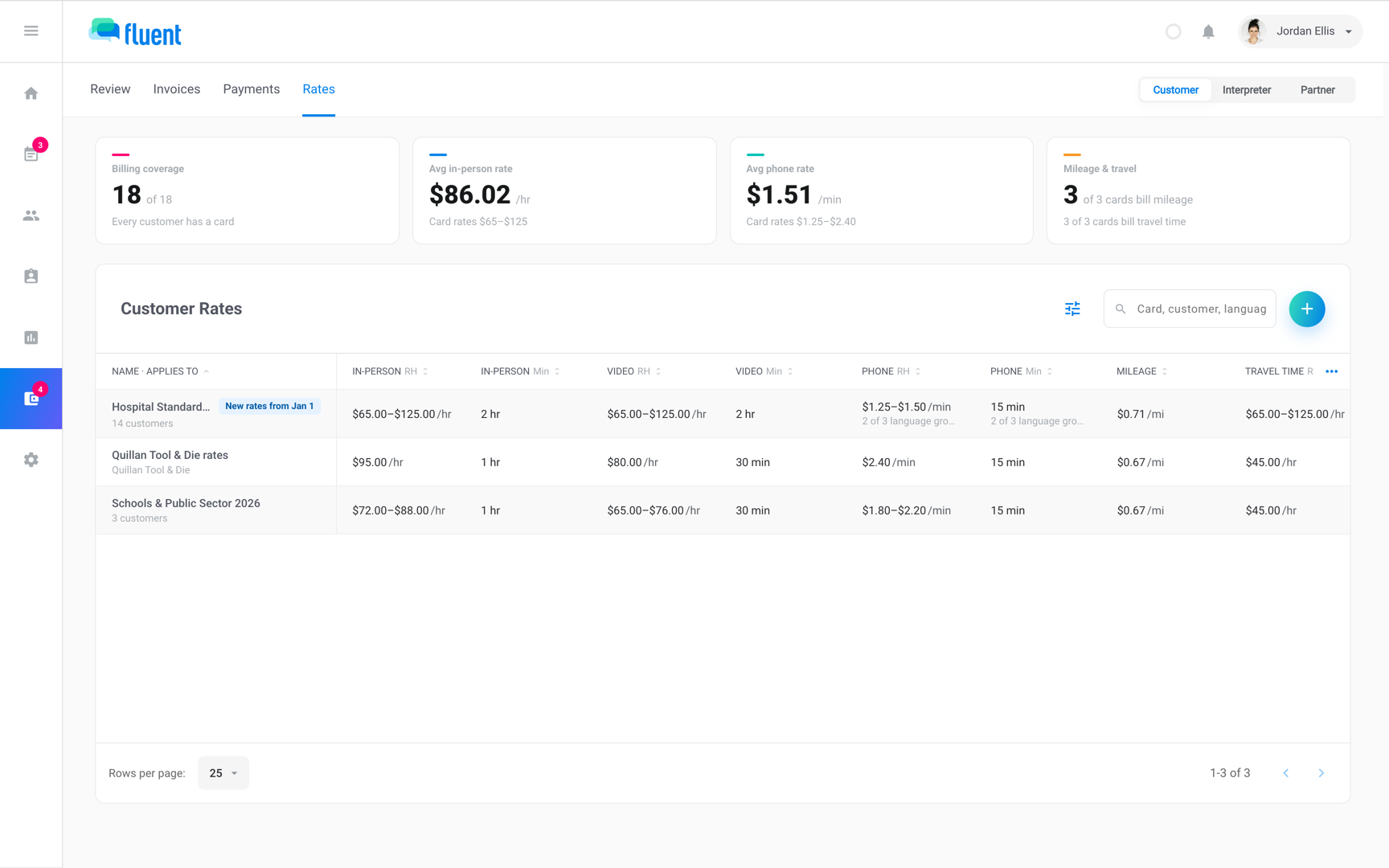
Set the prices you bill a customer, share them between customers, and change them from a date you pick.
What you'll learn
- How to set the prices you bill a customer, and share them between customers who pay the same.
- How to change a customer's prices from a date you pick, and see what re-bills before you save.
Before you start
- Settings › Operating hours has at least 1 profile, because every rate card names one in its billing rules. See Operating hours.
How a rate card works
Owners and Admins manage rate cards. A rate card groups your languages and gives each group a price for each service you offer: In-person, Video, and Phone.
- Travel: it can also charge for mileage and travel time.
- Rate types: it can set After hours, Rush, and Holiday prices.
- Billing rules: decide how Fluent counts time and charges, such as rounding and your cancellation policy. See Billing rules.
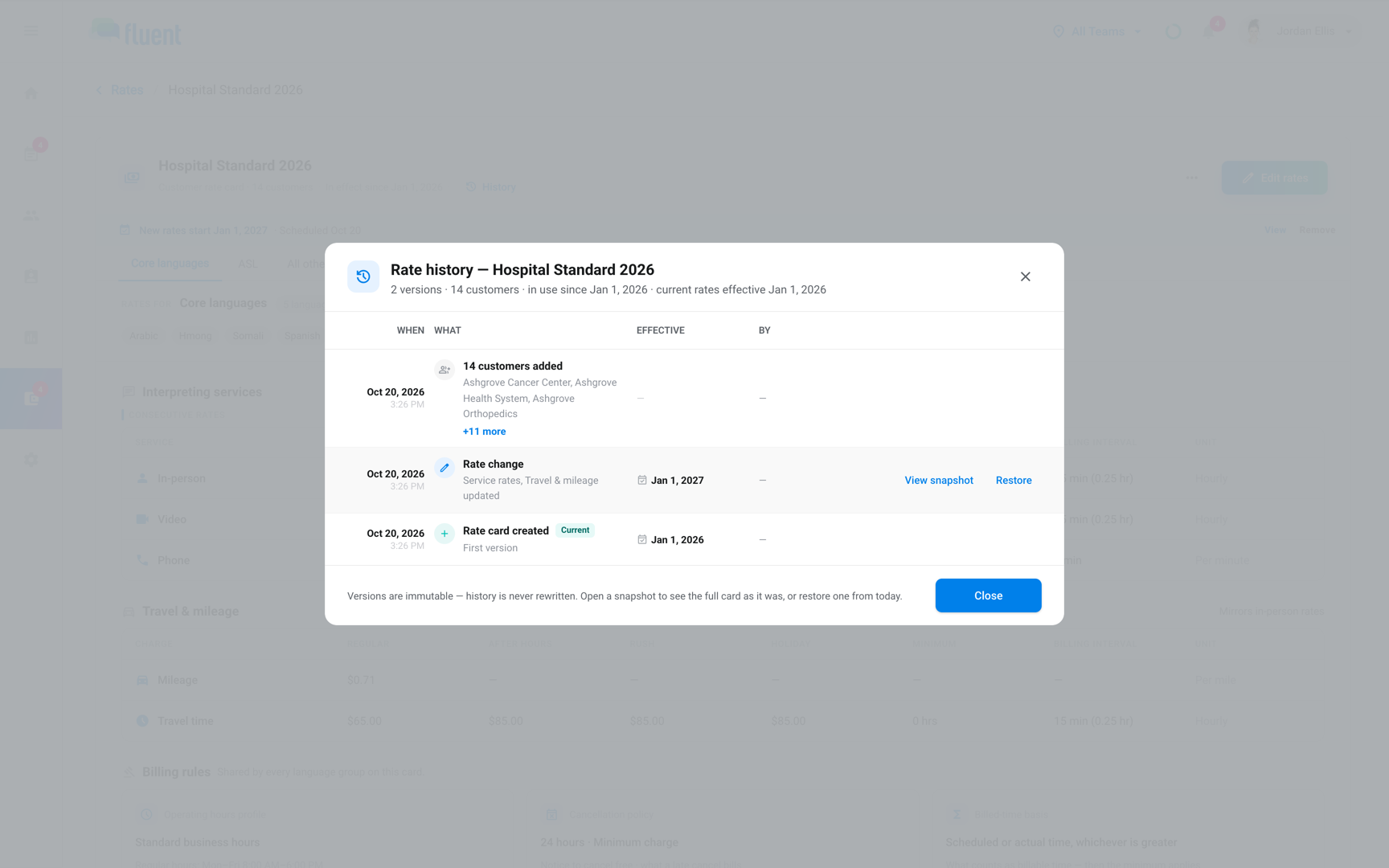
When you change a rate card, the new prices start on the date you pick. Fluent keeps every earlier version, so you can see what a customer was billed at and why it changed.
Set up a rate card for one customer
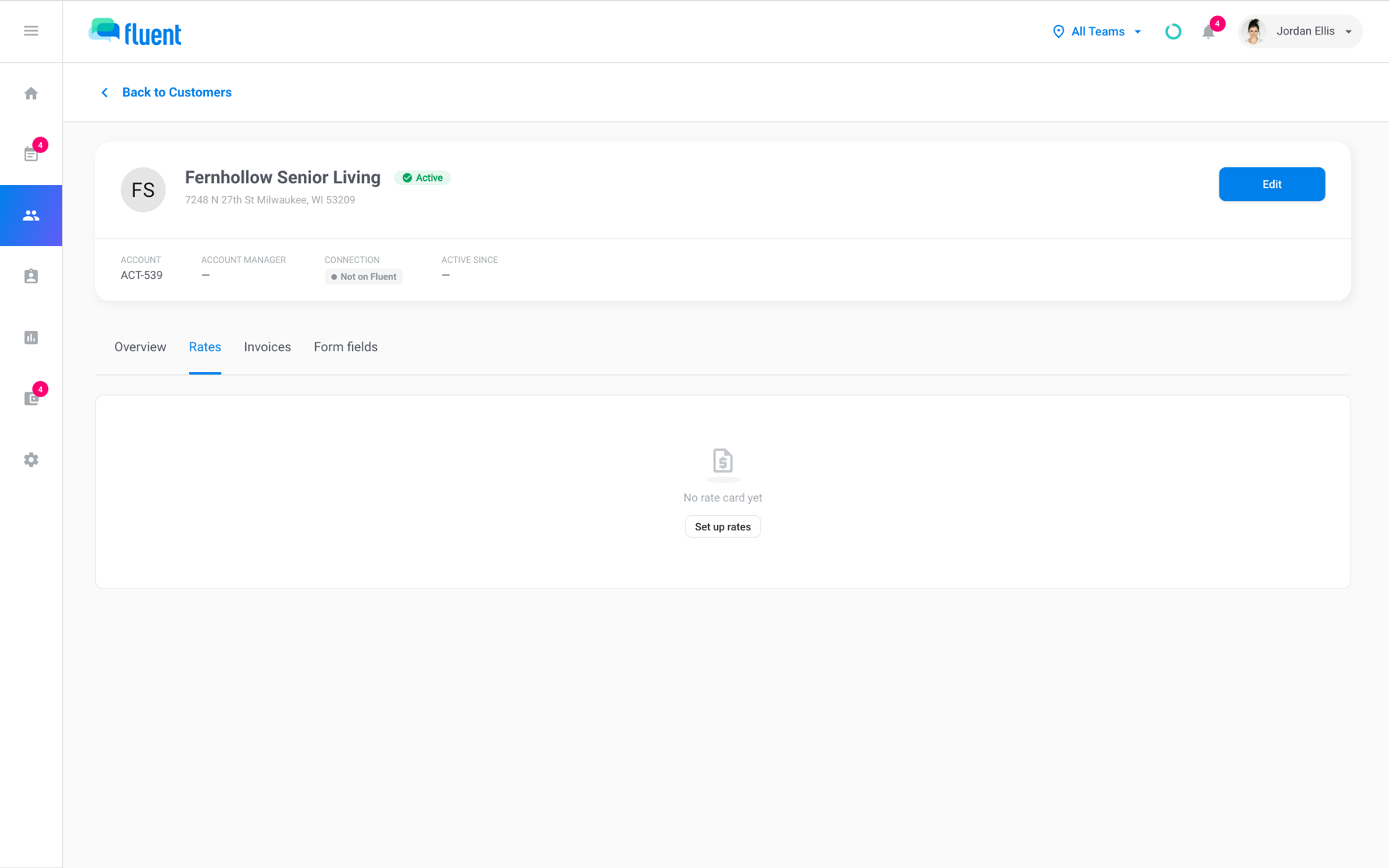
Start from the customer's page when the customer has prices of their own. The rate card applies to that customer as soon as you save it.
- Go to Customers and click the customer.
- Click the Rates tab.
- Click Set up rates.
- In the language group, click Add languages and select the languages these prices cover, or click Select all other languages.
- Under Interpreting services, turn on each service you offer and enter its Regular rate, Minimum, and Billing Interval.
- If you charge for travel, turn on Mileage or Travel time under Travel & mileage and enter the rates.
- Click Billing rules and fill in each rule.
- Under Effective from, select when the prices start, then click Save changes.
The Rates tab shows the rate card with "In effect since
The editor has more options when you need them:
- Prices for other languages: Click Add language group for languages with prices of their own.
- After hours, Rush, and Holiday prices: Click Edit rate types.
- Simultaneous interpreting: Click Edit modes.
- A copy of another rate card: Click Apply rate package, select the rate card, and click Copy rates as a starting point.
Share a rate card between customers
When several customers pay the same prices, put them on one rate card. A change to it then changes the prices for all of them.
- Go to Billing › Rates and select Customer.
- Click + above the table, or Add rate card if the list is empty.
- Set the prices and billing rules as in the steps above, then click Save changes.
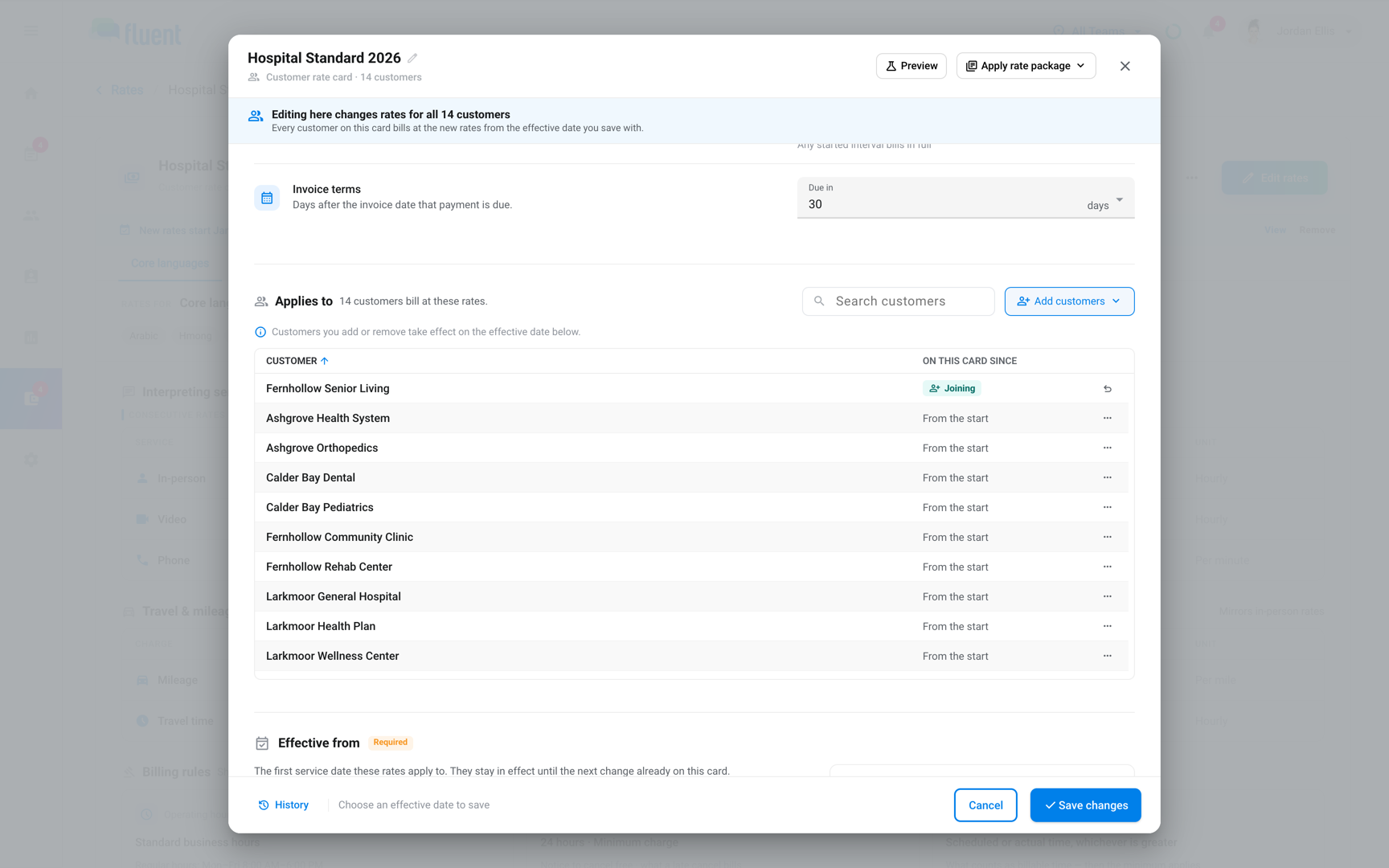
- On the rate card's page, click Add customers in the Customers section.
- In the editor, click Add customers again and select each customer.
- Under Effective from, select when they join, then click Save changes.
Each customer you added moves off their old rate card on that date. To move or remove a customer later, open the ⋯ menu at the end of their row in the Customers section.
From a customer's page, you can also put that customer on an existing rate card. Click Apply rate package, select the rate card, and click Attach
Change prices
Edit the rate card, pick when the new prices start, and check what re-bills before you save.
Important: A change to a shared rate card changes the prices for every customer on it. From one customer's page, Fluent asks before it saves: click Create their own card to change that customer only, or Update for everyone.
- Click Edit on the customer's Rates tab, or Edit rates on the rate card's page in Billing › Rates.
- Change the prices or billing rules.
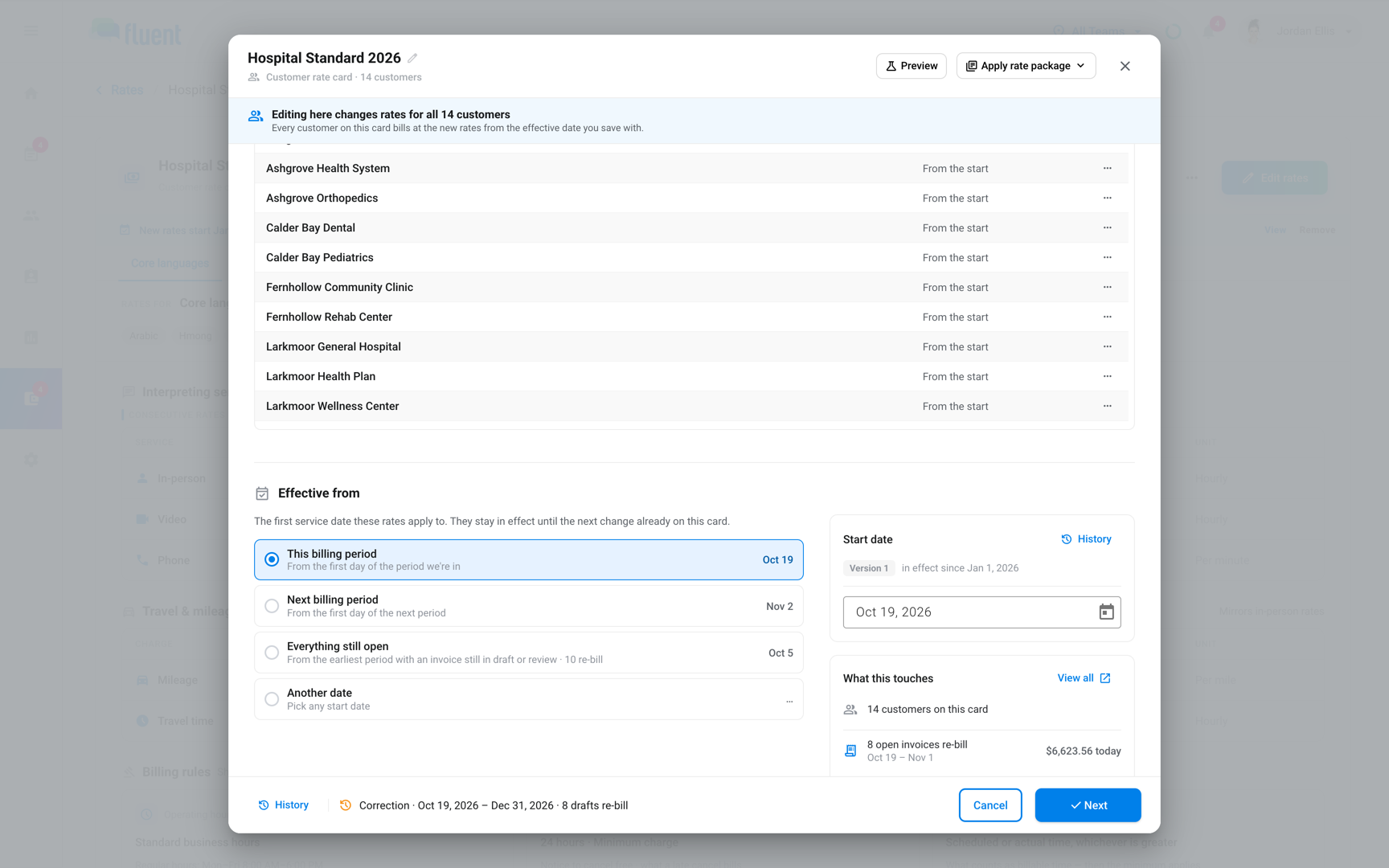
- Under Effective from, select when the change starts.
- Click Next. Fluent lists each invoice the change reaches, with its amount before and after.
- In Reason, say why the prices changed. The reason shows in the rate history.
- Click Save rate change.
After the save:
- Open invoices: Fluent re-bills them with the new prices. An approved invoice in an open billing period goes back to review if its amount changes.
- Closed invoices: They keep what they billed. Fluent flags each one, so you can keep it as billed, revise it, or bill the difference.
- Undo: Click Undo on the confirmation message to put the previous prices back.
You choose when a change starts under Effective from:
| Option | The new prices start |
|---|---|
| This billing period | On the first day of the billing period you're in |
| Next billing period | On the first day of the next billing period |
| Everything still open | With the earliest period that has an invoice in draft or review |
| Another date | On the date you pick |
The first 3 options need a billing schedule. See Set up billing runs.
- A date after today: Fluent schedules the change, and the rate card shows "New rates start
" until then. You can remove a scheduled change, and a rate card holds 1 at a time. - A date before today: The change corrects prices on days already billed. The button reads Save correction, and when it reaches more than 1 invoice you enter
CORRECTto confirm.
See past versions
Every change makes a new version of the rate card. Click History to see each version, when it started, and its reason.
Restore applies an older version again from today, and work already billed keeps its prices.
Delete a rate card
- On the rate card's page, open the ⋯ menu next to Edit rates and click Delete rate.
- Click Delete rate to confirm.
The rate card stops applying to new appointments, and work already billed keeps its prices. Its customers bill from the next rate card that covers them, or show Missing rates.
Find customers without a rate card
Go to Customers, open the Rate Card filter, and select None.
A customer's work that no rate card covers shows Missing rates in billing, and its invoice can't be approved until a rate card covers it. See Fix Missing rates.
Rules and limits
- A customer bills from 1 rate card at a time. A rate card can have any number of customers, or none.
- A customer's first rate card starts today or earlier. A move between rate cards can be dated ahead.
- A rate card holds 1 scheduled change, and 2 versions can't start on the same date.
- Each service that's on needs a price above $0, a Minimum (0 means none), and a Billing Interval (0 bills exact minutes).
- A rate card whose operating hours profile was deleted prices nothing, and the Rates list marks it "Hours missing".
- A back-dated change needs a reason when it re-prices an invoice already approved or billed.
- Renaming a rate card changes no prices and re-bills nothing.
Troubleshooting
"Fill in every billing rule before saving."
A billing rule is blank. Click Billing rules and fill in each one, including Profile under Operating hours.
"Enabled rates must be greater than 0, with a minimum and interval on every service that's on"
A service that's turned on is missing its price, Minimum, or Billing Interval. Fill in the highlighted fields, or turn the service off.
"Pick today or earlier: isn't on a card yet, so a later start would leave their work unpriced until then"
A customer's first rate card can't start in the future. Select This billing period, Everything still open, or a date today or earlier.
The customer's page has no Rates tab
Only Owners and Admins see it. Ask one of them to set up the rate card.