
Account and billing messages
Every email and banner Fluent sends about your account itself: sign-in, invitations, subscription, agreements, and billing, with what to do for each.
What you'll learn
- What each email and banner from Fluent about your sign-in, subscription, and billing means, and what to do when you get one.
Sign-in and security emails
Fluent emails you when something happens to your own sign-in: a password reset, a lockout, or a change to your email or phone. If you didn't make the change, see Troubleshooting below.
| Subject | When Fluent sends it | What to do |
|---|---|---|
| "Password reset for Fluent (expires in 15 minutes)" | You click Forgot password? on the sign-in page | Click Reset password within 15 minutes |
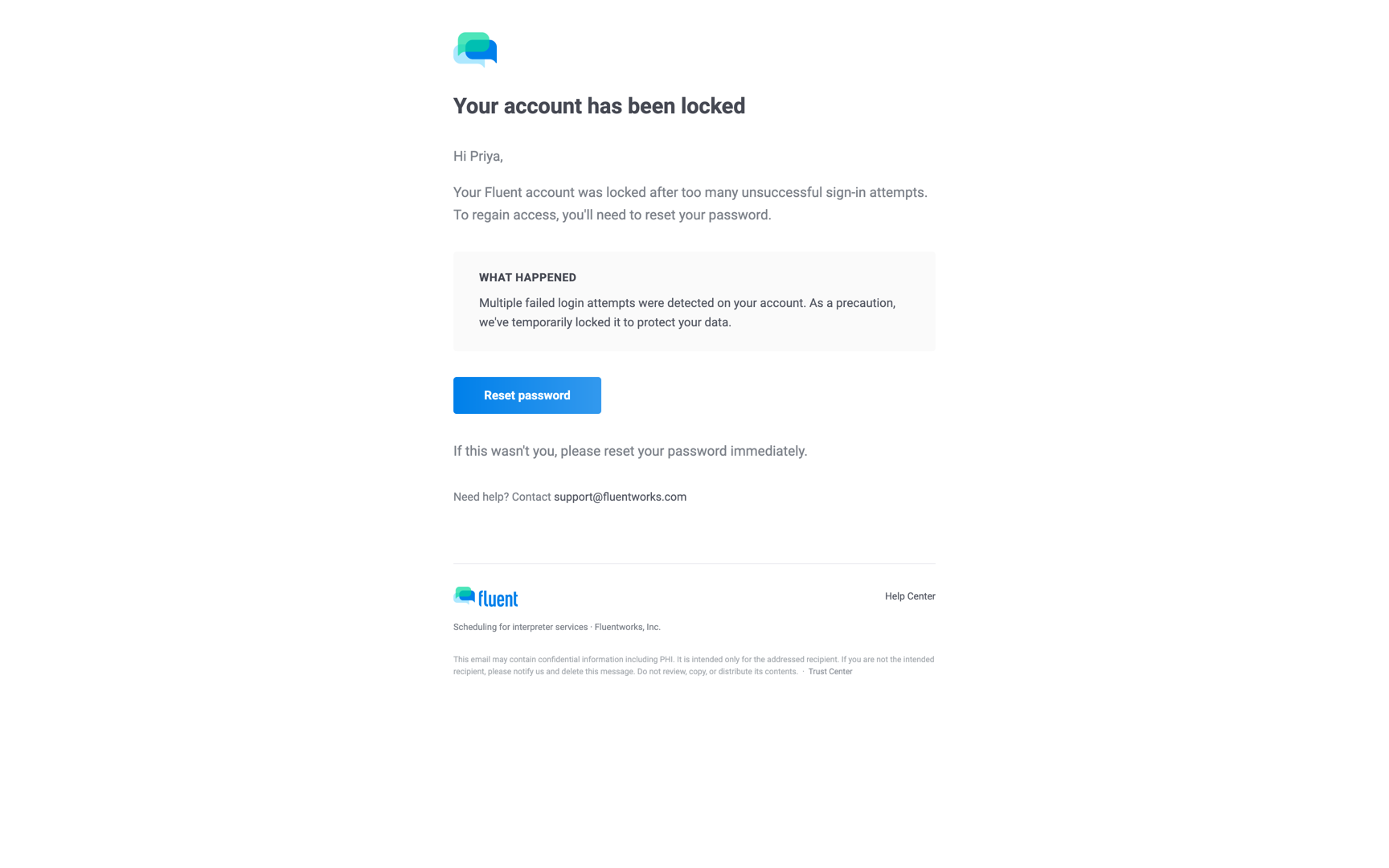
| "Your account has been locked" | Your 10th wrong password in a row | Click Forgot password? on the sign-in page and set a new password |
| "Your verification code" | Fluent confirms it's you by email instead of a text, for example after I don't have my phone | Enter the code within 10 minutes |
| "Your Fluent password was changed" | You changed or reset your password | None if it was you; if not, click Reset password in the email |
| "Two-factor authentication updated" | You changed the phone number for two-factor authentication | None if it was you |
| "Your email change code" | An email change starts; it goes to the new address | Enter the code within 15 minutes |
| "Email change requested on your account" | The same moment, to your current address | None if it was you; nothing changes until the code is entered |
| "A member changed their email address" | A member changed their email and Notify admins when a member changes their email is on in Settings › Security; goes to the workspace's Owner and Admins | Contact the member if you don't recognize the change |
The 5-minute lock after 8 wrong passwords sends no email. See Sign in and passwords and Two-factor authentication.
Invitations
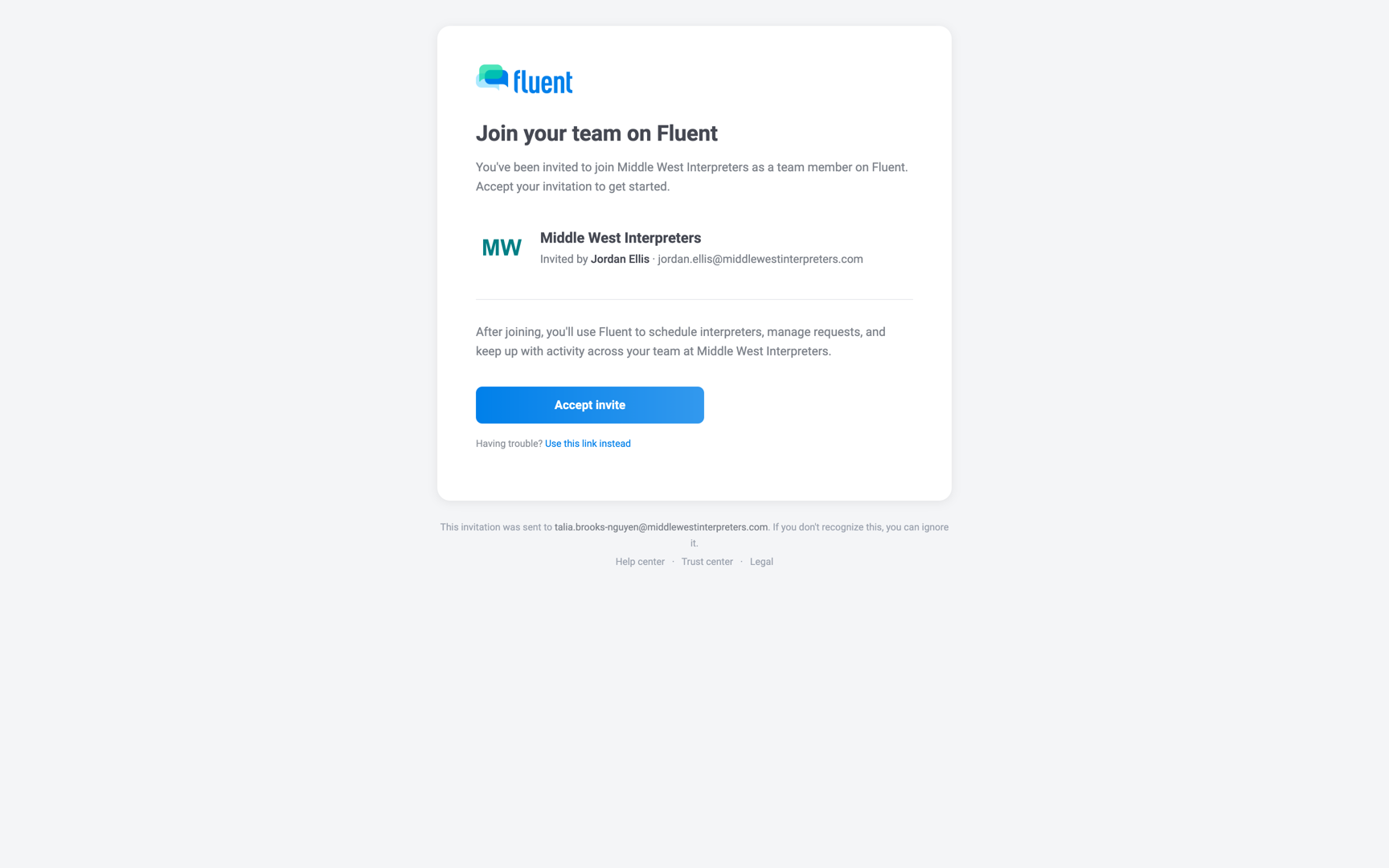
An invitation is the first email you get from Fluent. Under the heading "Join your team on Fluent", it names who invited you, the workspace, and your role.
| Subject | When Fluent sends it | What to do |
|---|---|---|
| "Invitation: Join the interpreter team at {agency}" | An agency invites you as an interpreter, or resends the invite | Click Accept invite |
| "Invitation: Join {agency} on Fluent" | An agency invites you as an Admin, Manager, or Scheduler | Click Accept invite |
| "Invitation: Join {organization} on Fluent" | An organization invites you | Click Accept invite |
The link works for 30 days. After that, the person who invited you can resend it.
What happens next is in Invite interpreters and Managing team members.
Subscription emails
Fluent emails your agency's Owner at each step of the subscription: the trial, plan changes, charges, and failed payments.
| Subject | When Fluent sends it | What to do |
|---|---|---|
| Starts with "Welcome to Fluent" | Your agency signs up and starts its Free Trial | None; Sign in to Fluent opens the Dashboard |
| "Your Fluent subscription is set to cancel" | You cancel, or the subscription ends | To keep it, click Keep Subscription in Manage Subscription before the date |
| "Your Fluent plan is set to downgrade" | You schedule a downgrade | To undo it, click Cancel change in Settings › Subscription before the date |
| "Your Fluent plan has been updated" | A plan change takes effect at once | None; the email lists the charge |
| Starts with "Payment failed" | The first charge attempt fails | Update the payment method before the date in the email |
| "Reminder: update your payment method" | A retry fails | Update the payment method before the date in the email |
| "Confirm your Fluent payment" | Your bank asks you to confirm a renewal charge (3-D Secure) | Click Confirm payment and complete your bank's check |
| "Your card on file expires soon" | Your card is about to expire | Add a new card |
| "Your Fluent payment receipt" | A first charge or a renewal is paid | None; View invoice opens your Fluent invoice |
| "Your Fluent account is suspended" | The charge stays unpaid after the retries | Fix the payment method and pay the balance; access returns on its own |
Buttons such as Update payment method and Manage subscription open Settings › Subscription. Each step is explained in Trials, cancellation and reactivation.
To update the payment method:
- Go to Settings › Subscription and click Primary Payment Method.
- In Update Payment Method, click Add new.
- Enter the card in the payment form, then click Add Payment Method.
You see "Payment method updated". If a payment had failed, Fluent charges the new method for it.
Agreements
Fluent emails one agreement: the Business Associate Agreement (BAA). See Legal agreements and documents.
- When the Owner signs the BAA: Fluent emails them once, with the subject starting "Business Associate Agreement (BAA) with Fluentworks, Inc." and the signed PDF attached.
- Later copies: come from Settings › Documents.
- Changes to the terms: Fluent doesn't email anyone before its terms change. When a new version needs your acceptance, the Review agreements screen opens at your next sign-in.
Billing emails
When your agency pays people or chases vouchers, Fluent emails the people involved. The failed-run notice is the one that goes to the Owner.
| Subject | Who gets it | When Fluent sends it | What to do |
|---|---|---|---|
| Starts with "Your payment summary for" | Each interpreter on your interpreter team paid in the run | You mark a pay run paid | None; View full statement opens the pay statement |
| Starts with "Payment summary for" and the partner's name | A partner agency paid through pay runs, at its billing contact email | You mark a pay run paid | None |
| "Reminder: complete your voucher" or "Reminder: complete your vouchers" | An interpreter with a voucher still missing | Your agency clicks Send reminder or Remind interpreters in Billing › Review | Submit the voucher |
| Starts with "Automated invoice run failed for" or "Automated pay run failed for" | The Owner | A scheduled run can't finish; Fluent retries every hour | Open Billing opens the run; fix the cause the email names |
Partners that invoice your agency get no email, and neither do interpreters who work through a partner. See Send to payout and mark paid and Set up billing runs.
Banners and full-page messages
A banner at the top of the web app tells everyone in your agency, but not organizations, when the subscription needs the Owner's attention. Only the Owner sees its button, which opens Settings › Subscription. Everyone else reads a sentence that asks them to contact the Owner.
| Banner | What it says | When it shows |
|---|---|---|
| Plan Change Scheduled | "Your plan changes to {plan} on {date}." | A downgrade is scheduled |
| Canceled | "Your subscription has been canceled. Your account is in read-only mode." | The subscription has ended |
| Payment Revision Needed | "A recent payment failed. Update your payment method by {date}." | A charge failed |
| Account Suspended | "Your account is suspended due to an unpaid balance." | The charge stayed unpaid after the retries |
To hide a banner, click its X. It stays hidden until a different notice takes its place, such as a failed payment after a scheduled downgrade.
Three other messages take over the page or sit above a table:
- Signed out of the workspace: When the subscription ends, Fluent signs out every team member except the Owner. While it's neither active nor on its Free Trial, nobody but the Owner can sign in. The message reads "Your organization's subscription is inactive. Please contact your account owner." See Troubleshoot sign-in.
- Review agreements: After sign-in, on the web and in the mobile app, whenever an agreement you must accept is missing. The Owner sees "Review agreements"; a member sees "Join {agency} on Fluent" until they accept the user terms.
- Scheduled deactivation: On Team › Team Members and Settings › Teams, it names the team members, pending invites, and teams the Owner didn't keep when scheduling a downgrade. It reads "{name} is scheduled for deactivation on {date}." or "{count} team members are scheduled for deactivation on {date}." with View details. Only the Owner and Admins see it. On that date, Fluent deactivates those team members and teams and revokes those invites.
Rules and limits
- Fluent has no setting that turns these emails off, and no setting that adds a recipient.
- Interpreters get no subscription emails.
- Fluent sends at most 1 voucher reminder per interpreter per 24 hours, and none for partner work. The email says Fluent keeps reminding every couple of days, but it goes out only when your agency sends it.
Troubleshooting
I got a security email and didn't make the change
Someone else knows your password. The "Lock my account" link in the email opens the sign-in page and locks nothing.
- On the sign-in page, click Forgot password? and set a new password.
- Contact support and say which email you got.
An email from Fluent looks wrong
Fluent's emails come from no-reply@fluentworks.com, and its only text messages are codes.
If the sender differs, or a message asks for your password or card details, don't click its links. Contact support and forward the email.