
Set up billing runs
Set the schedule Fluent uses to group each period's work into invoice runs and pay runs, then change it or add exceptions later.
What you'll learn
- How to set the schedule Fluent uses to turn each period's work into invoices and interpreter pay.
- How to change that schedule later, or give some customers and interpreters their own.
How billing runs work
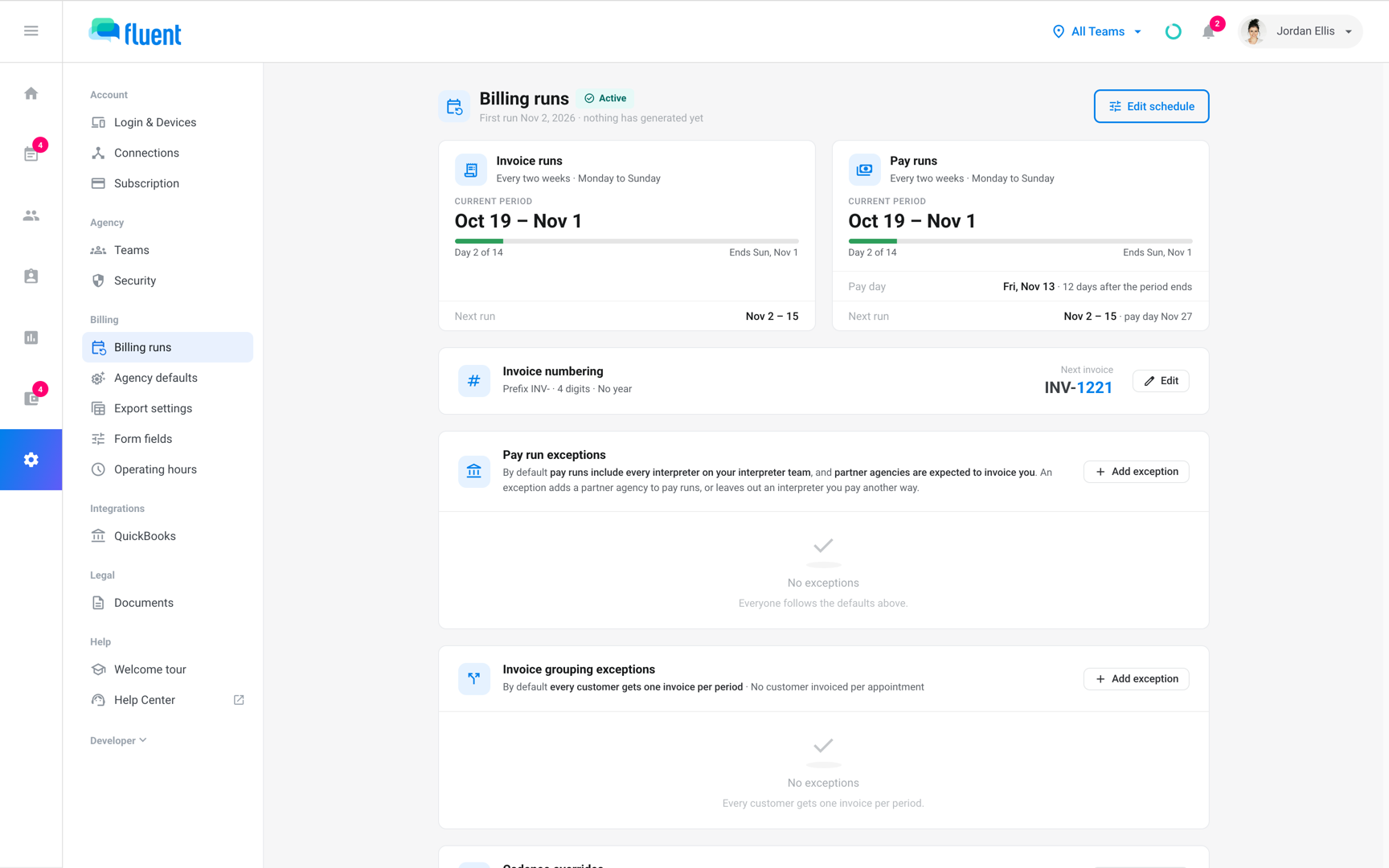
Owners and Admins set up and change billing runs in Settings › Billing runs. Your schedule splits time into periods, such as every two weeks.
- When a period ends: Fluent creates its invoice run, with one invoice per customer, and its pay run, with a pay statement for each interpreter. They appear within the hour after the period's last day.
- After that: both wait on Billing › Review until you approve them and close the run.
Important: Nothing generates until you activate the schedule.
Set up the schedule
You pick your invoice periods, pay periods, and invoice numbering, then activate. Closing the dialog before you activate saves nothing.
- Go to Settings › Billing runs.
- Click Set up billing runs, then Start setup.
Invoices
- Under How long is each period?, select Weekly, Every two weeks, Twice a month, or Monthly.
- Under When does your first period start?, enter the first day in Start date.
- Check the calendar and the Upcoming runs list, then click Continue.
The Start date sets the pattern:
- Weekly and Every two weeks: periods start on that weekday.
- Monthly: periods start on that day of the month.
- Twice a month: periods start on 2 days 15 days apart. A start on the 20th gives the 5th and the 20th.
- Work you've already done: enter an earlier date. The step shows the date of your earliest unbilled appointment, and each past period gets its own runs when you activate.
Pay statements
- Keep Sync with invoice runs turned on so each pay run covers the same days as its invoice run, or turn it off.
- If it's off, select a length under How long is each pay period? and a day under When does your first pay period start?.
- Under When is pay day?, click a day on the calendar.
- Click Continue.
Pay day can be 1 to 60 days after the period ends. Later pay days fall the same number of days after their periods end.
Numbering
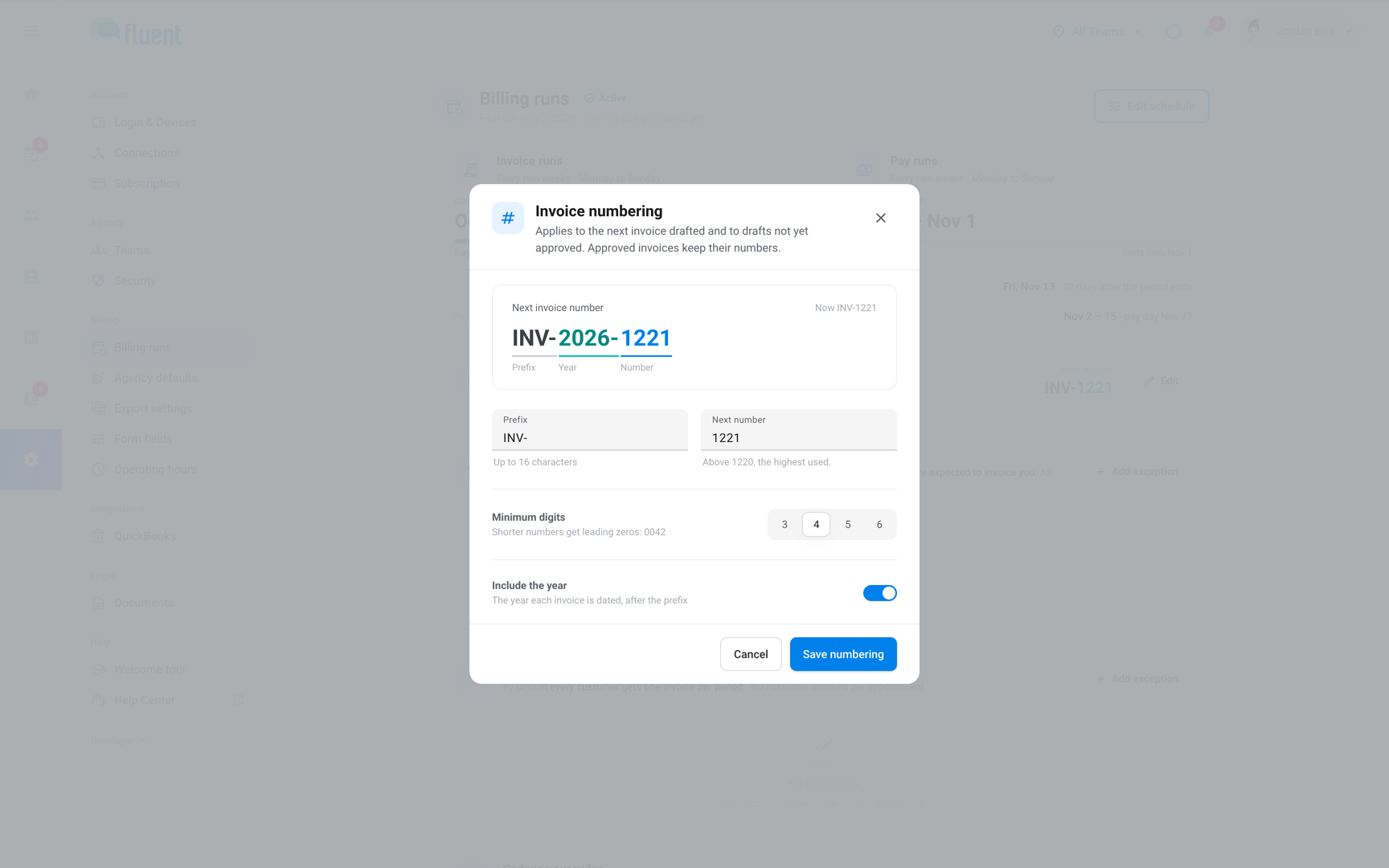
Every invoice Fluent drafts takes the next number in this format.
- In Prefix, enter up to 16 characters. The preview under First invoice number updates as you type.
- In Next number, enter the number of the first invoice.
- Under Minimum digits, select 3, 4, 5, or 6. Shorter numbers get leading zeros.
- To put the invoice's year after the prefix, turn on Include the year.
- Click Continue.
With QuickBooks connected, the step reads QuickBooks' latest invoice number and offers Continue from the number after it.
Review
- Check the Invoices, Pay statements, and Numbering cards. To change one, click Edit on it.
- Click Activate billing runs.
The message "Billing runs are active." appears, or says how many past runs are generating now. Past runs appear on Billing › Review as they finish.
Change the schedule
Change the period length, the day periods start, or pay day. The change starts today or later, and closed runs stay as they are.
- Go to Settings › Billing runs and click Edit schedule.
- Click Continue to invoices.
- To change invoice periods, click Change invoice periods. Select a length under How long is each period? and a date under Which day should periods start on?.
- If a date range "falls between your current and new periods", select Add to the first new period or Bill as a one-time period.
- Click Continue.
- To change pay periods or pay day, click Change pay periods, then click Continue.
- On the Review changes step, check the Before and After columns, then click Save changes.
The message starts "Schedule saved." and names the date invoices and pay change from. To drop the change before then, click Cancel change on the Scheduled change banner.
The new schedule takes over like this:
- A start inside the current period: That period ends the day before.
- A later start: Your current periods keep running until less than a whole period is left before the new start, and the dialog asks where those leftover days go. Less than half a period joins the first new period unless you pick Bill as a one-time period.
- A new pay day: It starts with the next pay period.
Change invoice numbering
You can change the format or the next number after setup.
- Go to Settings › Billing runs.
- On the Invoice numbering card, click Edit.
- Change Prefix, Next number, Minimum digits, or Include the year.
- Click Save numbering.
The message "Invoice numbering saved." appears.
- Which invoices change: the next invoice drafted and drafts not yet approved. Approved invoices keep their numbers.
- Next number: must be above the highest one already used.
Make exceptions for some customers and interpreters
Cards on Settings › Billing runs change these defaults for the people you pick:
- Invoice grouping: every customer gets one invoice per period.
- Cadence: everyone follows the agency schedule.
- Pay runs: pay runs pay your interpreter team, and partner agencies invoice you.
Give a customer one invoice per appointment
- Go to Settings › Billing runs.
- On the Invoice grouping exceptions card, click Add exception.
- In Search by name…, find each customer and select it.
- Click Add exception, or Add N exceptions for several customers.
From the next generation, their open drafts regroup and approved invoices in an open period go back to review. To undo, click the × at the end of their row.
Put a customer or interpreter on their own period length
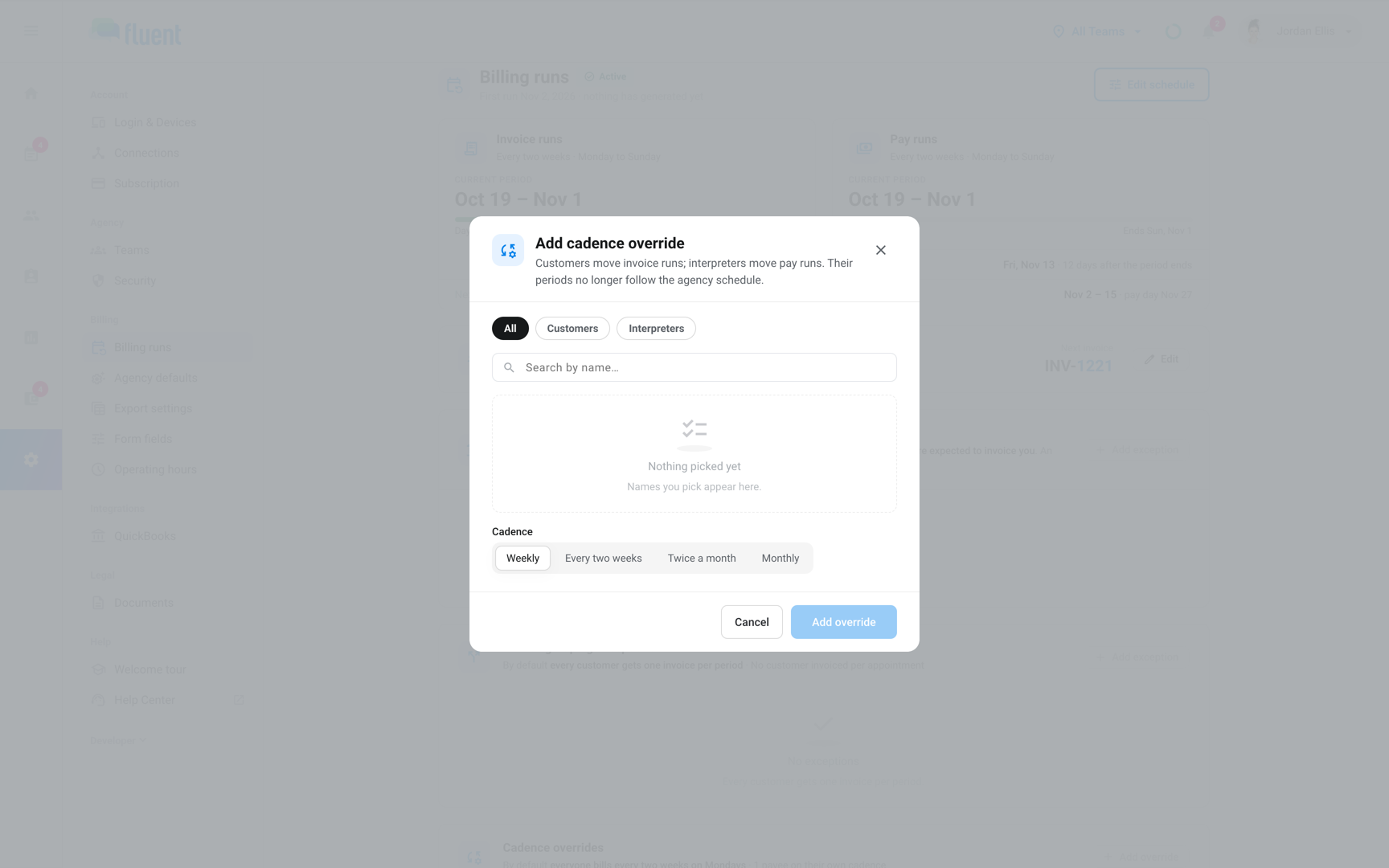
An override gives a customer their own invoice runs, or an interpreter their own pay runs.
- Go to Settings › Billing runs.
- On the Cadence overrides card, click Add override.
- Click Customers or Interpreters, then find each name in Search by name… and select it.
- Under Cadence, select a period length.
- Click Add override, or Add N overrides for several picks.
- The open period: regenerates on the new length, and approved invoices there go back to review.
- Closed or paid periods: stay as they are. The override starts after them.
- On Billing › Review: a customer's own runs appear titled with the period length and their name.
- To change or remove an override: click the pencil icon or the × at the end of its row.
Change who pay runs pay
- Go to Settings › Billing runs.
- On the Pay run exceptions card, click Add exception.
- Select each partner agency to pay in pay runs, or each interpreter you pay another way.
- Click Add exception.
The card lists each one, with Pay runs reading Included or Left out.
Rules and limits
- Fluent never lists or invoices work dated before the first period start. A schedule change starts today or later, so it can't bring that work in.
- On the day you activate, Fluent generates up to 120 past periods, oldest first. The rest follow on the next hourly pass.
- A schedule change, an invoice grouping exception, or an override never changes a closed run.
Troubleshooting
"Automated invoice run failed for" or "Automated pay run failed for" followed by the period
A scheduled run couldn't finish. Fluent retries it every hour, and a rate problem clears once you fix the rate card.
If the email keeps coming, Contact support with the reason or reference number it gives, since Fluent has no button to run it again.
Billing › Review is empty after I set up billing runs
The first period hasn't ended yet, and Settings › Billing runs reads "nothing has generated yet". Its runs appear within the hour after it ends.