
Review and close a pay run
Check what Fluent flagged, approve each payee's pay, and close the pay run once the period has ended.
What you'll learn
- How to check and approve your interpreters' pay for a period, then close the pay run so it can be paid.
Before you start
- Your agency has a pay run schedule on Settings › Billing runs. See Set up billing runs.
- Every interpreter the run pays has a pay rate card. See Interpreter rate cards.
Open a pay run
Owners and Admins review, approve, and close pay runs. Each pay period on your schedule has its own pay run.
- Go to Billing › Review.
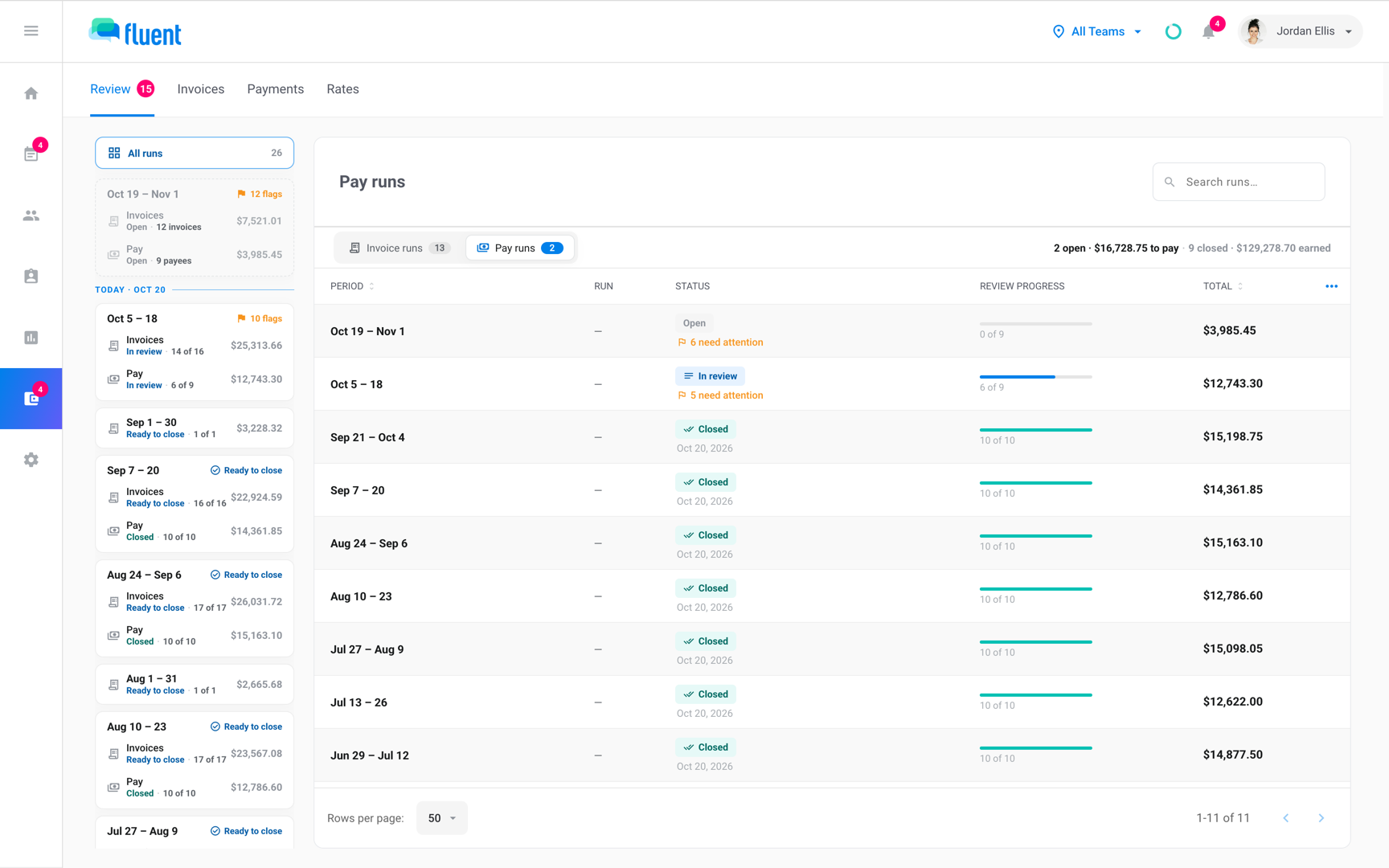
- Above the runs index, click Pay runs.
- Click the run in the index, or its period card in the rail. On a card that shows both runs of the period, click Pay.
The run opens with its period, its status, and the To pay total. The status reads:
- Open: while the period is still collecting appointments.
- In review: once the period has ended.
- Ready to close: when every payee is approved.
Check each payee
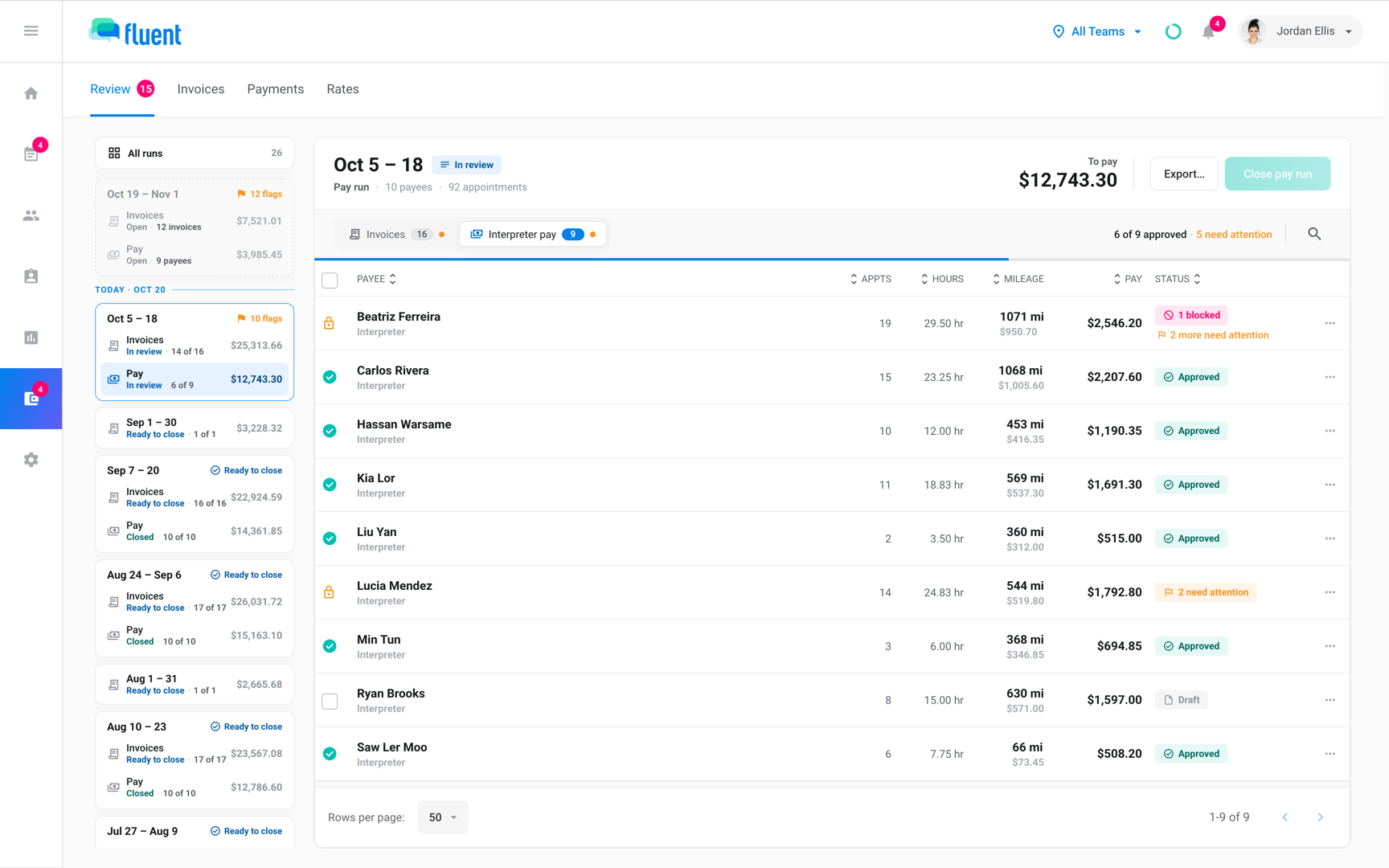
Each row is one payee, with their pay for the period. The Status cell shows what's left to do before you can approve them:
| Status | What it means | What you can do |
|---|---|---|
| Approved | Every earning is approved. | Nothing, or Undo approvals until the close. |
| Missing rates | Fluent can't price at least 1 appointment. | Add the pay rates. See Fix Missing rates. |
| N blocked | A flag holds the pay. | Fix each flag. |
| N need attention | Flags to check before approving. | Fix or approve each flag. |
| Draft | Nothing holds the pay. | Approve the payee. |
| Not in this run | Paid another way, outside this run. | Sign off the work. |
| Nothing to pay | Every appointment pays $0. | Nothing. The close doesn't wait on it. |
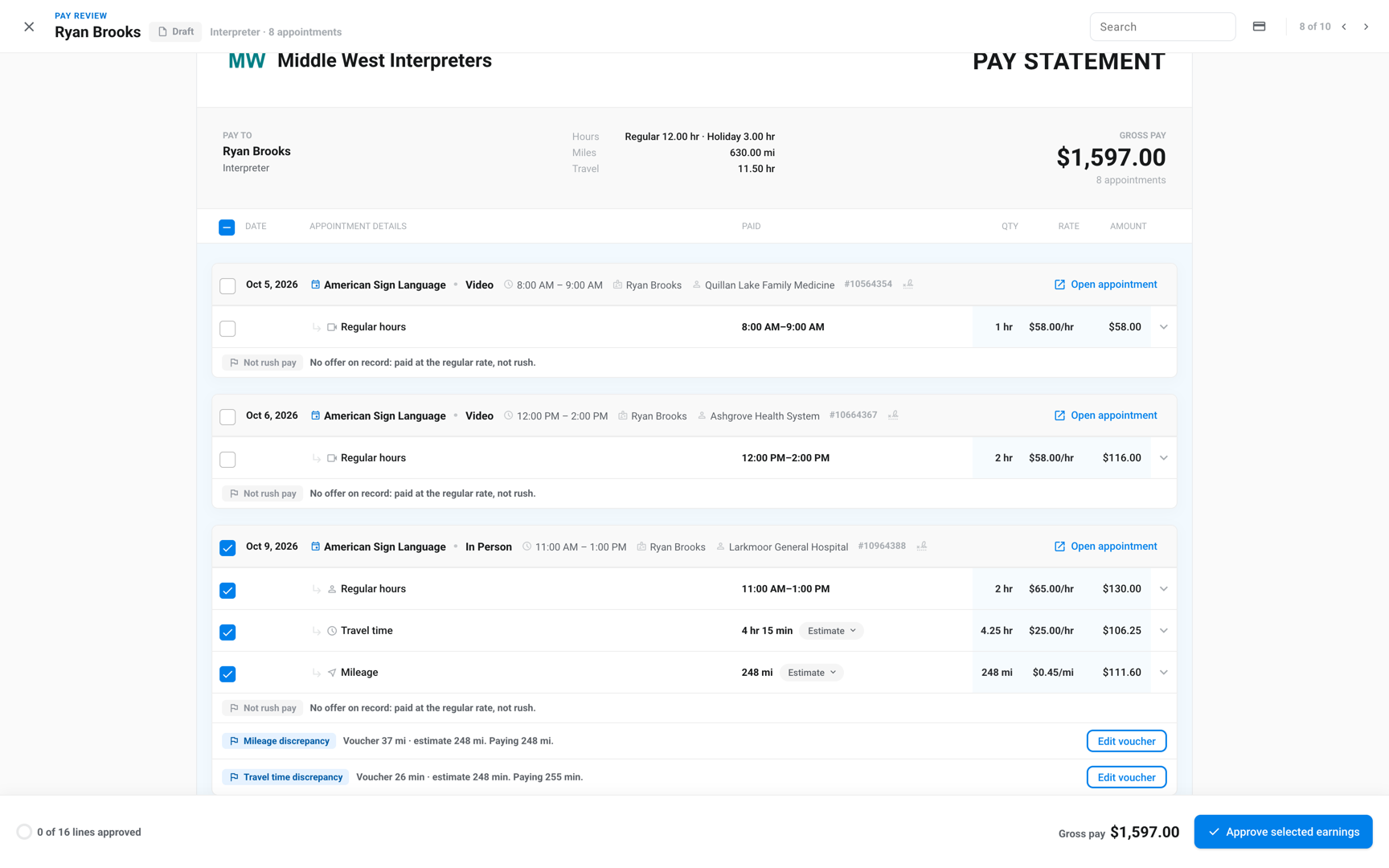
Click a payee row to open the Pay review dialog. It shows a card for each appointment, with a checkbox on each earning: service, travel time, and mileage.
On a mileage or travel time earning, switch between Voucher and Estimate to pick which figure Fluent pays.
Fix or approve a flag
A flag marks an appointment to check before you pay it, such as a Complete appointment with no voucher. Flags show on the cards in the Pay review dialog.
A flag that holds pay leaves its earnings without a checkbox until you fix the cause or approve the flag.
| Flag | What it means | What you can do |
|---|---|---|
| Missing voucher | The appointment is Complete with no voucher. | Add voucher, or Approve as scheduled. |
| Voucher missing mileage, Voucher missing travel time | The voucher left it blank, so the estimate pays. | Edit voucher, or Approve estimate. |
| Missing mileage, Missing travel time | No voucher figure and no address to estimate from. | Edit voucher. |
| No address on file, Address not locatable | Fluent can't place the interpreter's address on a map. | Add interpreter address or Fix interpreter address. |
- Approve as scheduled: pays the scheduled time.
- Approve estimate: pays the estimated round trip from the interpreter's address to the site.
- Missing mileage and Missing travel time: pay $0, so they have no approve button.
After you approve a flag, it reads "{flag} · approved" and its earnings can be approved.
Important: You can't undo a flag approval on screen. It stands until a voucher edit changes the figures, which raises the flag again.
Approve each payee
When a payee's flags are cleared, approve their pay. You can approve whole payees from the table, or only some of a payee's earnings in the Pay review dialog.
- In the payee table, turn on the checkbox on each payee to approve. Payees with something left to fix show a lock instead. The header checkbox selects every ready payee.
- In the selection bar at the bottom, click the approve button. It reads Approve {payee name} for 1 payee and Approve N earnings for several.
Fluent shows "Approved N earnings." and the payee's Status reads Approved.
To approve only some earnings, open the payee row, turn on each earning's checkbox, and click Approve selected earnings. With nothing checked, Approve earnings approves everything left, after you confirm.
Sign off payees paid outside the run
Some payees aren't paid through this run: partner agencies that send you their own invoice, and interpreters you pay outside Fluent. They're listed below the payee table, under Not paid through this run.
The close waits until each one is signed off.
- Click the payee row to open the Pay review dialog.
- Click Approve earnings.
From the table, you can also turn on the row's checkbox and click Approve {payee name} · operational cost in the selection bar. The sign-off isn't a payment, and these payees get no pay statement.
Close the pay run
Once the period has ended and every payee is approved or signed off, the run reads Ready to close.
Important: After the close, approvals can't be undone.
- Click Close pay run in the run header.
- In the "Close Pay run #N?" dialog, check the period, the approved count, and the total.
- To download files as you close, under Export now turn on PDFs, CSV, or Excel (.xlsx).
- If QuickBooks is connected, Sync to QuickBooks is on, so the bills dialog opens after the close. Turn it off to skip it.
- Click Close pay run.
Fluent shows "Pay run {period} closed", the run reads Closed, and it moves to Payments. With QuickBooks connected, the header then offers Send to QuickBooks.
Closing sends no email and moves no money. Payees get their pay summary email when you mark the run paid.
Next, send the run to payout and mark it paid on Billing › Payments. See Send to payout and mark paid.
Rules and limits
- You can approve while the period is still open. The close unlocks the day after the period's last day.
- After the close, a voucher edit or rate change that re-prices a statement shows as a difference on it in Billing › Payments. You answer it with Revise statement, Correction statement, or Keep as is.
- The CSV and Excel files have 1 row per payee, with the columns saved in Settings › Export settings. PDFs is 1 pay statement per payee, zipped.
- A failed export never stops the close. The files stay available from Export… on the closed run.
- There's no control to add a credit or fee to a payee by hand. Pay a one-off amount outside Fluent.
- A past period where every payee has nothing to pay shows Nothing to pay and has no Close pay run button.
Troubleshooting
Close pay run is greyed out
Hold the pointer over the button to see why.
- "This period is still open": names the day the close unlocks.
- "Every payee must be approved before this run can close": something is left: a payee to approve, a payee paid outside the run to sign off, or a Missing voucher flag.
"Pay runs aren't set up yet"
Your agency has no pay run schedule. Click Set up pay run schedule and finish the Billing runs setup through its Pay statements step. See Set up billing runs.
I approved the wrong payee
Open the ⋯ menu at the end of the payee's row and click Undo approvals. There's no confirmation, and the payee goes back to review.
This works until the run closes.