
Enter or correct a voucher
Enter an interpreter's voucher or fix its times and travel in the appointment dialog, and see what a correction does to closed invoices and pay runs.
What you'll learn
- How to enter a voucher an interpreter didn't submit, or correct one that's wrong.
- What happens to invoices and pay when you save a voucher.
Before you start
- The appointment has an interpreter, and its status isn't Requested, Pending, or Canceled.
Enter a voucher
Owners, Admins, Managers, and Schedulers enter and correct vouchers. Owners and Admins also see the interpreter's pay and answer changes to closed invoices.
Enter a voucher when the interpreter didn't submit one in the Fluent mobile app.
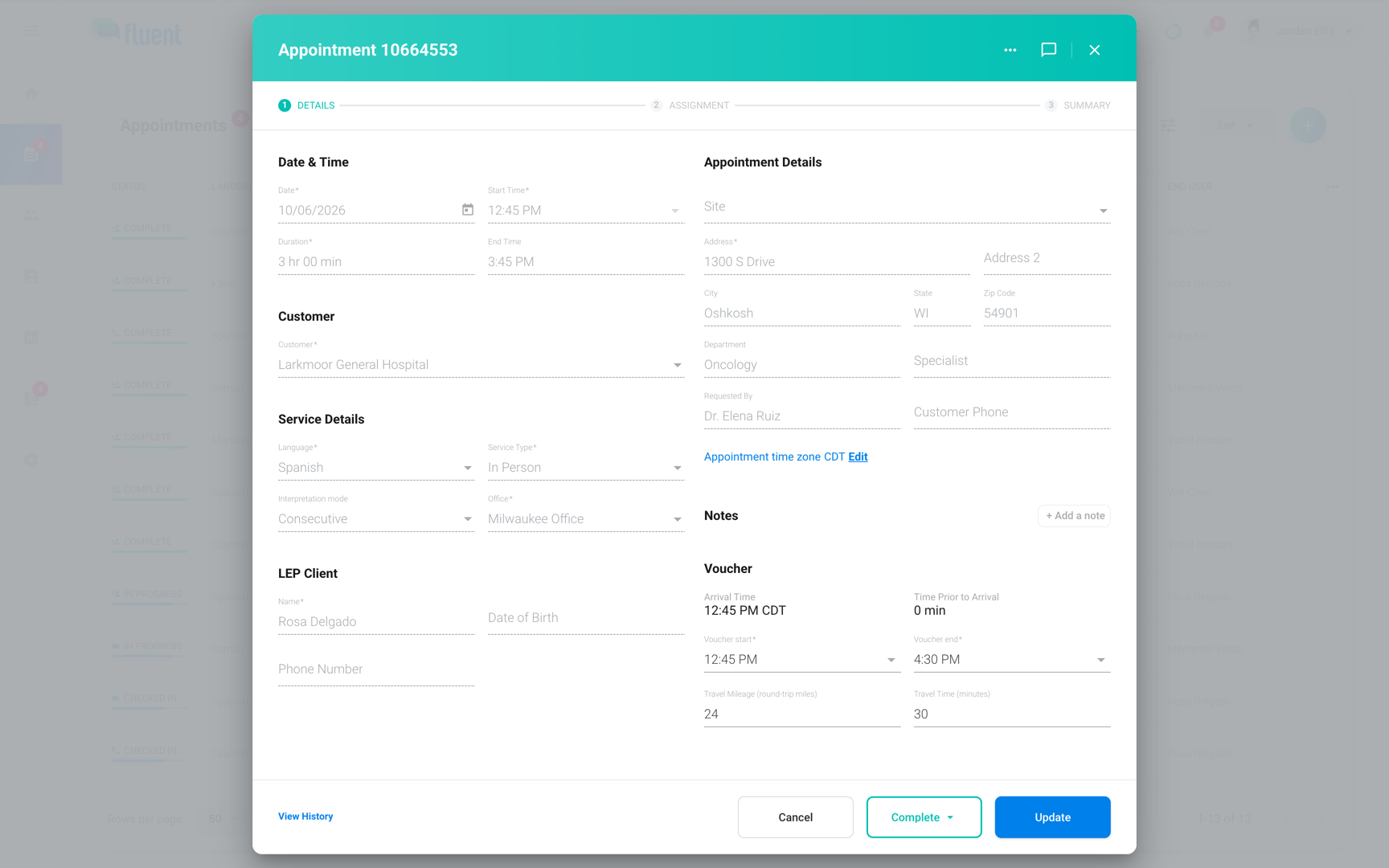
Important: Fluent fills in the scheduled times. Change them to the times worked.
- Go to Appointments and click the appointment.
- In the appointment dialog's footer, click Voucher.
- In Voucher start, select the time the appointment started.
- In Voucher end, select the time it ended.
- For an In-person appointment, in Travel Mileage (round-trip miles), enter the round-trip miles as a whole number.
- For an In-person appointment, in Travel Time (minutes), enter the travel time in minutes.
- Click Save.
You see "Voucher Created".
- Status: The appointment changes to Complete.
- Interpreter: Fluent tells them that you submitted the voucher.
- Over 12 hours: Fluent asks you to check for an AM or PM mix-up. Click Confirm duration to keep the times, or Fix times to change them.
Correct a voucher
Interpreters can't change a voucher after they submit it, so they ask your agency. You can change the start, the end, and the travel, but not the arrival or check-in time the mobile app recorded.
- Go to Appointments and click the Complete appointment.
- In the appointment dialog's footer, click Voucher.
- Change Voucher start, Voucher end, Travel Mileage (round-trip miles), or Travel Time (minutes).
- Click Update.
You see "Voucher Updated".
A correction doesn't notify the interpreter.
Invoices and pay after a save
Fluent bills and pays from the voucher, so each save re-prices the appointment on any invoice or pay run that's still open.
- Open invoice: Fluent re-prices the appointment. If the invoice was approved, Fluent withdraws the appointment's approval.
- Open pay run: Fluent re-prices the appointment. When its pay moves by $1.00 or 1% or more, Fluent withdraws its pay approvals.
- Closed, exported, or synced invoice: The invoice keeps its amounts, and Fluent records the difference on it.
- Closed pay statement: The statement keeps its lines, and the difference shows on it in Billing › Payments. See Review and close a pay run.
When the appointment is on a closed invoice
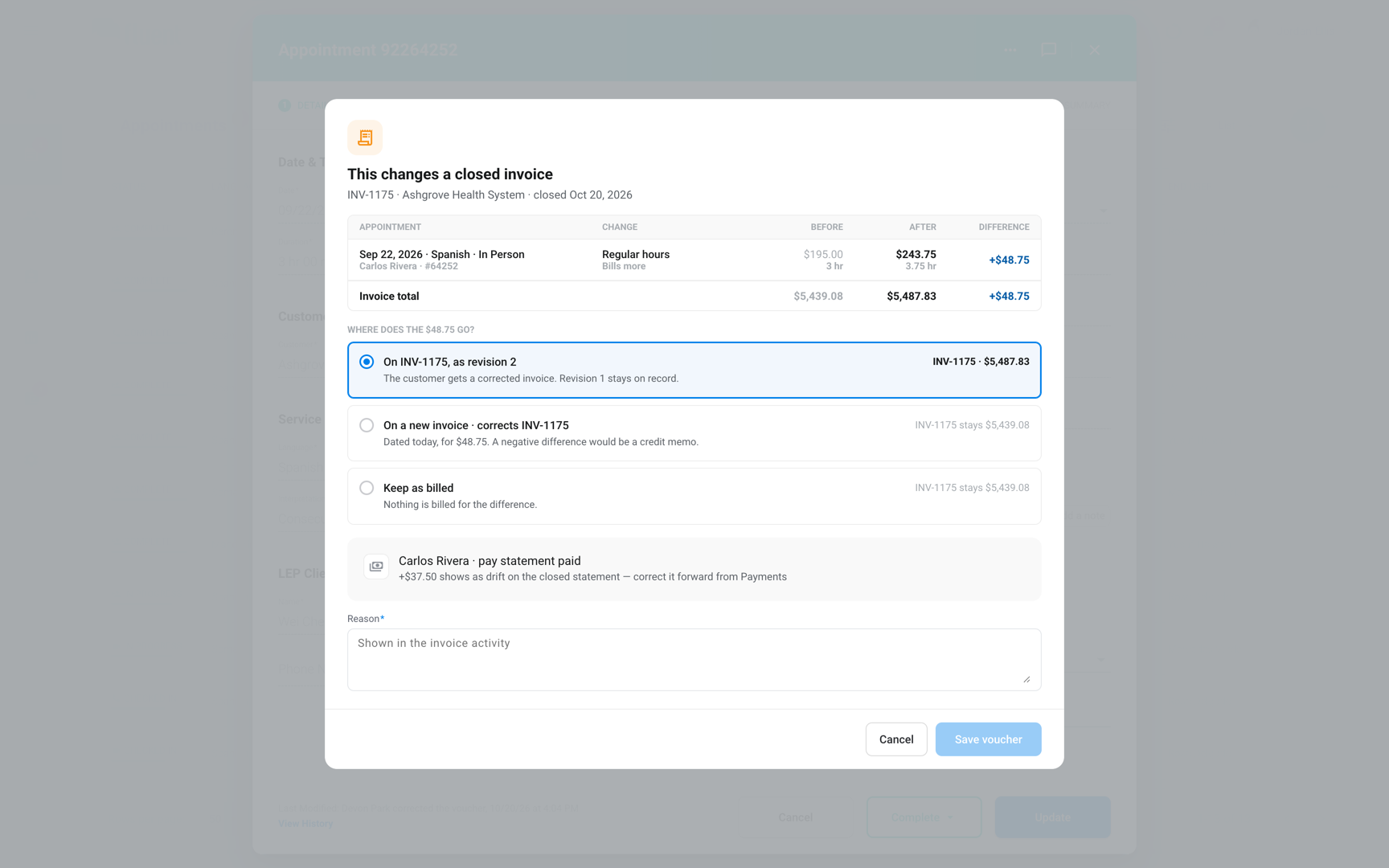
When your save moves a closed invoice's total, Fluent asks where the difference goes before it saves. The "This changes a closed invoice" dialog opens once per invoice and offers the 3 answers from Close an invoice run.
- Under "Where does the $X go?", select On INV-x, as revision N, On a new invoice · corrects INV-x, or Keep as billed.
- In Reason, enter why. Fluent shows it in the invoice activity.
- Click Save voucher.
If you click Cancel instead, Fluent doesn't save the voucher.
Check the voucher card
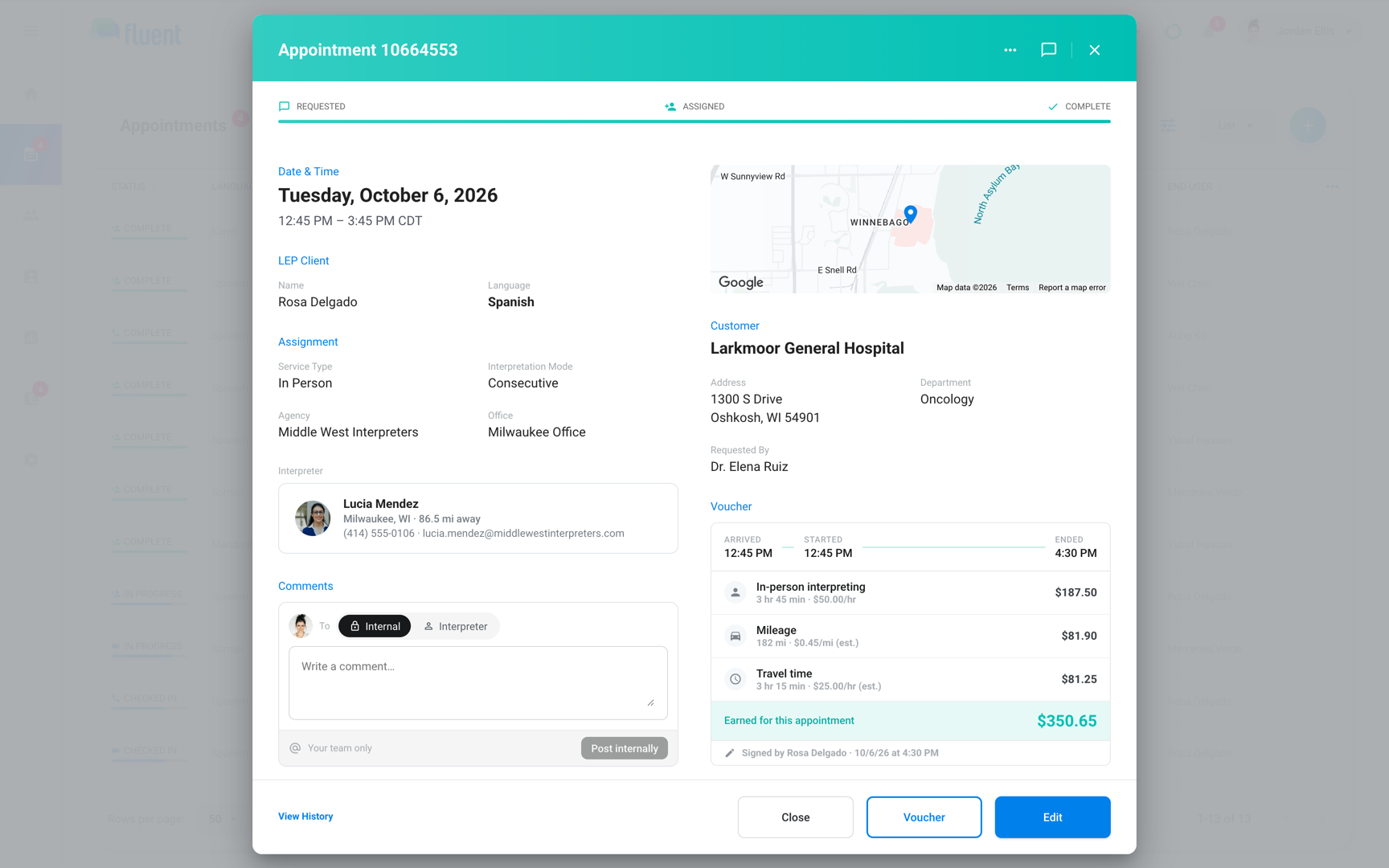
After you save, the appointment dialog shows a Voucher card with the times and travel on record. When the card shows pay, its total, "Earned for this appointment", is the interpreter's pay, not what the customer is billed.
Rules and limits
1 voucher
A Canceled appointment takes none, and a Late Cancel appointment can have one.
1 h 1 min
The recorded arrival must be on or before Voucher start, and no more than this before it.
- Saving makes the appointment Complete, and from then on it can't be edited. To change the times, correct the voucher.
- A travel field you leave empty saves as empty, not as 0. Enter 0 when there was no travel.
Troubleshooting
I don't see Voucher
The appointment has no interpreter, or its status is Requested or Pending. Assign an interpreter, or wait until the interpreter accepts the offer.
Arrival Time shows "Did not check in"
The interpreter didn't record an arrival or check-in in the mobile app, and the web app can't add one. Enter the voucher without it.
"Check in time must be before start time"
Voucher start is earlier than the recorded arrival. Move Voucher start to the arrival time or later.
"You can't select an arrival time earlier than 1 hour 1 min from start time"
The recorded arrival is more than 1 hour 1 minute before Voucher start. Move Voucher start earlier.
"This appointment was canceled, so it takes no voucher."
The appointment is Canceled. If the cancel was late, change its status to Late Cancel, then enter the voucher. See Cancel an appointment.
"Closed documents will be checked after the save."
Your voucher is saved. Your role doesn't answer changes to closed invoices, so Fluent saves without asking and adds this sentence to every save.
If the appointment is on a closed invoice, it waits under Needs a correction decision on Billing › Invoices. Tell an Owner or Admin which appointment you corrected.