
Appointment comments
Post comments on an appointment, choose who can read each one, mention people, and edit or delete what you posted.
What you'll learn
- How to post comments on an appointment and choose who can read each one.
Who can read each audience
Choose the audience before you post. Only the people in it can read the comment.
| Audience | Your agency's team | The interpreter | The customer's organization |
|---|---|---|---|
| Internal | Yes | No | No |
| Interpreter | Yes | Yes, once assigned | No |
| Customer | Yes | No | Yes |
| {organization} only | No | No | Yes |
- Your agency's team: Your agency's Owner, and the Admins, Managers, and Schedulers on the appointment's team. They read and post in Internal, Interpreter, and Customer, and Owners and Admins can delete any comment there.
- The interpreter: The interpreter assigned to the appointment, not one still holding an offer.
- The customer's organization: The Requestor who asked for the appointment, and the organization's Owners, Administrators, Managers, and Schedulers on the appointment's team. It exists only when the customer is an organization in Fluent.
Post a comment
Write to the people who need to know: your team only, the interpreter, or the customer's organization.
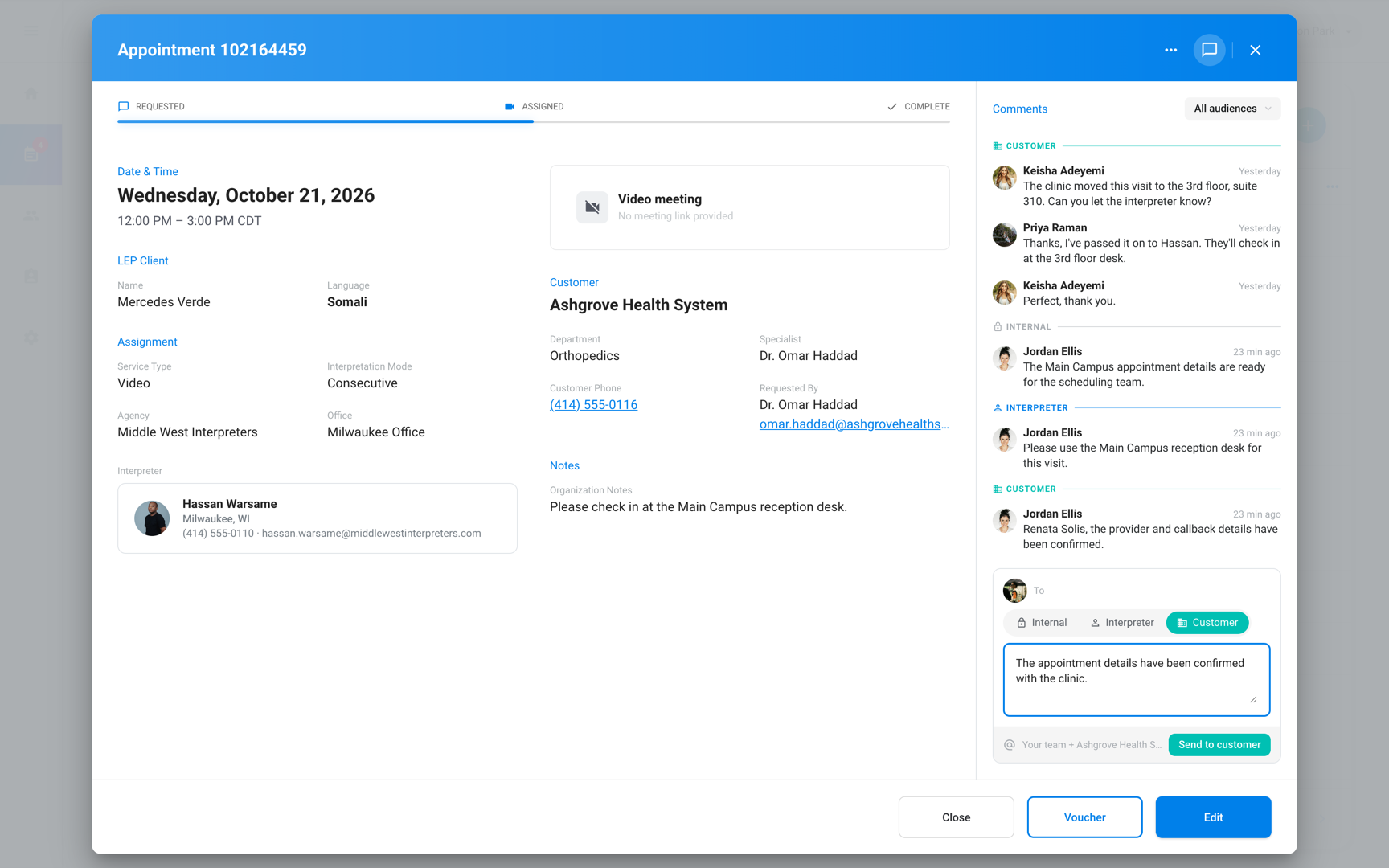
- Go to Appointments and click the appointment.
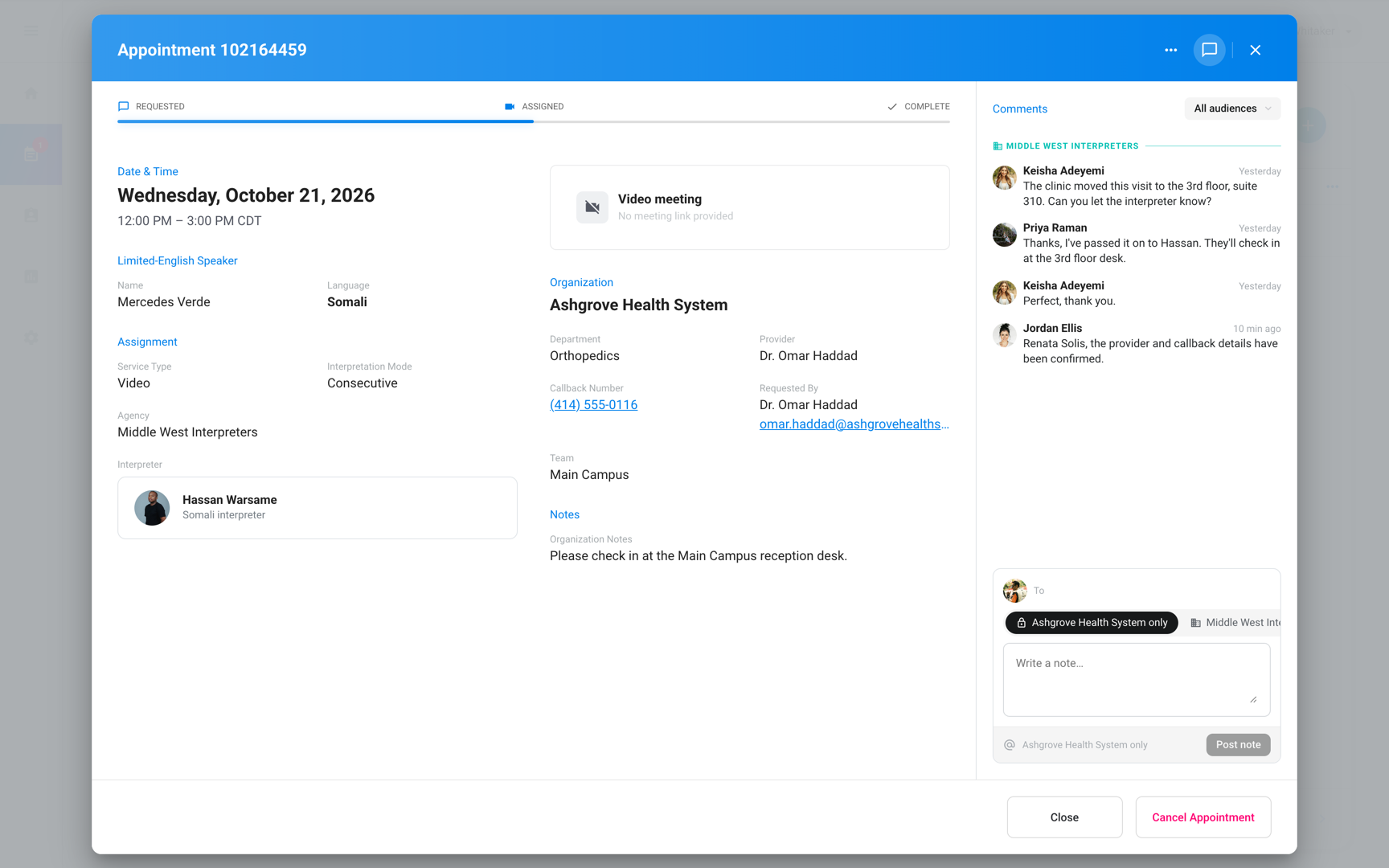
- At the top of the appointment dialog, click the speech bubble. The thread opens in a panel on the right.
- In the To row above the comment box, select Internal, Interpreter, or Customer.
- In the comment box, enter your comment.
- Click Post internally, Send to interpreter, or Send to customer.
- Who it reaches: The line next to the button names them, such as "Your team only" or "Your team + {organization} (3 people)". Point to it to see each person by name.
- While you edit the appointment: A comment posts at once, and it doesn't save your other changes.
Mention someone
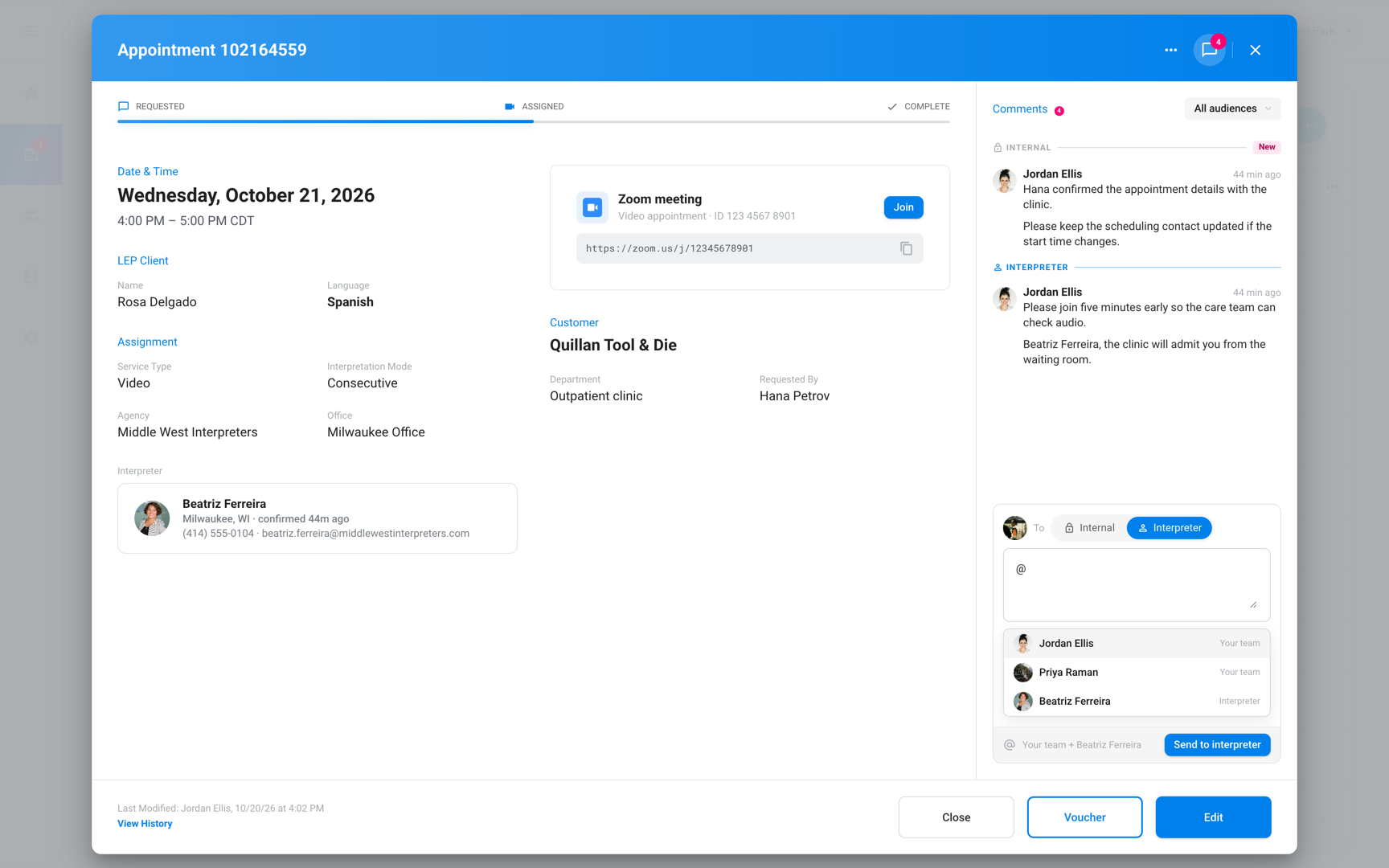
Mention a person when the comment needs their attention. They get a Mentioned You notification instead of New Comment.
- In the comment box, type
@and the start of their name. - Select the person from the list.
Important: The list shows only people who can read the audience you picked. Change the audience first if the person isn't there.
If you change the audience after you mention someone outside it, Fluent doesn't notify them.
Edit or delete a comment
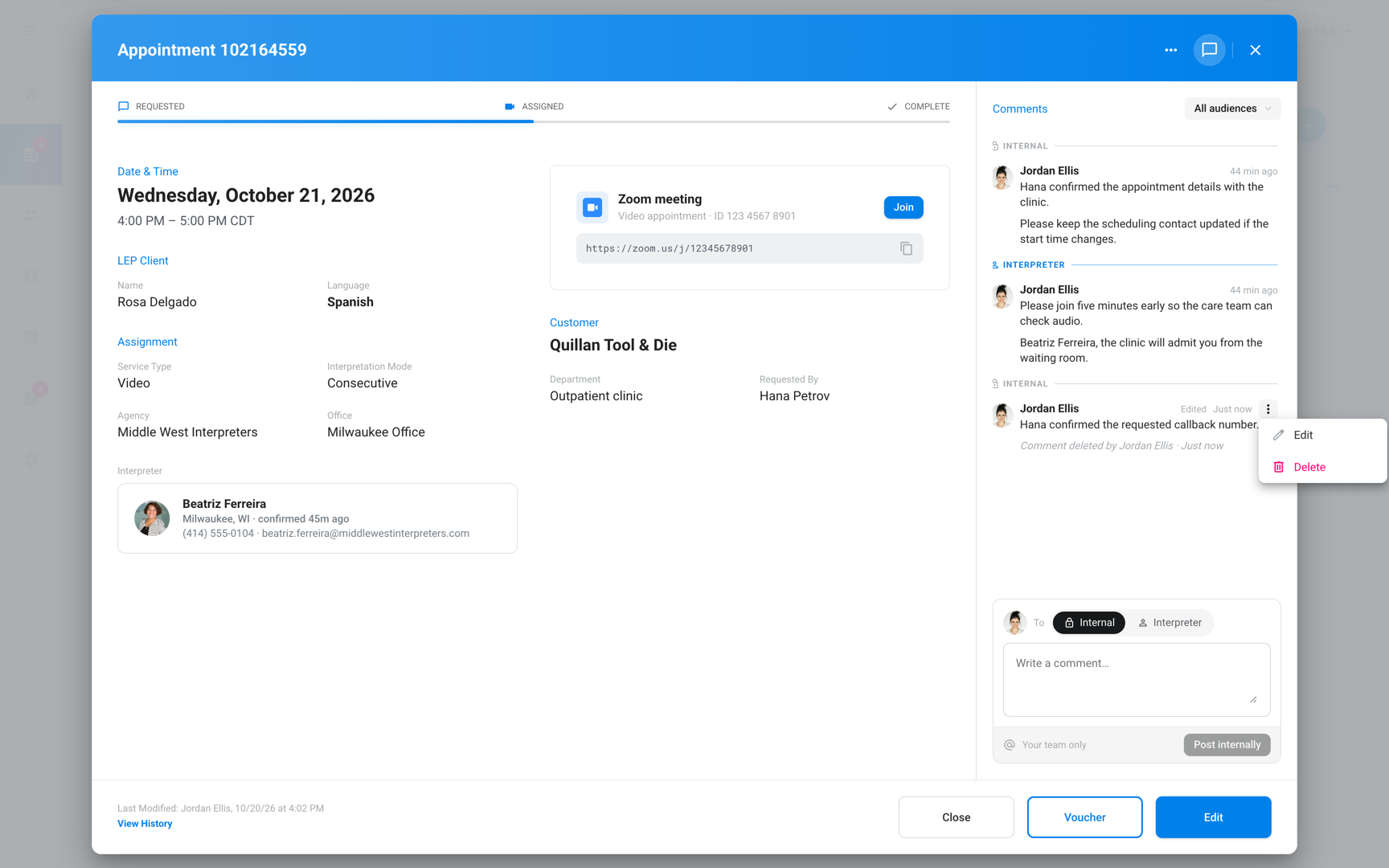
You can fix or remove your own comment for 15 minutes after you post it.
Edit a comment
- Point to your comment and click ⋮.
- Click Edit.
- Change the text.
- Click Save.
Delete a comment
- Point to the comment and click ⋮.
- Click Delete.
- In the "Delete this comment?" dialog, click Delete.
- The interpreter and the customer's organization: The comment disappears.
- Your agency's team: Sees "Comment deleted by {name} · {time}" in its place.
Important: You can't undo a delete.
Read new comments
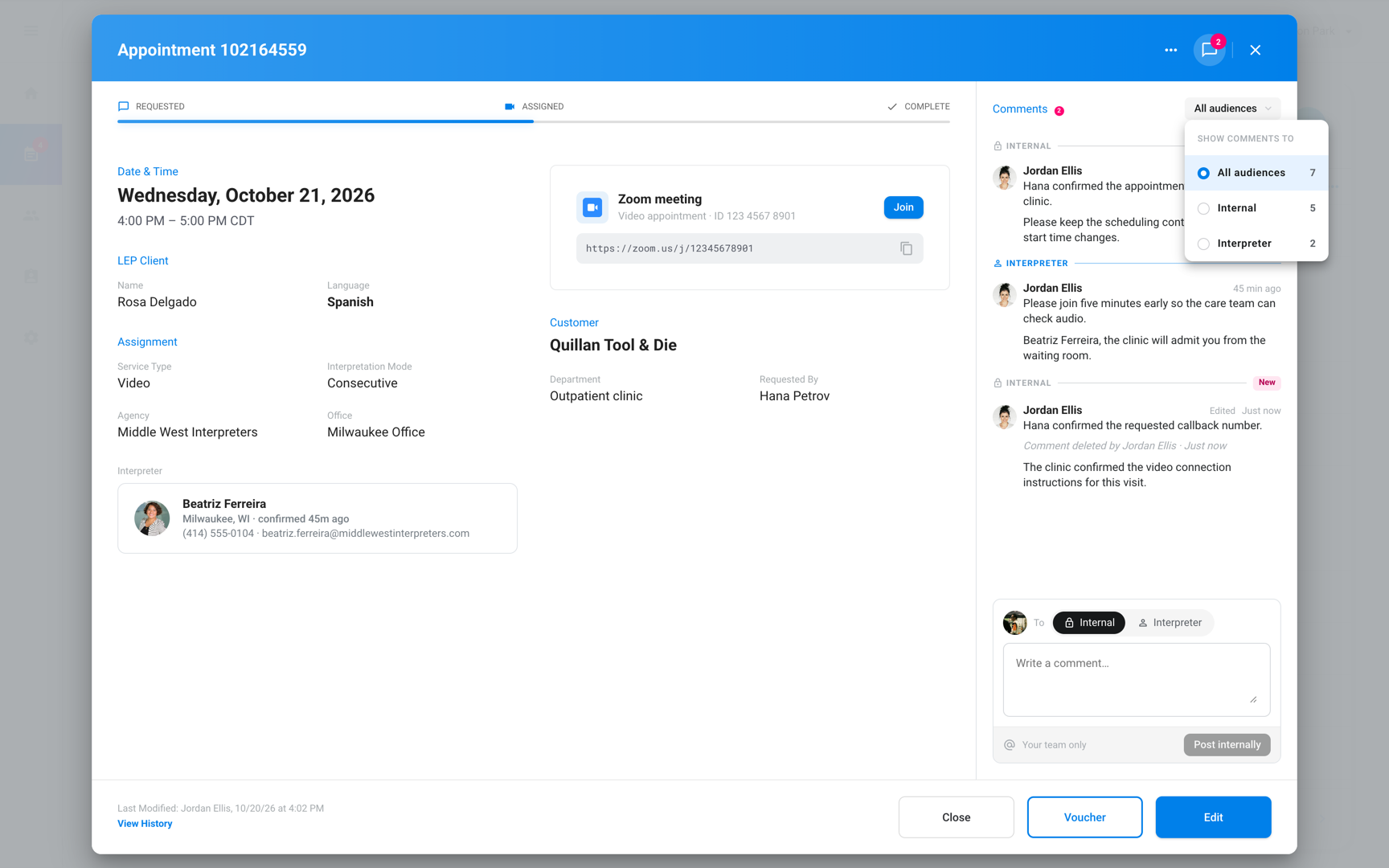
When others post, the speech bubble shows how many comments you haven't read. Open the thread to catch up.
- New: Marks the first comment posted since you last read the thread.
- All audiences: Click it above the thread to show one audience at a time, with a count for each.
In an organization workspace
Organization team members comment on the appointments they can open, with 2 audiences of their own.
- Audience: Select {organization} only to keep a comment inside your organization, or your agency's name to share it with the agency.
- Comment box: It says "Write a note…", and the button says Post note or Send to agency.
- What each side sees: Your agency never sees {organization} only comments, and you never see the agency's Internal or Interpreter comments.
For interpreters
Interpreters use the thread to ask their agency about an appointment.
- Before you're assigned: While an offer waits for your answer, the thread says "Comments open once you are assigned to this appointment." You can read and post once you're assigned.
- What you see: Only the comments your agency sends you.
- Where yours go: Always to your agency's team. The thread says "Visible to {agency} and you.", and the button says Send to agency.
- Mobile app: See Manage appointments on mobile.
Notifications
Fluent notifies the audience of each comment.
- Everyone who can read it: Gets New Comment.
- People you mention: Get Mentioned You instead.
- You: Get nothing for your own comments.
For where each notice shows and what its email says, see Agency team notifications and Interpreter notifications.
Rules and limits
- A comment holds up to 4,000 characters.
- A comment can mention up to 20 people.
- You can't move a comment to another audience after you post it.
- After you send, the audience goes back to the default: Internal at your agency, {organization} only in an organization, or the audience you're showing.
- If the appointment moves to another interpreter, the new interpreter can read the earlier Interpreter comments, and the previous one can't.
- Fluent keeps the earlier text of an edited or deleted comment in its records.
Troubleshooting
There's no Interpreter option
No interpreter is assigned, or the interpreter hasn't accepted the offer. Post an Internal comment until they do, and the option appears.
While Internal is the only audience, the To row is hidden. The line above the comment box says "Only your team sees this until an interpreter is assigned." or "Only your team sees this until the interpreter accepts the offer."
There's no Customer option
The customer isn't an organization in Fluent, so no one at the customer can read comments. Post an Internal comment, and reach the customer by email or phone.
"Only the author can edit a comment, and only within the edit window."
More than 15 minutes have passed since you posted the comment, or someone else wrote it.
- Post a new comment with the correction.
- To remove the old one, ask an Owner or Admin at the agency to delete it.
I don't see the speech bubble
The appointment isn't saved. Its thread starts once you create the appointment.