
Sign in to the mobile app
Sign in to the Fluent mobile app with your email, password, and texted code, turn on Face ID or Touch ID, and see when the app signs you out.
What you'll learn
- How to sign in to the mobile app, and use Face ID or Touch ID so you don't type your password each time.
- What makes the app sign you out, and how to get back in.
Before you start
- You need a Fluent account. If your agency invited you, finish the invite first. See Set up the mobile app.
- You need the Fluent mobile app from the App Store, and a phone number that receives text messages.
Sign in
Interpreters and agency Owners, Admins, Managers, and Schedulers sign in to the mobile app with the same email and password they use on the web app. People with only organization roles use the web app.
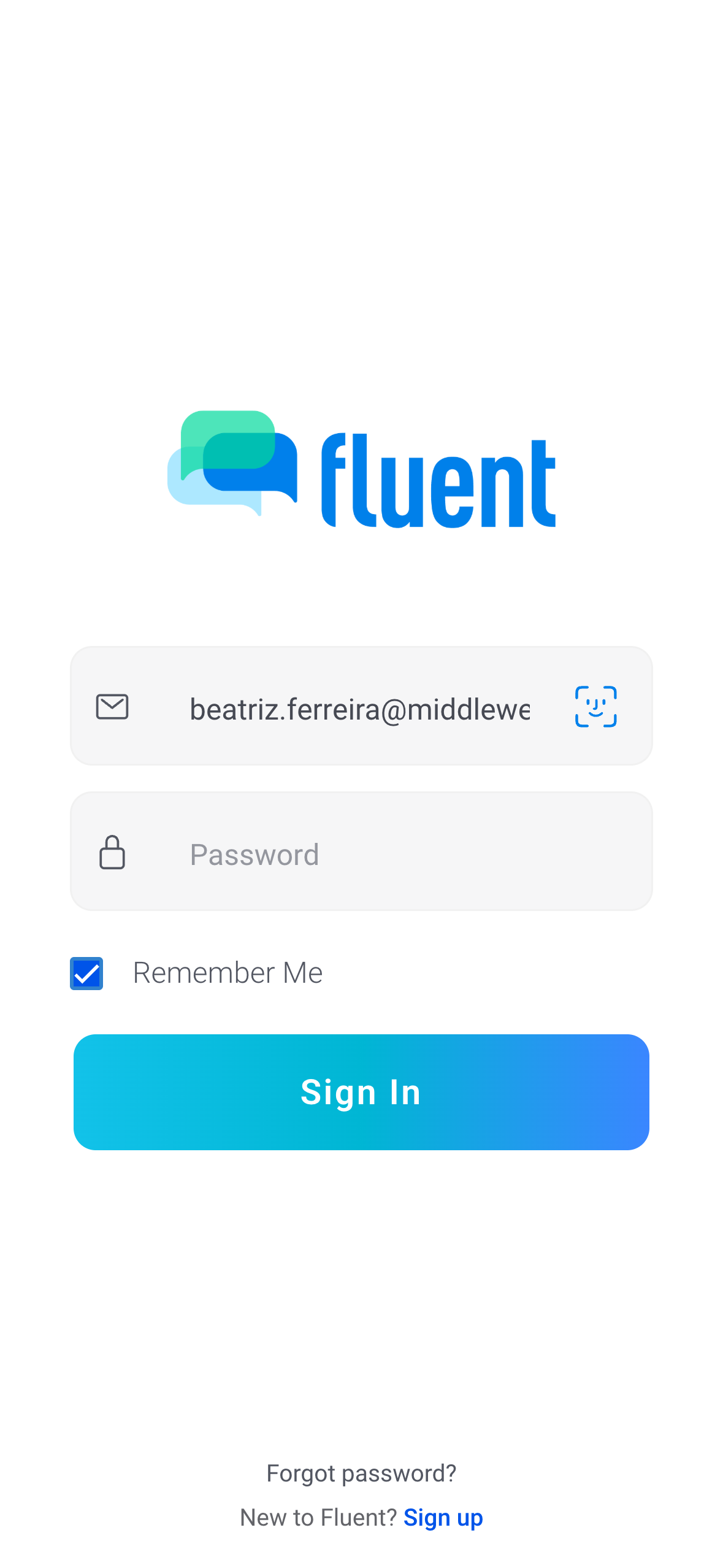
- Open the Fluent mobile app.
- In Email, enter your email address.
- In Password, enter your password.
- Tap Sign In.
Next, the app asks for a texted code, or for a two-factor phone if your account has none. On a phone Fluent already trusts, you're signed in.
Enter your verification code
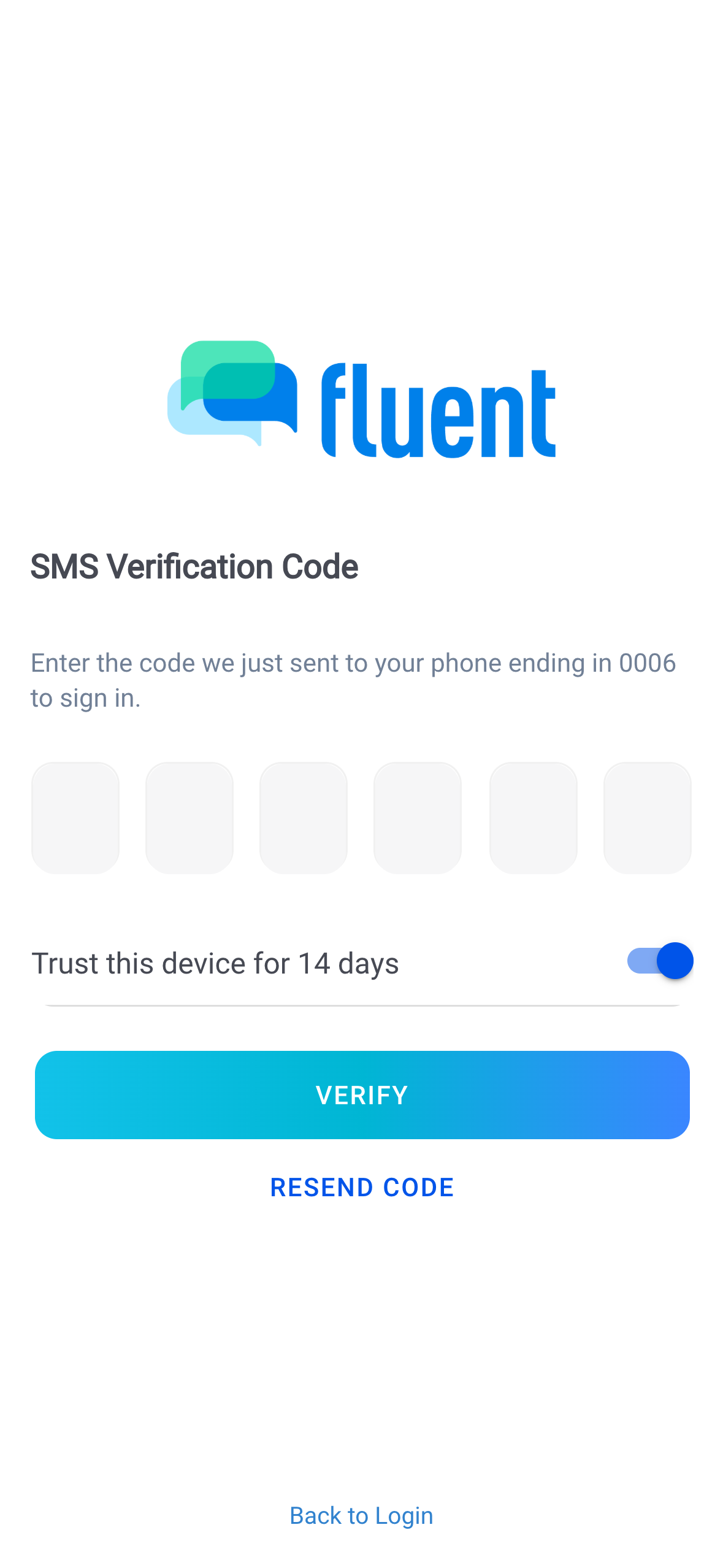
On a phone Fluent doesn't trust yet, the SMS Verification Code screen asks for the 6-digit code Fluent texted you. Enter it to finish signing in.
- Leave Trust this device for 14 days on. With it off, Fluent asks for a code at every sign-in on this phone.
- Enter the 6 digits from the text message.
The app checks the code at the 6th digit and signs you in. If the text didn't arrive, tap Resend code.
Set up two-factor authentication in the app
If your account has no two-factor phone yet, the Add an extra layer of security screen opens after your password. You can't skip it.
- In the phone field, enter your 10-digit mobile number, then tap Send Code.
- In Verification Code, enter the 6-digit code from the text message.
- Tap Verify.
"Two-factor enabled" shows, and this phone is trusted for 14 days. To change the number later, use the web app. See Two-factor authentication.
Accept the agreements
When you have an agreement to accept, the app opens it after you sign in, before the Dashboard. Tapping X on this screen signs you out.
On "Join {your agency} on Fluent":
- Turn on the checkbox that starts "I'm authorized to access Fluent on behalf of".
- Tap Agree and continue.
The Dashboard opens.
Your agency's Owner sees Review agreements instead. Its steps are in Legal agreements and documents.
Turn on Face ID or Touch ID
The app offers Face ID after a password sign-in, so you can sign in with your face instead of your password. Phones with a fingerprint reader say Touch ID instead.
- On the Enable Face ID sheet, tap Enable Face ID.
- Confirm with your face when the phone asks.
"Face ID enabled" shows. Not Now and Don't ask me again both close the sheet, and the app offers Face ID again after your next password sign-in.
Turn Face ID off or on
- Open the side menu and tap your name at the top.
- On the Sign-in card, turn Face ID off or on.
Reset your password
If you forget your password, Fluent emails you a link to choose a new one.
- On the sign-in screen, tap Forgot password?.
- In Email, enter your email address.
- Tap Submit.
You see "Password Reset Email Sent".
Open the email's link within 15 minutes, choose a new password in the browser, and sign in to the app with it. See Sign in and passwords.
- Other browsers: the reset ends your sessions there.
- Face ID: the reset ends Face ID on every phone. Sign in with your new password, then turn on Face ID again.
- Push notifications: stop on every phone until you sign in there again.
- Email: Fluent emails you "Your Fluent password was changed".
Stay signed in and sign out
The app signs you out on its own in 3 cases, and you can't change them. Each one keeps Face ID on, keeps this phone trusted, and keeps push notifications coming.
- You reopen the app: Closing the app fully and opening it again signs you out.
- You leave it in the background: Coming back after more than 5 minutes signs you out. Back sooner, you stay signed in.
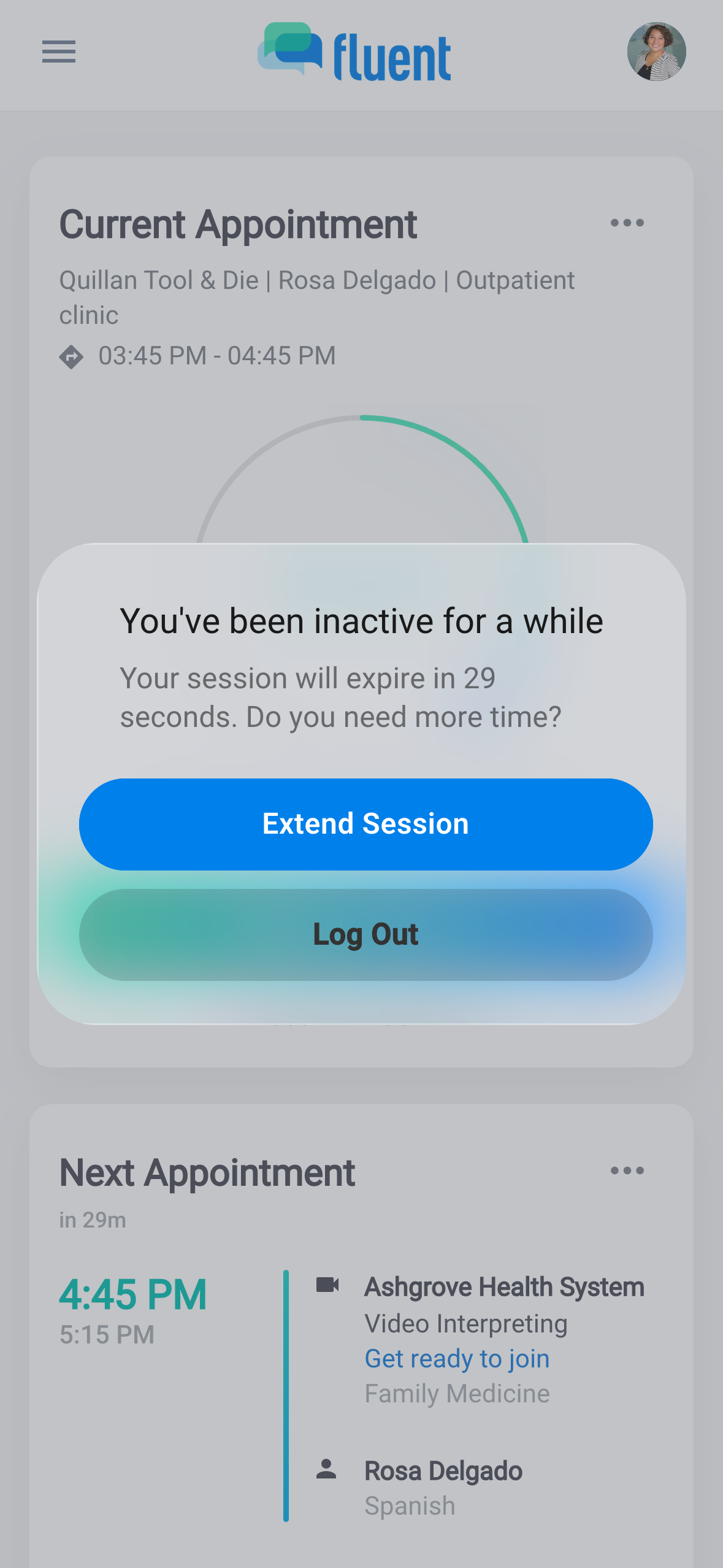
- You don't touch it: After 5 minutes, "You've been inactive for a while" shows with a 30-second countdown. Tap Extend Session to stay signed in.
Getting back in, or signing out yourself:
- To sign out yourself: open the side menu and tap Sign Out. Face ID stays on, and push notifications stop on this phone until you sign in again.
- After you reopen the app or leave it in the background: the app asks for Face ID on its own.
- After inactivity or Sign Out: tap the Face ID button in the Email field.
Rules and limits
14 days
From your last code sign-in, two-factor setup, or Face ID sign-in.
1 account per phone
When another account on this phone has it, the app asks before it moves Face ID to yours.
- Fluent also asks for a code when you sign in from a different country than last time. It asks too when it rates your network address as risky.
Troubleshooting
For other sign-in messages, such as "Invalid email or password." or a locked account, see Troubleshoot sign-in.
"Biometric login failed. Please log in with your email and password."
Fluent refused the Face ID sign-in, so the app turned Face ID off.
That happens when this phone's 14 days of trust have run out, when this phone was signed out under Devices in Settings › Login & Devices on the web, or when your account is locked or deactivated. Sign in with your password and the code, then turn Face ID back on in your profile.
"Your password changed. Sign in with your password to use Face ID again."
Your password was reset, or changed on another device, so Face ID ended on this phone. Sign in with your new password, then turn Face ID back on in your profile.
"We couldn't send your verification code. Try again in a few minutes."
Fluent couldn't text your code. Your password was right. Wait a few minutes and sign in again.