
Dashboard
What each card on the Dashboard tells you about today's appointments, the requests still waiting for an interpreter, and the last 30 days.
What you'll learn
- What each Dashboard card tells you about today, the requests still waiting for an interpreter, and the last 30 days.
The cards about today
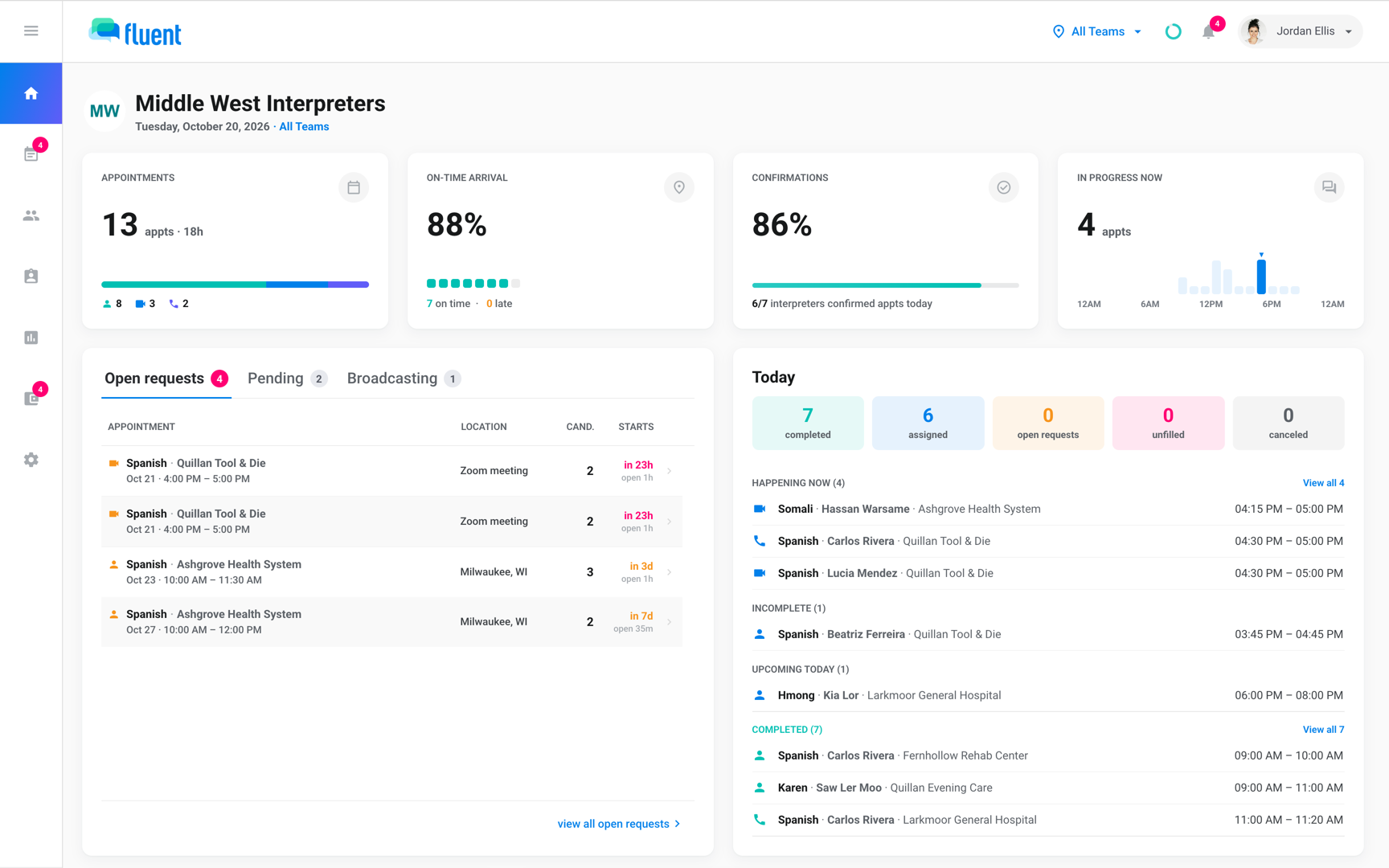
The Dashboard is the first item in the web app sidebar. The 4 cards at the top count today's appointments as of when the page loaded.
- Appointments: How many appointments you have today, how many hours they add up to, and how many are In-person, Video, and Phone.
- On-Time Arrival: The share of today's In-person appointments where the interpreter arrived on time, with how many were on time and late.
- Confirmations: The share of today's interpreters who have confirmed all of their appointments for the day.
- In Progress Now: How many appointments with an interpreter are running right now, with a bar for each hour of the day.
How the cards count:
- Left out of Appointments: Requested, Pending, Broadcast, Canceled, Late Cancel, Declined, and Missed appointments.
- On time: the arrival time on the voucher is no more than 5 minutes after the start time.
- Still waiting for an arrival: these appointments count against the On-Time Arrival share, so it rises during the day.
See Same-day confirmations for how interpreters confirm.
Open requests, Pending, and Broadcasting
This card lists appointments on any date that no interpreter has accepted, earliest first. Click a row to open the appointment window and assign someone.
- Open requests: Every appointment no interpreter has accepted, whether it's Requested, Pending, Broadcast, or Unassigned.
- Pending: Offers waiting for one interpreter's answer, marked Direct when sent with Assign and Auto when it's an Auto-assign turn.
- Broadcasting: Broadcasts no one has accepted, with how many interpreters got the offer and how many declined.
On Open requests, Cand. counts the interpreters on your interpreter team who speak the language and are free for the whole appointment, or haven't set their availability.
The link at the bottom of each tab opens that list on Appointments. On Pending, the link opens direct offers only, so Auto-assign offers aren't in it.
Today
The Today card follows today's appointments as the day goes, sorted into groups:
- Open requests: Today's appointments no interpreter has accepted.
- Happening now: Appointments with an interpreter whose scheduled time is now.
- Incomplete: Appointments with an interpreter that have ended without a completed voucher.
- Upcoming today: Appointments with an interpreter that start later today.
- Unfilled: Today's appointments set to Declined or Missed.
- Completed: Today's appointments whose voucher is complete.
Breakdown and trends
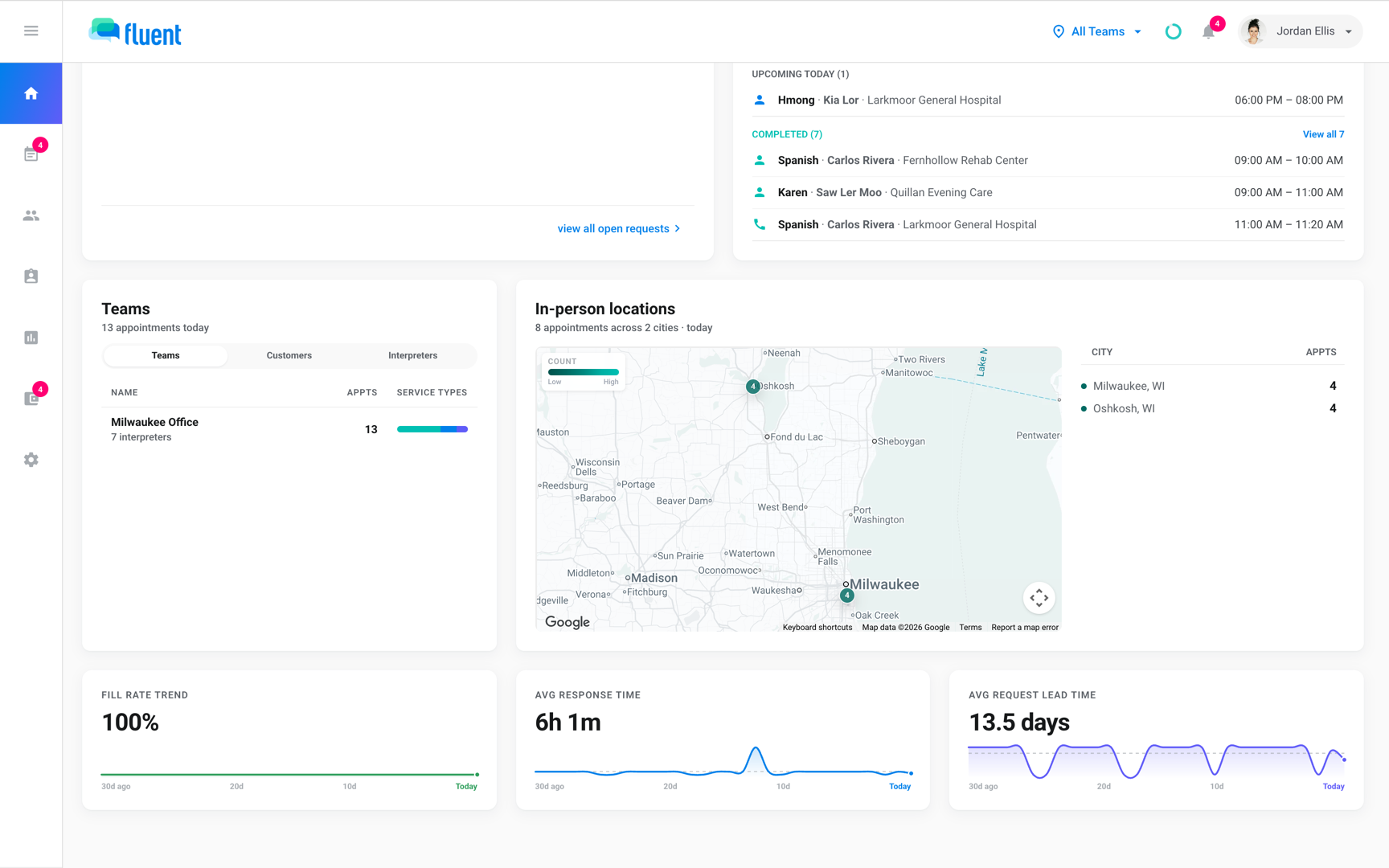
The bottom of the page shows where today's work goes and how fast requests get filled. The breakdown splits today's appointments by team, customer, and interpreter, and In-person locations puts the In-person ones on a map.
The 3 trends cover the last 30 days, today included. A dash in place of the number means there's no data for those days.
- Fill rate trend: The share of the last 30 days' appointments that got an interpreter.
- Avg response time: The average time from when an appointment is created until it has an interpreter.
- Avg request lead time: The average number of days from when an appointment is created until it starts.
Fill rate trend counts each appointment by where it stands now:
- Raise it: appointments with an interpreter, and Canceled and Late Cancel ones.
- Lower it: Declined, Missed, and appointments whose time passed before anyone accepted.
- Not counted: appointments still waiting for an interpreter before their time.
Who can see the Dashboard
Which Dashboard you get depends on where you work in Fluent.
| Role | What the Dashboard shows |
|---|---|
| Agency Owner, Admin, Manager, or Scheduler | The agency Dashboard described above |
| Organization Owner, Administrator, Manager, or Scheduler | The organization Dashboard |
| Organization Requestor | No Dashboard |
| Interpreter | Their own hours this week, upcoming appointments, offers, and vouchers not submitted in the last 90 days |
The Fluent mobile app has its own Dashboard. See Set up the mobile app.
In an organization workspace
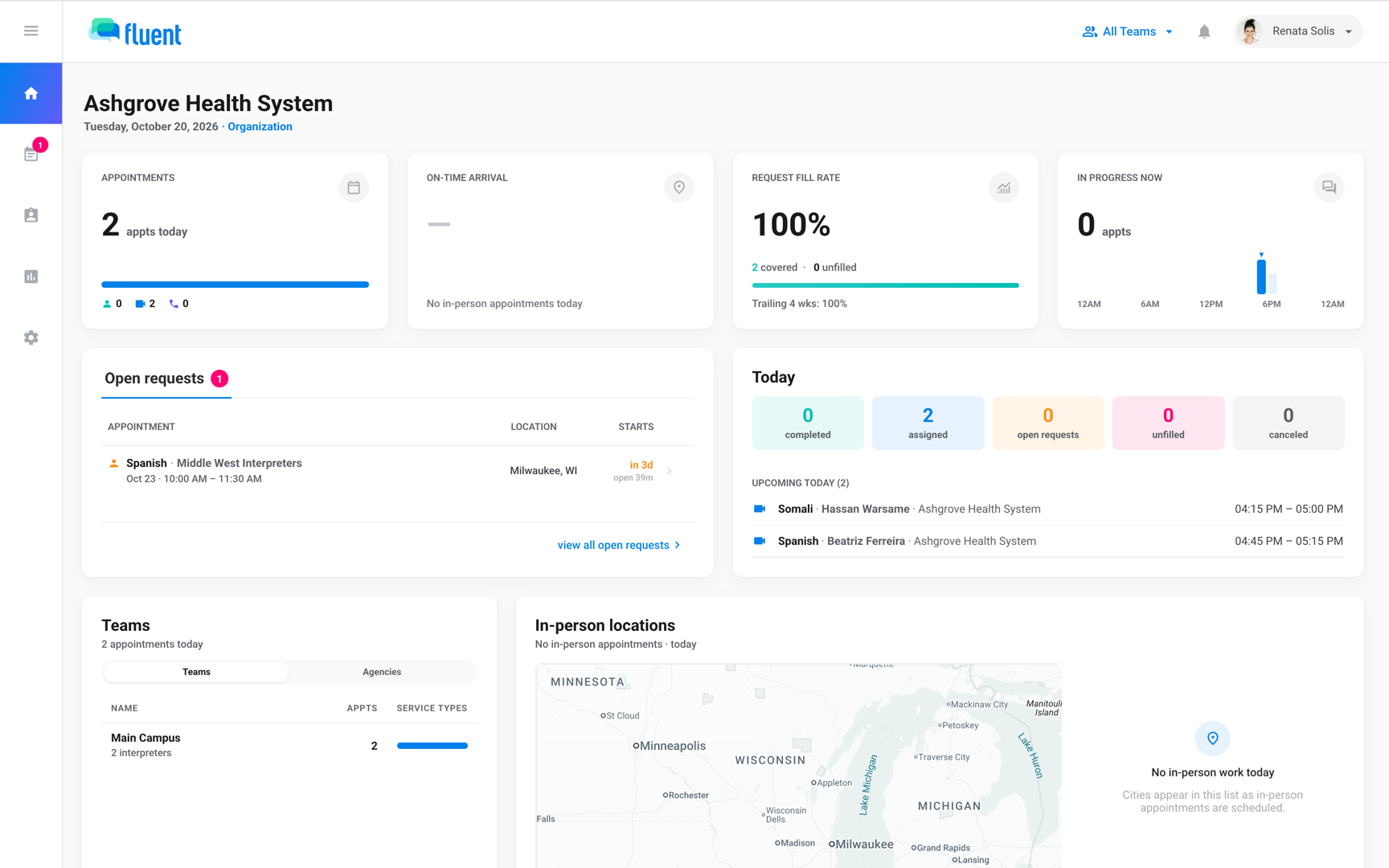
An organization's Dashboard has the same layout, built around the requests it sends. These parts differ:
- Request Fill Rate: In place of Confirmations, the share of today's requests that have an interpreter, plus the rate for the trailing 4 weeks.
- Open requests: One list without tabs, showing the agency each request went to.
- Breakdown and trends: Today's work by team and by agency, and no fill rate trend.
- Your teams: If you belong to teams, the Dashboard counts only those teams' appointments.
Rules and limits
- Click a row under Open requests, Pending, Broadcasting, or Today to open that appointment in the appointment window. The other cards don't open anything.
- If your agency has more than one team, every number follows the team you pick in the top bar.
- If you're on teams, the Dashboard counts only those teams' appointments. The Owner sees every team.
- Fluent counts an appointment as today's by its date in its own time zone. See How time zones work in Fluent.
- The Dashboard doesn't update while it stays open. It reloads when you come back to it or pick another team.
- Saving an appointment you opened from the Dashboard reloads only the request lists and the Today card.
- The Dashboard has no date range and no export. For other dates, use Reports. See Reports overview.
Troubleshooting
My Dashboard shows different numbers from a colleague's
You're on different teams, or you have different teams picked in the top bar. A team member sees only their own teams' appointments, and the Owner sees every team.
The fill rate doesn't match Reports
The Dashboard lowers its rate for appointments whose time passed before anyone accepted, and Reports › Services doesn't. The Dashboard also always covers the last 30 days, while Reports covers the time range you pick.