
The Appointments page
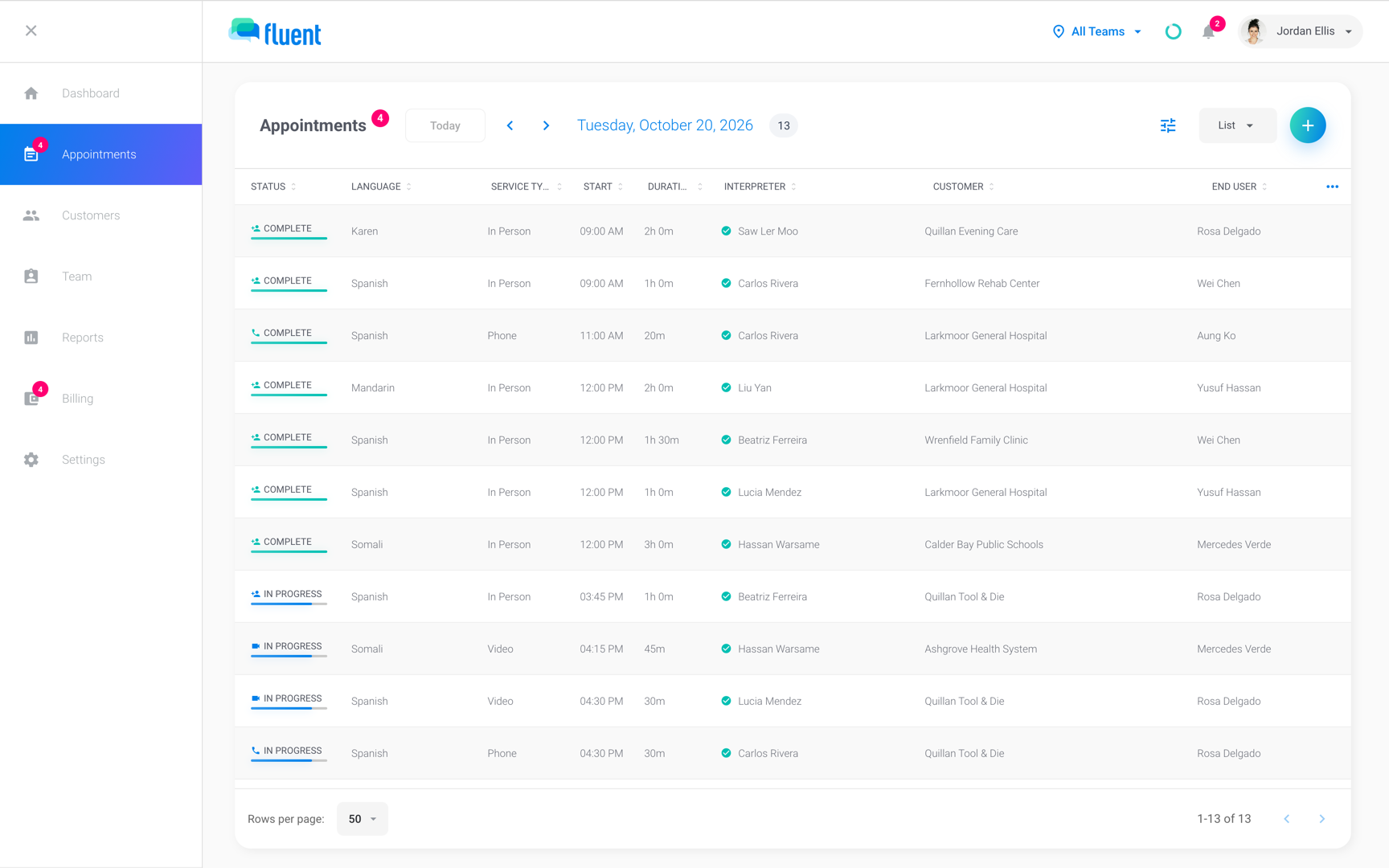
The views, Open Requests, filters, columns, and row colors on the Appointments page, and what each one shows.
What you'll learn
- How to find appointments, from one day's list to every request still waiting for an interpreter.
- What the colors, icons, and numbers on the page tell you about each appointment.
Who can see and export appointments
Everyone in a workspace has the Appointments page. Your role and your teams decide which appointments are on it.
| Role | Appointments you see | Export | Revenue, Interpreter Pay, Gross Profit |
|---|---|---|---|
| Agency Owner | Every team's appointments | Yes | Yes |
| Agency Admin | Your teams' appointments | Yes | Yes |
| Agency Manager | Your teams' appointments | Yes | No |
| Agency Scheduler | Your teams' appointments | No | No |
| Interpreter | Assigned to you, and your offers | No | No |
| Organization Owner, Administrator, or Manager | Your teams' requests | Yes | No |
| Organization Scheduler | Your teams' requests | No | No |
| Organization Requestor | Only the requests you made | No | No |
An Interpreter who isn't also a team member has no + button, so can't create appointments here. Teams limit the appointments you see, not the interpreters you can assign. See Teams.
Views
Work row by row in the List, or use a calendar to see a day, week, or month at once. The view menu at the top right switches views.
- List: One day's appointments as a table, 50 rows to a page by default.
- Day: One day as a calendar, each appointment a tile at its time.
- Week: 7 days side by side. Click a day's heading to open that day in Day view.
- Month: Each day shows its number of appointments and a bar for how much is assigned or complete. Colored counts show its open, canceled, and missed or declined appointments. Click a day to list its appointments under Open, Active, and Closed.
Click a row or a calendar tile to open the appointment.
Open Requests
Open Requests is the work still waiting for an interpreter, on any date. Click the Appointments title to switch to it.
- What it lists: Every Requested, Pending, Broadcast, and Unassigned appointment on any date, past dates included.
- Count: The number beside the title counts the rows your filters show.
- Date column: The appointment's date.
- AGE column: How long ago the request was created: "< 1 HR", a number of hours, or a number of days after 72 hours. It turns red after 72 hours.
- Go back: Click the title again to return to the view you came from. Removing the last status chip also takes you back.
Filters
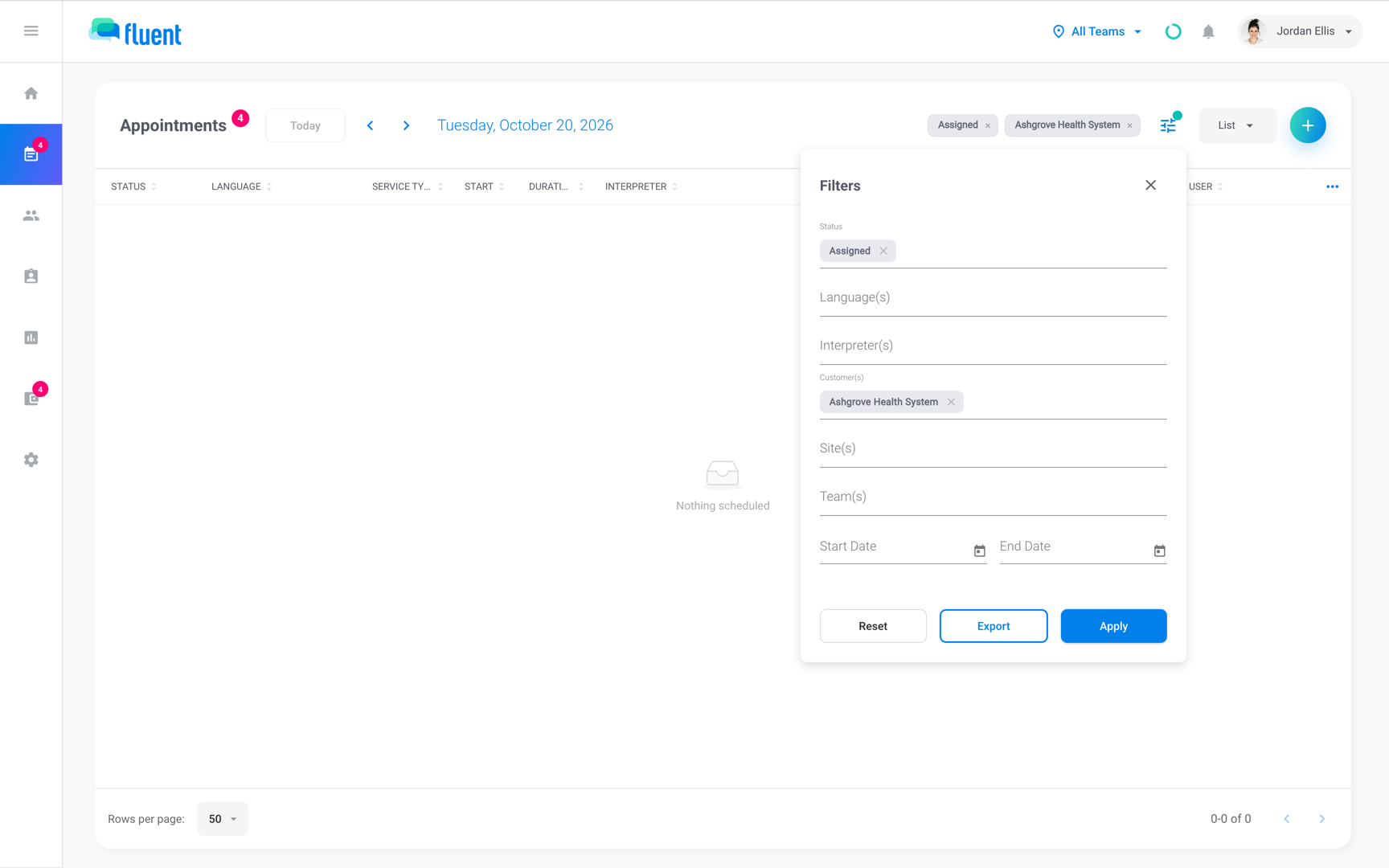
Filters narrow the list and the calendars.
Click the Filters icon, set the fields, and click Apply. Each choice shows as a chip next to the icon, and Reset clears them all.
| Filter | Who has it | What it does |
|---|---|---|
| Status | Everyone | Shows only the statuses you pick |
| Language(s) | Everyone | Shows only those languages |
| Interpreter(s) | Agency team members and organizations | Shows only those interpreters' appointments |
| Customer(s) | Agency team members | Shows only those customers |
| Site(s) | Agency team members | Shows only those sites of the chosen customers |
| Team(s) | Agencies and organizations with more than 1 team | Shows only those teams |
| Requested By | Organizations | Shows only requests from those people |
| Agency(s) | Organizations | Shows only appointments from those agencies |
| Dates | Everyone, in List view | Shows a date range instead of one day |
In an organization, Interpreter(s) and Agency(s) fill in when you click a name in the calendar summary.
Columns
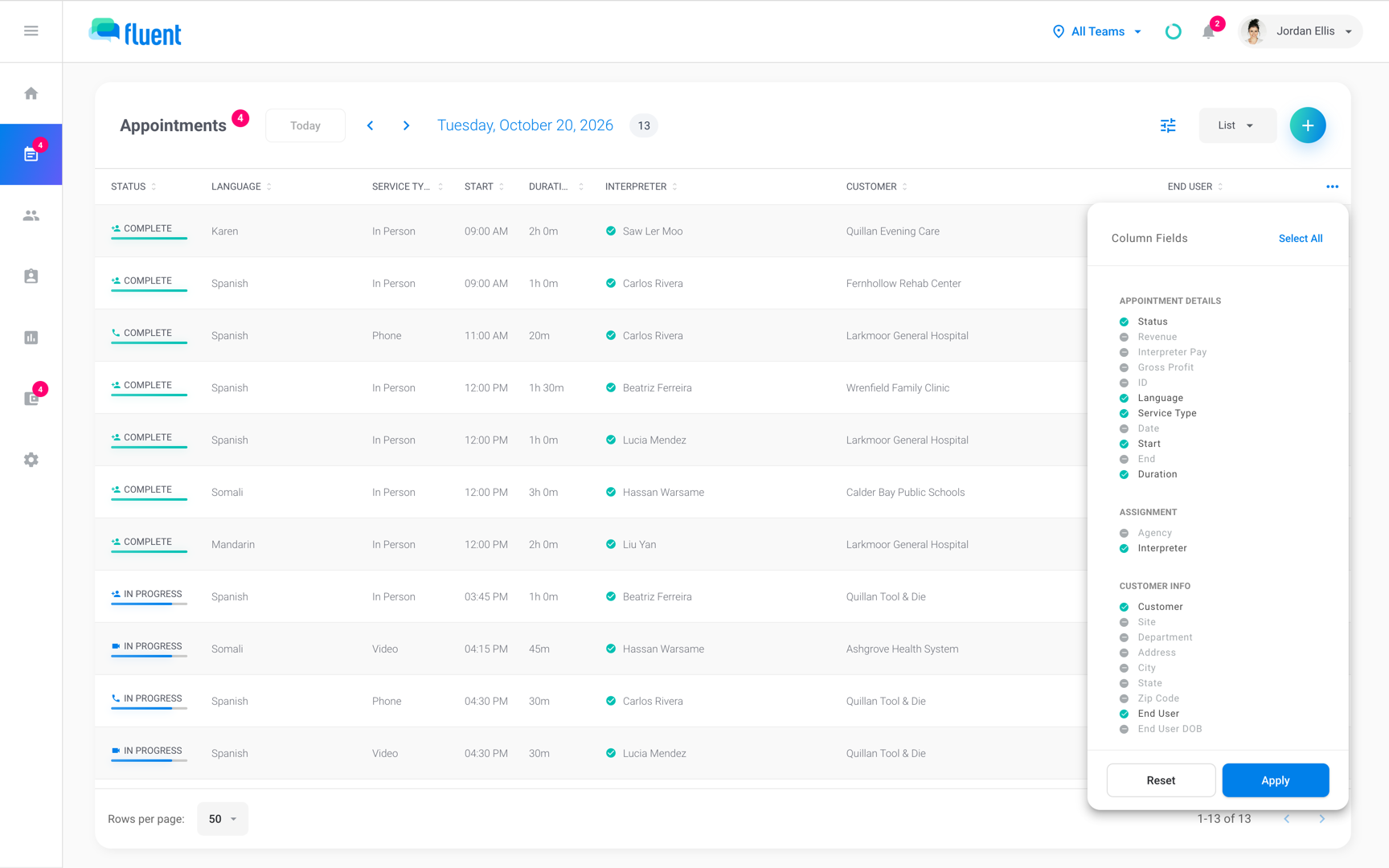
Choose the List's columns with the ⋯ button at the top right of the table, then click Apply.
By default the List shows Status, Language, Service Type, Start, Duration, Interpreter, Customer, and End User. In an organization, the Customer column is Organization and End User is LEP Speaker, and Team shows when you have more than 1 team.
| Group | Columns |
|---|---|
| Appointment Details | Status, ID, Language, Service Type, Date, Start, End, Duration |
| Assignment | Agency (agencies only), Team (organizations with more than 1 team), Interpreter |
| Customer info | Customer, Site, Department, Address, City, State, Zip Code, End User, End User DOB, Cost Center (organizations only) |
| Scheduling | Office (agencies with more than 1 team), Requested By, Requested Date, Requested Time, Requested Prior to Appt., Video URL, Phone URL, Interpreter Assigned At, Response Time |
| Voucher | Arrival Time, Arrival Prior to Appt., Voucher Complete, Voucher Signature, Voucher Start, Voucher End, Voucher Duration, Voucher Miles, Voucher Travel Time |
In an organization, the Customer info group is called Organization info.
The ID column is an internal record number, not the appointment number. See Appointment details and history.
These columns are worked out from other times:
| Column | What it shows |
|---|---|
| Requested Prior to Appt. | Time from the request to the appointment start |
| Response Time | Time from the request to the interpreter's assignment |
| Arrival Prior to Appt. | "{n} min early", "{n} min late", or "On time" |
| Voucher Duration | The voucher's start to end time |
Agency Owners and Admins can also turn on Revenue, Interpreter Pay, and Gross Profit in Appointment Details. Gross Profit is green when the appointment made money and red when it lost money.
Row colors and icons
Each List row is tinted by its status, so open work stands out. Appointment lifecycle says what each status means.
| Tint | Statuses |
|---|---|
| Orange | Pending, Broadcast, Unassigned |
| Blue | Requested, Assigned, Checked In, Arrived, In Progress, Incomplete |
| Pink | Missed, Declined |
| None | Complete, Canceled, Late Cancel |
On today's and earlier rows, agencies see a same-day confirmation icon before the interpreter's name:
- Green check: "Interpreter confirmed: {time}".
- Send icon: "Daily confirmation sent: {time}", with no answer yet.
- Empty circle: "Awaiting confirmation".
Calendar summary
Day, Week, and Month views have a summary panel beside the calendar, with totals for the period and its busiest names. The panel icon next to Filters shows or hides it.
- Mini calendar: Click a date to go to it.
- Total: The number of appointments in the period.
- Fulfillment Rate: "Percentage of appointments that were not missed or declined."
- Interpreted: Hours interpreted in the period.
- Teams: Appointments by team, when you have more than 1 team.
- Top Customers: The customers with the most appointments. Organizations see Top Agencies.
- Top Languages and Top Interpreters: The busiest languages and interpreters.
Click a name in a list to filter by it. Click it again to remove the filter.
Export
Export saves the appointments your filters show as a CSV file.
The Export button is in the Filters panel, next to Apply. Export data has the steps, the verification code, and what the file holds.
Rules and limits
- Fluent remembers your view, date, filters, and columns in this browser. Another browser or computer starts with the defaults.
- The Dates filter is in List view only. The calendar views use Today, the arrows, and the date.
Troubleshooting
I can't find a search box
The web Appointments page has no search. Filter by Customer(s), Interpreter(s), or Dates instead.
The arrows next to the date are greyed out
A Dates range is set in Filters, so the List shows that range instead of one day. Clear Start Date and End Date, or click Reset.
The Open Requests badge counts old requests
The badge counts every open request with no date limit, so a past appointment still Requested or Unassigned keeps counting. Go to Open Requests and assign, decline, or cancel the old ones.
The badge and the number beside Open Requests differ
The badge counts every open request you can see. The number beside the title counts only the rows your filters show.
In an organization, the badge also leaves out Broadcast appointments.