
Check in and track time
Check in when you arrive, then start and end the appointment in the Fluent mobile app so your times go on your voucher.
What you'll learn
- How to check in, start, and end an appointment in the mobile app so your times go on your voucher.
Before the appointment
Fluent reminds you to check in shortly before each appointment, with a push notification and an email.
- In-person: about 5 minutes before the start.
- Phone or Video: about 10 minutes before the start.
Check in
Check in when you arrive, or when you're ready for a Phone or Video appointment, so your agency knows you're there.
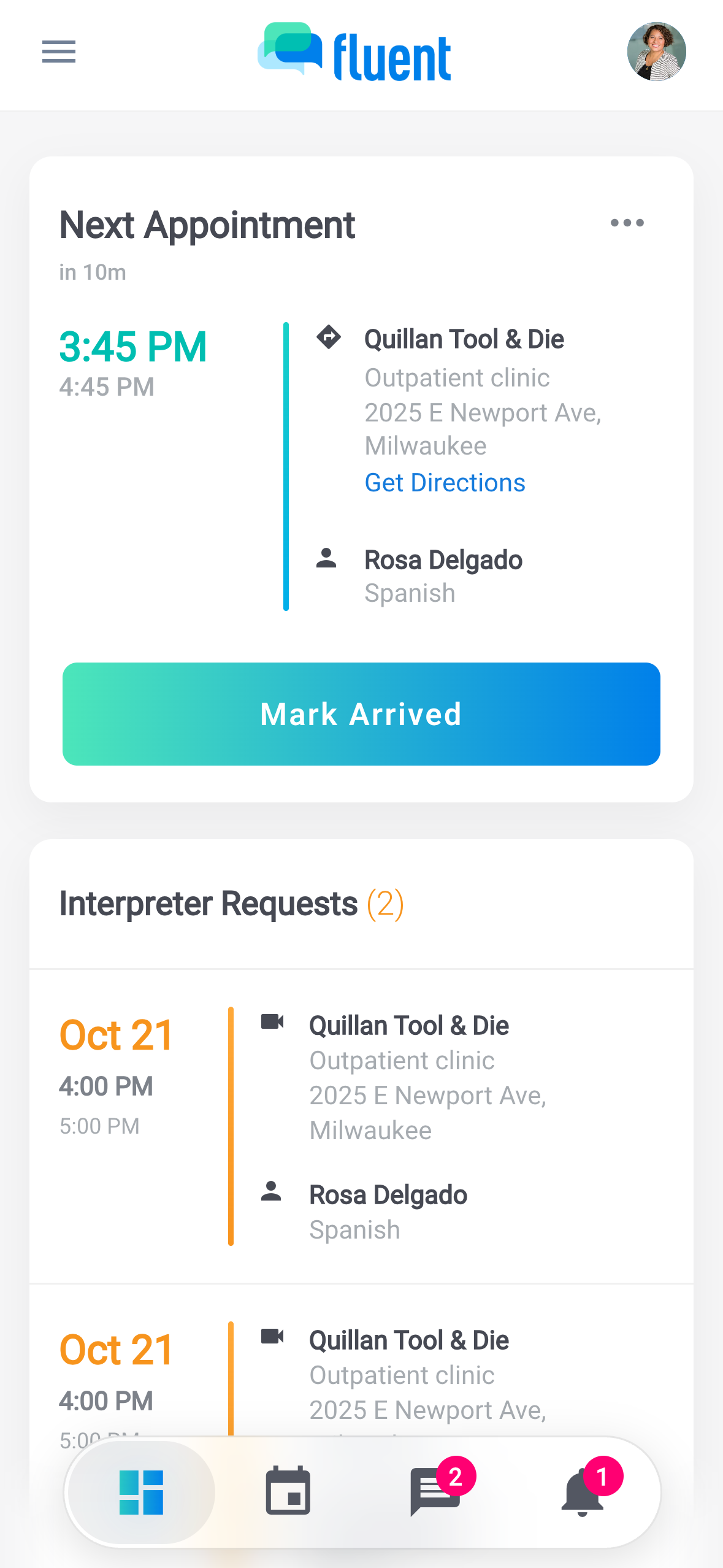
- Open the Dashboard.
- On the Next Appointment card, tap Mark Arrived (In-person) or Check In (Phone, Video).
Fluent saves the time as your arrival time on the voucher. Until the scheduled start, your agency sees the appointment as Arrived or Checked In.
What you do next depends on the service:
| Service | Check-in closes | What you do next |
|---|---|---|
| In-person | At the scheduled end | Wait for the start, or start early |
| Video | 15 minutes after the start | Tap Join Meeting |
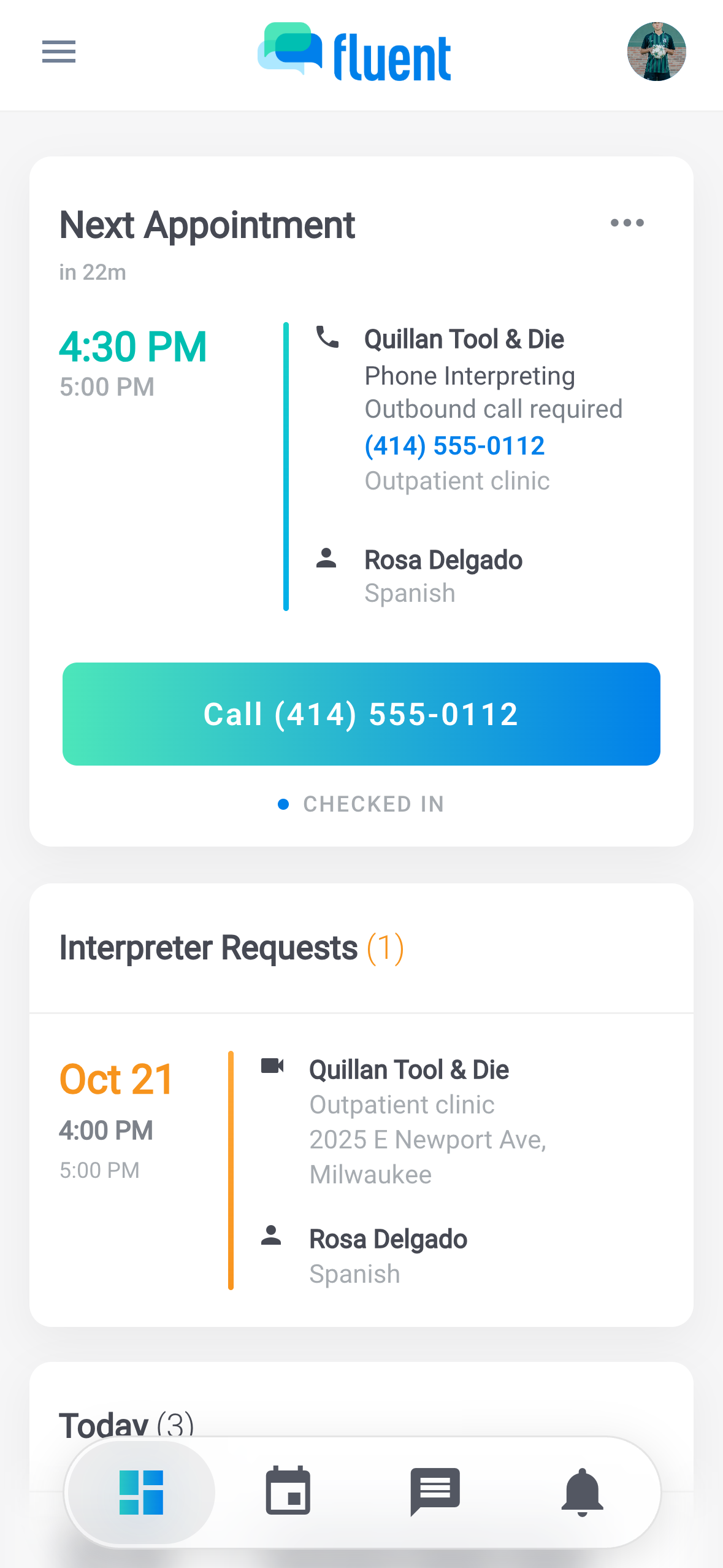
| Phone, outbound | 15 minutes after the start | Tap Call {number} |
| Phone, inbound | At the scheduled start | Wait for the call |
Join a video appointment
A Video appointment takes place in a meeting app outside Fluent. After you check in, join it from the Next Appointment card.
- On the Next Appointment card, tap Join Meeting.
- In the "Before you join" dialog, tap Join {provider}, such as Join Zoom.
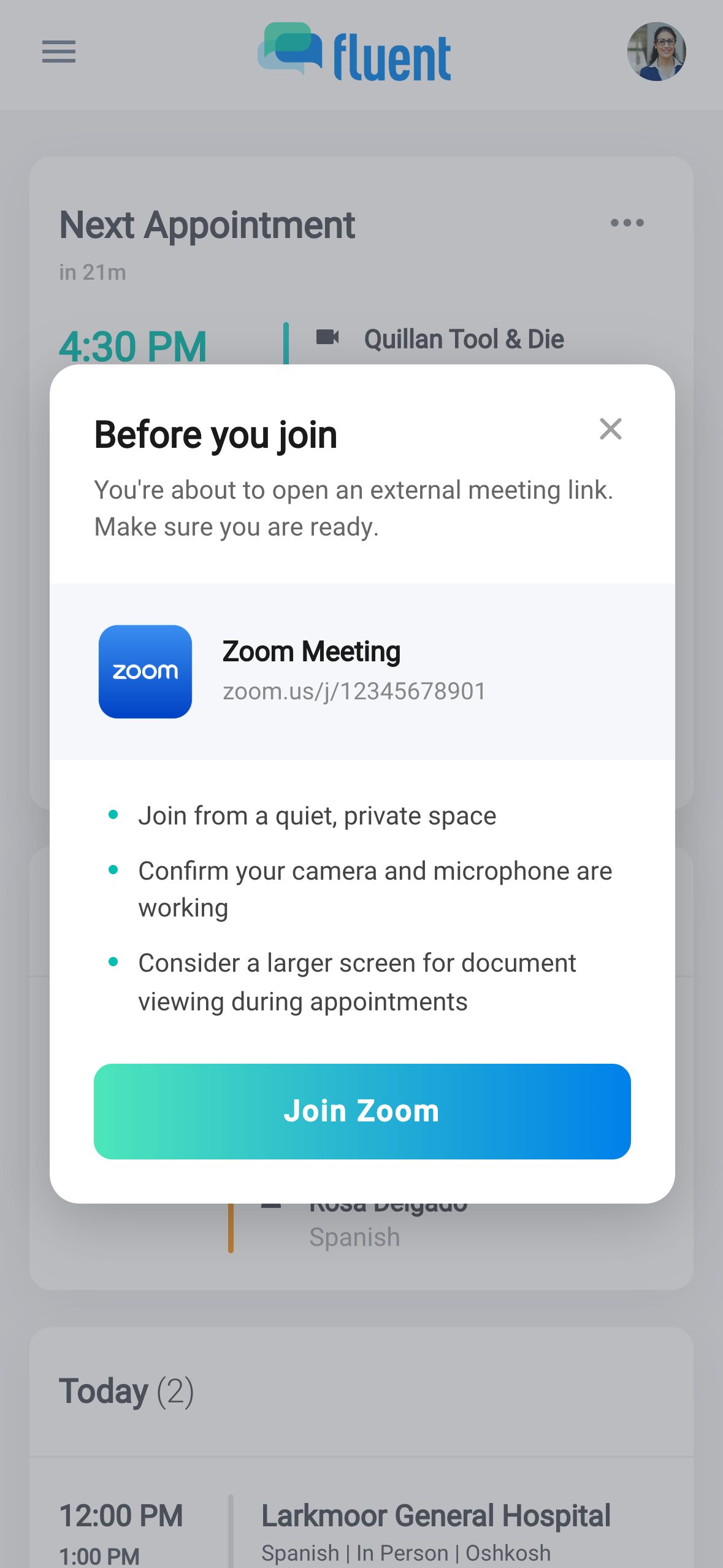
The meeting opens in its own app or your browser, and the appointment moves to the Current Appointment card. To rejoin, tap Meeting Details on that card.
Start the appointment
The app starts counting the elapsed time at the scheduled start, so you don't need to tap anything. If the work begins earlier, start it yourself.
- On the Current Appointment card, tap Start Appointment. It shows after you tap Mark Arrived (In-person) or join the meeting (Video).
- In the "Appointment starting soon" dialog, tap Start appointment now.
The elapsed time starts right away. On an outbound Phone appointment, it starts when you place the call, if that's before the scheduled start.
End the appointment
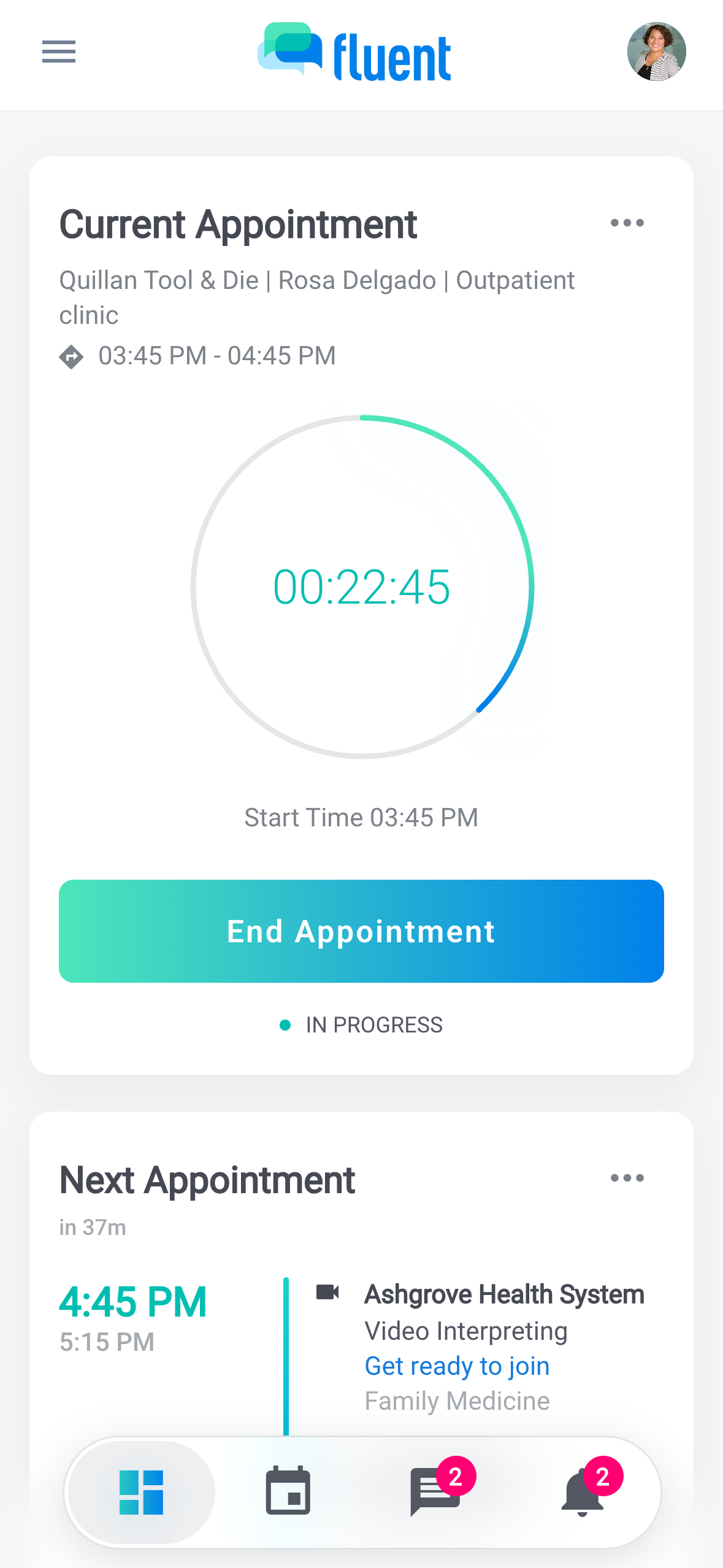
When the work is done, end the appointment so the app saves your start and end times for the voucher.
- On the Current Appointment card, tap End Appointment.
- In the "Confirm End Time" dialog, tap Confirm.
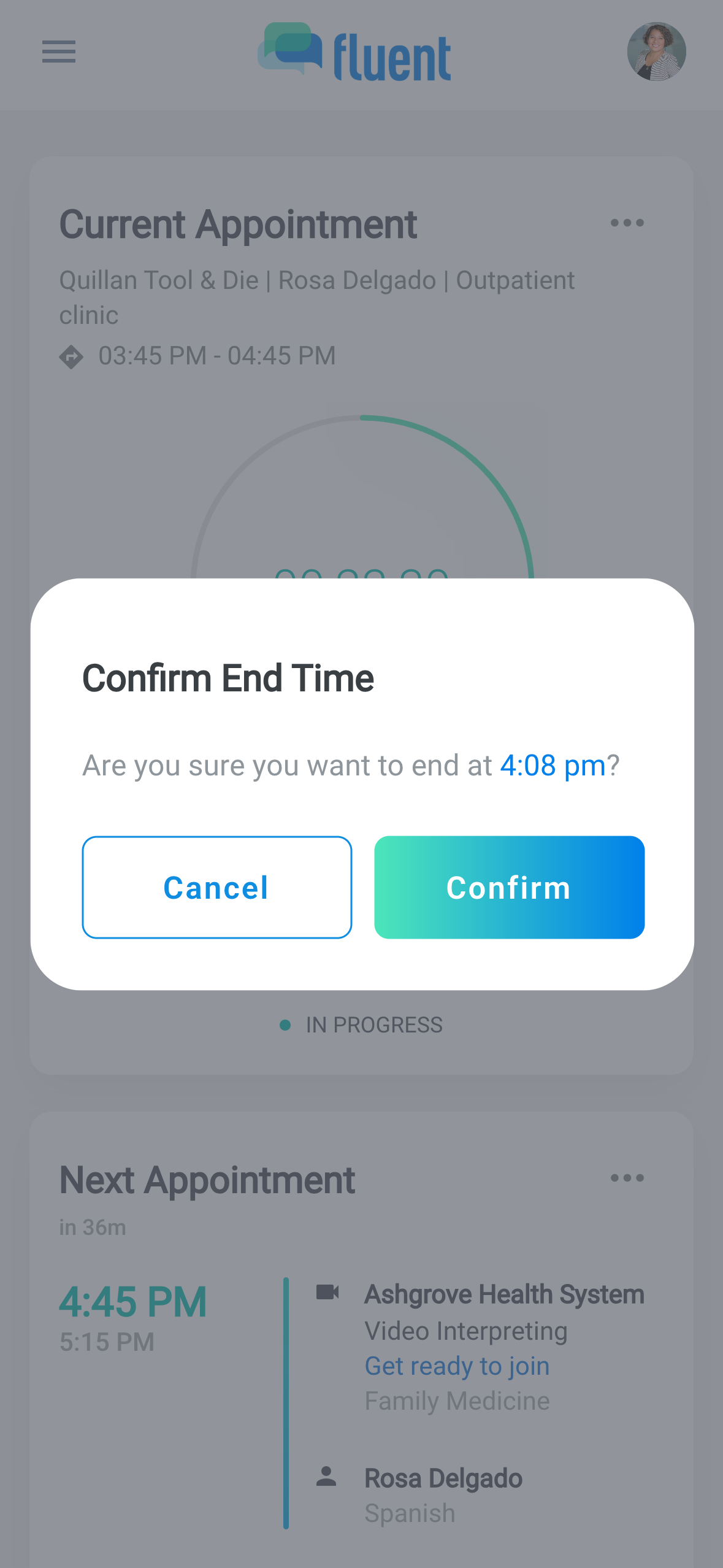
Tap Submit Voucher next. If you ended late, change the end time on the voucher. See Submit a voucher.
If you're running late
If you can't make the start, call your agency from the app.
- On the Next Appointment card, open the ⋯ menu in the card's header.
- If your agency added a Scheduling Contacts phone number, tap Call Scheduling.
Your phone dials that number.
When you check in after the scheduled start, the elapsed time starts from that moment. Fluent tells your agency and the customer's organization that you arrived late.
Rules and limits
1 per appointment
None if you already checked in.
1 minute
Fluent tells your agency you arrived late only when you check in at least this long after the scheduled start.
1 hour
The Current Appointment card closes this long after the scheduled end, even if the elapsed time is still running. After that, open the appointment from Incomplete Vouchers on the Dashboard.
Troubleshooting
I don't see Mark Arrived or Check In
The button shows from 30 minutes before the scheduled start, and only on an appointment you accepted.
I missed the check-in window
- Video or outbound Phone: from 15 minutes after the start, Join Meeting or Call {number} shows on its own, and joining or calling starts the elapsed time.
- Inbound Phone: the appointment starts on its own at the scheduled time.
Tap End Appointment when you finish, and fix the times on the voucher.
The Join or Call button is missing
The "Before you join" dialog shows Join {provider} only after you check in, or from 15 minutes after the start.
If Join Meeting can't be tapped or Call {number} is missing, the appointment has no Video URL or phone number. Ask your agency to add it.