
Auto-assign and Broadcast
Let Fluent find an interpreter by offering an appointment to your picks 1 at a time with Auto-assign, or all at once with Broadcast.
What you'll learn
- How to have Fluent offer an appointment to your interpreters one at a time or all at once.
- How to follow the offers while they run, and cancel or change them.
Before you start
- At least 1 interpreter on your interpreter team has created their account. They need a language pair that covers the appointment's language, service type, and interpretation mode.
Choose Auto-assign or Broadcast
Owners, Admins, Managers, and Schedulers at your agency run both from the Assignment step of the appointment dialog. Pick by how soon you need an interpreter and whether you have a first choice.
- Auto-assign: Use it when you have a first choice and time to wait. Each pick has 2 hours to answer, however soon the appointment starts.
- Broadcast: Use it when the appointment is soon, or any of your picks is fine.
What Fluent does with each answer:
| When an interpreter | Auto-assign | Broadcast |
|---|---|---|
| Accepts | Assigns them and ends the method | Assigns them and closes the other offers |
| Declines | Offers the next pick | Closes only their offer |
| Doesn't answer | After 2 hours, offers the next pick | Keeps the offer open |
| Declines or doesn't answer, and nobody is left | Returns the appointment to Unassigned | Keeps the broadcast open |
Start Auto-assign or a Broadcast
Start either method on a new or existing appointment.
- Go to Appointments, open the appointment, and click Edit. For a new appointment, start it as in Create an appointment.
- On Details, click Next.
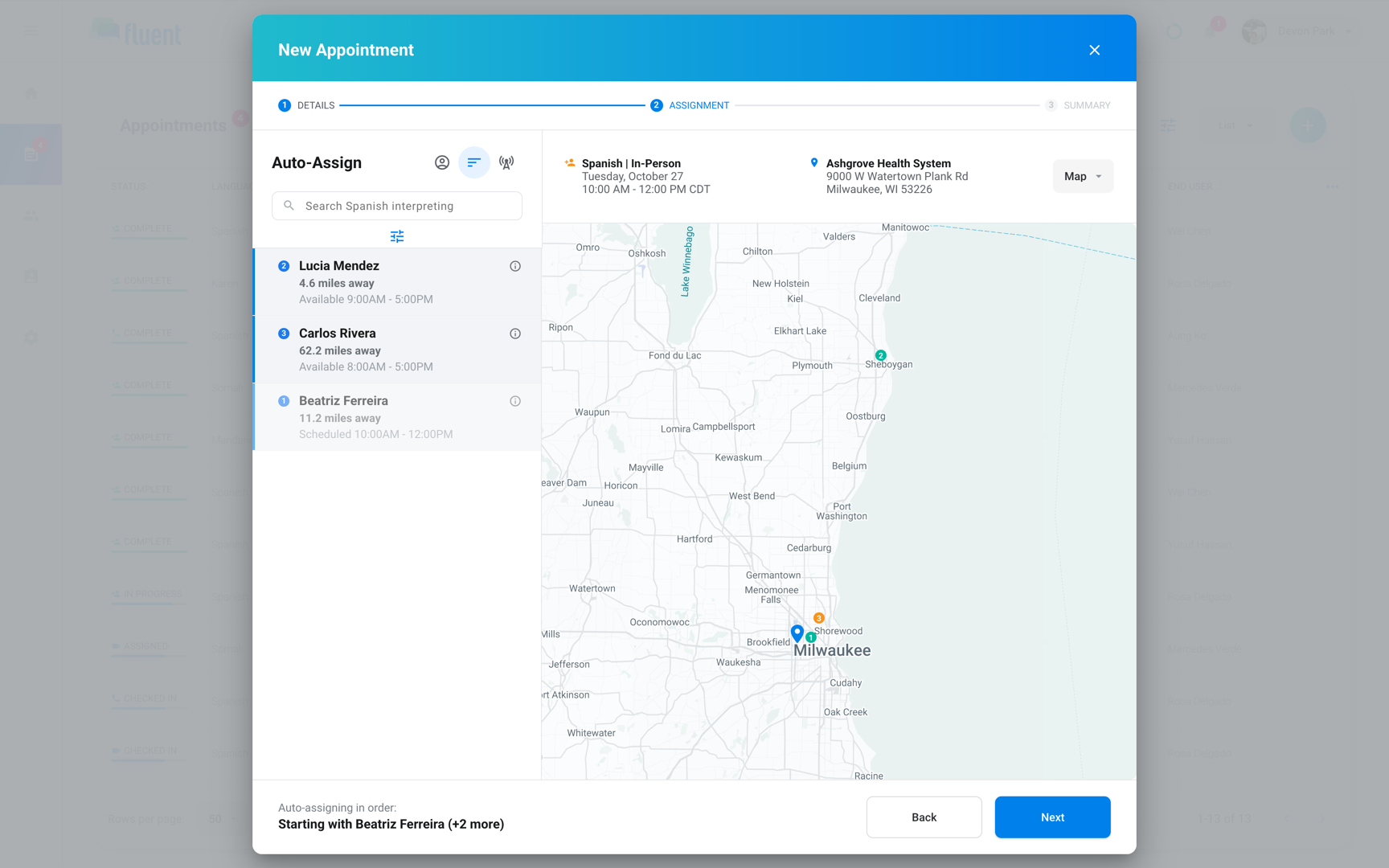
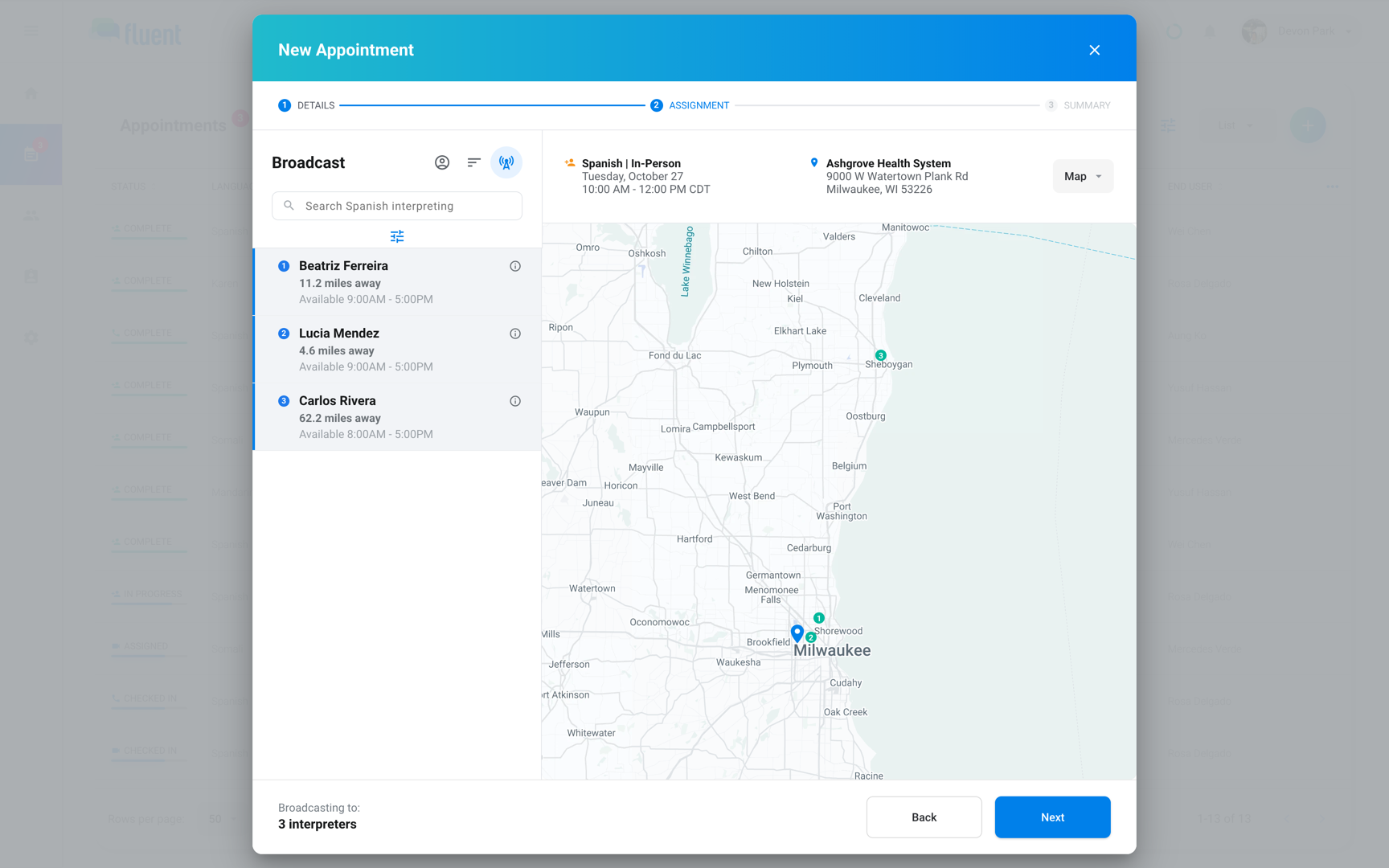
- On Assignment, click the second of the 3 icons next to the heading for Auto-assign, or the third for Broadcast. The heading changes to Auto-Assign or Broadcast.
- Click each interpreter you want. For Auto-assign, click them in the order Fluent should offer it.
- Click Next.
- On Summary, click Save for a new appointment, or Update for an existing one.
- Auto-assign: The appointment moves to Pending, and your first pick gets the offer.
- Broadcast: The appointment moves to Broadcast, and every pick gets the offer.
Follow a running method
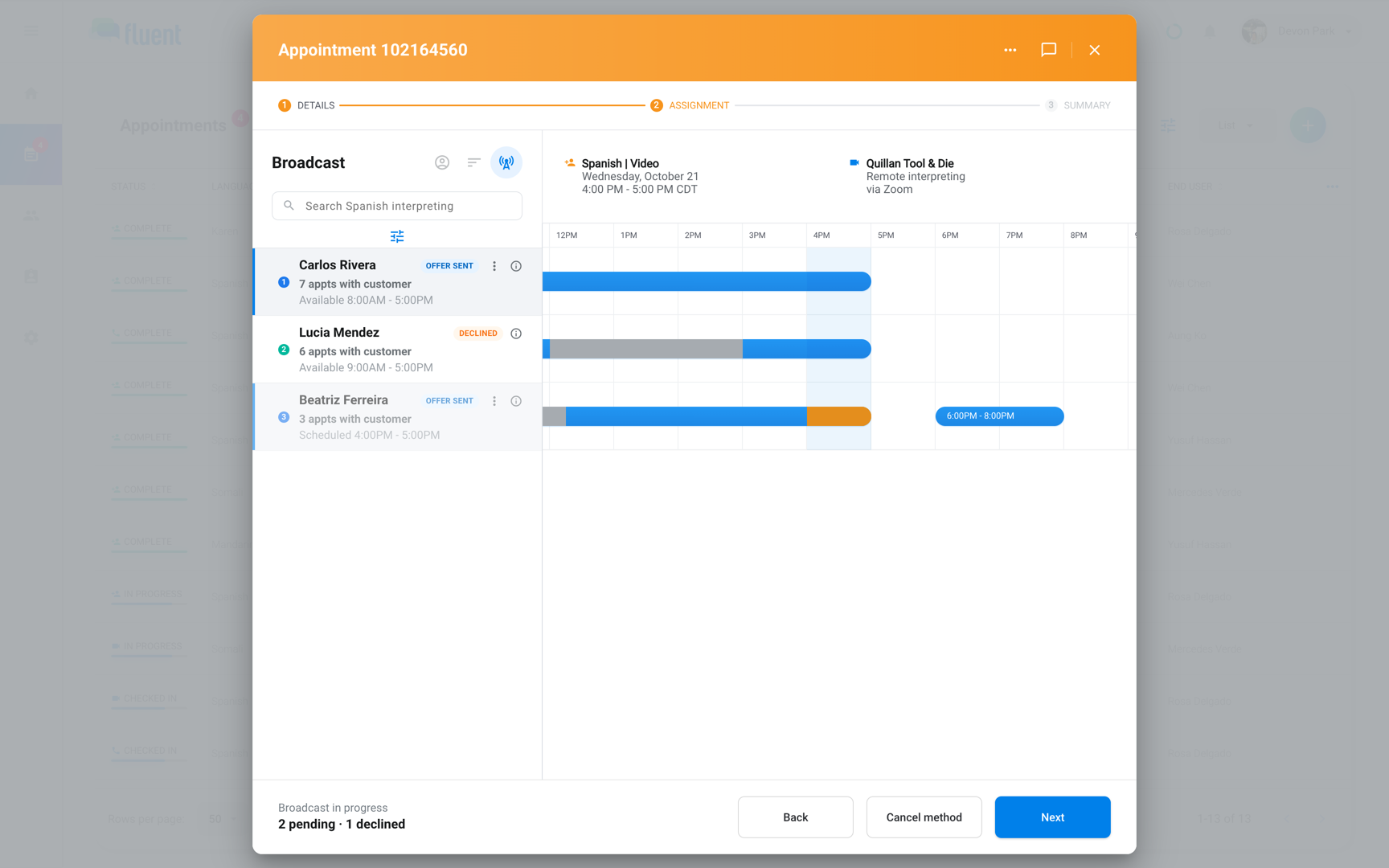
The appointment's Assignment step shows where each offer stands.
- Go to Appointments and open the appointment.
- Click Edit.
- On Details, click Next.
- On the Assignment step: Each interpreter row shows Offer sent, Accepted, Declined, or No Response.
- All open offers: Click Pending or Broadcasting on the Dashboard requests card, or Open Requests on Appointments.
Record an answer given outside Fluent
When an interpreter answers by phone or text, record it so Fluent acts on it.
- Open the appointment's Assignment step, as in Follow a running method.
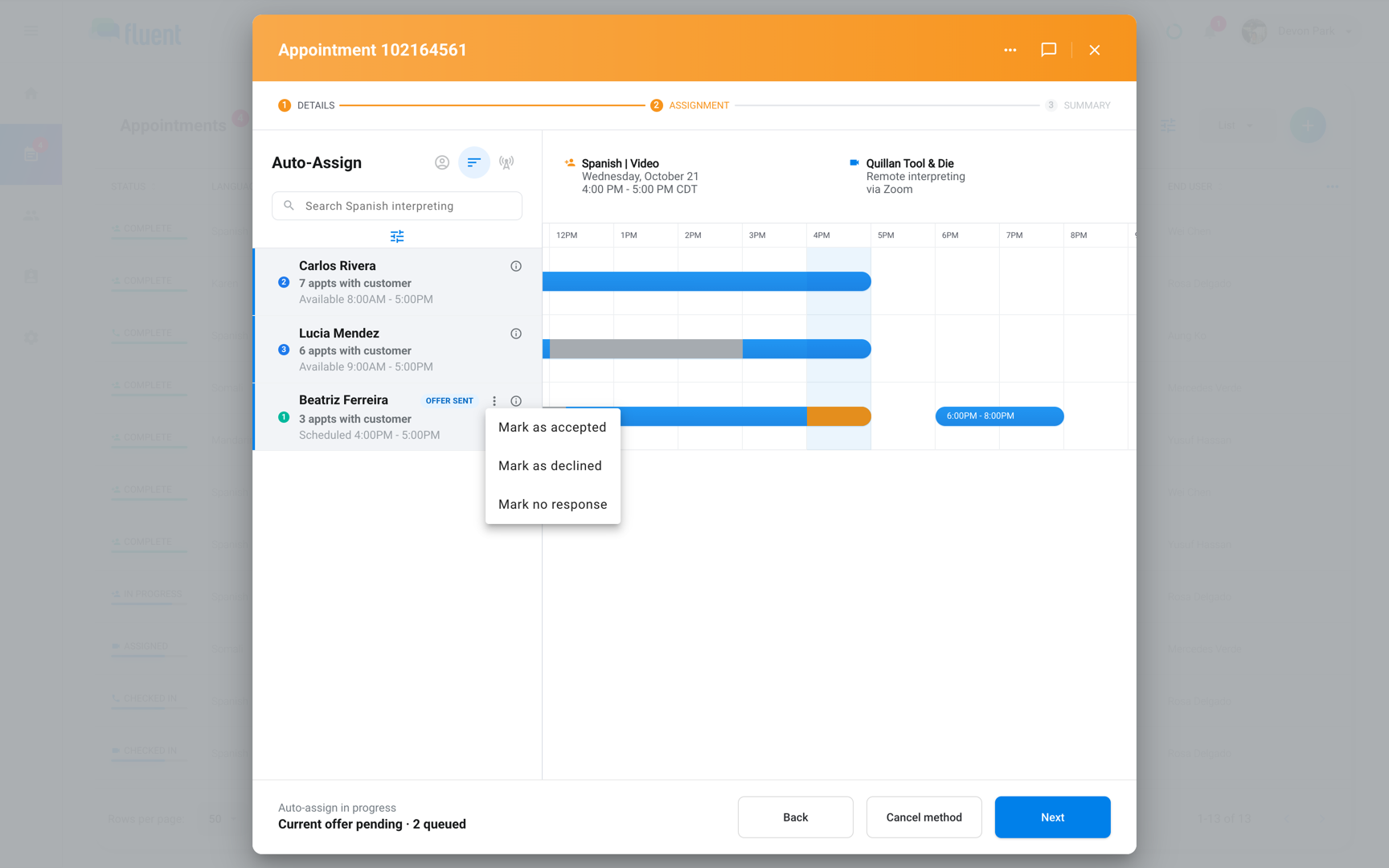
- On the interpreter row that shows Offer sent, click ⋮.
- Click Mark as accepted or Mark as declined. During Auto-assign, you can click Mark no response instead.
- Click Next.
- On Summary, click Update.
- Mark as accepted: Sends the interpreter "Appointment Assigned" and an email.
- Last open offer in a Broadcast marked declined: Ends the broadcast and returns the appointment to Unassigned.
Cancel or change a running method
Cancel a method to withdraw its offers, or to change the interpreters, their order, or the method. You can't change them while it runs.
- Open the appointment's Assignment step, as in Follow a running method.
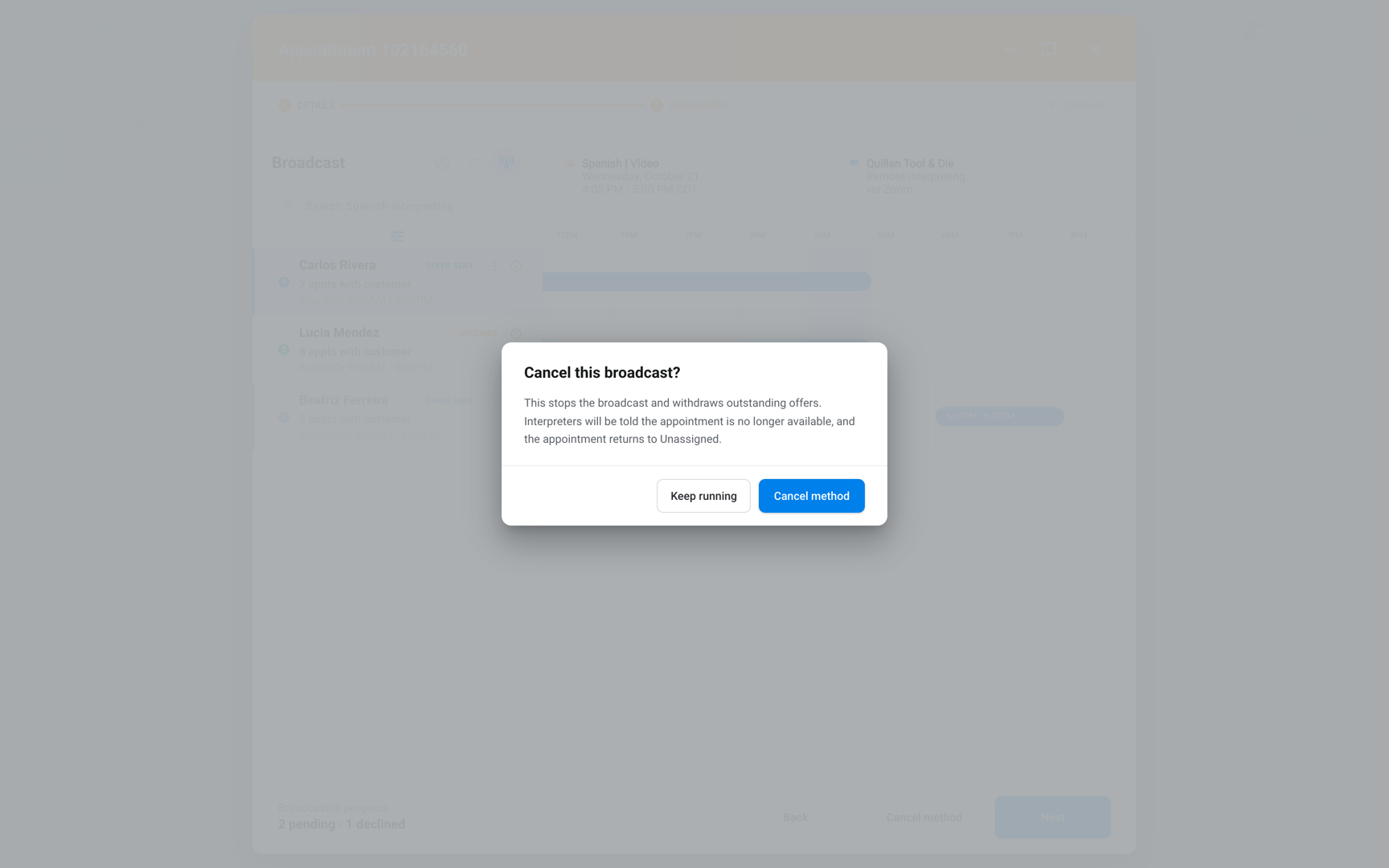
- Click Cancel method in the footer.
- Click Cancel method again in the dialog.
- Offers: Fluent withdraws every open offer at once, without Update, and returns the appointment to Unassigned.
- Interpreters holding an offer: They get "Appointment Unavailable", and the Accept and Decline links in their emails stop working.
What interpreters are told
Each offer and its reminders reach the interpreter in the app, by push, and by email. See Accept or decline interpreter requests.
Important: The offer doesn't show the 2-hour Auto-assign deadline. Tell your interpreters about it.
What your team is told
Fluent tells your team how the offers go. These 3 notices mean nobody has taken the appointment yet:
| Notification starts with | When Fluent sends it | Email heading starts with |
|---|---|---|
| "Auto-assign ended" | Nobody in the order accepted | "Auto-Assign Ended" |
| "Broadcast still unfilled" | Broadcast still open 24 hours before start | "Broadcast Open" |
| "Appointment starts soon" | Broadcast still open 1 hour before start | "Broadcast Open" |
- Notifications: Go to everyone at your agency who can run these methods, or only to the appointment's team when its Office field names one.
- Emails: Go to the Scheduling Contacts email in Edit Agency, or to the agency's email when that's empty.
Rules and limits
- Invited interpreters and partner agencies appear only in Assign.
- Fluent leaves out picks with no language pair for the appointment, without saying which, and offers it to the rest.
- Setting the appointment to Canceled, Late Cancel, Missed, or Declined closes every open offer, and interpreters holding one get "Appointment Unavailable".
Troubleshooting
Every interpreter declined, but the appointment still shows Broadcast
Interpreter declines don't end a broadcast. Click Cancel method to return the appointment to Unassigned.
The message starts "Appointment created, but" or "Appointment updated, but"
Fluent saved the appointment, but the method didn't start. Fix the reason it gives, then start the method again.
"None of these interpreters has a language pair for this appointment's language, service type and mode."
Pick other interpreters, or add the language pair to an interpreter's profile.