
Review and approve invoices
Check the invoices Fluent drafts from completed appointments, answer each flag, and approve them in Billing › Review.
What you'll learn
- How to check the invoices Fluent drafts each period, answer what it flags, and approve them before you close the run.
Before you start
- Billing runs are set up, so Fluent drafts an invoice run for each period. See Set up billing runs.
Open an invoice
Owners and Admins review and approve invoices. Open an invoice to see what Fluent billed for each appointment and what it wants you to check.
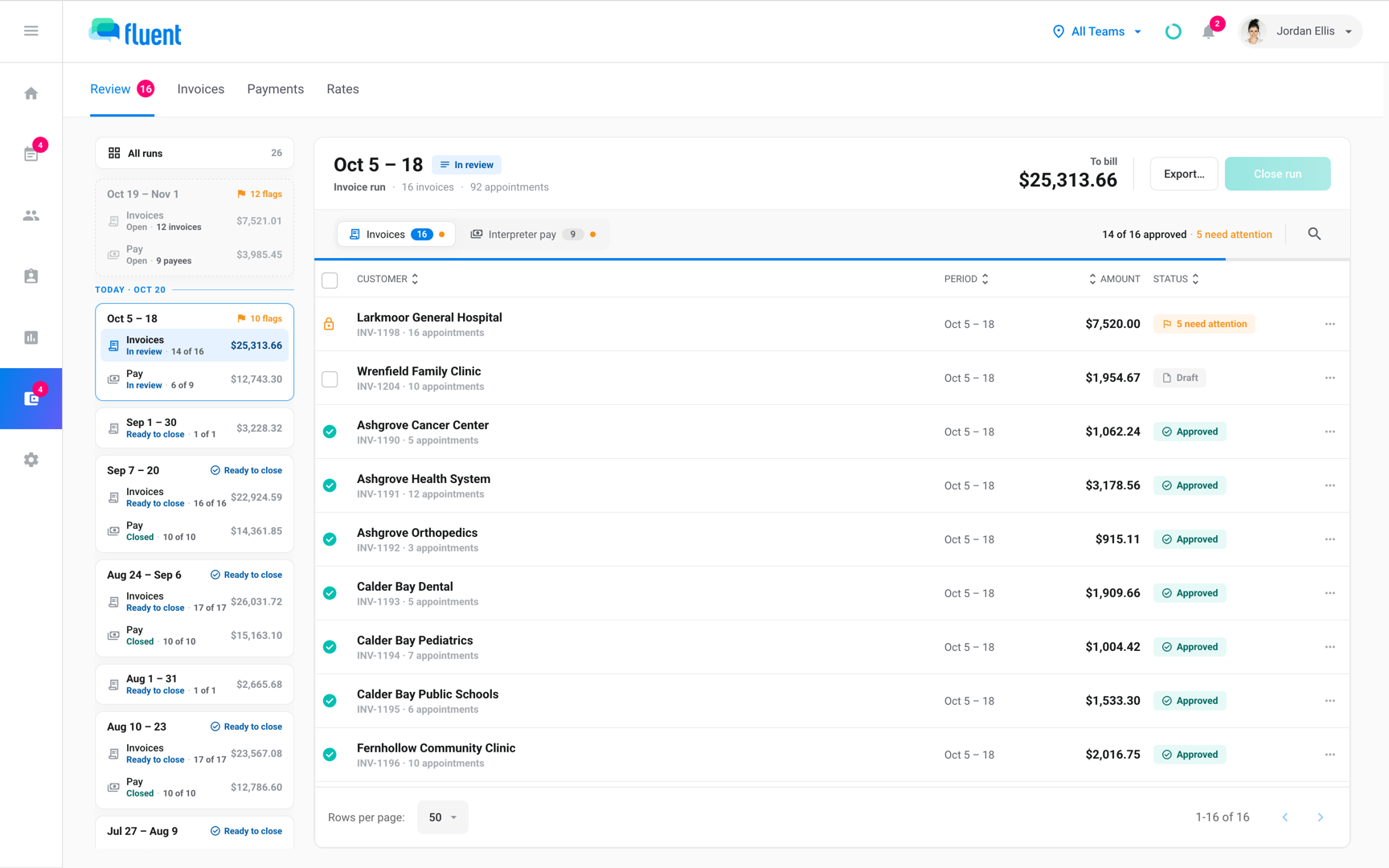
- Go to Billing › Review. The rail on the left lists each period with an open run, the period still collecting appointments first.
- Click the run. Its header shows how many invoices are approved, and "N missing rates" in red while any appointment has no rate.
- Click an invoice. The invoice review opens with a card for each appointment, its lines, and its flags.
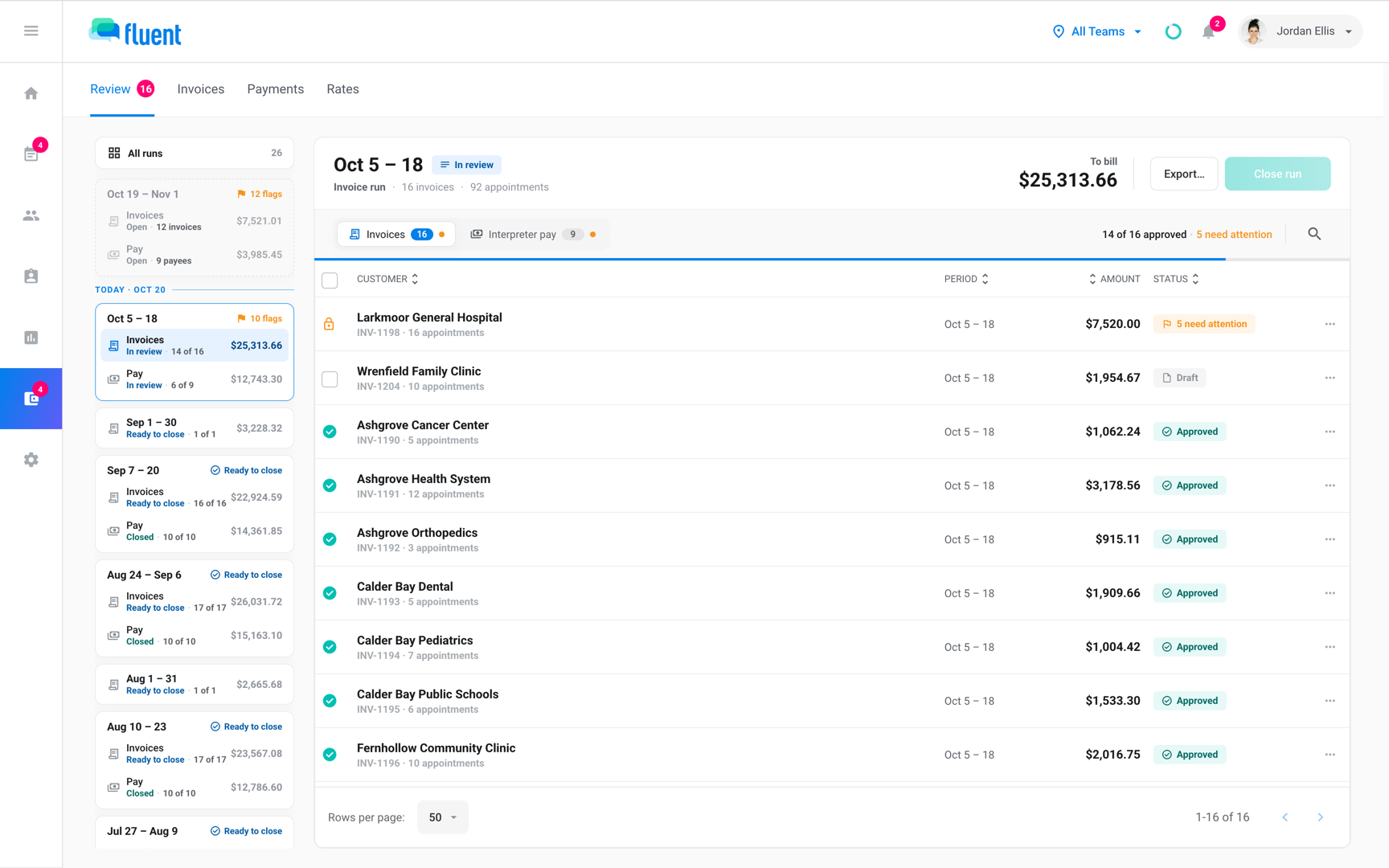
To see how Fluent priced a line, click the chevron at the end of it. It shows the times Fluent compared, how it chose the rate type, and the travel route.
Check each flag
A flag is Fluent's question about a line, such as a voucher that doesn't match the scheduled time. Fix what caused it, or accept the value as billed.
To accept what a flag questions, click Approve as billed, or the button that names the value, such as Approve mileage. An approved flag turns blue.
The color tells you what the flag needs:
- Red: You fix the source before you can approve, as with Language not mapped or Implausible mileage. No voucher submitted, Travel billed on late cancel, and Possible AM/PM error are red but can be approved.
- Amber: Fluent needs your decision, as with Duration discrepancy, Mileage discrepancy, or Overlap at two addresses.
- Blue: The flag gives context and never holds a line, as with Merged, Late cancel, and Margin below floor.
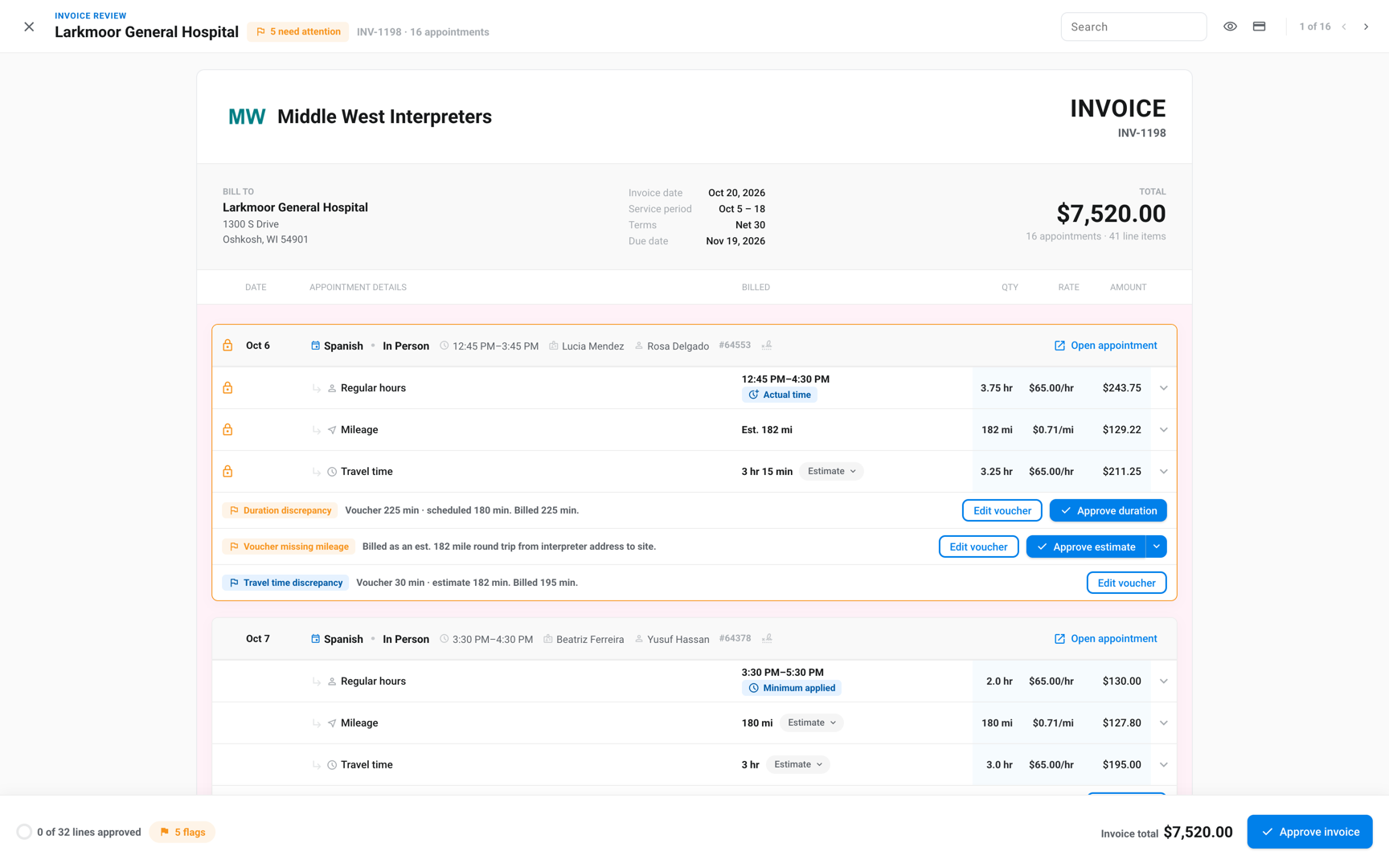
- A flag that repeats: when the same estimate or scheduled-time flag repeats across an invoice, one button approves it on every appointment.
- Thresholds: the thresholds that raise discrepancy flags, and the Margin floor, are in Settings › Agency defaults under Invoice review thresholds.
- Possible AM/PM error: a Duration discrepancy past the Duration escalation, 120 minutes by default, turns red as Possible AM/PM error.
Fix the source of a flag
When a flag points at a wrong voucher, address, visit, or rate, fix it at the source. Each fix opens from the invoice review, so you don't leave the run.
- Voucher: Click Edit voucher on a discrepancy flag, or Add voucher when there's none, to open the appointment with its voucher.
- Interpreter address: On an interpreter address flag, click Add interpreter address or Fix interpreter address, then Save address. Fluent recalculates mileage and travel time on that interpreter's appointments with the flag. Without an address, both bill $0.00.
- Visits: On an Overlap at two addresses flag, click Review visits to bill the appointments as one visit or keep them apart. A merged visit has one minimum and one set of travel charges.
- Travel source: If a mileage or travel time line has both a voucher value and an estimate, click its Voucher or Estimate pill to switch.
- Rates: Click Fix rate on a Zero rate flag, or Open rate card in the header. For appointments Fluent can't price, see Fix Missing rates.
Important: Each fix re-prices the invoice. An approved invoice whose amount changes while the period is open goes back to review.
Handle missing vouchers
When an interpreter hasn't completed a voucher, Fluent bills the appointment from its scheduled time and adds a red flag. Get the voucher in, or accept the scheduled time.
The flag reads No voucher submitted, or Voucher not completed when the interpreter started one. It offers:
- Add voucher: Opens the appointment so you can enter the times.
- Approve as scheduled: Bills the scheduled time as it stands.
- Send reminder: Emails the interpreter, if they have a Fluent account.
To remind every interpreter on an invoice at once:
- Open the invoice review of a saved invoice with 2 or more vouchers to remind.
- Click Remind interpreters (N vouchers) in the header.
Fluent emails each interpreter once, listing every voucher they still owe on that invoice.
- Reminded in the last 24 hours: Fluent skips them, whether you or its automatic reminder sent it.
- No Fluent account, or work a partner agency did: Fluent can't remind them. Enter those vouchers yourself.
Add a note to the customer
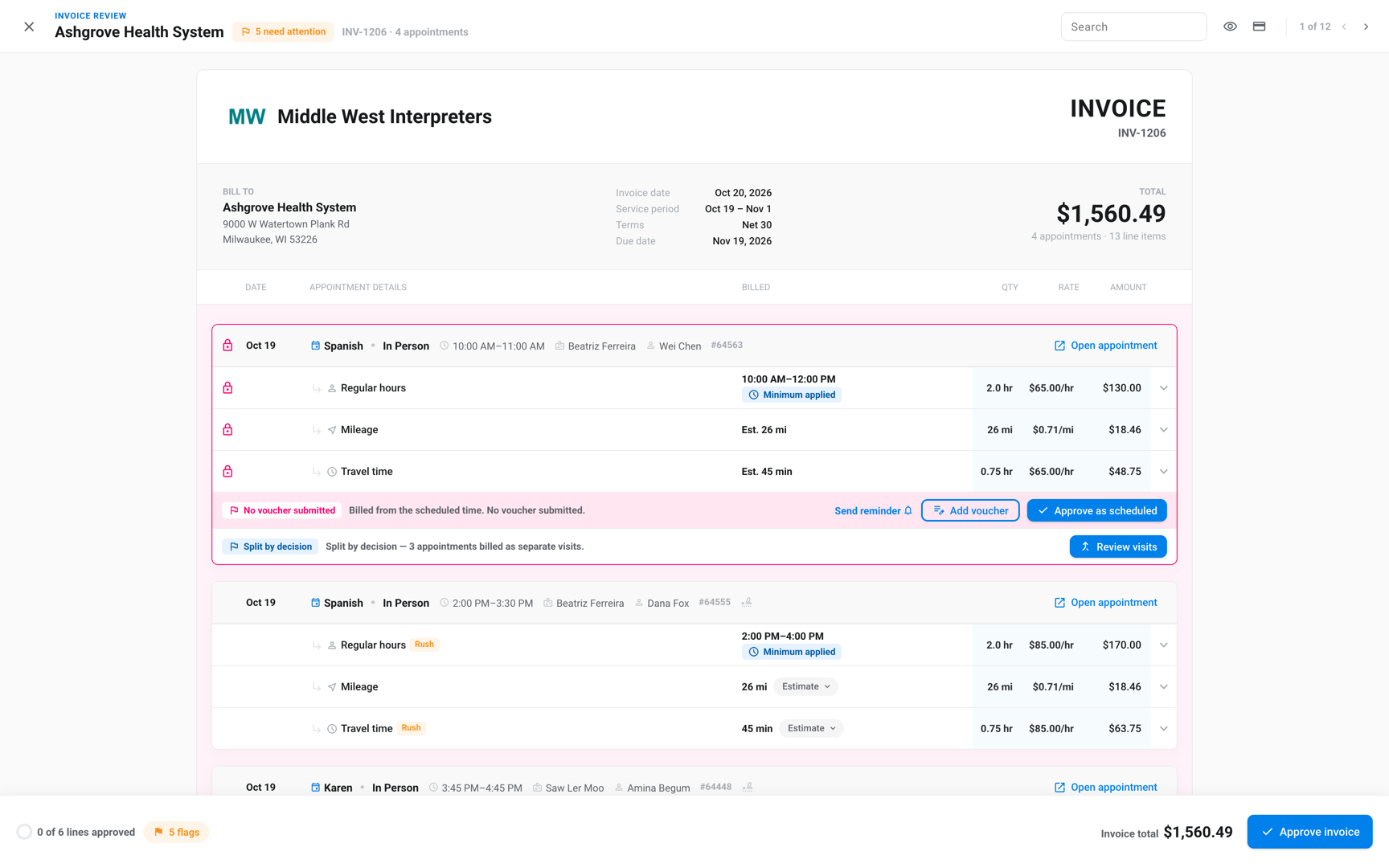
A note to the customer prints under NOTES on the invoice PDF. You can change it until the period closes.
- In the invoice review, scroll to the end of the invoice.
- In Note to customer, enter up to 2,000 characters.
- Click outside the field.
Fluent saves the note.
Approve an invoice
Approve an invoice once its flags are fixed or approved. You can approve all of it, or only the lines that are ready.
A line an open flag holds shows a lock.
- In the invoice review, select the lines you want to approve. To approve every line, select none.
- Click Approve invoice, or Approve selected if you selected lines.
- Check the total in the dialog, then click Approve invoice or Approve N lines.
You see "Approved
Approve several invoices
- In the run table, select the invoices, or turn on the checkbox in the table header to select every one you can approve.
- Click Approve selected in the bar at the bottom.
- Click Approve N invoices.
Fluent approves every line it can. Lines an open flag holds stay in draft.
Undo approvals
Until you close the run, you can send an approved or partly approved invoice back to review, even after you export it.
- Open the invoice review.
- Click Undo approvals.
There's no confirmation, and every line goes back to review. Once the run closes or QuickBooks holds the invoice, revise it instead. See Close an invoice run.
Rules and limits
- You can approve an invoice before its period ends. Approval becomes final when you close the run.
- Approval is per line. An invoice is Approved only when every line is approved.
- Approving the last line issues the invoice number. The format it carries then is the one it keeps.
- There's no button to take back Approve as billed.
- Visit decisions and the travel source apply to the invoice and to the interpreter's pay.
- After the run closes, a change to a voucher, address, visit, or rate card doesn't re-price the invoice. It raises a correction decision instead.
Troubleshooting
I can't select an invoice
The row shows a lock because the invoice has Missing rates or an open flag. Open it, fix its rates or settle each flag, and the checkbox comes back.
A flag I approved came back
The approval holds only for the values it accepted, and they changed. Approve it again or fix the source.
"Generate this draft first"
Fluent hasn't saved this draft yet, so it can't send reminders from it. Approve a line or a flag on the invoice, then send the reminders.