
Send to payout and mark paid
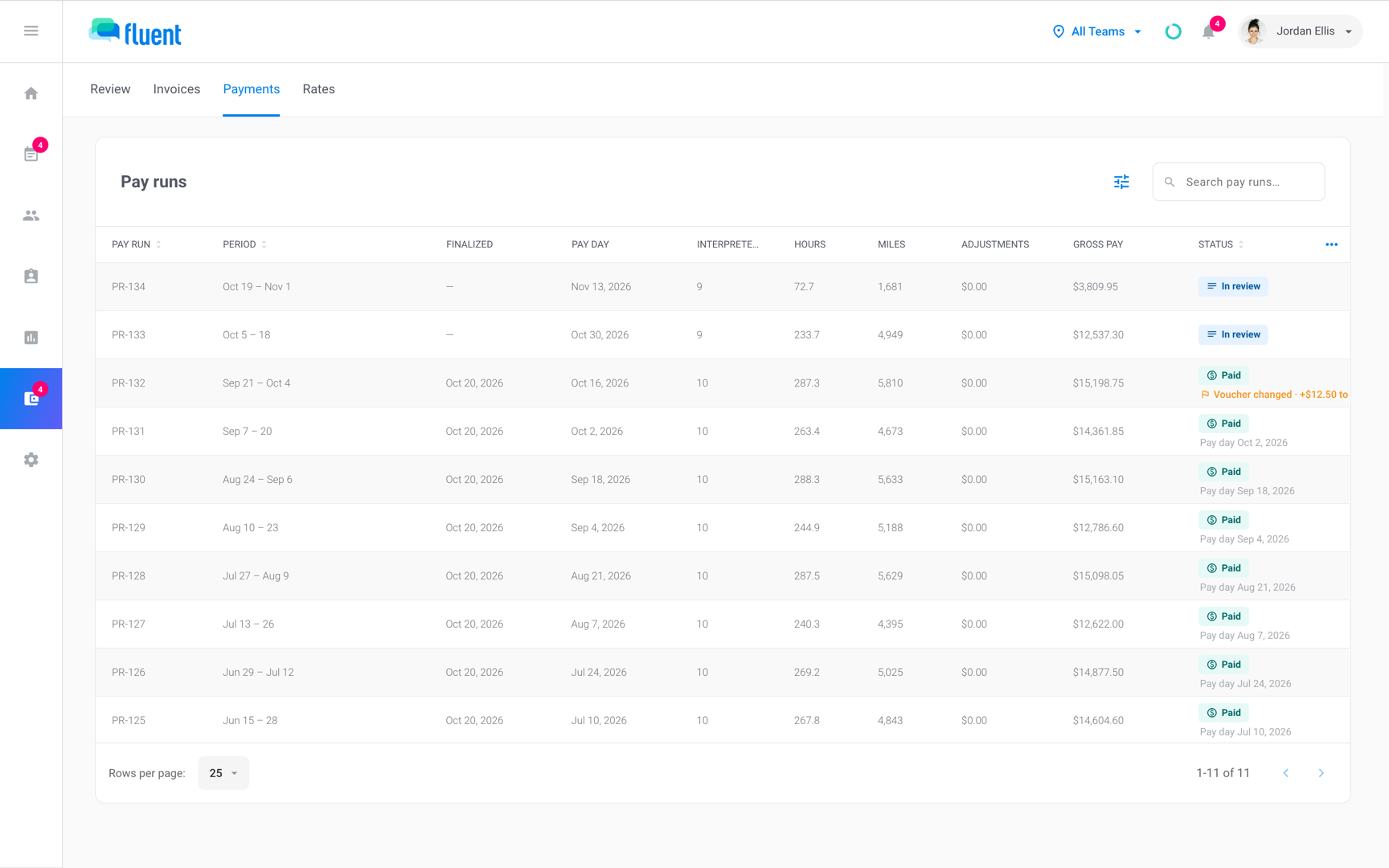
Record when a closed pay run goes out for payment and when it's paid, and see what Fluent emails each payee.
What you'll learn
- How to record when a pay run goes out for payment and when it's paid, and what your payees hear from Fluent.
Before you start
- The pay run shows Closed on Billing › Payments. A run that shows In review opens in Billing › Review instead. See Review and close a pay run.
- Every statement you revised after the close is approved again in Billing › Review.
Open the closed run
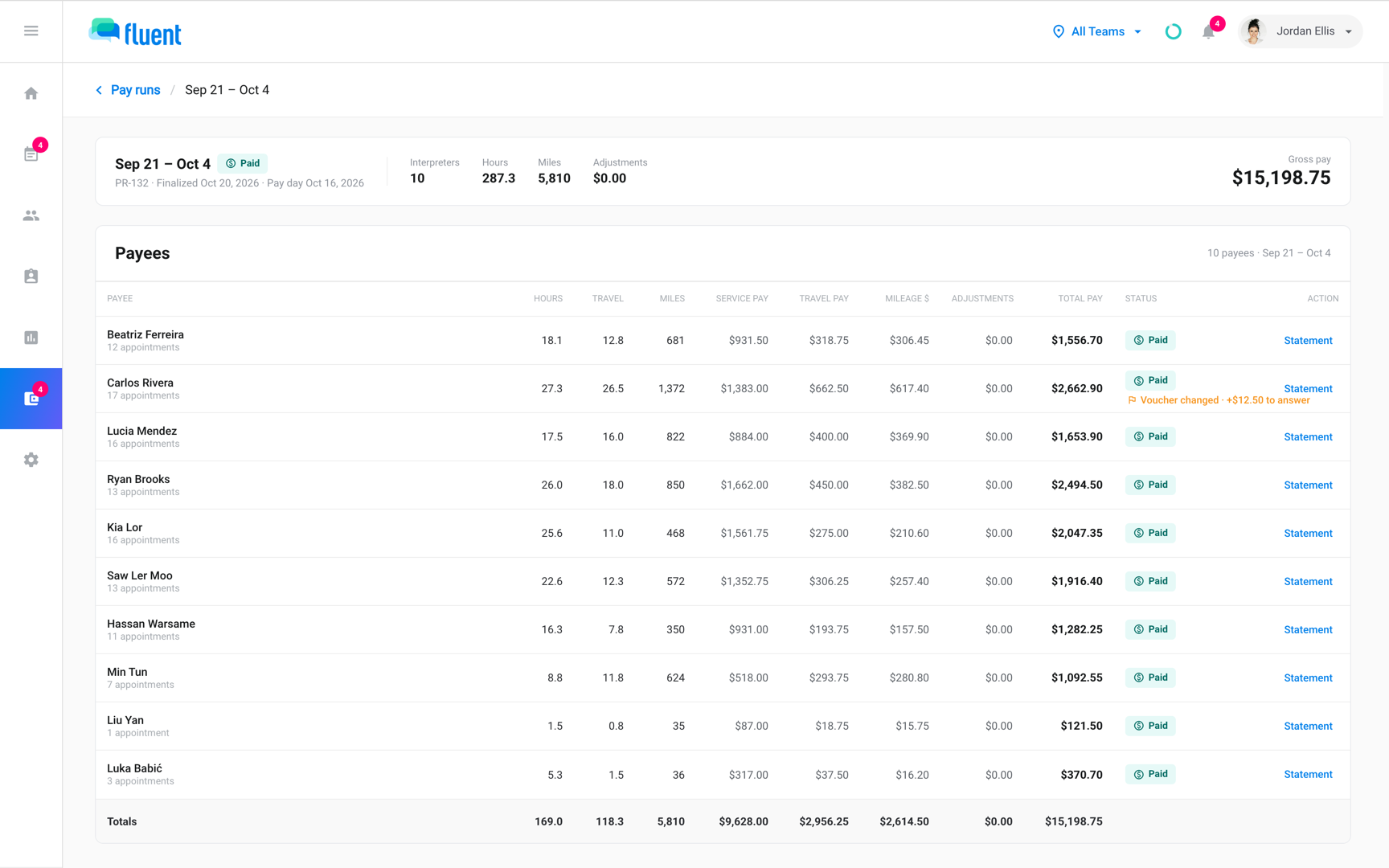
Owners and Admins can send a run to payout and mark it paid. Before you send the run on, open it and check who it pays and how much.
- Go to Billing › Payments.
- Click a run with the status Closed.
The run opens with its number, such as PR-12, its status, and its pay day. Below it, the Payees table lists each interpreter on your interpreter team and each partner agency paid through pay runs, with their total pay.
A partner agency that invoices you shows as Not in this run, because you pay its invoice instead. To read or print a payee's pay statement, click Statement on their row.
Send the run to payout
Send the run to payout when you hand it over for payment. From then on the run is locked, so rate changes and voucher edits no longer change what it pays.
- On the closed run, click Send to payout in the header.
Fluent shows "PR-12 sent to payout." and the status changes to Processing. This step sends no email and moves no money.
Important: Send to payout has no confirmation prompt and can't be undone. Check the payees before you click.
Once the run is Processing, Revise statement no longer appears, so revise statements before this step. If a voucher edit or rate change later shows a difference on a statement, answer it with Correction statement or Keep as is.
Mark the run paid
Mark the run paid once everyone on it has been paid. It's the last step, and the one that emails your payees.
- On a run with the status Processing, click Mark paid in the header.
- The browser asks "Mark PR-12 paid? This finalizes the run and locks its pay lines" and warns that it can't be undone. Click OK.
Fluent shows "PR-12 marked paid." The status changes to Paid, the header reads Finalized with today's date, and the pay summary emails go out.
Important: Mark paid can't be undone, and it emails every payee on the run.
What payees get
When you mark a run paid, Fluent emails each payee once with their totals for the period. Who gets what depends on how you pay them.
- Interpreters on your interpreter team: Each gets "Your pay period summary", with the subject "Your payment summary for" and the period. It shows their totals, and View full statement opens their pay statement after they sign in.
- Partner agencies paid through pay runs: Each gets one email, "Payment summary for" and the partner's name, with the partner's totals for the run. It goes to the email in the partner's Billing Contacts, or to its agency email when none is set.
- Partner agencies that invoice you: They get no email, and neither do interpreters who work through a partner agency.
Interpreters can also follow the run on the Earnings tab of their own profile. Their pay statement reads:
- Estimate: with "Updates until paid", until you send the run to payout.
- Processing: after you send the run to payout.
- Paid: once you mark the run paid.
Check a statement's history
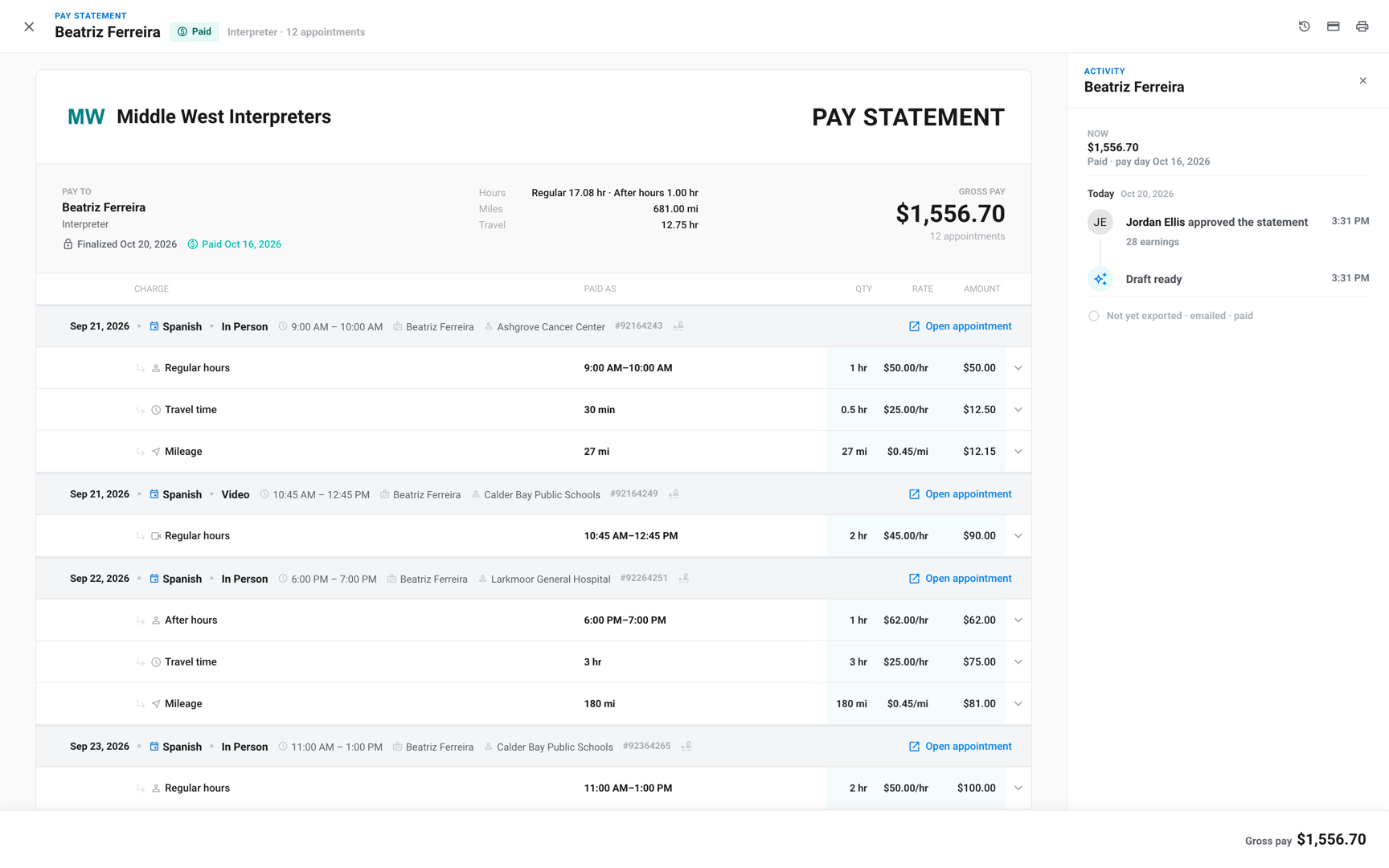
When a payee asks whether they were paid or emailed, check their statement's activity. It records each step, with who did it and when.
- On the run, click the payee's row. Their pay statement opens in a dialog.
- Click View activity.
The activity lists each step newest first, such as "sent the run for payment" and "marked the run paid".
- "Pay summary emailed": names the address the email went to.
- The last line: lists the steps still ahead, for example "Not yet exported · emailed · paid".
Rules and limits
- Fluent emails payees only at Mark paid, once per run. No other pay run step emails them.
- When QuickBooks is connected, Send to QuickBooks in the run header creates one QuickBooks bill per payee. You pay the bills in QuickBooks, and paying them doesn't change the run's status in Fluent.
- The Adjustments figure on Billing › Payments includes correction statements. The pay statement shows Corrections and Adjustments as separate lines.
Troubleshooting
"Approve every earning in this run before moving it on"
A statement on the run was revised after the close and is back in review. Approve it in Billing › Review › Pay runs, then click Send to payout on the run again.
"The pay run status could not be changed."
The request didn't reach Fluent, or the run changed status in another window. Reload the page and check the run's status before you click again.
"Appointments already covered by a finalized pay run"
One of the run's appointments is already on a Paid run, and an appointment can be paid by 1 run only. Contact support with the run number and the message.
A payee didn't get the pay summary email
Fluent emails a payee only when you mark the run paid, and skips a payee with no email address. In the statement's activity, "Pay summary emailed" names the address it went to.