
Close an invoice run
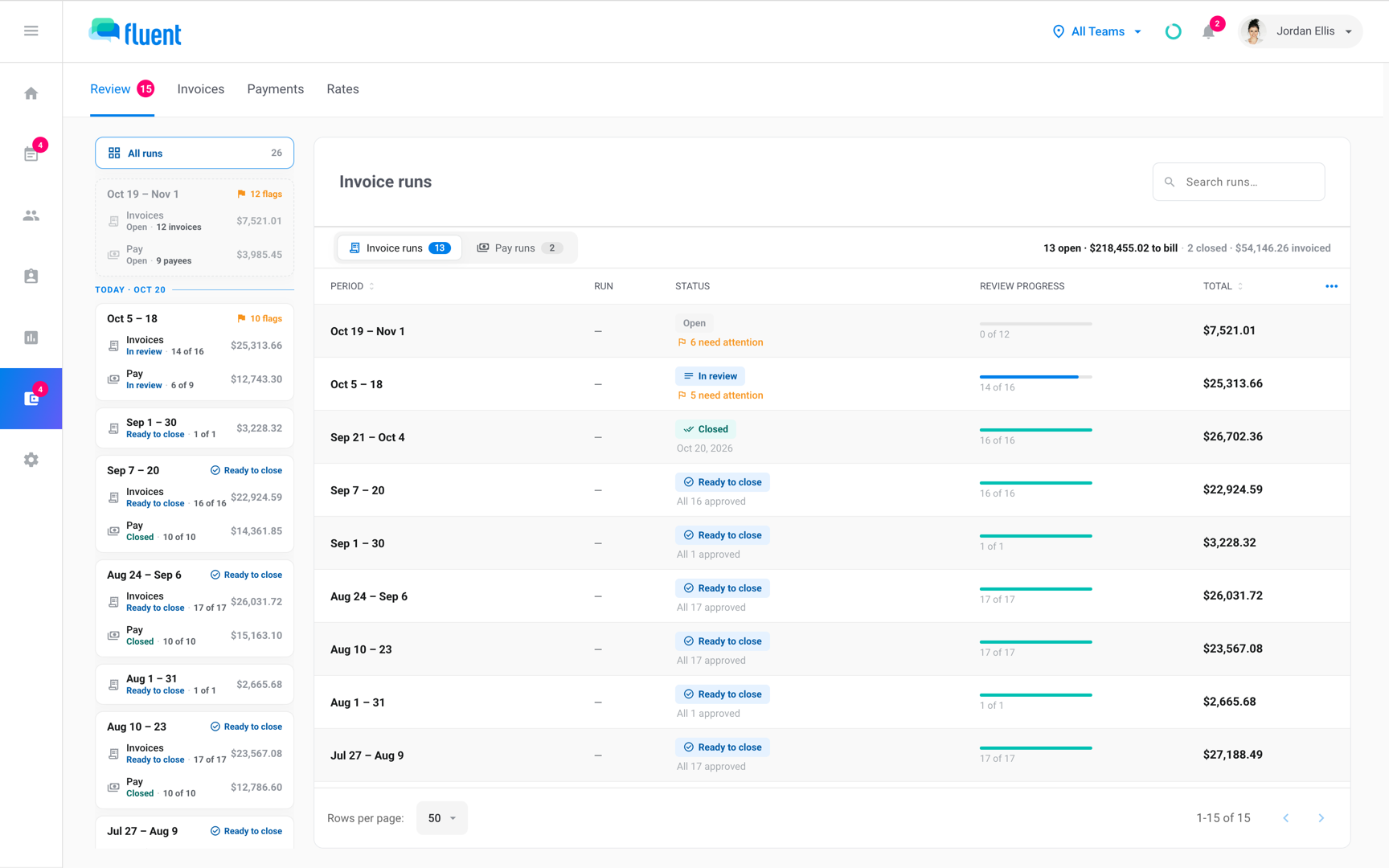
Close an invoice run once every invoice is approved, and download its files or open the QuickBooks sync in the same step.
What you'll learn
- How to close an invoice run once every invoice is approved, and download or sync its invoices in the same step.
Before you start
- The period has ended. A run can close from the day after the period's last day.
- Every invoice in the run is approved. See Review and approve invoices.
- No appointment in the period shows Missing rates. See Fix Missing rates.
Close the run
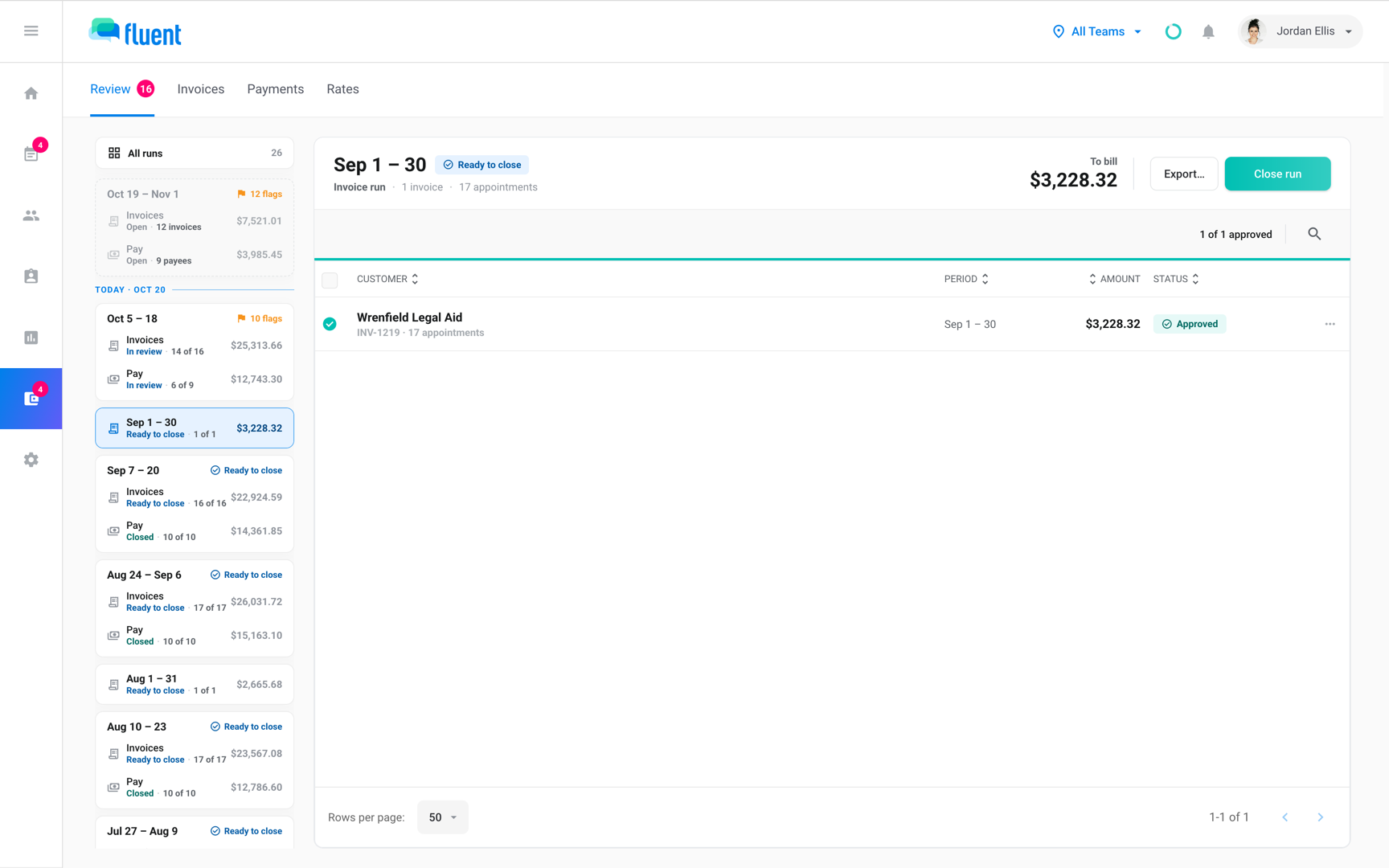
Owners and Admins close a run from its header in Billing › Review once it shows Ready to close. In the same dialog, you choose what follows the close: files to download, the sync to QuickBooks, or both.
- Go to Billing › Review and click the run in the rail.
- Click Close run.
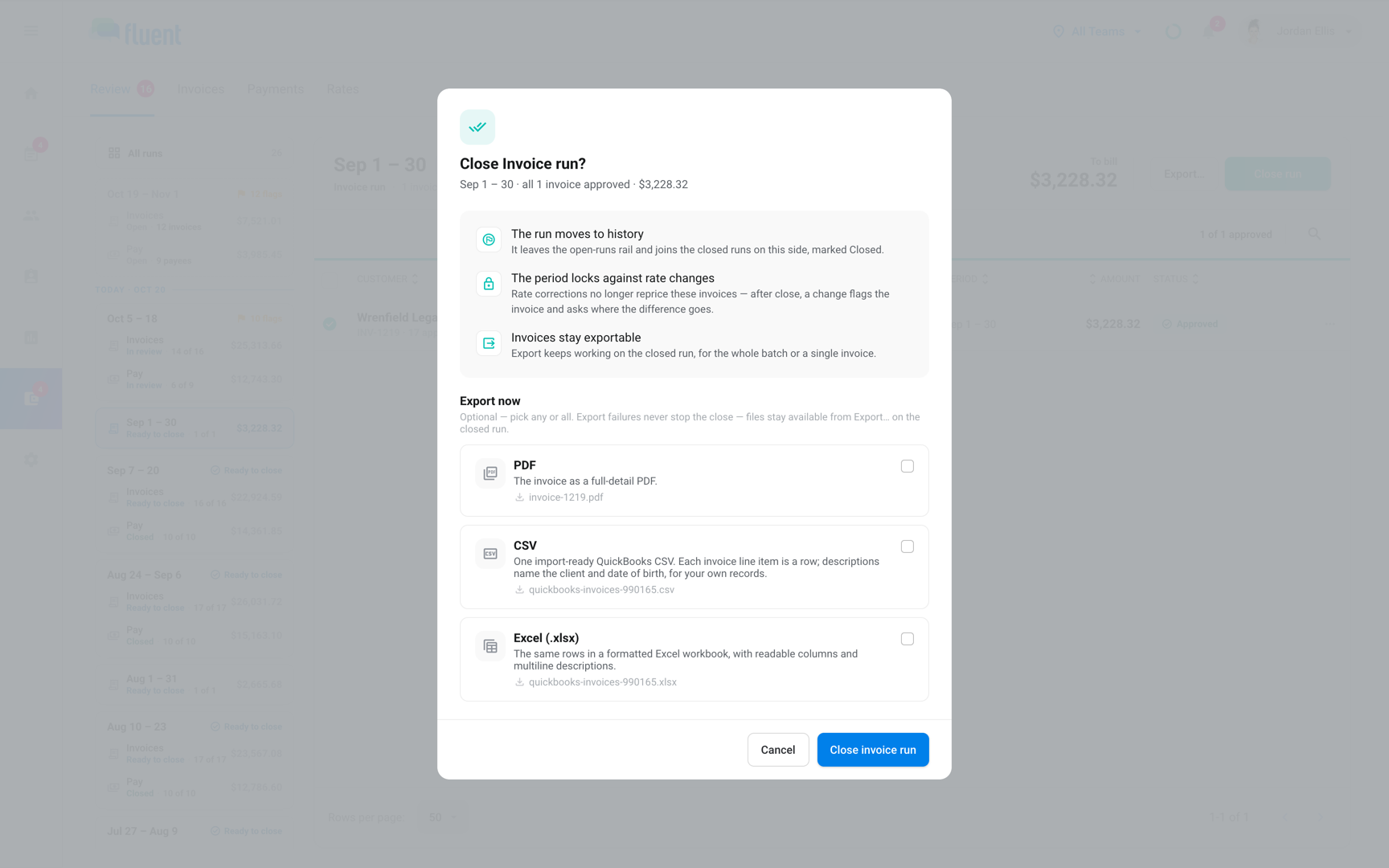
- To download the invoices as files, under Export now turn on PDF (PDFs for more than 1 invoice), CSV, or Excel (.xlsx).
- If QuickBooks is connected, Sync to QuickBooks is already on. Leave it on to open the sync after the close, or turn it off.
- Click Close invoice run.
You see "Billing period {period} closed." and the run's status changes to Closed.
- If you picked files: Fluent asks for a code in the "Two-Factor Verification" dialog, then downloads them. See Export invoices.
- If you left the sync on: The "Sync to QuickBooks" dialog opens. Nothing reaches QuickBooks until you confirm it there.
After the close
The closed run is the record of what you billed. You can still export its invoices, sync them to QuickBooks, and mark them paid.
- Invoices: Every invoice in the run shows Closed, and Undo approvals is gone.
- Another download: The run header keeps Export….
- QuickBooks: With QuickBooks connected, the header counts the invoices already in QuickBooks, and Sync N to QuickBooks opens the sync for the rest.
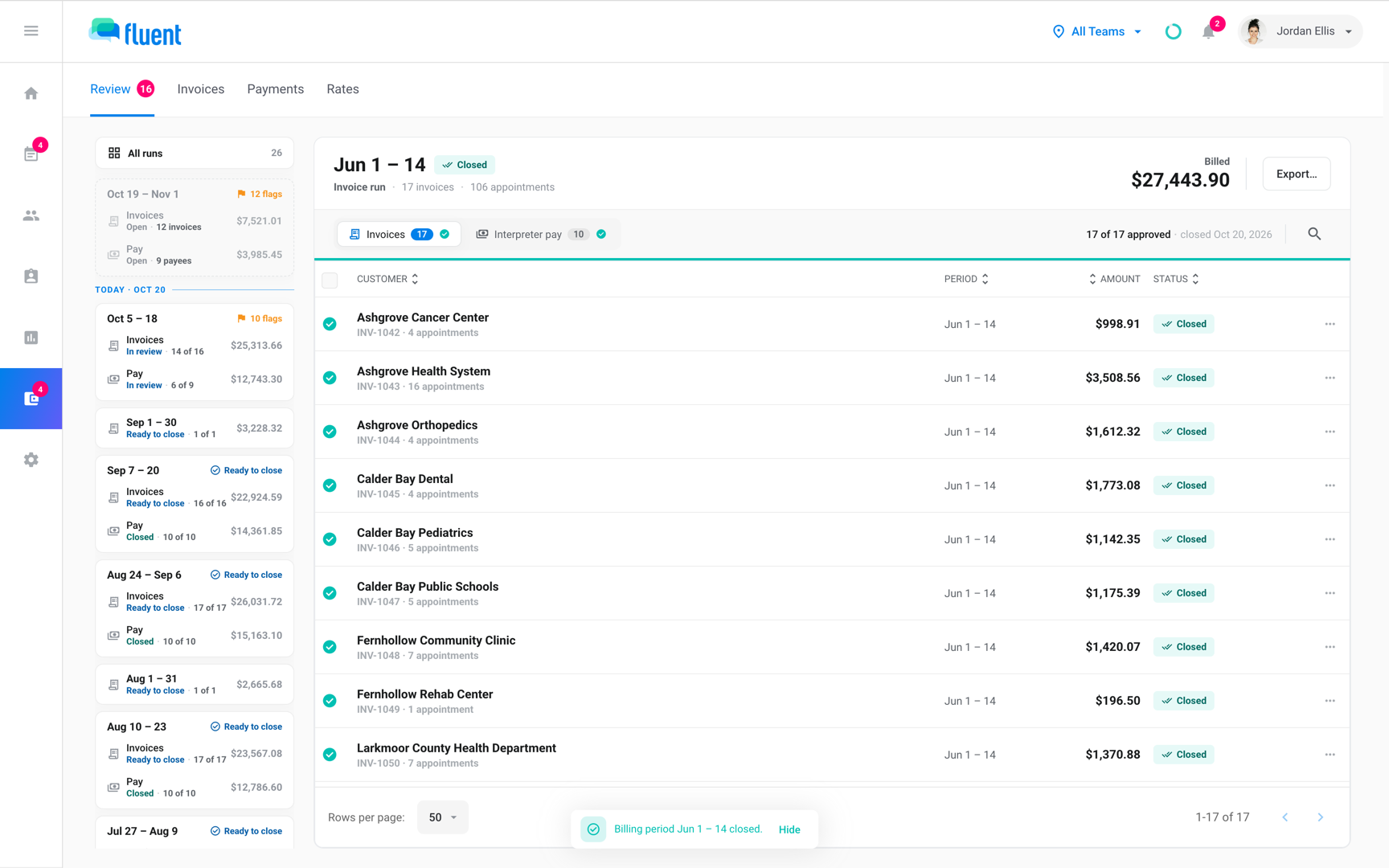
- Finding the run later: The run stays in the rail until the pay run for the same period closes too. After that, click All runs at the top of the rail.
- Customer payments: To record that a customer paid, open the invoice, click Options, and click Mark as paid.
Answer a change to a closed invoice
A voucher edit or rate change that reaches a closed invoice doesn't alter it. Instead, the invoice gets the flag Prices differently since close, and you pick 1 of 3 answers:
- Revise: Fluent opens a new revision of the invoice for you to approve and finish.
- New document: Fluent drafts a separate invoice dated today, or a credit memo when the difference is negative.
- Keep as billed: Fluent bills nothing for the difference, and the invoice stays as it is.
Rules and limits
- The invoice run and the pay run for a period close separately. Close pay run is on the pay run's header. See Review and close a pay run.
- Fluent doesn't reopen a closed run.
- Closing makes every invoice in the period revision 1. Each later finished revision adds 1.
- An invoice that's marked paid, or that has a payment in QuickBooks, offers no Revise. Bill the difference on a new document instead.
Troubleshooting
Close run is greyed out
The period hasn't ended, or an invoice in the run isn't approved yet. Hold the pointer over the button to see which.
- The period hasn't ended: Wait until the day after the period's last day.
- An invoice isn't approved: Approve the remaining invoices.
"This period can't close yet"
The rest of the message names what's left: customers with work no rate card prices, appointments on no invoice, or invoices that aren't approved.
- Fix the rate card that should price the work. See Fix Missing rates.
- Approve the invoices that are left.
- Click Close run again.
"QuickBooks needs reconnecting" shows in the close dialog
The QuickBooks sign-in expired, so the dialog can't offer the sync.
- Close the run anyway.
- Go to Settings › QuickBooks and click Reconnect QuickBooks.
- Back on the closed run, click Sync N to QuickBooks.
A file didn't download after the close
The run closed anyway. Click Export… on the closed run and pick the format again.