
Security settings
Limit invites to your company's email domains and check the two-factor requirement in Settings › Security.
What you'll learn
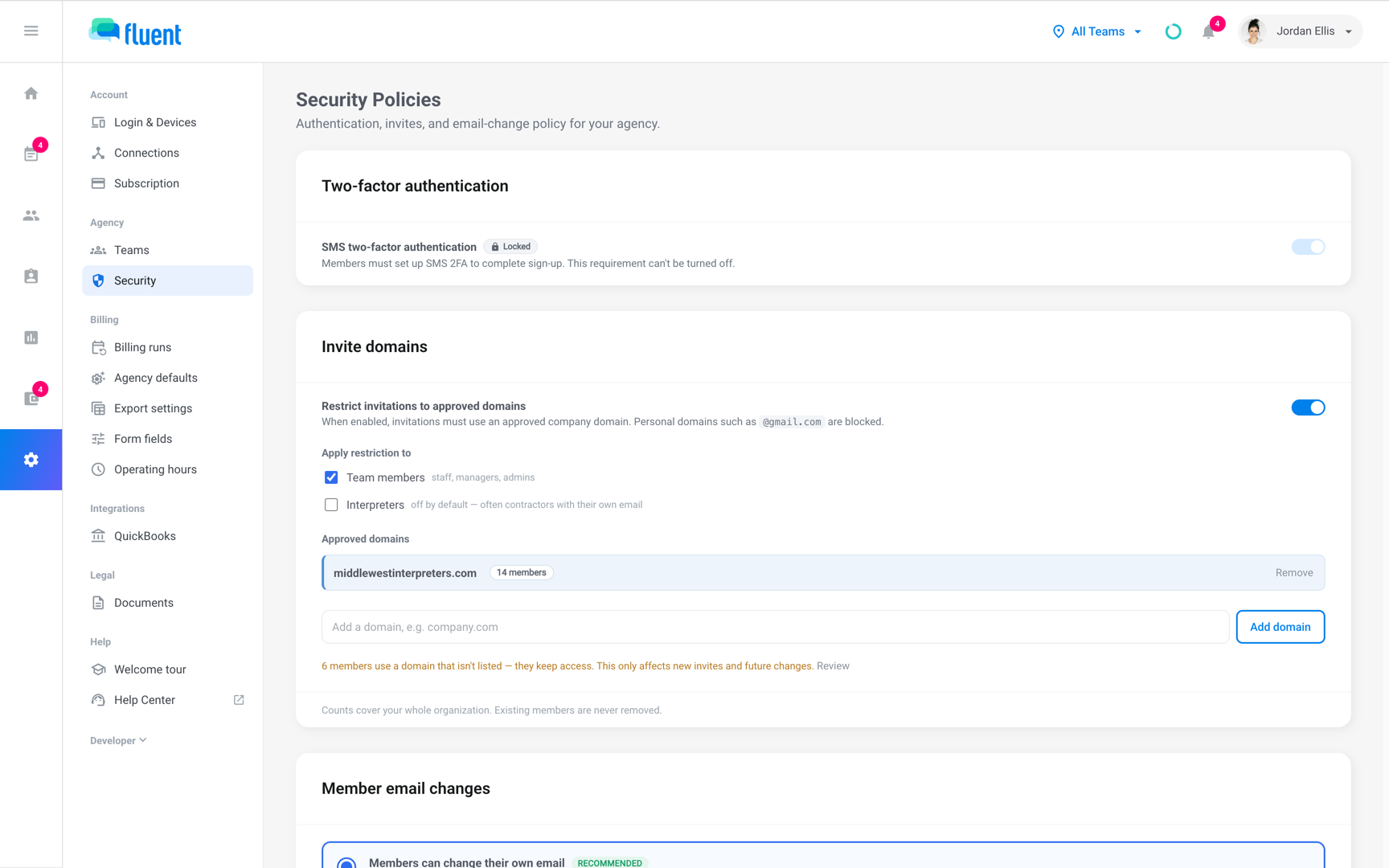
- How to allow invites only to your company's email domains, so new people join with a company address.
Two-factor authentication
Every member of your workspace sets up two-factor authentication by text message at their first sign-in. There's nothing to set here.
- Who can change security settings: Agency Owners and Admins, and organization Owners and Administrators, on the Security Policies page in Settings › Security.
- The Two-factor authentication card: Shows SMS two-factor authentication as Locked, with "This requirement can't be turned off."
- How the codes work: See Two-factor authentication.
Restrict invites to approved domains
Turn this on when everyone you invite should use a company address. Fluent then refuses any invite the rule covers to an address outside your approved domains.
- Go to Settings › Security.
- On the Invite domains card, turn on Restrict invitations to approved domains.
- In an agency, under Apply restriction to, select who the rule covers. Team members is selected and Interpreters is cleared until you change them.
- In Add a domain, e.g. company.com, enter the domain without the @, such as
company.com. - Click Add domain, or press Enter.
- Repeat steps 4 and 5 for each domain you use.
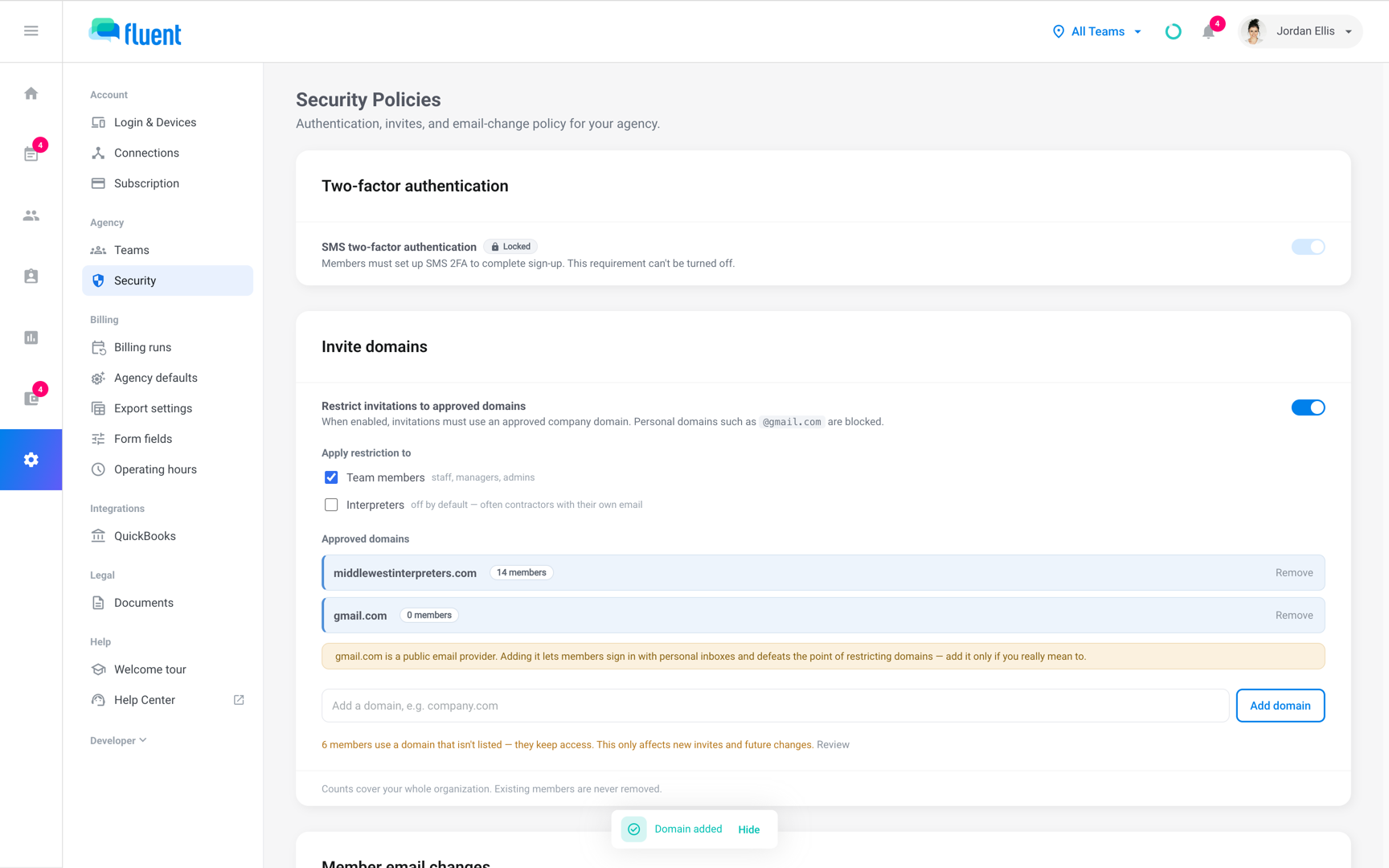
Fluent shows "Domain added", and the domain appears under Approved domains with a count of the members who use it. From now on, an invite the rule covers to any other domain fails when you send it.
In an organization workspace there is no Apply restriction to choice. The rule covers every invite.
To stop checking invites, turn off Restrict invitations to approved domains. Your approved domains stay on the list for next time.
Remove an approved domain
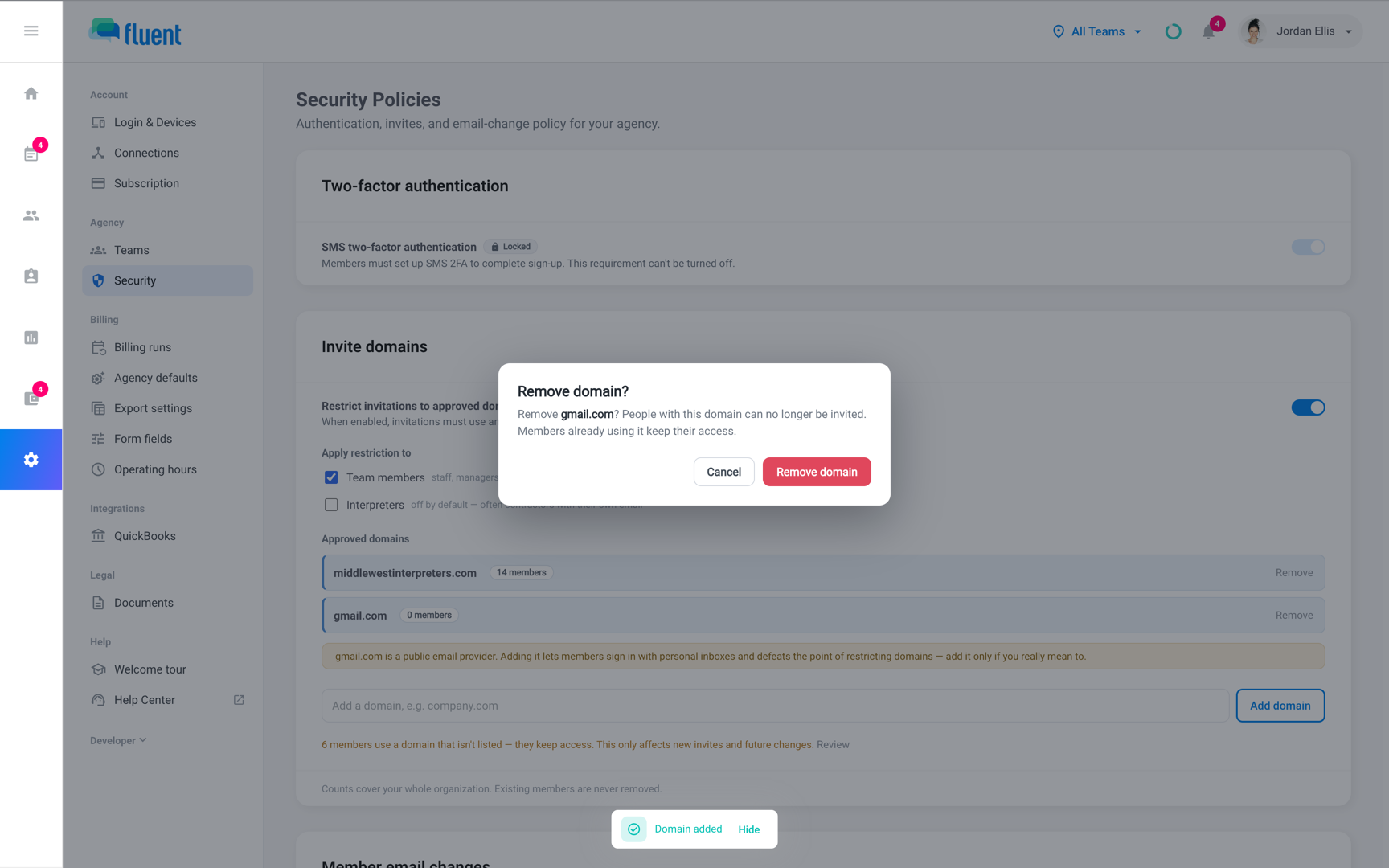
Remove a domain when you no longer want new people invited with it. People who already use it keep their access.
- Go to Settings › Security.
- On the domain's row, click Remove.
- In the Remove domain? dialog, click Remove domain.
Fluent shows "Domain removed", and new invites to that domain fail.
Review members outside approved domains
When the restriction is on and some members use a domain that isn't on your list, the Invite domains card says how many. They keep their access, and the rule applies only to new invites and future changes.
Only Owners see the list of members outside your domains.
- Go to Settings › Security.
- Under Approved domains, click Review at the end of the note.
The Members outside approved domains dialog lists each person's name and email. To take someone off this list, add their domain to your approved domains.
Rules and limits
- Each change saves as soon as you make it, and Fluent shows "Saved".
- With the restriction on and no domains listed, the card shows "No approved domains yet" and every invite the rule covers is blocked.
- Turning on Interpreters limits interpreter invites to your domains too. Leave it off when your interpreters use their own email.
- With Team members and Interpreters both off, no invite is checked.
- Fluent adds a public email provider, such as gmail.com, and shows a warning under the list. Anyone with an address there can then be invited.
- While the restriction is on with at least one approved domain, it also covers email changes. A member the rule covers who changes their own sign-in email must use an approved domain. If your workspace lets only admins change member emails, team members can't change it themselves.
Troubleshooting
"Invitations are blocked until an approved domain is added in Security settings."
The restriction is on, but the list has no domains.
- Go to Settings › Security.
- Add your company's domain, or turn off Restrict invitations to approved domains.
"Invitations must use an approved domain ({domains})."
The address you invited isn't on one of your approved domains, which the message lists in parentheses. Invite the person at their company address, or add their domain on the Invite domains card.
A team member can't change their sign-in email to another domain
The Change your email dialog offers only your approved domains.
- Go to Settings › Security.
- Add the domain on the Invite domains card, then ask them to try again.
"Could not save"
Fluent couldn't save the change and reloads the settings you had. Make the change again.
If the page shows "Could not load security settings", reload the page.