
Operating hours
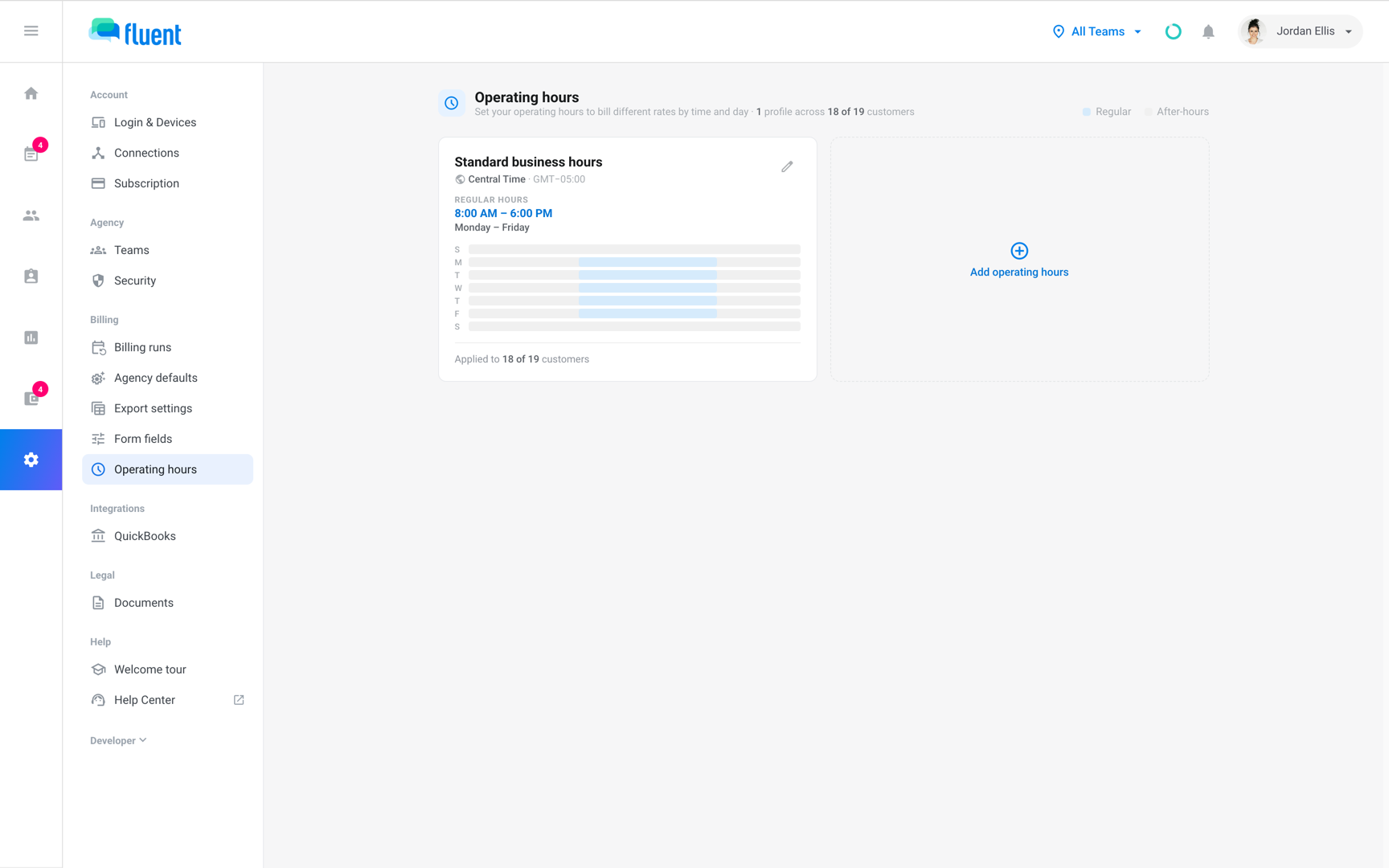
Set the days and hours your regular rates cover, then pick them on each rate card so work outside them bills at the After hours rate.
What you'll learn
- How to set the days and hours your regular rates cover, so work outside them bills or pays at your after-hours rate.
Add a profile
Owners and Admins manage operating hours. Add a profile for each set of regular hours you bill by, before you set up your first rate card.
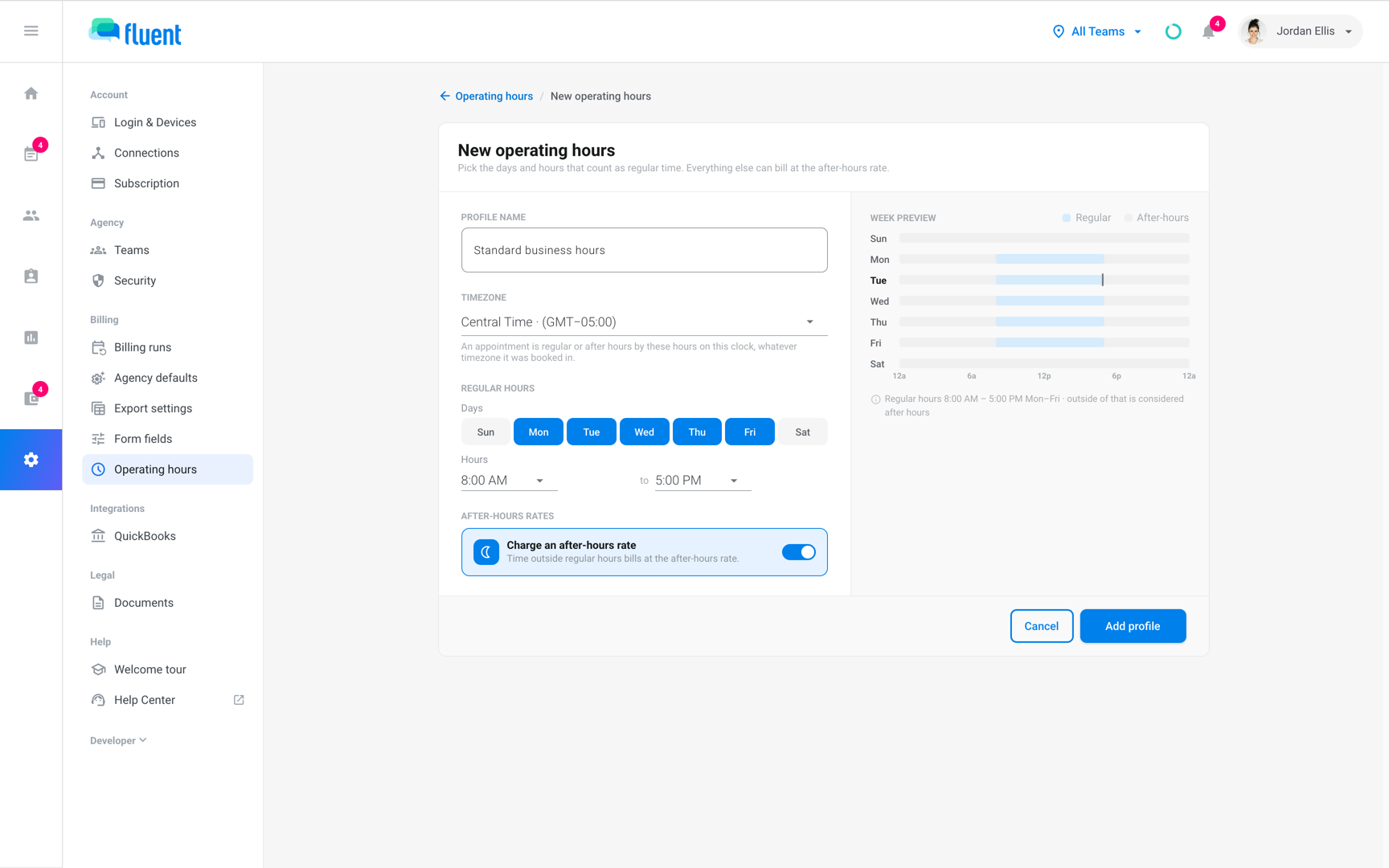
- Go to Settings › Operating hours.
- Click Add operating hours.
- In Profile name, enter a name, for example
Standard business hours. - In Timezone, select the time zone the hours run on. A new profile starts with your browser's time zone.
- Under Days, click each day to turn it on or off.
- Under Hours, select the start and end time, in 30-minute steps.
- Leave Charge an after-hours rate on, unless you bill one rate at all times.
- Click Add profile.
The profile appears on Settings › Operating hours.
Use a profile on a rate card
A profile changes nothing until a rate card names it, and each rate card names 1.
- Invoices: follow the customer rate card's profile.
- Pay: follows the interpreter or partner rate card's own profile.
- Go to Billing › Rates, click the rate card, and click Edit rates.
- Under Billing rules, in the Operating hours row, select the profile in Profile.
- Click Save changes. If the button reads Next, click it, then click Save rate change.
The rate card's Operating hours profile tile shows the profile's name.
While the profile has Charge an after-hours rate on, each service that's on needs an After hours price above $0. It can match the Regular price.
New customer and interpreter rate cards can start with a profile. Set it in Settings › Agency defaults, in the Operating hours row.
How Fluent decides regular or after hours
The profile decides which price each minute of an appointment bills at. Fluent checks each minute in the profile's time zone, whatever time zone the appointment was booked in:
- A minute on a date in the holiday calendar is Holiday.
- A minute inside that day's regular hours is Regular.
- Any other minute is After hours. With Charge an after-hours rate off, every minute is Regular.
When an appointment crosses the end of regular hours, Fluent rounds its billed time once. It bills that time in steps of the Billing interval from the start, and each step takes the rate type of its first minute.
For example, with regular hours ending at 5:00 PM and a 15-minute interval, an appointment from 4:53 PM to 6:53 PM bills 1 Regular step and 7 After hours steps.
On a rush booking, Regular and After hours minutes bill at the Rush rate, never below the rate it replaces. Holiday minutes keep the Holiday rate. See Billing rules.
Change a profile in use
Edit a profile when your regular hours change. Fluent shows what re-prices and asks you to confirm.
Important: Profiles have no effective date. Changing the hours re-prices every open draft invoice and draft pay run on the profile's customer, interpreter, and partner rate cards, whatever their dates.
- On Settings › Operating hours, click the Edit icon on the profile's tile.
- Change the hours, and click Save changes.
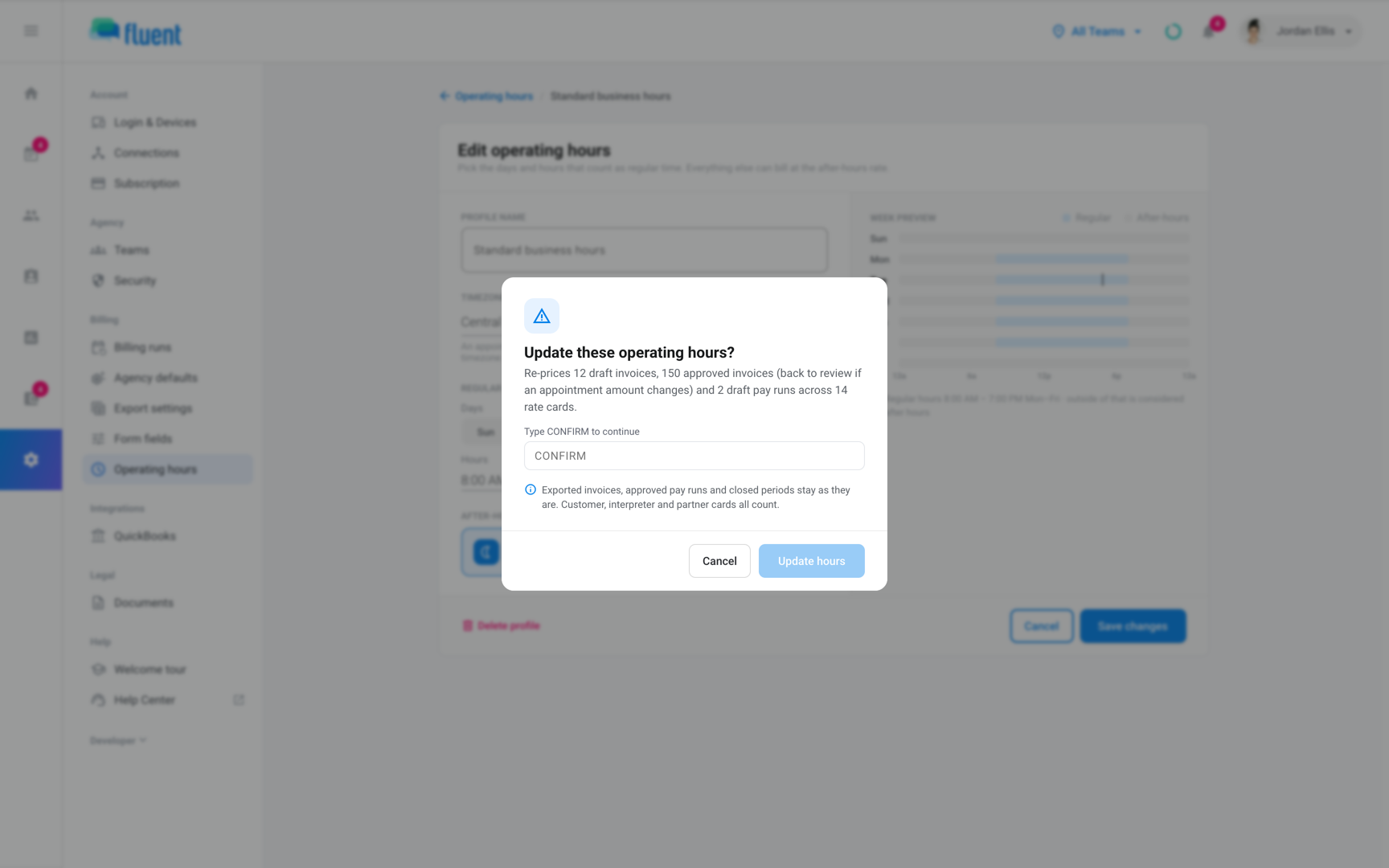
- If rate cards use the profile, the "Update these operating hours?" dialog counts the invoices and pay runs that re-price. Enter
CONFIRM. - Click Update hours.
You see "Operating hours updated."
- Approved invoices: go back to review if an appointment's amount changes.
- Exported invoices, approved pay runs, and closed periods: stay as they are.
If approved pay runs sit in periods that are still open, Fluent asks "Re-price the approved pay runs too?".
- Re-price approved: re-prices them and withdraws each line approval whose amount changes.
- Leave them: keeps their amounts.
Renaming a profile re-prices nothing.
Delete a profile
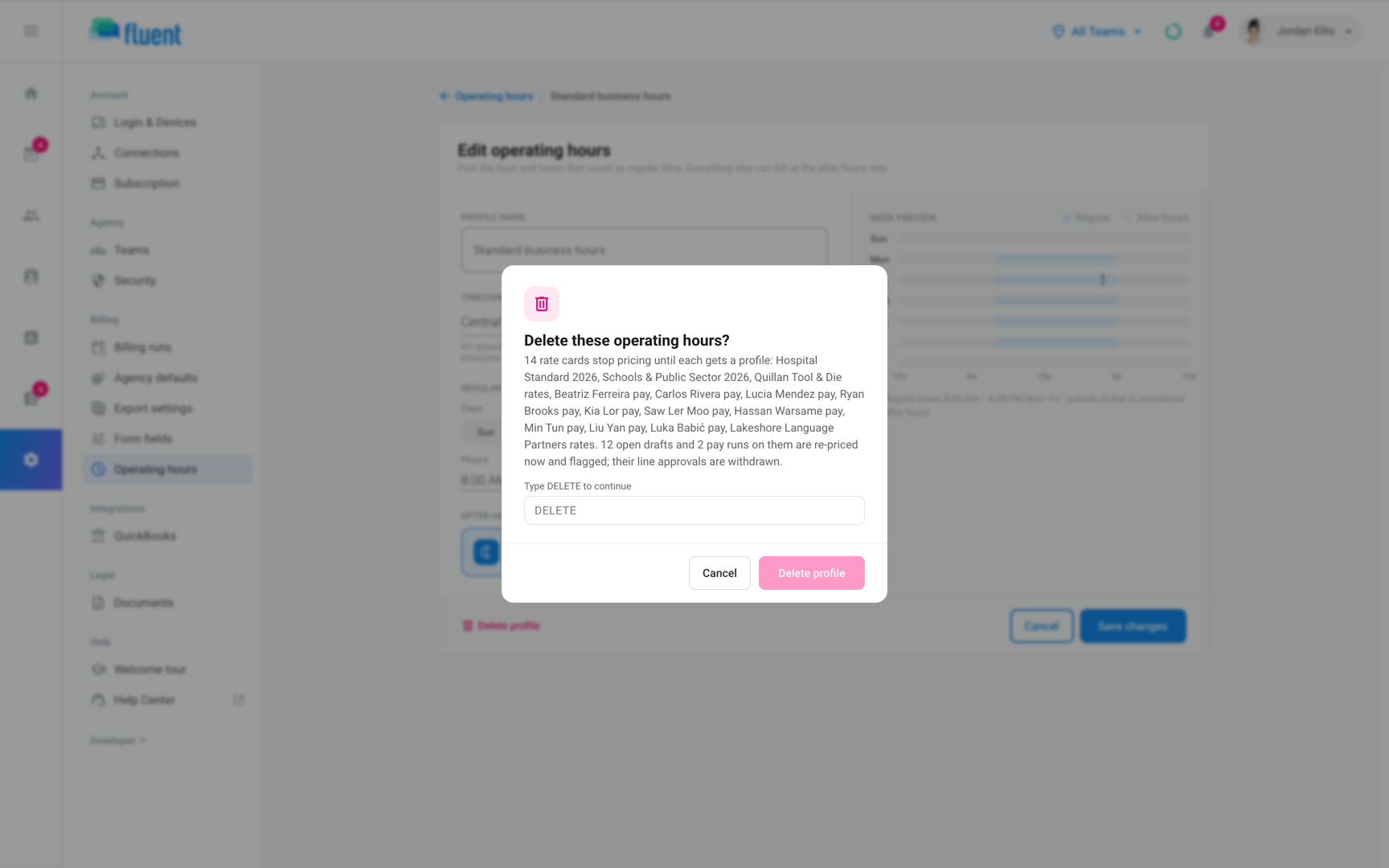
Delete a profile you no longer bill by. Rate cards still on it stop pricing until you pick another profile on each.
- On Settings › Operating hours, click the Edit icon on the profile's tile.
- Click Delete profile.
- In the "Delete these operating hours?" dialog, enter
DELETEwhen it lists rate cards on the profile. - Click Delete profile.
- Rate cards that used it: show Hours missing on Billing › Rates, and their appointments show Missing rates. See Fix Missing rates.
- The agency default: if the profile was the default in Settings › Agency defaults, new rate cards no longer start with one.
Rules and limits
- A profile has 1 window of regular hours, the same on every day you turn on.
- Regular hours can't run overnight. To run to midnight, select 12:00 AM as the end.
- After midnight, each minute counts against the hours of the day it falls on.
- Turning Charge an after-hours rate off on a profile in use removes the After hours prices from every open rate card on it.
Troubleshooting
I can't turn off After hours on a rate card
After hours follows the rate card's profile, so Edit rate types doesn't let you uncheck it.
To charge no extra, enter the Regular price in the After hours column. To drop the column, pick a profile with Charge an after-hours rate off.