
Partner rate cards
Record what a partner agency charges you, set up its rate card from a pay run, and choose whether Fluent pays the partner or the partner invoices you.
What you'll learn
- How to record what a partner agency charges you, and choose whether you pay it in your pay runs or it invoices you.
Before you start
- Your agency has a pay run schedule on Settings › Billing runs. See Set up billing runs.
- The partner agency is on Team › Partner Agencies, and a pay run holds an appointment one of its interpreters worked.
- Settings › Operating hours has at least 1 profile, because every rate card names one in its billing rules. See Operating hours.
How partner work is priced
Owners and Admins manage partner rate cards. When one of a partner agency's interpreters works an appointment, Fluent prices that work from the partner's rate card.
If the interpreter has an interpreter rate card of their own, Fluent uses that one instead.
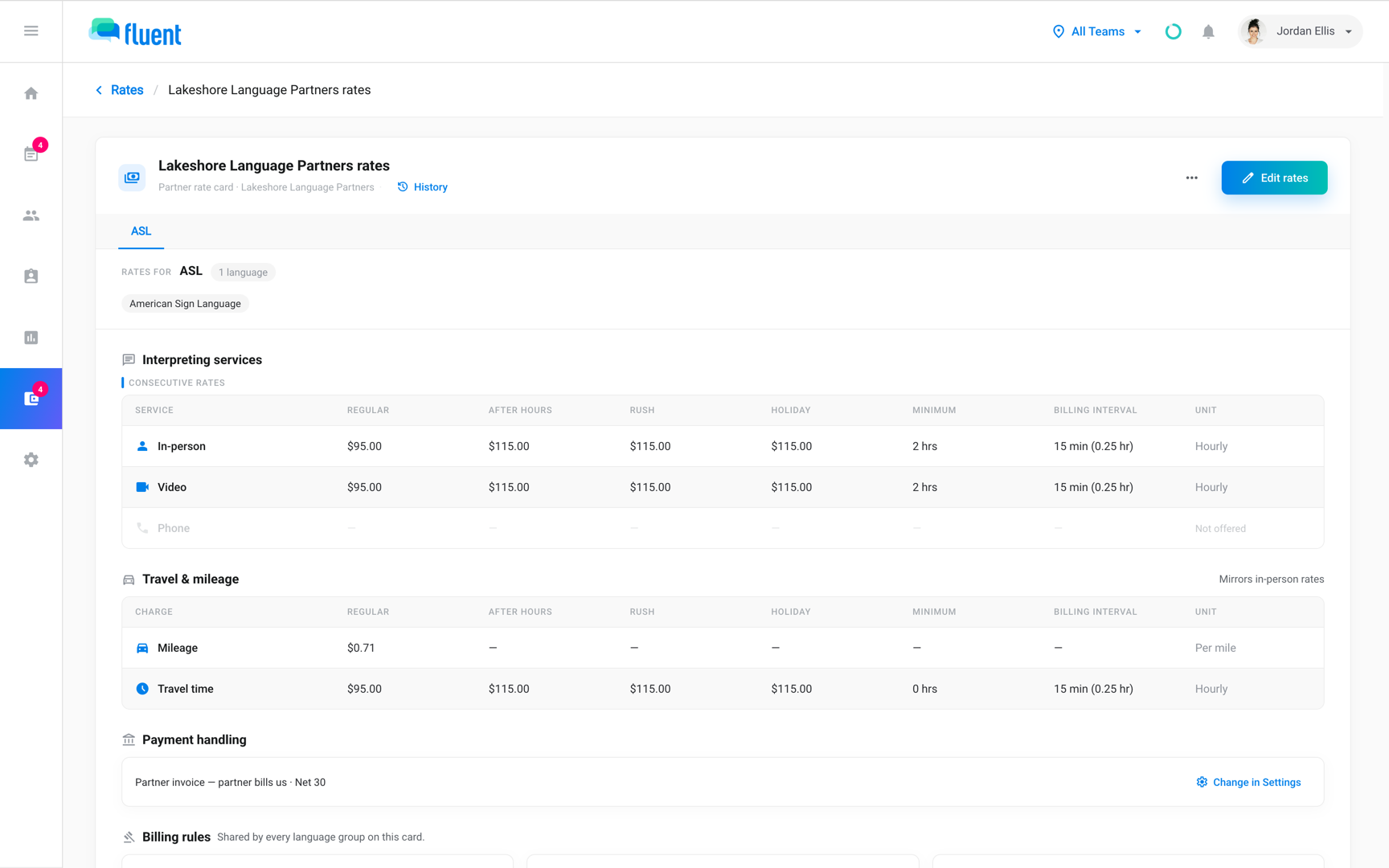
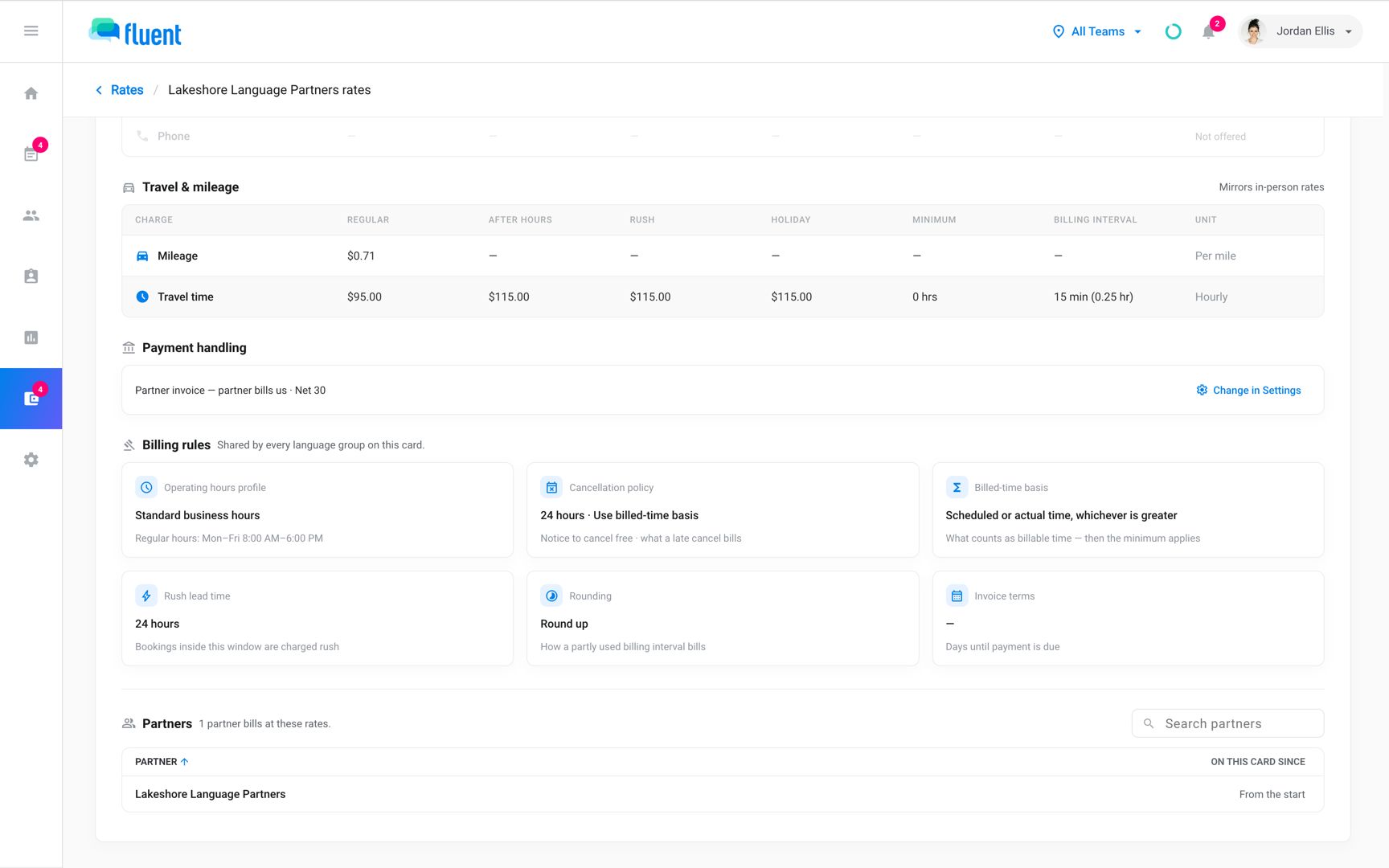
The Billing report counts the priced amount as Partner cost. How you pay the partner decides whether Fluent also pays that amount, and the rate card's page shows it under Payment handling:
- Partner invoice (the default): The partner bills you directly. Pay runs list its work under Not paid through this run, pay nothing for it, and Fluent doesn't send it to QuickBooks.
- Pay run: You pay the partner in your pay runs, with your interpreters. Each run gives it 1 pay statement for all its interpreters' work, and 1 QuickBooks bill. See Send a pay run to QuickBooks.
Set up a partner's rate card
A partner's first rate card starts from the pay run that holds its work. Fluent opens the rate editor with the partner already added and the rate card named after it.
- Go to Billing › Review and click Pay runs.
- Open the pay run for the period with the partner's work.
- Click the partner agency's row to open the Pay review dialog. A partner that invoices you is listed under Not paid through this run.
- Click Set up partner rates. The editor reads "Adding {partner} to this card".
- In the language group, click Add languages and select the languages the partner covers, or click Select all other languages.
- Under Interpreting services, turn on each service the partner provides and fill in its Regular, Minimum, and Billing interval.
- Under Billing rules, fill in each rule. See Billing rules.
- Under Effective from, select This pay period, or select Another date and pick a day on or before the partner's earliest appointment in the run.
- Click Save changes.
Fluent shows "Partner rates created for {partner}." The partner's work in the pay run re-prices, and the rate card appears in Billing › Rates › Partner.
Travel charges, rate types, and more language groups work as they do on a customer's rate card. See Customer rate cards.
Pay a partner in your pay runs
To have Fluent pay a partner along with your interpreters, add the partner to pay runs on Settings › Billing runs.
- Go to Billing › Rates › Partner and click the partner's rate card.
- Under Payment handling, click Change in Settings.
- On the Pay run exceptions card, click Add exception.
- Select the partner agency and click Add exception.
Fluent shows "{partner} included in pay runs". The change applies to every open pay run, and Payment handling on the rate card reads Pay run.
To undo it, click the × at the end of the partner's row.
Change a partner's rates
When the partner changes what it charges, edit its rate card and pick when the new prices start.
- Go to Billing › Rates › Partner and click the partner's rate card.
- Click Edit rates.
- Change the prices or billing rules.
- Under Effective from, select This pay period, Next pay period, Everything still open, or Another date.
- Click Next. Fluent lists the draft pay runs the change reaches.
- Enter a reason for the rate history and click Save rate change. The reason is required when the change reaches an approved pay run.
Fluent re-prices those draft pay runs. Closed and paid pay runs keep their figures.
To stop using the rate card, open the ⋯ menu next to Edit rates, click Delete rate, and confirm. The partner's new work then shows No partner rates until it's on a rate card again.
Find partners without a rate card
Team › Partner Agencies has a Rate Card column that reads Yes or None for each partner agency. On Billing › Rates › Partner, the Partner coverage tile counts the partner agencies on a rate card today.
Rules and limits
- A new partner rate card starts with every billing rule blank, and it has no Merge gap or Invoice terms rule. Billing rules says which rate card decides each rule.
- Partner work pays mileage and travel time from the voucher only. Fluent doesn't estimate a drive for a partner's interpreters.
- A partner you pay in pay runs can't be approved until a rate card prices its work.
- Don't start a partner rate card with + on the Partner tab. That rate card has no partner on it, and its page can't add one.
Troubleshooting
A partner rate card reads "Not applied to any partner yet."
It was made with + on the Partner tab, so no partner is on it. To put the partner on it:
- In the pay run, open the partner's row and click Set up partner rates.
- Click Apply rate package, select the rate card, and click Attach {partner} to this rate.
- Under Effective from, pick a day on or before the partner's earliest appointment, then click Save changes.
Fluent shows "{partner} now prices from" and the rate card's name. If you don't need the rate card, delete it from its page instead.
"No partner rates" on a partner that invoices you
The partner has no rate card, so Fluent can't price its work for your reports. Click Set up partner rates on the banner and follow the steps above.