
Two-factor authentication
Set up two-factor authentication at your first sign-in, sign in with a texted code on a new device, and move it to a new phone number.

What you'll learn
- How to set up the texted sign-in code that protects your account, and move it to a new phone number.
- What to do if you lose your phone and can't sign in.
Set up two-factor authentication at your first sign-in
The first time you sign in, Fluent asks for your mobile number and texts it a code. Enter the code to finish.
- Sign in with your email and password. Fluent shows "Add an extra layer of security."
- In Phone number, enter your 10-digit mobile number, then click Send code. Fluent adds the +1 country code.
- In Code, enter the 6-digit code, then click Verify. If the text doesn't arrive, click Resend code.

If you first sign in on the Fluent mobile app, it asks for the same number and code.
Sign in with a code
Fluent asks for a texted code in these cases:
- A browser or phone it doesn't trust: including one you signed out on Settings › Login & Devices.
- A different country: you sign in from a different country than last time.
- A high-risk network: you sign in from a network address rated high-risk.
- Enter your email and password, then click Sign in. Fluent shows "New Device Detected" and texts you a code.
- In Code, enter the 6-digit code, then click Verify.
Fluent then trusts this browser for 14 days.
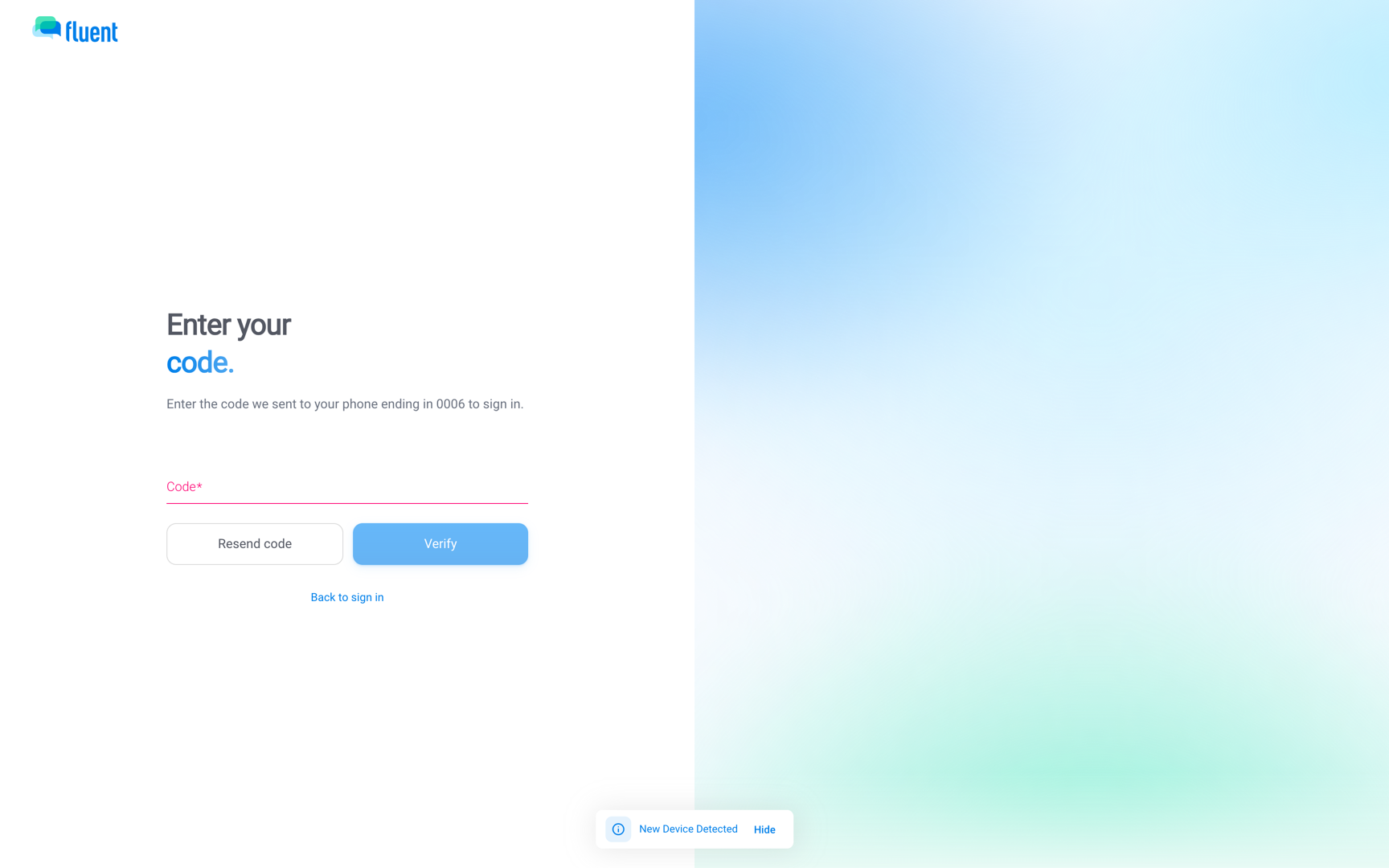
In the mobile app, Trust this device for 14 days is on by default when you enter the code. Turn it off to get a code at your next sign-in on that phone.
Change your two-factor phone number
When you get a new phone number, move two-factor authentication to it in the web app.
- Go to Settings › Login & Devices. In the Multi-Factor Authentication row, click Edit.
- In the dialog, click Continue.
- Enter your password, then click Next.
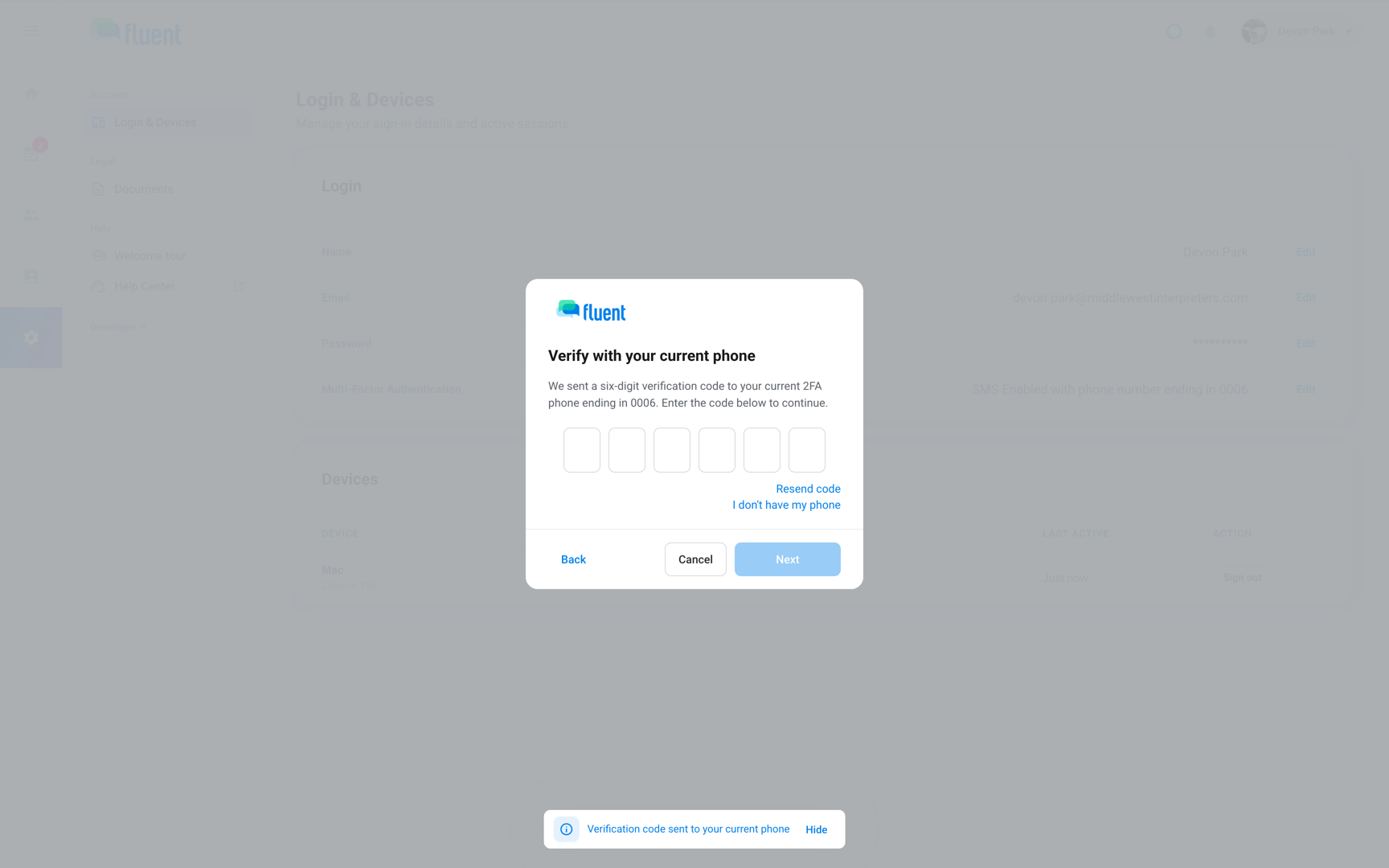
- Enter the code Fluent texted to your current number, then click Next. If you no longer have that phone, click I don't have my phone. Fluent emails the code instead, with the subject "Your verification code", valid for 10 minutes.
- In New phone number, enter the new number, then click Next.
- Enter the code Fluent texted to the new number, then click Verify.
- Click Done.
Fluent emails "Two-factor authentication updated" to your account email.
Important: If you get that email and didn't make the change, someone else has your password. Change your password and tell Fluent support. See Contact support.
If you lost your phone
How you get back in depends on whether you're still signed in to the web app.
- Still signed in on the web: Change the number as above, and click I don't have my phone at step 4.
- Signed out everywhere: Fluent support clears your two-factor authentication, and you set it up again at your next sign-in. See Contact support.
Rules and limits
- Your workspace can't turn two-factor authentication off or reset it for you.
- Text message is the only method. Fluent has no authenticator apps, passkeys, or backup codes.
- While you're signed in, code sends and checks are limited to 20 per account per 15 minutes. Past that, Fluent shows "Too many codes requested. Try again later."
- The same texted code confirms a password reset, a password change, a billing export, and an invoice PDF download. One code covers your downloads for the next 9 minutes. It also confirms an email change when your workspace requires re-verification.
Troubleshooting
"Invalid code. Please try again."
The code you entered while changing your number is wrong, or comes from an earlier text or email. Click Resend code and enter the newest code.
The code never arrives
- The phone can't receive texts right now: click Resend code.
- The number is wrong: click Back to sign in and sign in again.
Fluent asks for a code every time on my usual computer
The browser clears site data when it closes, or you use a private window. Use a normal window that keeps site data for app.fluentworks.com.