
Agency defaults and holidays
Every setting in Settings › Agency defaults, what new rate cards start with, what a change reaches, and what a date on the holiday calendar changes.
What you'll learn
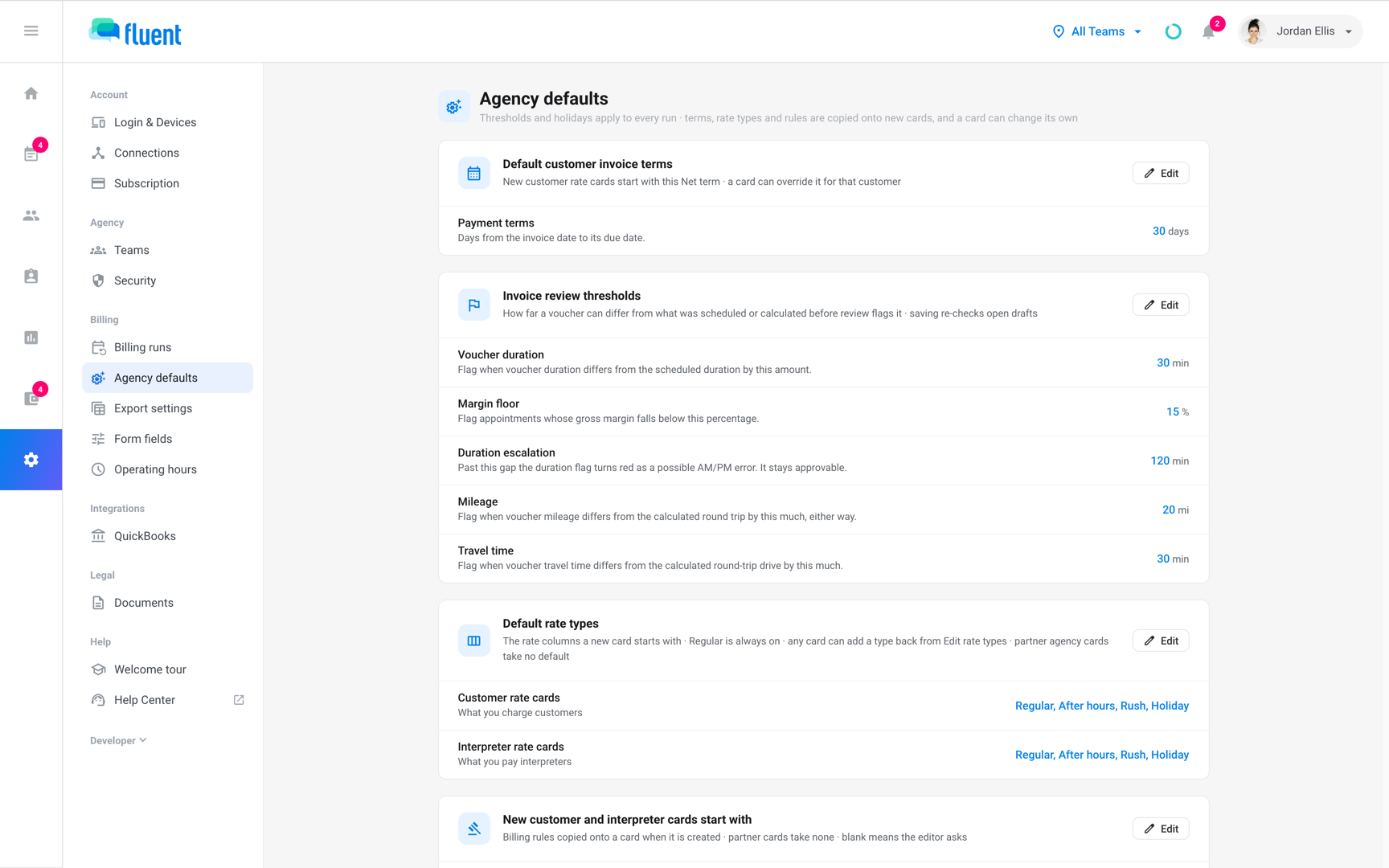
- How to set the defaults new rate cards start with, and the thresholds that decide what invoice review flags.
- How to set up your holiday calendar, and what a holiday changes about pricing.
What each section changes
Owners and Admins can open Settings › Agency defaults. Each section has its own Edit button and saves on its own.
Important: Check what a default reaches before you change it. Only the thresholds, the holiday calendar, and blank invoice terms touch work you already have.
| Section | Starts as | What a change reaches |
|---|---|---|
| Default customer invoice terms | 30 days | New customer rate cards, and blank Invoice terms |
| Invoice review thresholds | The values below | Invoices before approval, and pay review |
| Default rate types | Every rate type on | New customer and interpreter rate cards only |
| New customer and interpreter cards start with | Ask on each card | New customer and interpreter rate cards only |
| Holiday calendar | No holidays | Pricing, invoices before close, and draft pay runs |
Partner rate cards start blank and take none of these defaults. To change the rules or rate types of a rate card you already have, edit that rate card. See Customer rate cards.
Default customer invoice terms
Invoice terms set how many days after the invoice date a customer's invoice is due, from 0 to 3,650. 0 makes an invoice due on receipt.
- New customer rate cards: start with the default and can change it in their own Billing rules.
- Rate cards with blank Invoice terms: use the default, so a change here reaches that customer's invoices.
- Rate cards with their own Invoice terms: keep them.
Invoice review thresholds
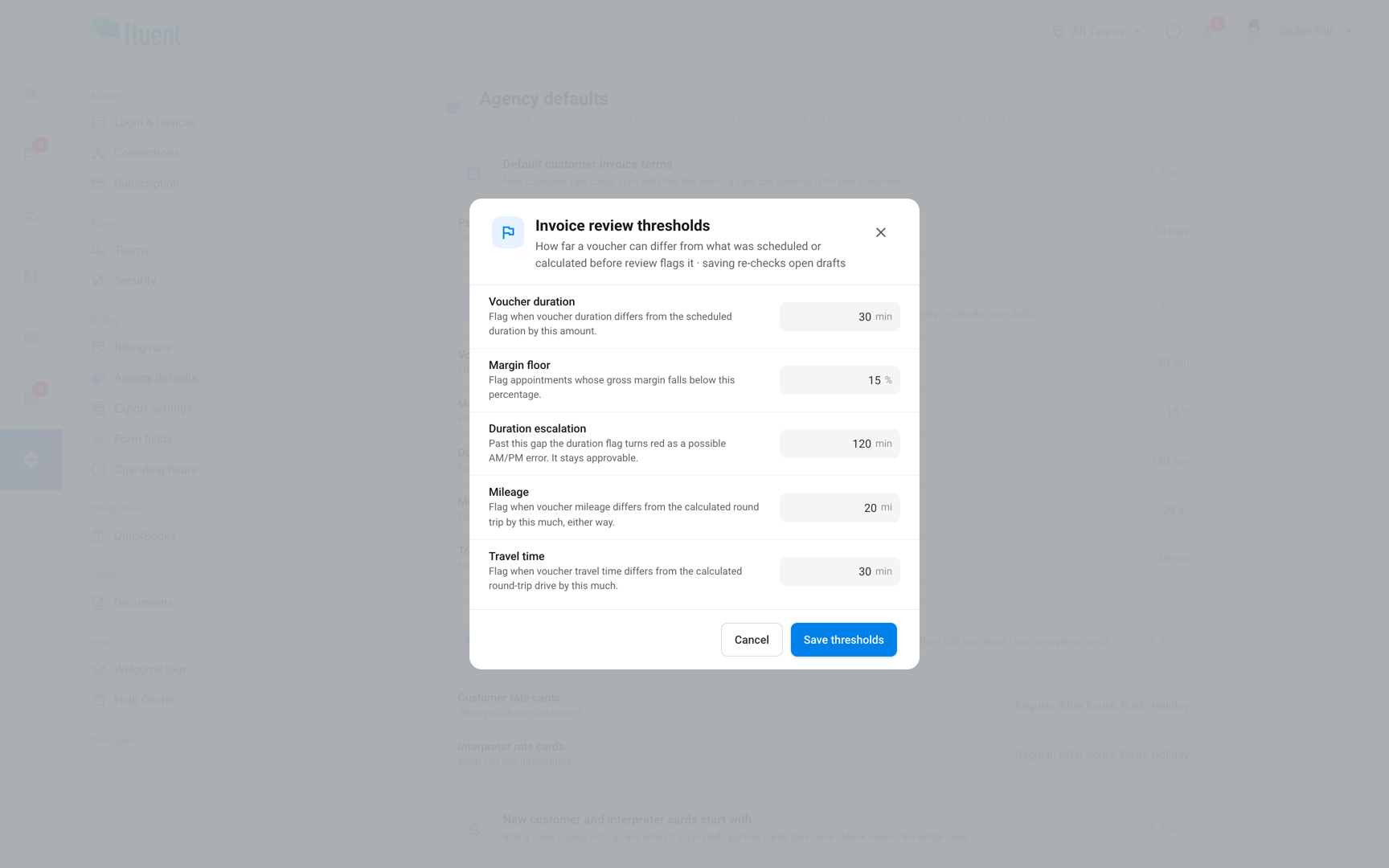
The thresholds decide how far a voucher can differ from what was scheduled or calculated before invoice review flags it. The Margin floor is the lowest gross margin an appointment can have before it's flagged.
| Threshold | Default | Flags when | Allowed values |
|---|---|---|---|
| Voucher duration | 30 min | Voucher and scheduled durations differ by this much | 0 to 1,440 whole minutes |
| Margin floor | 15% | An appointment's gross margin falls below it | 0% to 100% |
| Duration escalation | 120 min | Duration flag turns red as possible AM/PM error | 0 to 1,440 whole minutes |
| Mileage | 20 mi | Voucher miles differ from the calculated round trip | 0 to 999,999 miles |
| Travel time | 30 min | Voucher travel time differs from the calculated drive | 0 to 1,440 whole minutes |
When you click Save thresholds, the change reaches:
- Invoices that aren't approved: Fluent re-checks every one.
- Approved invoices: keep the flags they had.
- Pay review: uses the same thresholds. There, Margin floor shows as a Below margin floor flag on the interpreter's row, and it never blocks approval.
See Invoice review flags and Pay review flags.
Default rate types
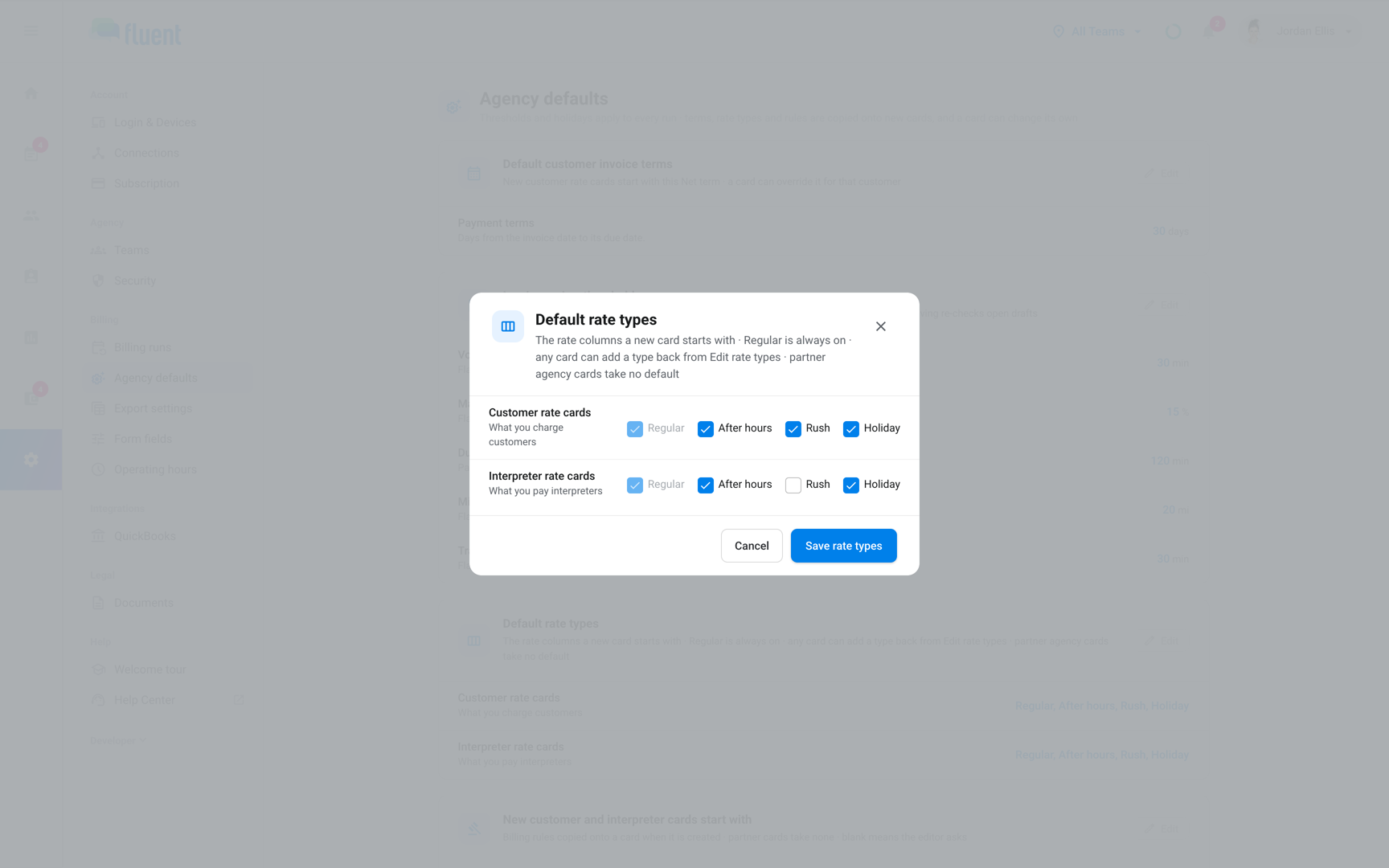
Rate types are the price columns on a rate card. Pick the ones new rate cards start with, separately for Customer rate cards and Interpreter rate cards.
- Regular: always on.
- Rush and Holiday: Turn one off, and new rate cards of that kind start without that column. With Rush off, the rate editor doesn't ask for a Rush lead time.
- After hours: Follows each rate card's operating hours, whatever you pick here.
A rate card can add a rate type back with Edit rate types.
New customer and interpreter cards start with
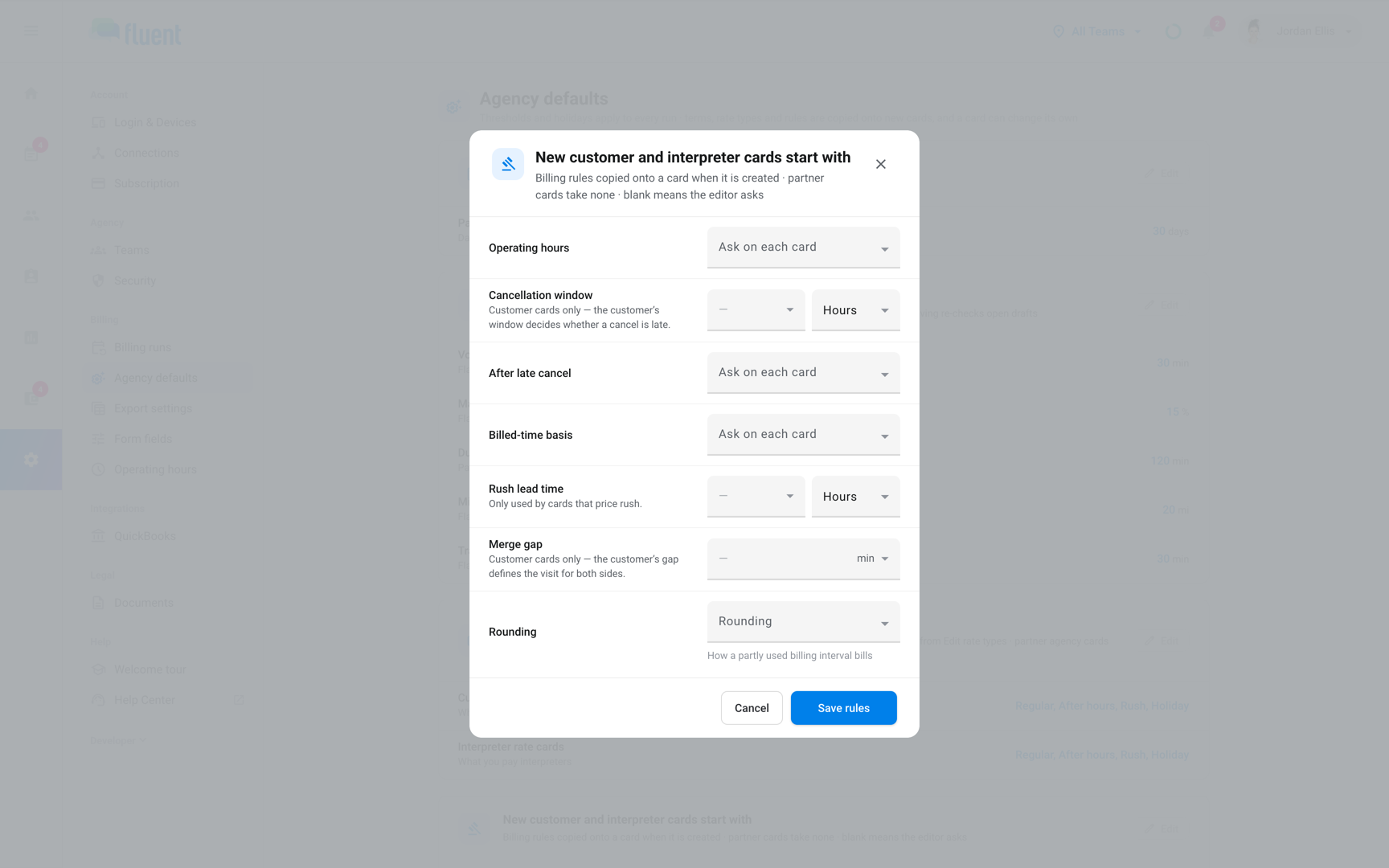
A new customer or interpreter rate card starts with these billing rules. A blank row shows Ask on each card, and the rate editor asks for that rule on each new rate card.
| Row | What it sets | Customer | Interpreter |
|---|---|---|---|
| Operating hours | When the After hours rate applies | Yes | Yes |
| Cancellation window | Notice a customer must give to cancel | Yes | No |
| After late cancel | What a late cancel bills or pays | Yes | Yes |
| Billed-time basis | Which time counts before the Minimum | Yes | Yes |
| Rush lead time | How close to the start is rush | Yes | Yes |
| Merge gap | When same-day appointments bill as one visit | Yes | No |
| Rounding | How a partly used interval bills | Yes | Yes |
For each rule's values, see Billing rules.
Holiday calendar
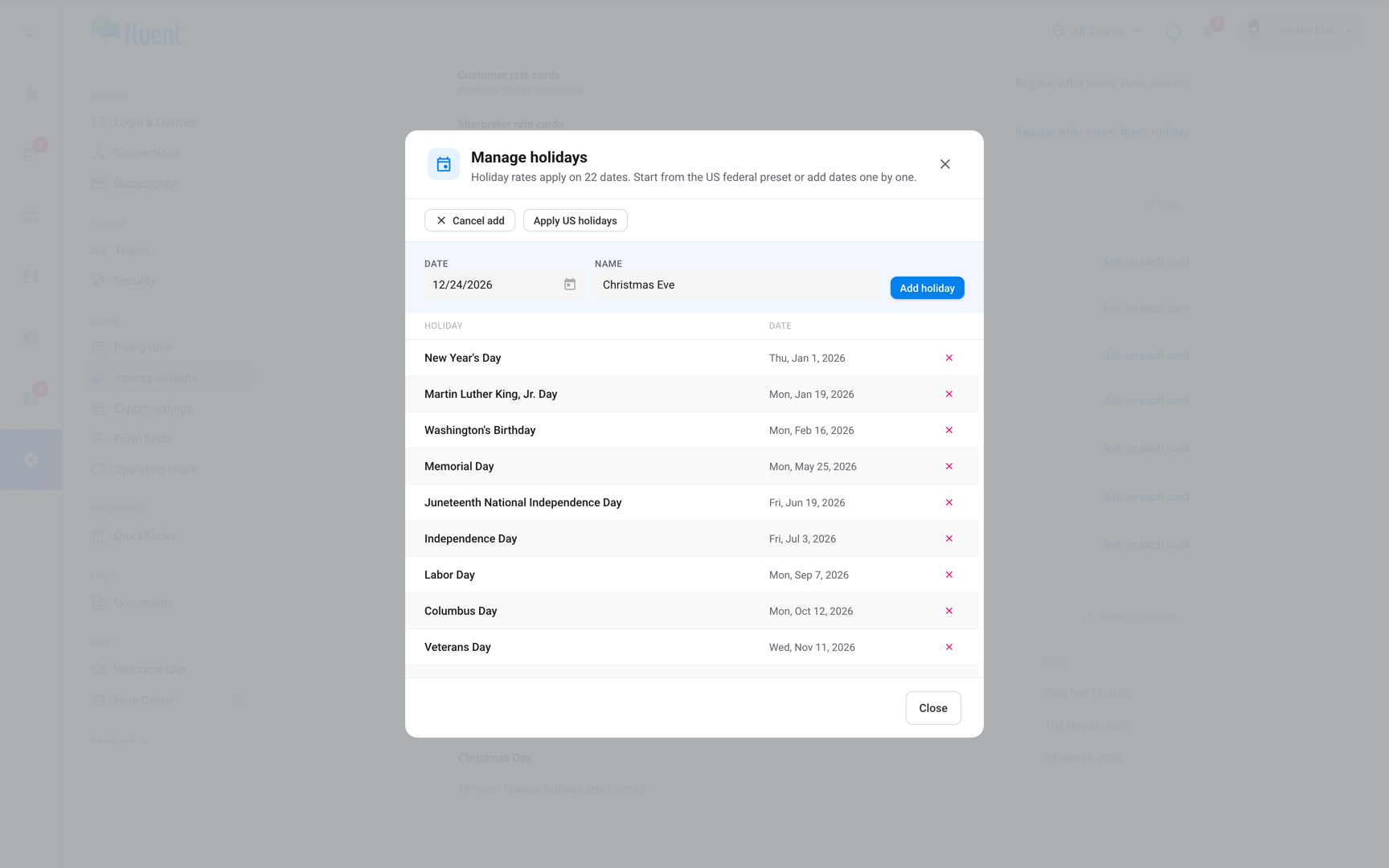
The holiday calendar lists the dates your agency treats as holidays. Start from the US federal holidays, then add your own dates.
- Go to Settings › Agency defaults.
- In the Holiday calendar section, click Manage holidays.
- Click Apply US holidays.
- To add a date of your own, click Add holiday.
- Select the date in Date.
- Enter the holiday's name in Name.
- Click Add holiday in the same row.
- Click Close.
The Holiday calendar section shows how many dates you have and the next ones coming up.
Apply US holidays adds the 11 US federal holidays for the current calendar year. Fluent skips a holiday that's already on the calendar with the same date and name.
- Saturday holiday: goes on the Friday before. For example, Independence Day 2026 goes on Friday, July 3, 2026.
- Sunday holiday: goes on the Monday after.
To remove a date, click × at the end of its row in Manage holidays. Adds and removals save right away.
What a holiday changes
A date on the holiday calendar changes how Fluent prices work on that date and how it counts business days. It doesn't block appointments on that date.
- Pricing: Work on a holiday date bills and pays at the Holiday rate. Without a Holiday rate, a rate card uses Rush inside the Rush lead time, and otherwise After hours, then Regular.
- Business days: A cancellation window or Rush lead time in Business days skips weekends and holiday dates. Hours and Calendar days don't skip holidays. See Cancel an appointment.
- Invoices and pay runs: When you add or remove a holiday, Fluent re-prices draft pay runs and every invoice in a period that isn't closed. An approved invoice whose amount changes goes back to review.
- Exported, synced, and closed: Invoices already exported or synced to QuickBooks keep their amounts, and closed periods never change.
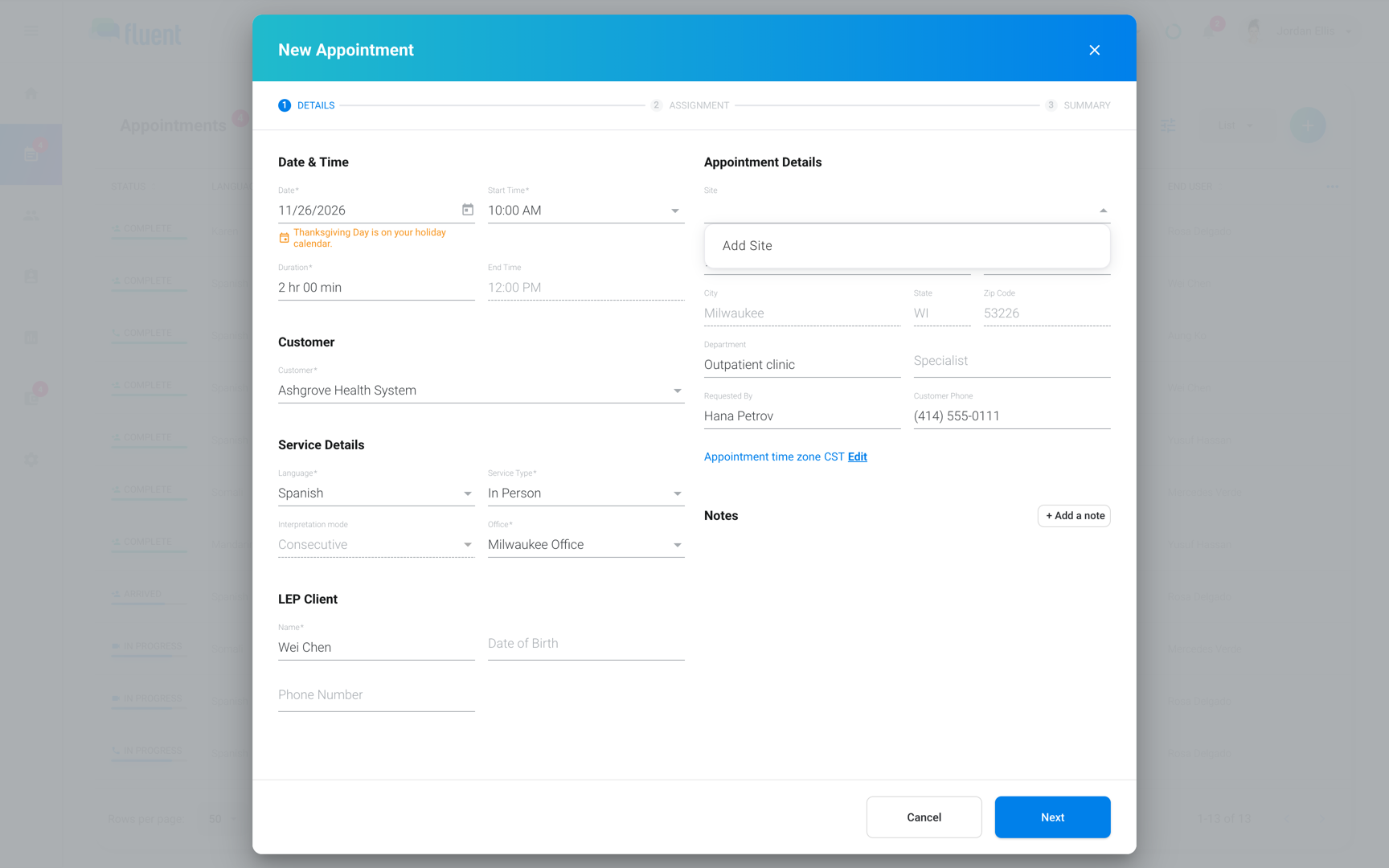
- New appointments: When the date in the appointment editor is on the calendar, a note under it reads, for example, "Thanksgiving Day is on your holiday calendar."
Rules and limits
- If you delete the profile that the Operating hours row names, the row goes back to Ask on each card.
- A date can hold more than one holiday, but not 2 with the same name.
Troubleshooting
Next year's holidays aren't on the calendar
Apply US holidays adds the current calendar year's dates only. Add next year's dates with Add holiday, or click Apply US holidays again once the new year starts.
New rate cards still show After hours after I turned it off
After hours follows the rate card's operating hours, not Default rate types. The column shows while the profile has Charge an after-hours rate on.
To charge no premium, enter the Regular price in the After hours column. See Operating hours.
A Scheduler didn't see the holiday note on a new appointment
The note shows only for Owners and Admins. The holiday still prices the appointment.