
Security overview
How Fluent protects your account and your agency's data, what you can set yourself, and where to send security questions.
What you'll learn
- How Fluent protects your account and your agency's data, and which security rules your workspace sets itself.
- How to get answers to security review questions, and report a suspected incident.
Signing in
Fluent checks your password and, on a new device, a code texted to your phone.
- Two-factor authentication: Everyone sets it up at their first sign-in. Fluent texts a 6-digit code to any browser or phone it doesn't trust, then trusts that device for 14 days.
- Passwords: A password has at least 12 characters. Fluent turns down common passwords and passwords found in known data breaches.
- Wrong passwords: 8 wrong passwords in a row lock the account for 5 minutes. After 10, you have to reset the password.
- Alerts: Fluent emails you when your password changes, when your two-factor phone changes, and when someone asks to change your sign-in email. The email change goes through only after someone enters the code sent to the new address.
The rules and steps are in Sign in and passwords and Two-factor authentication.
Automatic sign-out
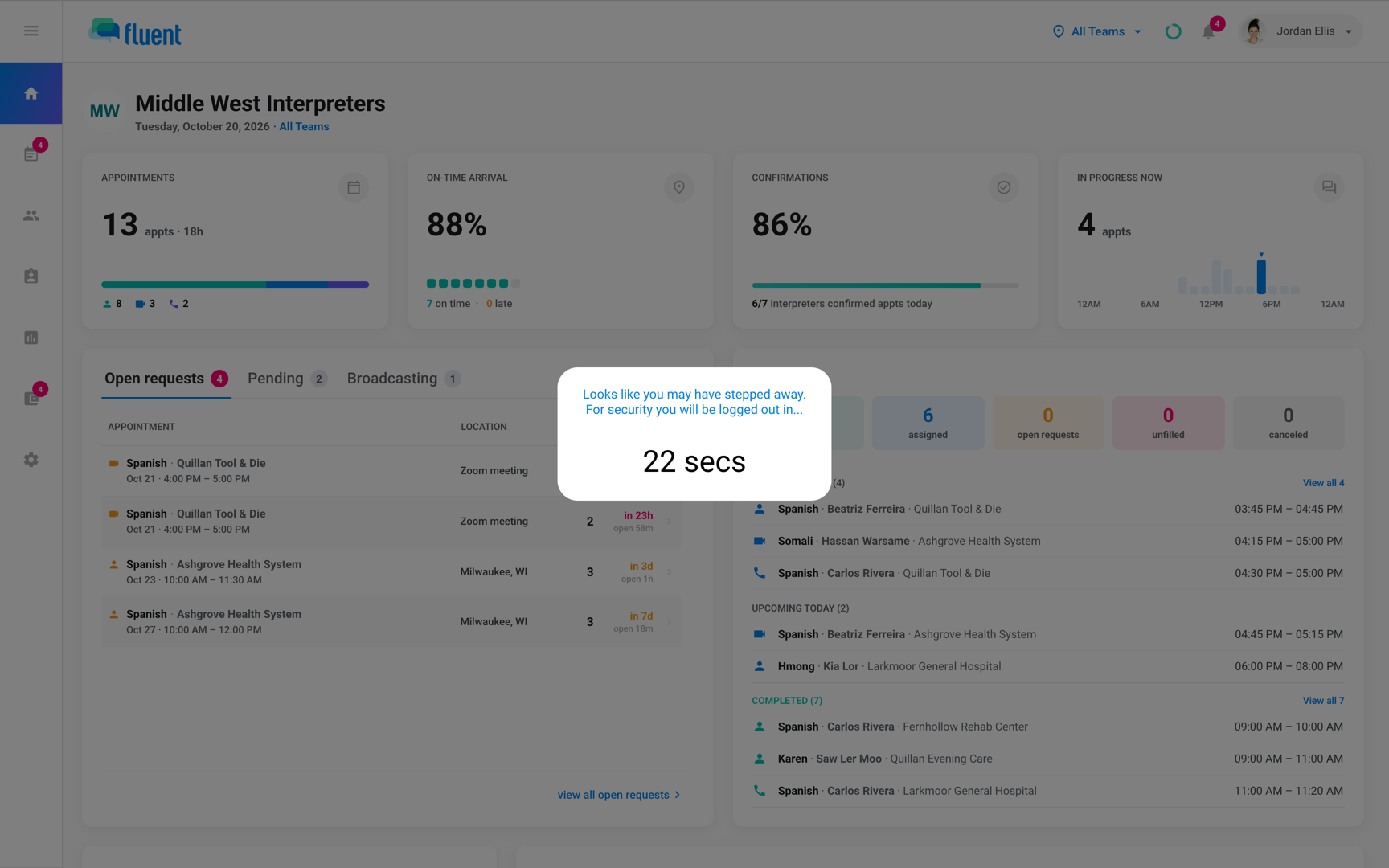
Fluent signs you out of a device you've stopped using, so a screen left open doesn't stay signed in. These times are the same for every workspace, and no one can change them.
- Web app: After 15 minutes without mouse, keyboard, scroll, or touch activity, with a 30-second countdown first.
- Mobile app: After 5 minutes without activity, after more than 5 minutes in the background, and each time the app starts again after you close it.
- Your other devices: Signing out of one browser or phone leaves your other devices signed in. To end a session on another device, go to Settings › Login & Devices and click Sign out next to it. See Your profile and Login & Devices.
Codes before exports
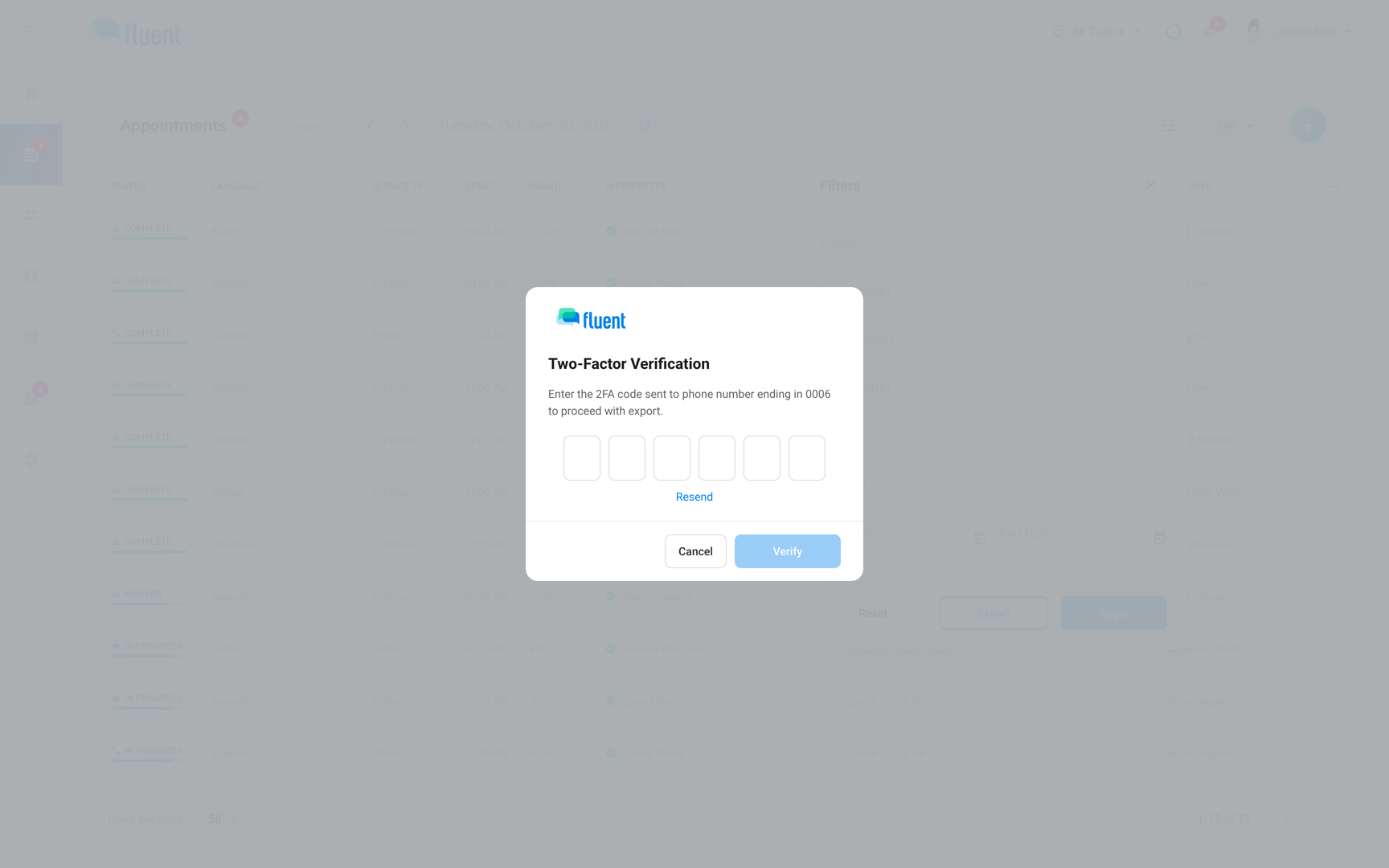
Any export from a list, any invoice download, and the pay summary ask for a code first. See Export data.
- Getting the code: Fluent texts it to your two-factor phone, or emails it if your account doesn't use text-message codes. Enter it in the Two-Factor Verification dialog.
- One code, 9 minutes: After you enter a code, your exports in the next 9 minutes don't ask again. If you cancel the dialog, nothing downloads.
- Invoice PDFs: Download PDF on an invoice preview asks for a code, like an export.
- No code needed: Pay statement PDFs download without a code, from one pay statement or from the Export dialog with only PDF selected. They carry no client details.
- Export records: Fluent records each export, and who made it, before it releases the file.
Who sees what
Each person signs in with their own account. Fluent's Acceptable Use Policy prohibits shared accounts and shared passwords.
- Roles: Your role decides which parts of Fluent you can open and change. See Agency roles and permissions.
- Teams: A team member who is on teams sees only those teams' appointments. The Owner sees every team. See Manage teams.
- Patient details: Fluent hides patient fields on appointments until your agency signs the BAA. See HIPAA and the BAA.
Records Fluent keeps
Some records you can open in the app. Fluent keeps a security record of its own as well.
- In the app: The Activity Log shows who created and changed appointments and vouchers. Each appointment's View History shows changes to its details. See Activity Log and history.
- On Fluent's servers: Fluent records each view of an appointment's details, each export, and each sign-in, successful or not. It also records password and two-factor changes, changes to an agency member's role, and every request Fluent staff make. These records aren't shown in the app.
Invite and email-change rules
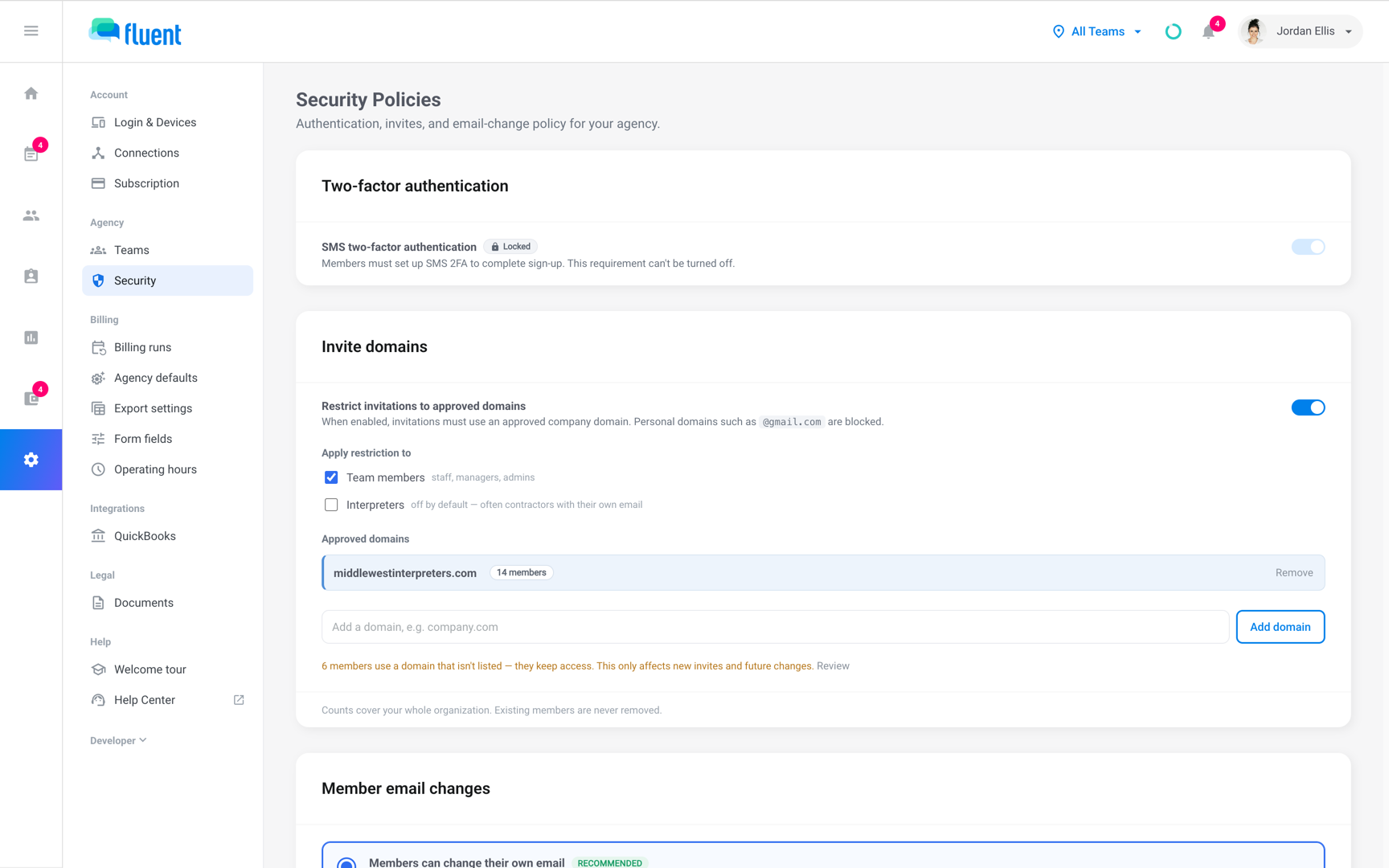
Settings › Security is where your workspace decides who can be invited and how members change their sign-in email. See Security settings.
What Fluent doesn't offer
Security reviews often ask for these. Fluent doesn't have them.
- Single sign-on: Fluent has no SSO or SAML, and you can't sign in with Google or Microsoft. Sign in with your email, password, and a texted code.
- Other two-factor methods: Text message is the only method. Fluent has no authenticator apps, hardware keys, or backup codes.
Security reviews and incidents
Security reviews and incident reports go to different addresses.
- Security reviews: The Trust Center at fluentworks.com/trust lists Fluent's security controls and subprocessors. Use Request security documentation there for documents, or email trust@fluentworks.com with security and procurement questions.
- Suspected incidents: Report a suspected security incident or vulnerability to security@fluentworks.com. Contact support says what to put in the subject line of an urgent report.