
Agency settings
Edit your agency's name, address, contacts, and logo, and find where each of your agency's settings lives.
What you'll learn
- How to keep your agency's name, address, contacts, and logo current on invoices, emails, and your interpreters' app.
- What each of your agency's settings is for, and where to find it.
Edit your agency profile
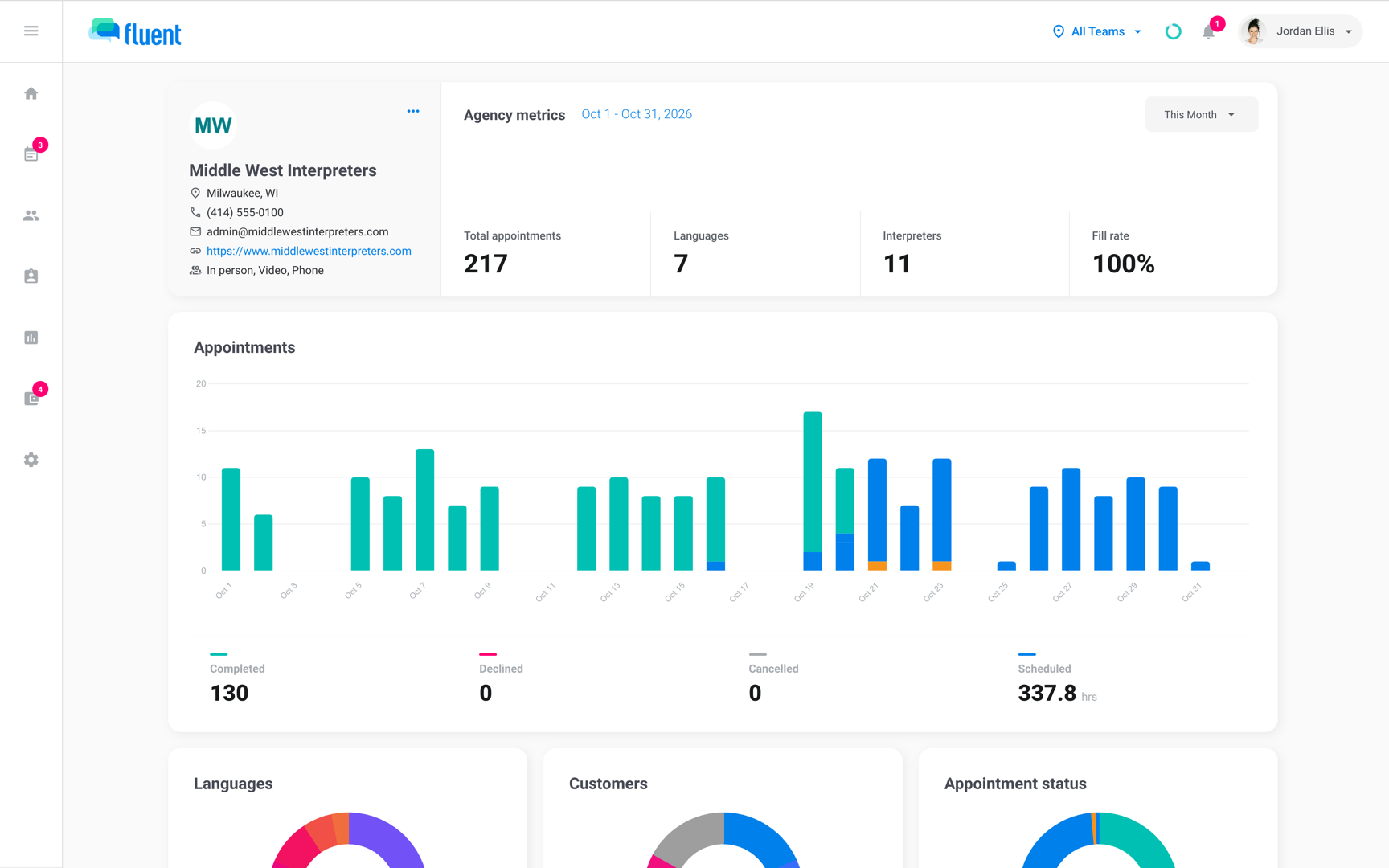
Owners and Managers edit the agency profile from the agency page. Fill it in when you set up your agency, and update it when your address or contacts change.
- Click your name at the top right, then click Agency.
- On the profile card, click ⋯. The Edit Agency dialog opens on the Profile tab.
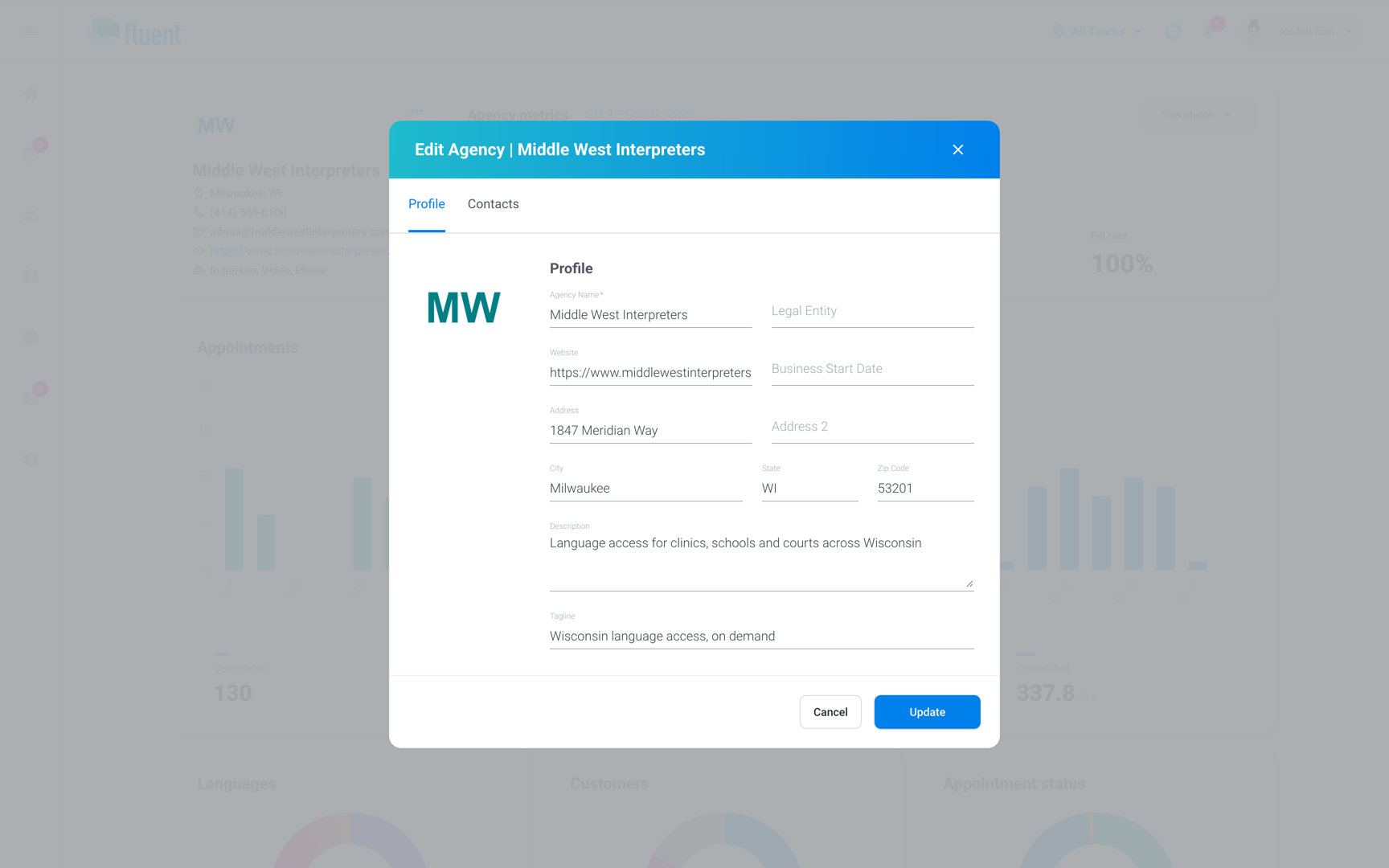
- Enter your Agency Name, and your Legal Entity if you trade under a different name.
- In Address, start typing and select your address from the list. Fluent fills in City, State, and Zip Code.
- Click the Contacts tab.
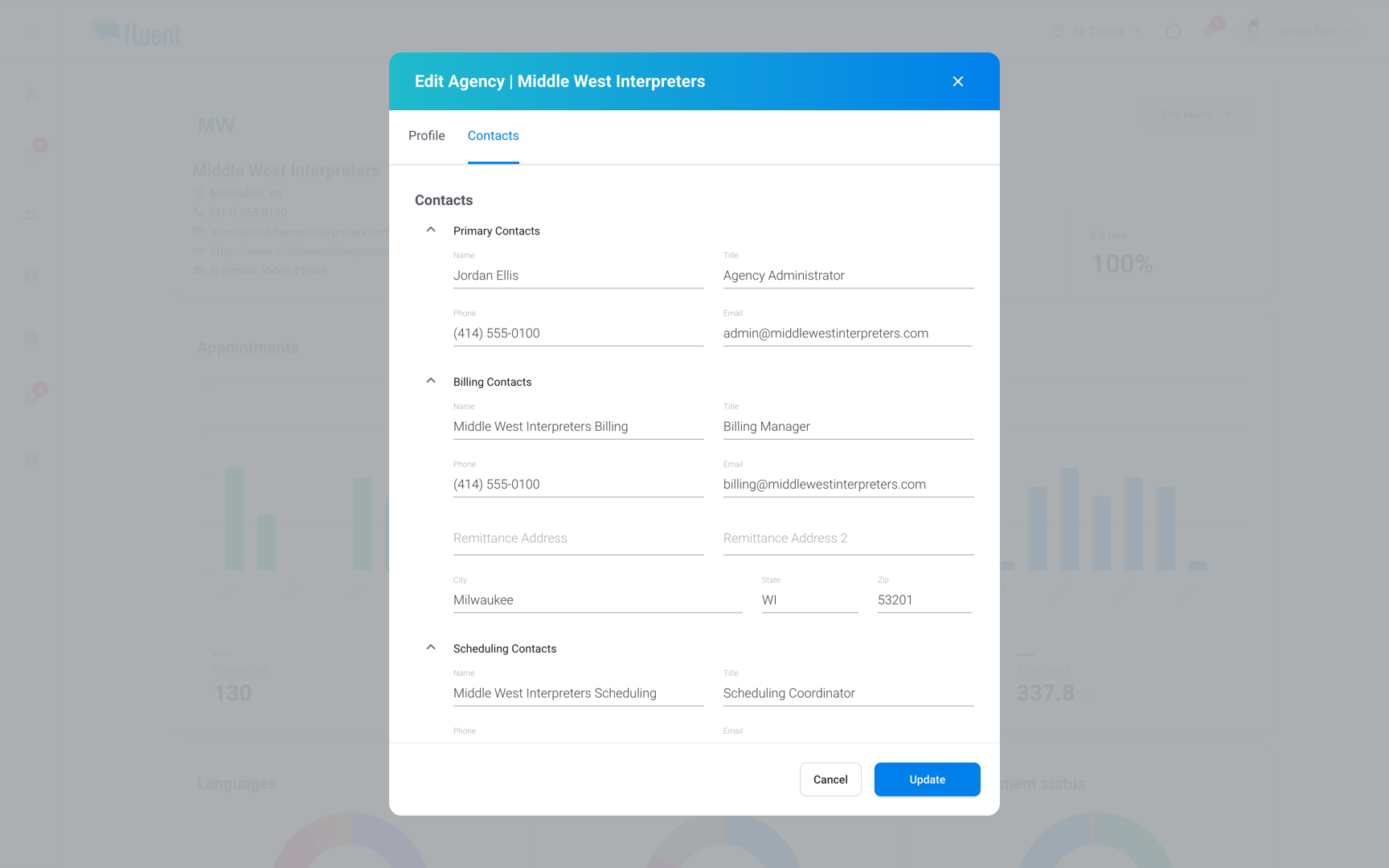
- Under Primary Contacts, Billing Contacts, and Scheduling Contacts, enter each contact's Name, Title, Phone, and Email.
- If customers pay you at a different address, enter it in Remittance Address under Billing Contacts.
- Click Update.
You see "Agency updated successfully".
Add or change your logo
Your logo replaces the first letter of your agency name on the agency page. Fluent also puts it on invite emails, invoice and pay statement PDFs, and your interpreters' Daily Confirmation screen.
- On the agency page, click ⋯ on the profile card.
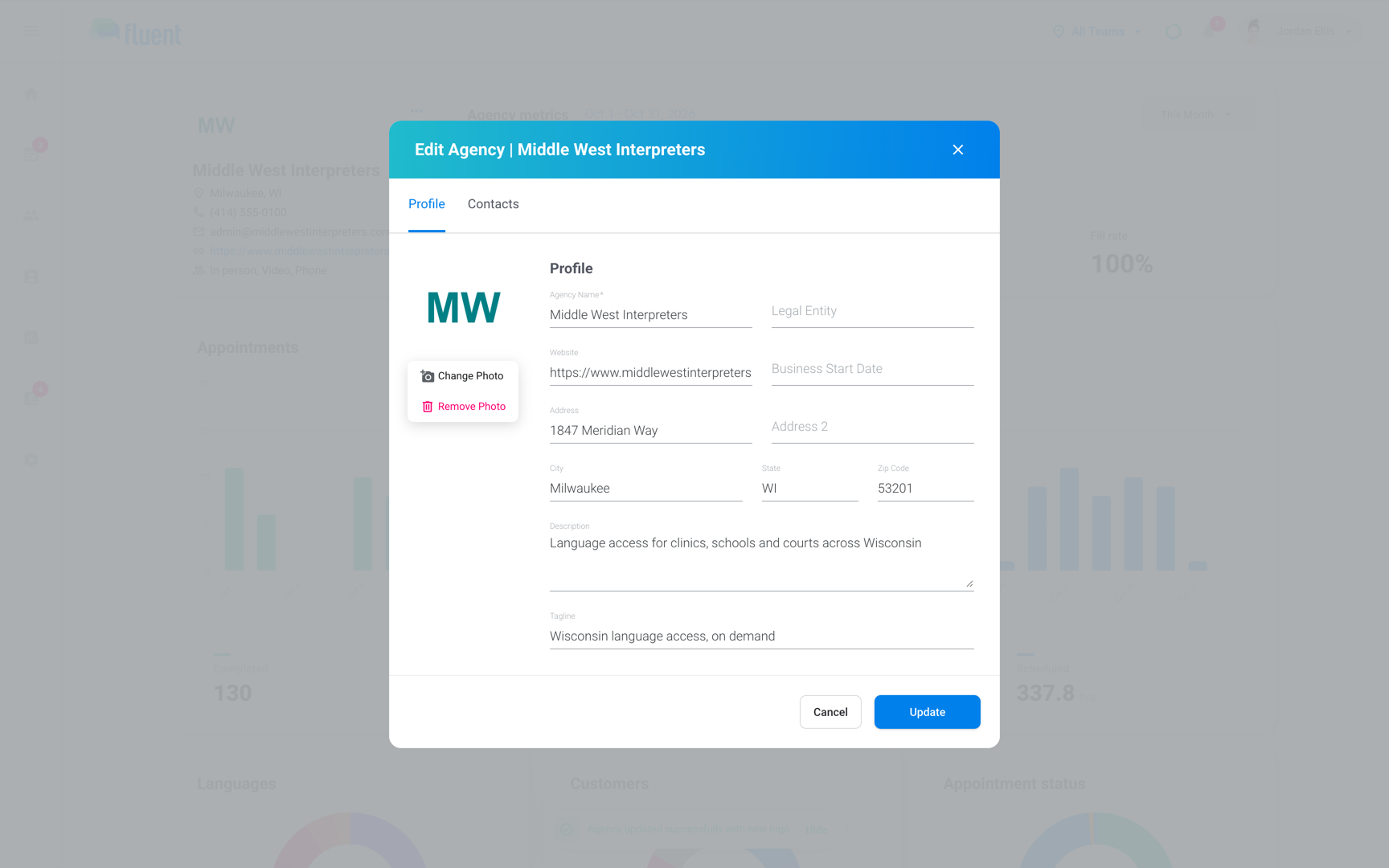
- On the Profile tab, click the round logo.
- Click Upload Photo, or Change Photo if you already have a logo.
- Select an image file smaller than 5MB.
- Click Update.
You see "Agency updated successfully with new logo".
To take the logo off, click it, click Remove Photo, then click Update.
Note: Invoice and pay statement PDFs show the logo only when it's a PNG or JPEG file.
Where your agency details appear
Each field on the profile feeds a specific place, so you can check what a customer or interpreter sees before you change it. In this table, PDFs means invoice and pay statement PDFs.
| Detail | Where it appears |
|---|---|
| Agency Name | Agency page, invite emails, and PDFs |
| Logo | Agency page, invite emails, PDFs, and Daily Confirmation |
| Legal Entity | PDFs, under your name when it differs |
| Remittance Address | PDFs; when empty, your Address instead |
| Billing Contacts phone and email | PDFs, under the address |
| City and State | Agency page, as Location |
| Primary Contacts phone and email | Agency page, as Phone and Email |
| Website | Agency page, as a link |
| Scheduling Contacts | Mobile app and appointment emails |
- Scheduling Contacts in the mobile app: interpreters call the Scheduling Contacts phone from the app, and see the contact's name and your logo on the Daily Confirmation screen. See Confirm today's appointments.
- Scheduling Contacts in emails: the "Questions? Contact" line at the end of appointment emails gives the Scheduling Contacts email and phone. Auto-assign and Broadcast updates for your team, such as a Broadcast no interpreter has accepted, go to that email. See Agency team notifications.
- Remittance Address or Address: Fluent uses it to work out tax on your Fluent subscription. See Plans and your subscription.
Important: Fill in the Scheduling Contacts phone, so Need Help on your interpreters' Daily Confirmation screen calls the right number.
Where each setting lives
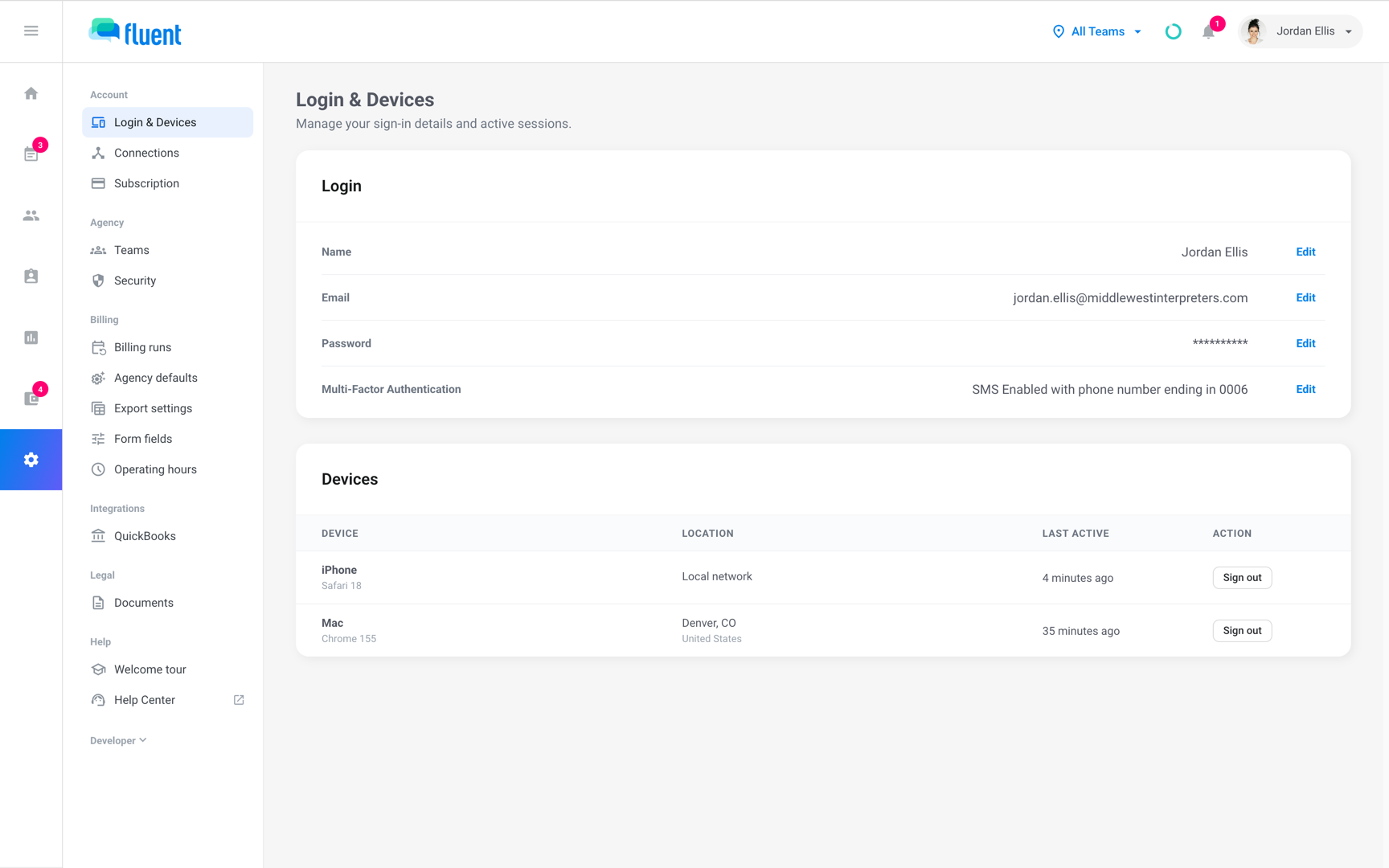
The agency page holds the profile. Everything else you set up for the agency is in Settings in the sidebar, and each person sees only the items their role can use.
| Setting | Who sees it | What it's for | Article |
|---|---|---|---|
| Settings › Login & Devices | Everyone | Your own sign-in and devices | Your profile and Login & Devices |
| Settings › Subscription | Owner | Your Fluent plan and payment | Plans and your subscription |
| Settings › Teams | Owners and Admins | The teams inside your agency | Manage teams |
| Settings › Security | Owners and Admins | Two-factor authentication, approved domains, and email changes | Security settings |
| Settings › Billing runs | Owners and Admins | The schedule for invoice runs and pay runs | Set up billing runs |
| Settings › Agency defaults | Owners and Admins | Rate card defaults, invoice terms, and holidays | Agency defaults and holidays |
| Settings › Export settings | Owners and Admins | Optional columns in export files | Export invoices |
| Settings › Form fields | Owners and Admins | Appointment fields on invoice lines | Form fields |
| Settings › Operating hours | Owners and Admins | Hours your regular rates cover | Operating hours |
| Settings › QuickBooks | Owners and Admins | Connecting QuickBooks Online | QuickBooks |
| Settings › Documents | Owners, Admins, Managers, and Schedulers | Agreements your agency signed | Legal agreements and documents |
Under Help, at the bottom of Settings, Welcome tour reopens the tour from your first visit, and Help Center opens this help center in a new tab.
Rules and limits
- Agency Name is the only required field.
- Description holds up to 500 characters.
- The agency profile has no time zone. Each appointment takes its time zone from its address. See How time zones work in Fluent.
- A partner agency has its own profile, which you edit from Team › Partner Agencies. Its dialog has partner fields, such as Service Region and Languages Offered, instead of Description and Tagline. See Partner agencies.
Troubleshooting
The profile menu has no Agency item
Admins and Schedulers don't get the Agency item in the profile menu. Ask your agency's Owner or a Manager to make the change.