
Track invoice payments
Mark a closed invoice paid or undo it, let QuickBooks report payments for you, and find the invoices your customers haven't paid.
What you'll learn
- How to mark an invoice paid when your customer pays, or let QuickBooks do it for you.
- How to find the invoices your customers haven't paid yet.
Before you start
- The invoice's run is closed. See Close an invoice run.
Mark an invoice paid
When a customer pays you, mark the invoice paid so it no longer shows with your unpaid invoices. Owners and Admins track invoice payments.
Important: If the invoice is in QuickBooks, enter the payment there instead.
- Go to Billing › Invoices.
- On the invoice's row, click View.
- At the bottom of the invoice review, click Options.
- Click Mark as paid.
A message confirms it, for example "INV-0003 marked as paid." The status changes to Paid, and the bar at the bottom of the invoice review reads Paid with today's date.
View activity shows who marked it.
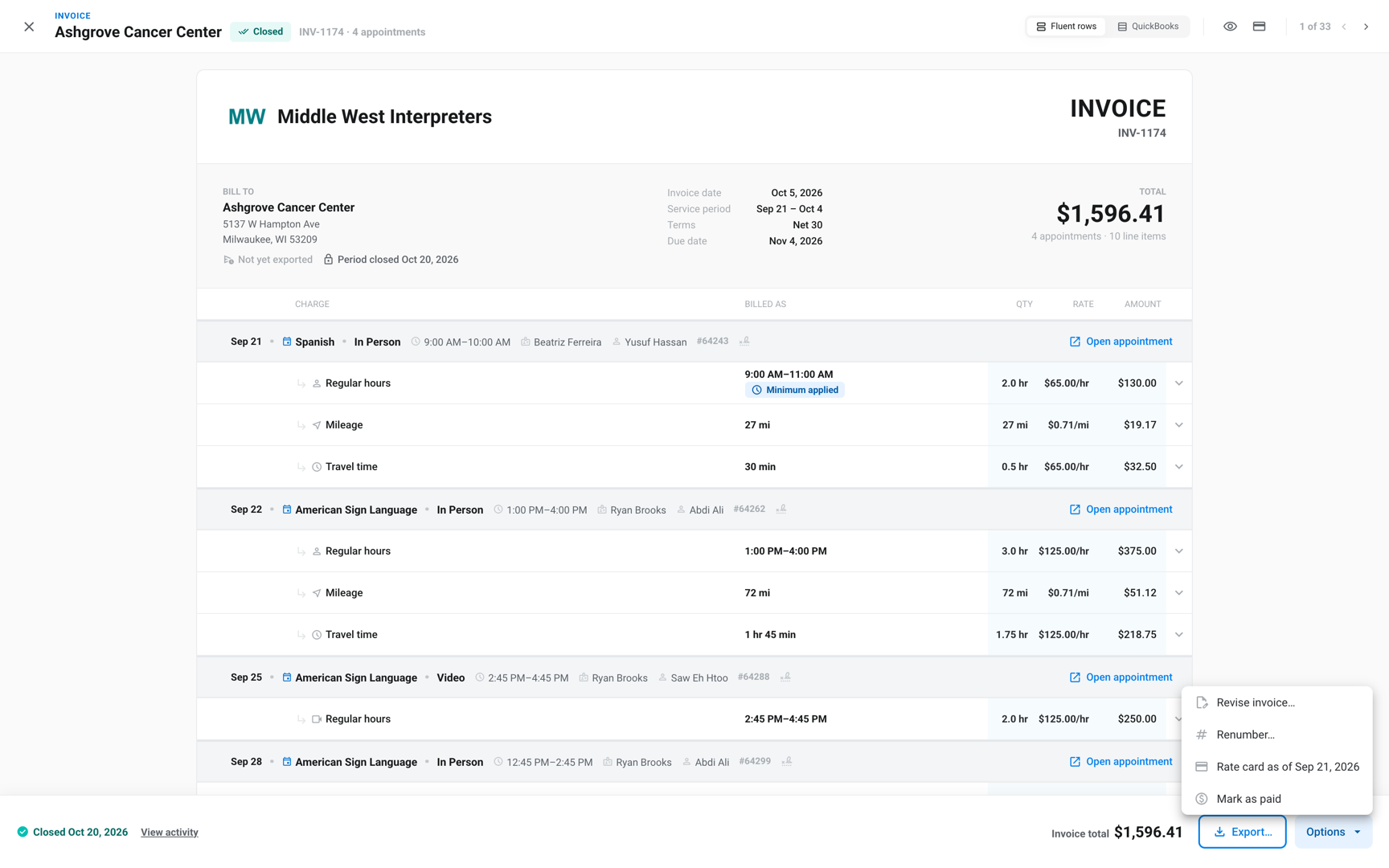
You can also open the invoice from its closed run in Billing › Review, or from the Invoices tab on the customer's page.
Undo a paid mark
If you marked the wrong invoice, or the payment didn't go through, take the mark off.
- Go to Billing › Invoices.
- On the invoice's row, click View.
- Click Options.
- Click Undo mark as paid.
A message confirms it, for example "INV-0003 is open again." The status goes back to Closed.
Payments entered in QuickBooks
When your invoices are in QuickBooks, enter customer payments there. Fluent checks QuickBooks once an hour for every invoice you synced and updates each one. See Sync invoices to QuickBooks.
- Paid in full: The status changes to Paid, and the invoice review reads "Paid in QuickBooks".
- Paid in part: The invoice stays Closed. Its invoice review shows the balance still open, for example "Partially paid · $120.00 open".
- Overdue: Until it's paid in full or you mark it paid, the invoice review shows how late it is, for example "Overdue 12 days".
- Payment removed in QuickBooks: Fluent takes off the Paid mark that QuickBooks set, at its next check.
- In an earlier company: For an invoice synced to a QuickBooks company you've since replaced, the QuickBooks badge reads In an earlier company and Fluent stops checking its payments. Mark it paid in Fluent. See QuickBooks.
Fluent has no button to check sooner.
Find unpaid invoices
To see who still owes you, list the invoices nobody has paid. An invoice keeps the status Closed until it's paid, so filter the list by Closed.
- Go to Billing › Invoices.
- Click the filter icon next to the search field.
- In Status, select Closed.
- Click Apply.
- Click the Due column heading.
The list shows every closed invoice that isn't paid, earliest due date first. With QuickBooks connected, the QuickBooks column reads Partial on the ones that are partly paid.
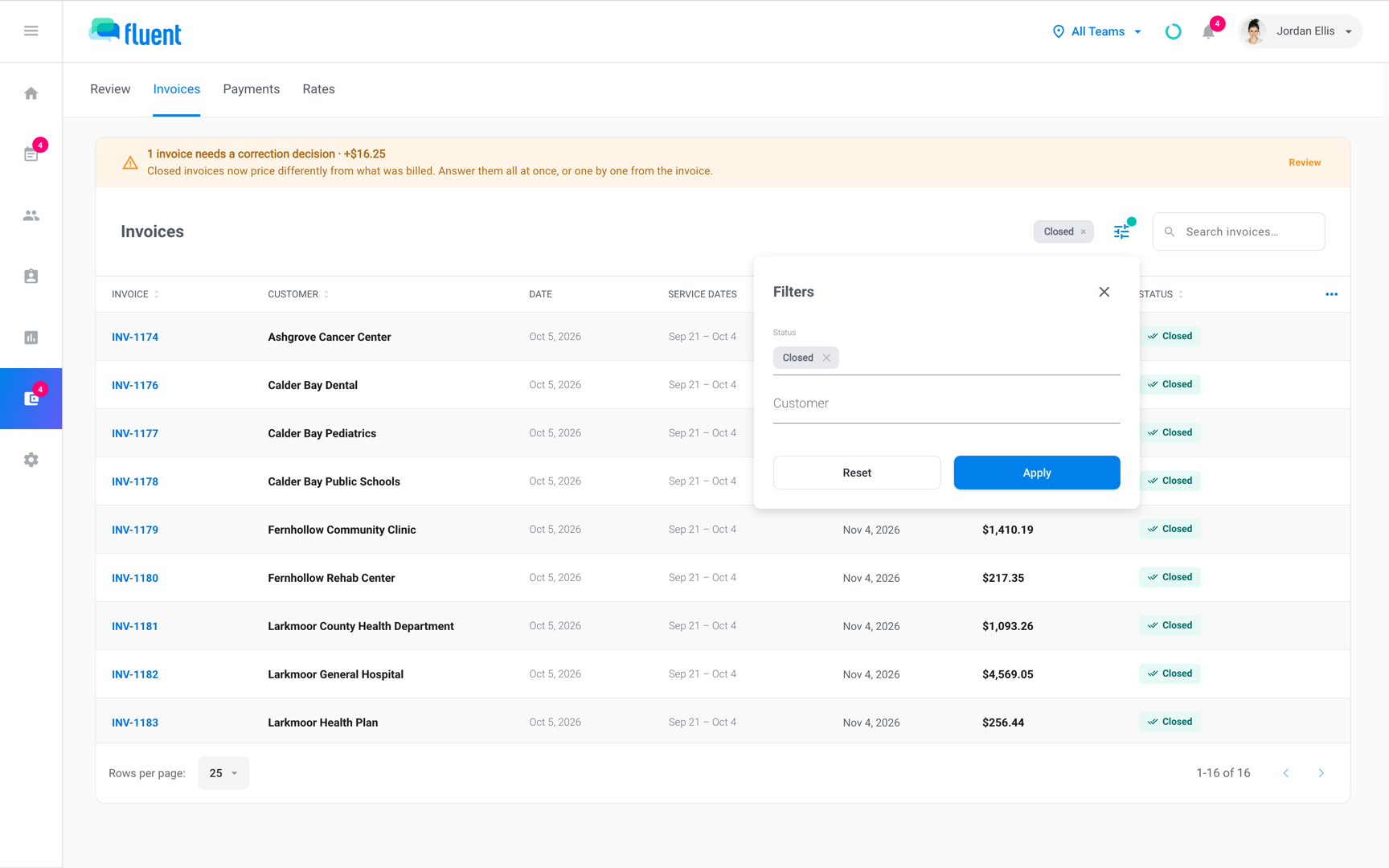
- One customer: Use the Invoices tab on the customer's page, which has the same filter.
- The total your customers owe, by how late it is: Use the Owed to you tile in Reports › Billing. See Billing report.
What changes once an invoice is paid
Once an invoice is paid, Fluent doesn't change it in place.
- Revise invoice… is greyed out in Options, and Renumber… is gone.
- When a voucher edit or rate change later changes its price, the invoice offers only New document and Keep as billed. See Correct a closed invoice.
- The same applies once QuickBooks shows any payment on the invoice, even part of the total.
If the paid mark was a mistake, undo it first, then revise the invoice.
Rules and limits
- Fluent has no fields for the amount, the date the customer paid, or how they paid. It dates a paid mark the day you click Mark as paid.
- Marking an invoice paid doesn't notify your customer.
- Once QuickBooks reports an invoice paid in full, Undo mark as paid is gone, even if you marked it paid first.
- For an invoice in QuickBooks, Owed to you counts the balance QuickBooks holds, even if you marked the invoice paid in Fluent. Enter the payment in QuickBooks instead. An invoice in an earlier QuickBooks company counts by its paid mark in Fluent.
- Billing › Payments holds pay runs, what you pay your interpreters. You track customer payments on each invoice. See Send to payout and mark paid.
Troubleshooting
My customer paid in QuickBooks, but the invoice still shows Closed
Fluent hasn't checked since the payment, or QuickBooks doesn't show the invoice as paid in full.
- Wait for the next hourly check.
- Look at the QuickBooks column in Billing › Invoices. Not synced means the invoice isn't in QuickBooks, so sync it or mark it paid in Fluent. Partial means part of the balance is still open.
- If Settings › QuickBooks shows Sign in again, click Reconnect QuickBooks. Fluent can't check payments until you do.
I can't find Mark as paid
The invoice's run isn't closed, a revision of the invoice is open, or QuickBooks already marked the invoice paid.
- The run isn't closed: Close the run first. See Close an invoice run.
- A revision is open: Finish or cancel the revision.