
Sign in & passwords
Learn how to sign in to Fluent, reset your password, and troubleshoot common sign-in issues.
At a glance
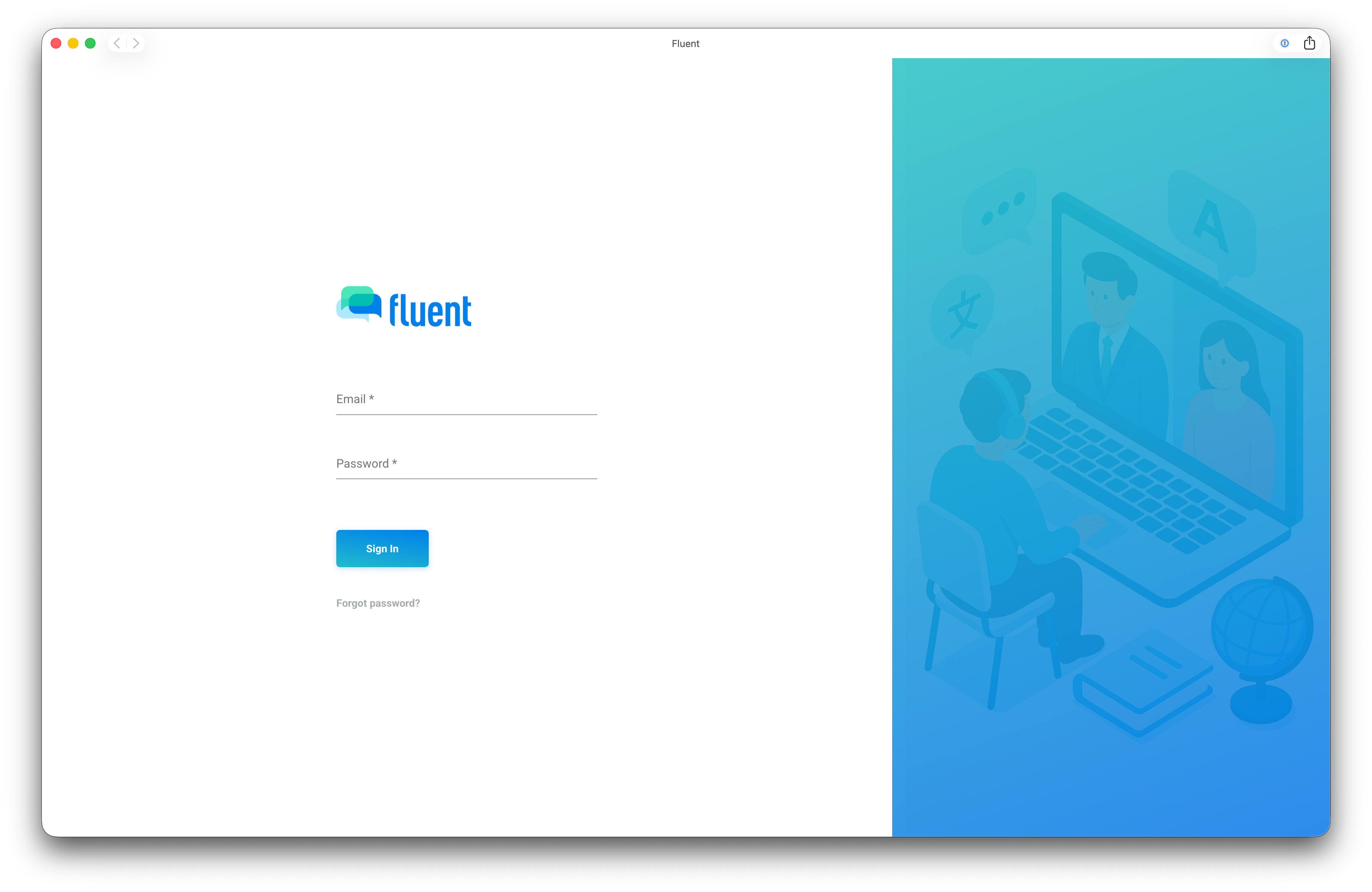
- Sign in: Use your email + password.
- Forgot password: Request a reset link from the sign-in screen.
- Tip: Use a password manager. If your organization prefers SSO, support is coming soon.
Sign in to Fluent
Sign in with email and password
- Go to the Fluent sign-in page app.fluentworks.com
- Enter your email address.
- Enter your password, then select Sign in.
Coming soon: Single sign-on (SSO). Some organizations prefer signing in with Google/Microsoft/Okta. Fluent doesn’t support SSO yet, but it’s planned.
Multi-factor authentication (2FA)
Some workspaces require an extra step when you sign in.
How 2FA works After you enter your email and password, you’ll be asked for a 6-digit verification code sent by text message (SMS). Enter the code to finish signing in.
Didn’t get a code?
- Confirm your phone has service and can receive texts.
- Wait a minute, then request a new code if available.
- If you still can’t sign in, contact your workspace admin or support.
Coming soon: We plan to support additional sign-in methods over time, such as authenticator apps and passkeys.
Reset your password
- From the sign-in page (app.fluentworks.com), select Forgot password.
- Enter your email address and submit.
- Check your email for a password reset link.
- Set a new password, then sign in.
Notes
- Reset links expire after a short time. If it expires, request a new one.
- If you don’t see the email, check spam/junk and any company quarantine filters.
Change your password (when you’re signed in)
If you’re signed in already and wish to change your password, you can go to Settings → Login & Devices.
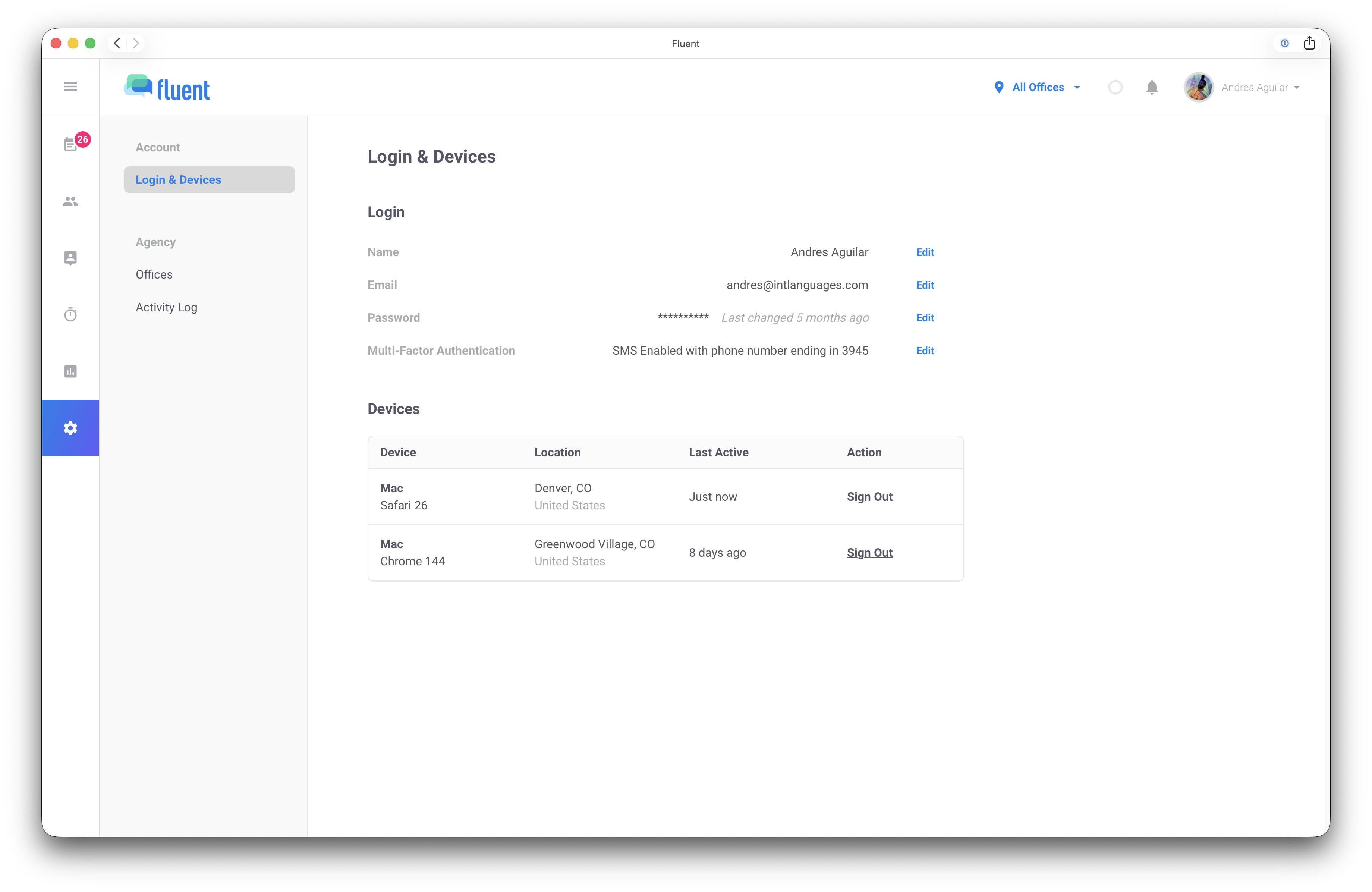
- Go to Settings and Login & Devices.
- Click “Edit” password.
- Enter your current password.
- Enter the 2FA code sent to your phone.
- Enter your new password.
- Save.
Password requirements
Fluent only accepts strong, unique passwords. When you create a new password, we check two things:
Strength (password meter)
We use a standardized password strength check to make sure your password is hard to guess. If it’s too weak, you’ll see suggestions like adding more characters or another word.
Breach exposure (known-compromised passwords)
We block passwords that appear in known data breaches. If a password has been exposed elsewhere—even if you’ve never used it in Fluent—you’ll need to choose a different one.
What Fluent expects
- At least 12 characters (longer is better)
- Unique (not used elsewhere)
- Not found in known data breaches
- Strong enough to pass the strength meter
Tips for passing on the first try
- Use a passphrase: 3–5 uncommon words works great (spaces are allowed).
- Add a little variation that isn’t predictable (avoid “Password123!” vibes).
- A password manager makes this painless (and your future self will thank you).
If you see “This password appears in known data breaches”
That means the password (or a very common variant) has shown up in leaked password lists. Even if you didn’t leak it, attackers have it—so Fluent won’t accept it.
Troubleshoot sign-in issues
I didn’t get the reset email
- Confirm you typed the correct email address.
- Check spam/junk and any corporate email quarantine.
- Try again after a few minutes.
- If your organization tightly filters external mail, ask IT to allow messages from Fluent. (no-reply@fluentworks.com)
“Invalid email or password”
- Verify you’re using the right email for the workspace.
- Try resetting your password.
- If you recently accepted an invite, make sure you’re signing in with the invited email.
I think my account is compromised
- Reset your password immediately.
- Notify your workspace admin.
- Contact support if you see unexpected activity.
Related articles
- User settings
- Login issues