
Manage interpreter availability and time off
Set an interpreter's weekly hours and time off on the web, ask them to update their hours, and see who is available on a given day.
What you'll learn
- How to keep an interpreter's weekly hours and time off current, so you know who is free when you assign work.
- How to see who is available on a given day.
Before you start
- The interpreter must be Active or Invited on your interpreter team.
How availability works
Owners, Admins, Managers, and Schedulers at your agency can edit an interpreter's availability. Interpreters can also set their own in the Fluent mobile app.
- Weekly availability: The hours an interpreter can take appointments in a usual week.
- Time off: The dates or hours they can't work. It overrides their weekly hours.
- When you assign an appointment: Interpreters who are on time off, outside their hours, or booked at that time rank lower and show dimmed. You can still assign them. See Assigning interpreters.
- No hours set: The interpreter ranks as if available.
Set weekly availability
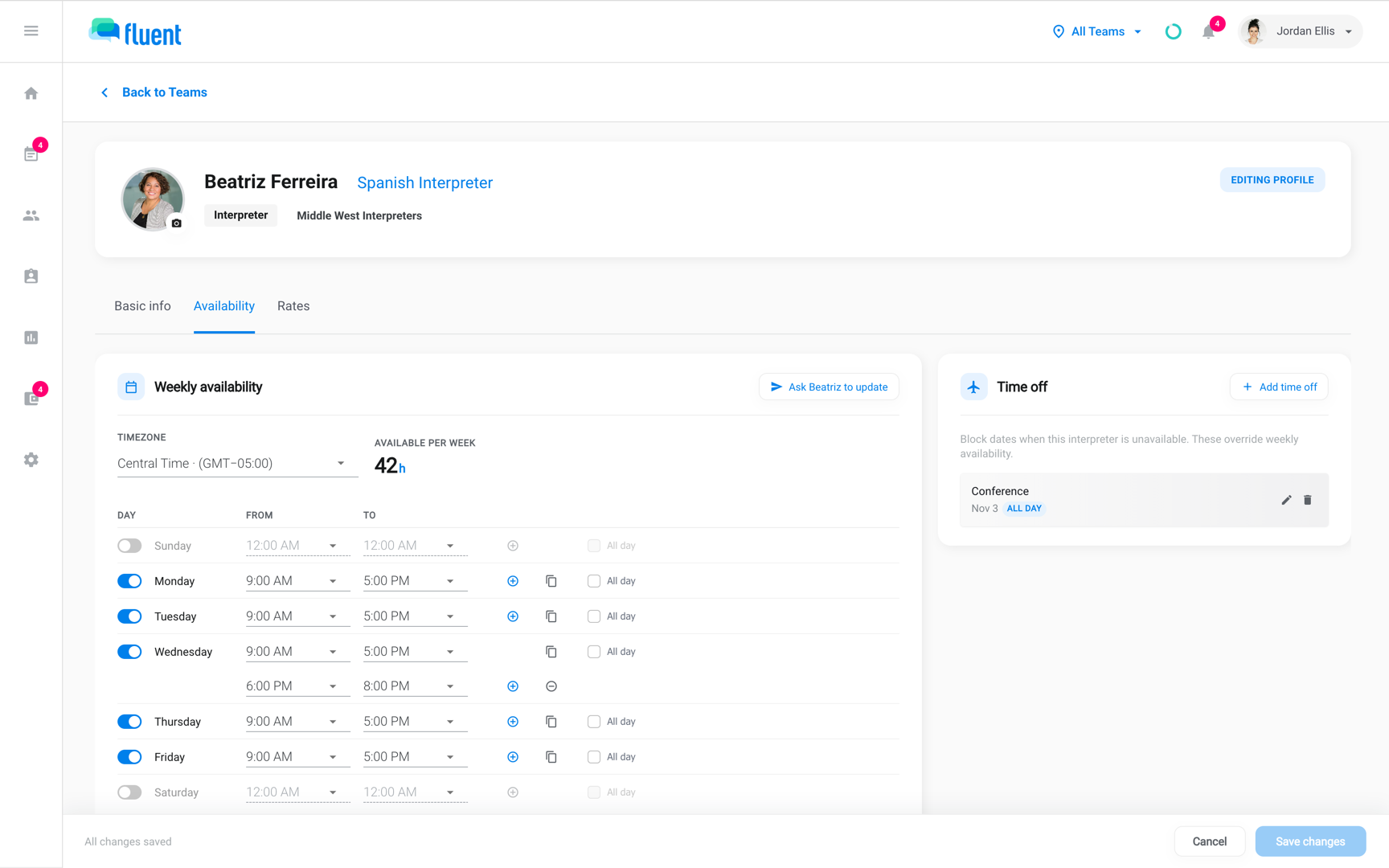
Set the days and hours the interpreter can take appointments in a usual week. A day can have more than one range, such as a morning and an evening.
- Go to Team › Interpreters and click the interpreter's row.
- Click Edit profile, then click the Availability tab.
- Under Weekly availability, turn on each day the interpreter works.
- For each day that's on, enter the hours in From and To, or turn on All day.
- To add another range to a day, click +. A day holds up to 5 ranges.
- To give other days the same hours, click the copy icon (Copy hours to other days). Turn on the days under Copy to and click Apply to {n} days.
- In Timezone, select the interpreter's time zone. In Availability notes, enter anything else your agency should know.
- Click Save changes at the bottom of the page.
Fluent sends your agency "{interpreter name} updated their availability" by email and notification. It's in the interpreter's name, even when you made the change.
Add time off
Add time off for the dates or hours an interpreter can't work. It overrides their weekly hours on those dates.
- On the Availability tab, under Time off, click Add time off.
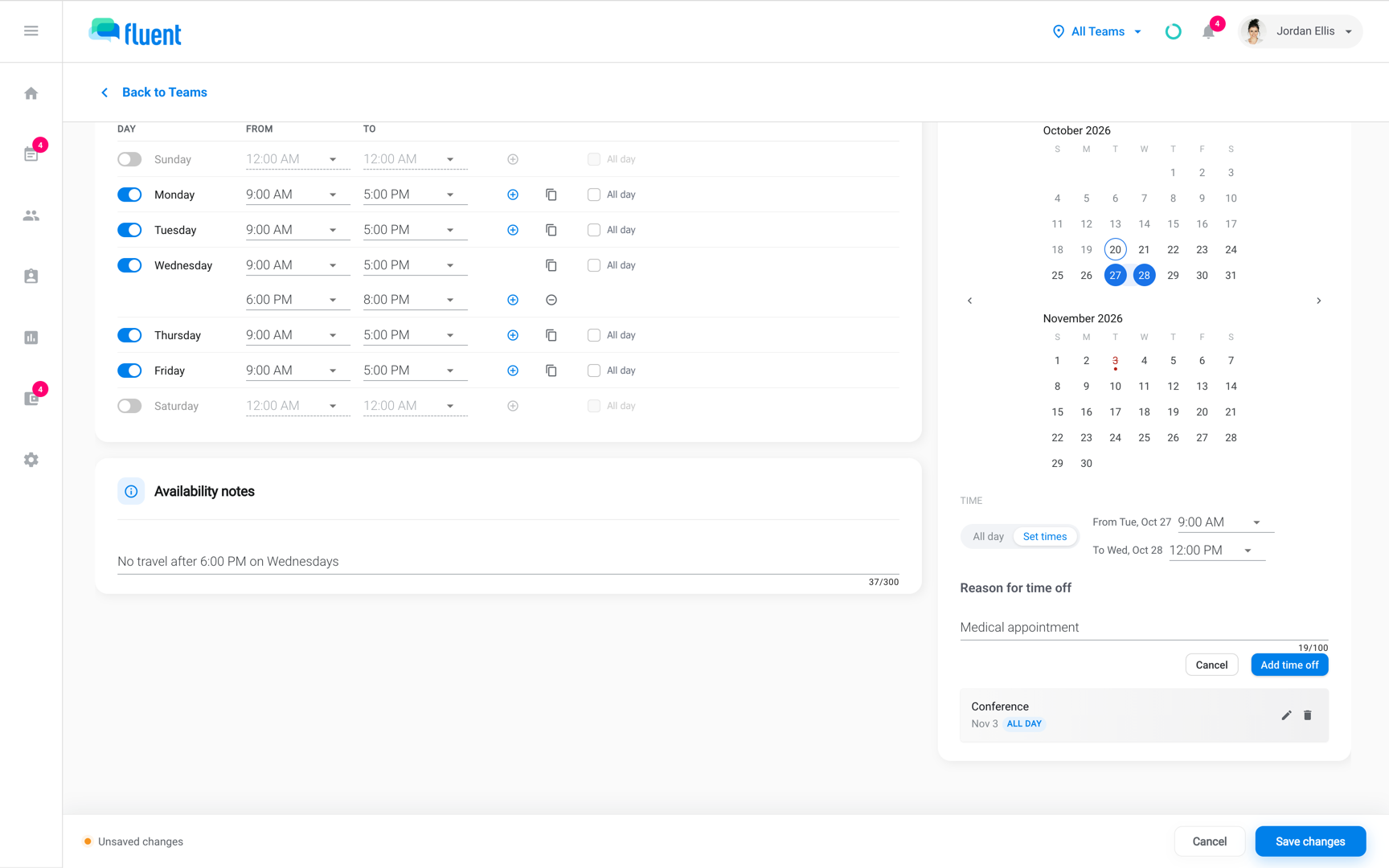
- Click a date on the calendar. For a range, click the first date and then the last date.
- Select All day, or select Set times and enter a start and end time. For a range, Set times shows a From row for the first date and a To row for the last date. The time off runs from the start time on the first date to the end time on the last date, such as Friday 6:00 PM to Sunday 8:00 AM.
- In Reason for time off, enter a reason if you want one.
- Click Add time off.
Fluent saves the entry right away and shows "Time off added". You don't need to click Save changes.
Fluent sends "{interpreter name} added time off" to the same people as a weekly change.
Change or delete time off
To change an entry, click its edit icon (Edit time off), make the change, and click Save changes in the time off editor.
To delete an entry, click its delete icon (Delete time off). Fluent deletes it right away, without asking you to confirm.
Ask the interpreter to update
When you're not sure an interpreter's hours are current, ask them to check. Fluent emails them a link, and they update their availability themselves.
- Open the interpreter's Availability tab, as in steps 1 and 2 of Set weekly availability.
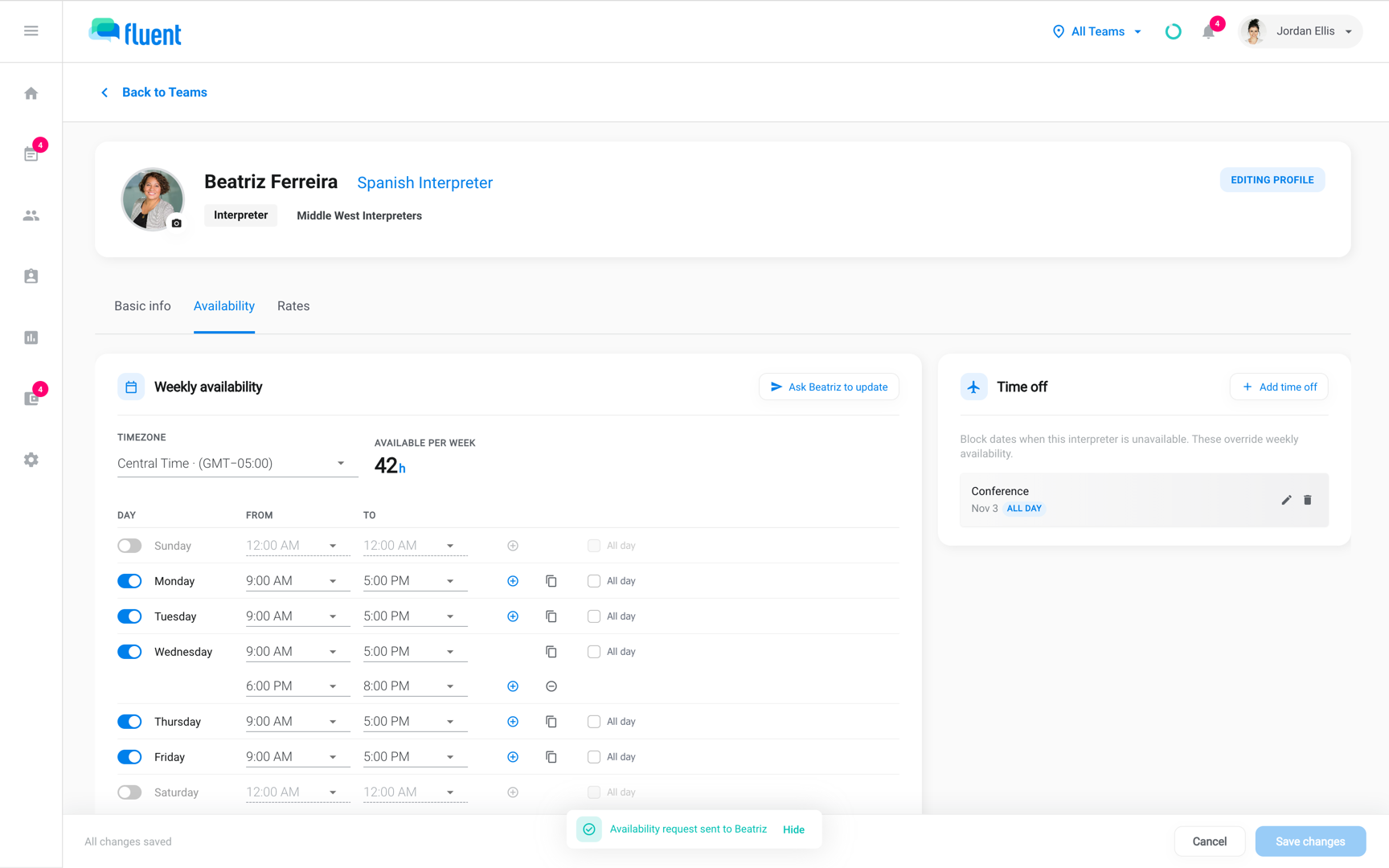
- Click Ask {first name} to update.
Fluent shows "Availability request sent to {first name}".
- What the interpreter gets: The email "Review your availability for interpreting assignments" and the notification "Review your availability", also as a push notification. Their steps are in Set your availability and time off.
- Every month: Fluent also sends this request to every active interpreter on the 1st of each month.
See who is available on a day
Check who can work on a given day before you assign. The Availability view of Team › Interpreters shows every interpreter's hours for one day.
- Go to Team › Interpreters.
- Click List in the table toolbar and select Availability.
- To change the day, click Previous day or Next day. Click Today to go back to today.
Each row shows the interpreter's hours that day as bars on a full-day timeline, with time off taken out. Click a name to open their Availability tab.
Rules and limits
- You can still edit an interpreter's availability after they set up their own account.
- Time off entries can't overlap.
- Time off doesn't take an interpreter off appointments they already have.
- External interpreters from a partner agency have no Availability tab.
Troubleshooting
"You already have time off scheduled on {n} days in this range. Edit or remove the existing entry first."
Someone else added time off on those dates after you opened the tab. Reload the page to see their entry, then edit it or select other dates.
Clicking a name in the Availability view does nothing
Schedulers can't open Edit Profile from the Availability view.
- Click Availability in the toolbar and select List.
- Click the interpreter's row and click Edit profile.
My agency got an email saying the interpreter updated their availability
Fluent sends the notice in the interpreter's name, whoever saves the change. To have the interpreter make the change instead, click Ask {first name} to update.