
Fix Missing rates
What the red Missing rates chip means on an invoice, which rate card gap each message points at, and how to fix it from the invoice.
What you'll learn
- How to find why Fluent can't price work on an invoice, and fix the rate card so you can approve it.
Find what's missing
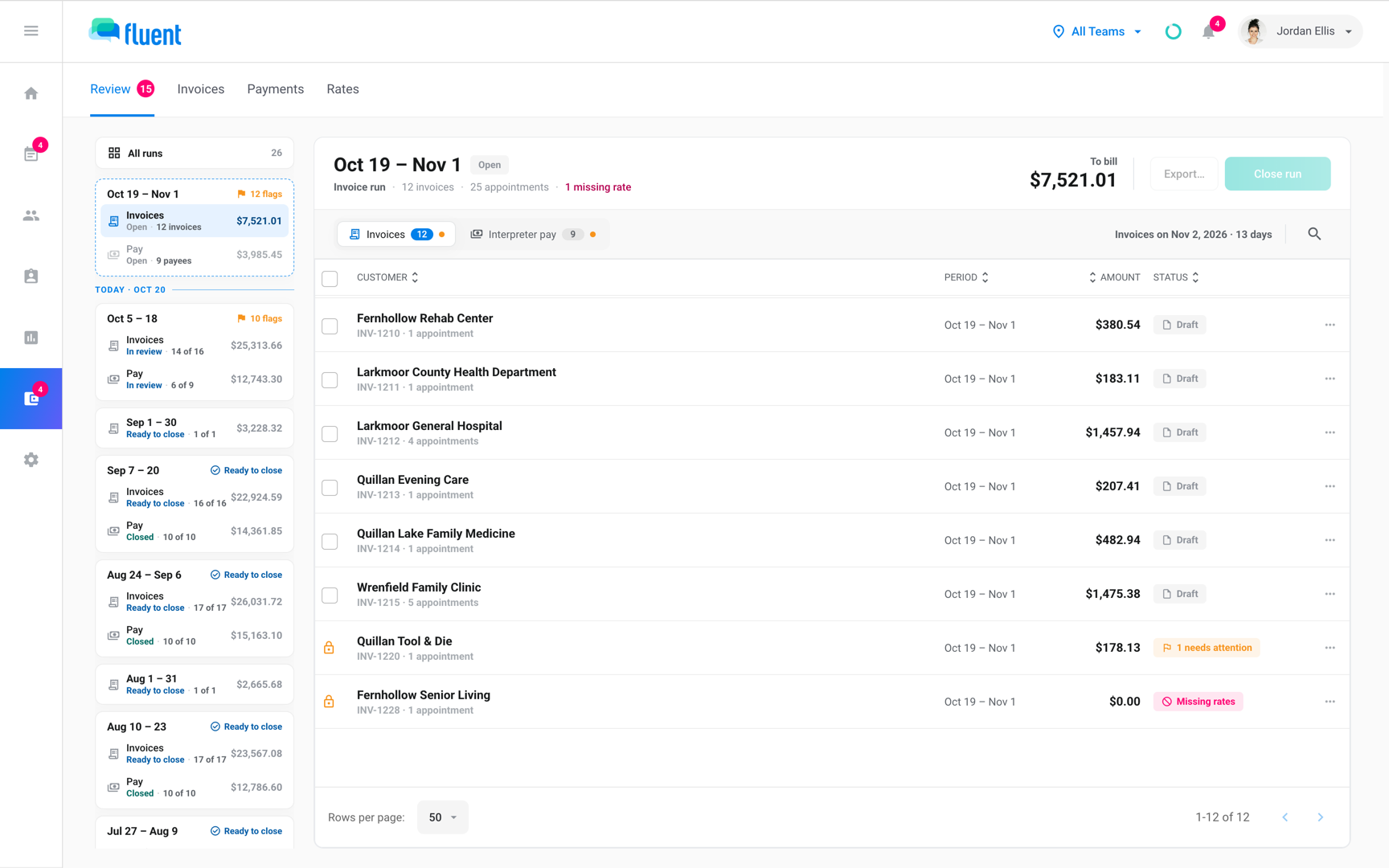
Missing rates is the red Status chip for an invoice with work no customer rate card can price. Owners and Admins see Billing and fix the rate card, because Fluent never fills in a price of its own.
Important: The invoice can't be approved, and its invoice run can't close, until a rate card prices every appointment on it.
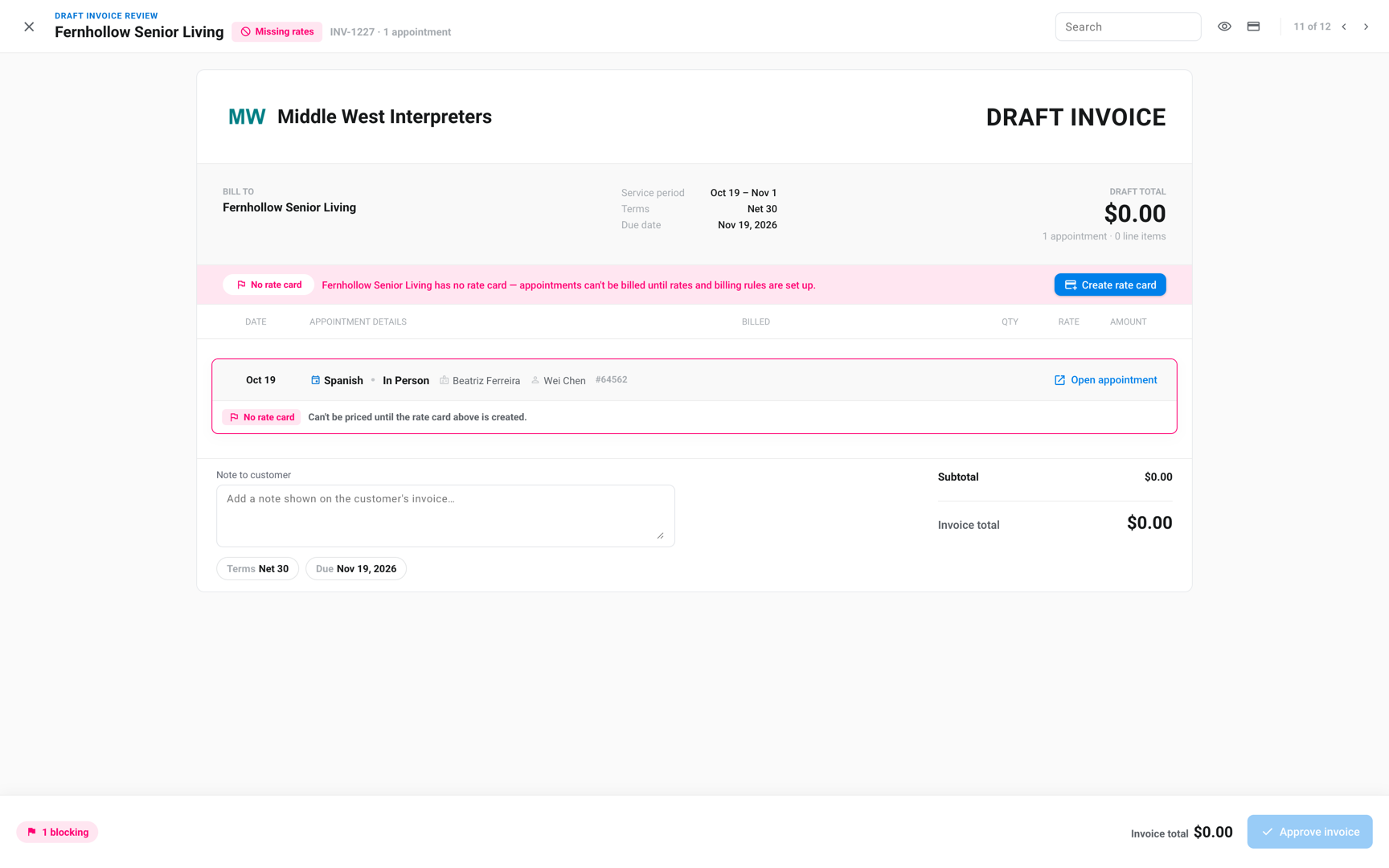
Open the invoice to see which appointments have no price and why. Each one shows a title that names the gap:
- No rate card: The customer isn't on any customer rate card. A banner reads "<Customer> has no rate card" with Create rate card, and the new rate card needs billing rules as well as prices.
- No <language> rate: No language group on the rate card lists the appointment's language, and no group covers all other languages. Click Add to rate card, then add the language to a group or click Add language group.
- No <service> rate: The group that prices the language doesn't price this service (In-person, Video, or Phone). Click Add to rate card, and the editor opens on that group.
- No simultaneous <service> rate: The same gap on a simultaneous appointment. The Simultaneous table needs the row.
- Rate card starts <date>, or Rate card isn't in effect yet: The customer's rate card starts after the appointment, so nothing prices it. Click Fix effective date.
- A blank billing rule or price: Titles such as Minimum not set or No mileage price. Click Open rate card. See Gaps the checklist doesn't show.
- Waiting on a voucher: The appointment's voucher is missing, which isn't a missing rate. Its button opens the appointment.
Fix it from the invoice
The button on a stuck appointment opens the rate editor with a checklist of everything the invoice needs. One save can price every appointment on it.
- Go to Billing › Review and open the invoice run.
- Open the invoice with the Missing rates chip.
- On a stuck appointment, click Add to rate card or Fix effective date. For a customer with no rate card, click Create rate card on the banner.
- In the rate editor, add what each chip in the checklist names, such as "Spanish · In Person". Give each service a Regular rate above $0.
- Under Effective from, keep "INV-<number>'s billing period", or set Start date on or before the earliest stuck appointment.
- Click Save changes. On a rate card that already existed, click Next, check which invoices re-bill, and save. See Customer rate cards.
The appointment re-prices in place. When the last one on the invoice prices, the Missing rates chip clears.
The checklist, "Rates needed to price INV-<number>", has one chip per language and service. When every chip is covered, it reads "Covers what INV-<number> needs".
- Service chip: covered once its language group has the service turned on with a Regular rate above $0.
- Mileage or travel time chip: a voucher with mileage or travel time adds a chip such as "Spanish · Mileage". It's covered when the group bills the charge above $0, or doesn't bill it at all.
Gaps the checklist doesn't show
Some gaps aren't a missing language or service, so the checklist can't point at them.
A blank billing rule or price
When the rate card is missing a rule or a price, the title names it, and Open rate card opens the whole rate card. Fix whichever applies and save:
- Operating hours profile not set: The Operating hours rule names no profile, or a deleted one, and Billing › Rates marks the rate card "Hours missing". Click Billing rules and select a profile in Profile. See Operating hours.
- <Rule> not set: A billing rule is blank, such as Minimum not set. Click Billing rules and fill it in.
- Regular price blank: The rate card shows the language and service, but its Regular price is blank. Enter a price above $0.
- No mileage price or No travel time price: The rate card bills mileage or travel time but has no price for it. Enter the price.
"Zero rate" on an invoice line
A line billed $0.00 carries the Zero rate flag and the message "Billed $0.00. No rate on the customer's rate card." It counts as Missing rates.
Click Fix rate on the flag, enter the price on the customer's rate card, and save.
Missing rates on a pay run
On Billing › Review › Pay runs, a payee with an appointment Fluent can't pay reads Missing rates. Fix it on the interpreter's rate card, not the customer's.
- A stuck appointment: names the gap, with Add rate or Complete pay rules.
- An interpreter with no rate card: gets the banner "No pay rate card" with Set up pay rates.
See Interpreter rate cards and Review and close a pay run.
Prevent it
Check coverage before a run, so its invoices don't stop at review.
- Billing coverage: The tile in Billing › Rates › Customer reads "N of M" customers on a rate card today.
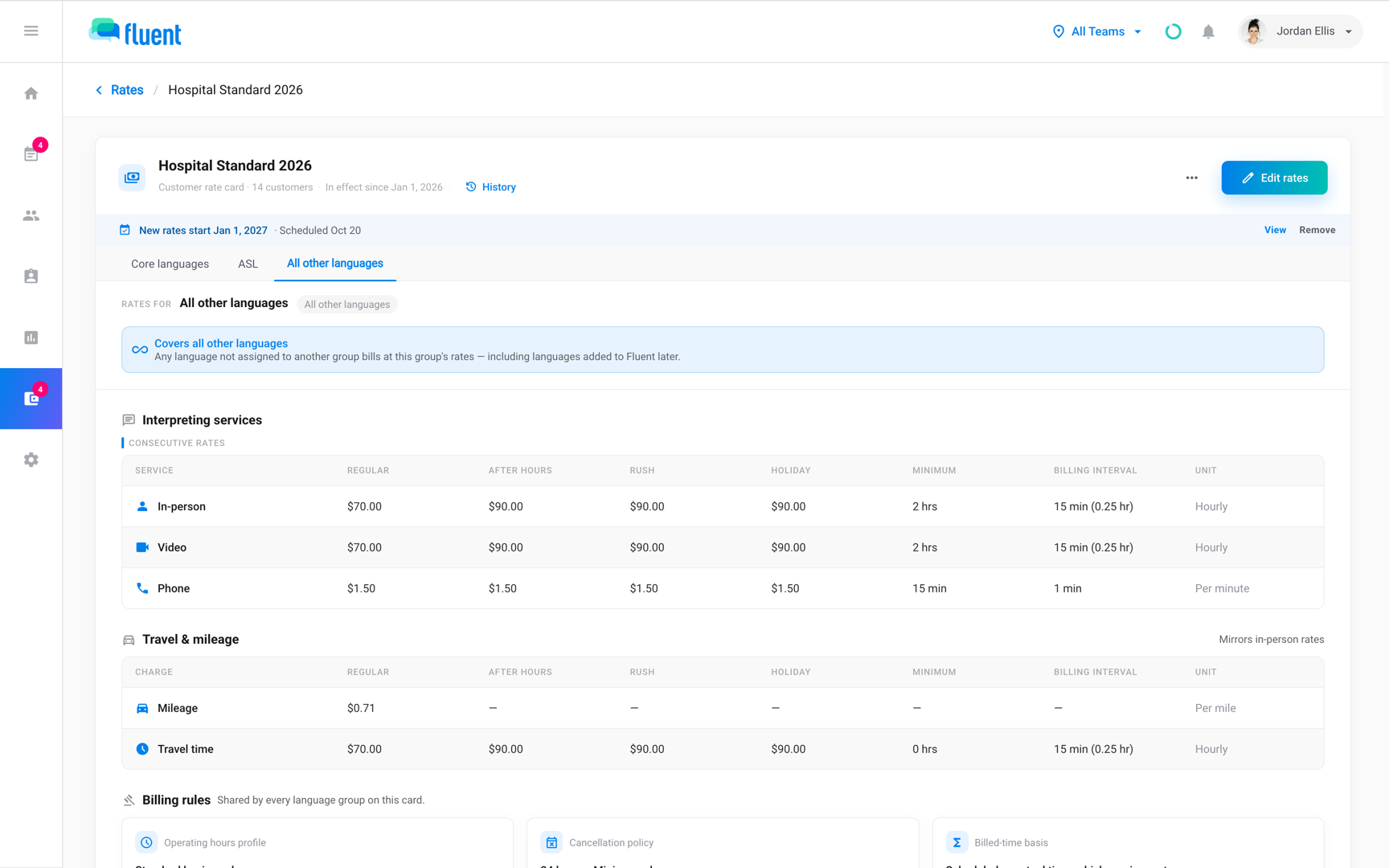
- All other languages: A language group with the badge "Covers all other languages" prices every language no other group names, including languages added later.
If none of these match
Contact support and include:
- The email you sign in with
- The workspace name
- The invoice number and the appointment number involved
- The exact message you see, in quotes