
Manage your interpreter team
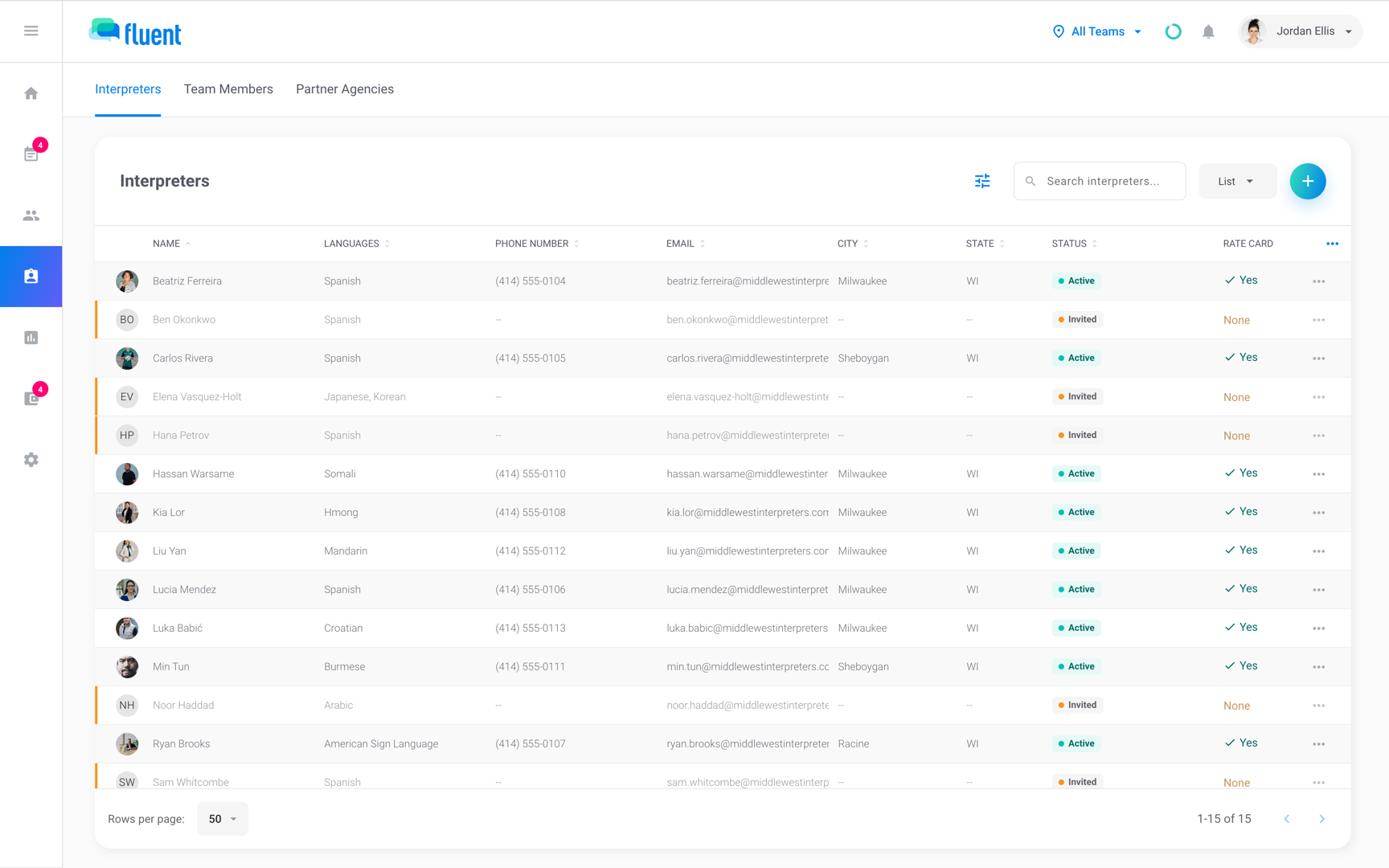
Find and filter the interpreters on your team in Team › Interpreters, check their status, and open the row menu to change one interpreter.
What you'll learn
- How to find the interpreters on your team, check their status, and get to the changes you make for one person.
Who can manage your interpreter team
The table shows which parts of the page each role gets. Interpreters don't see the Team page.
| Task | Owner | Admin | Manager | Scheduler |
|---|---|---|---|---|
| Search, filter, and open profiles | Yes | Yes | Yes | Yes |
| Invite interpreters | Yes | Yes | Yes | No |
| Use the row menu | Yes | Yes | Yes | No |
| Export the list | Yes | Yes | Yes | No |
| See rate cards and Operating Hours | Yes | Yes | No | No |
Find an interpreter
Search and filters narrow the list to the people you need, such as everyone who speaks Somali or works Video appointments. Fluent remembers your search, filters, sort, and page in this browser.
- Go to Team › Interpreters.
- In Search interpreters..., enter a name, email address, phone number, or language.
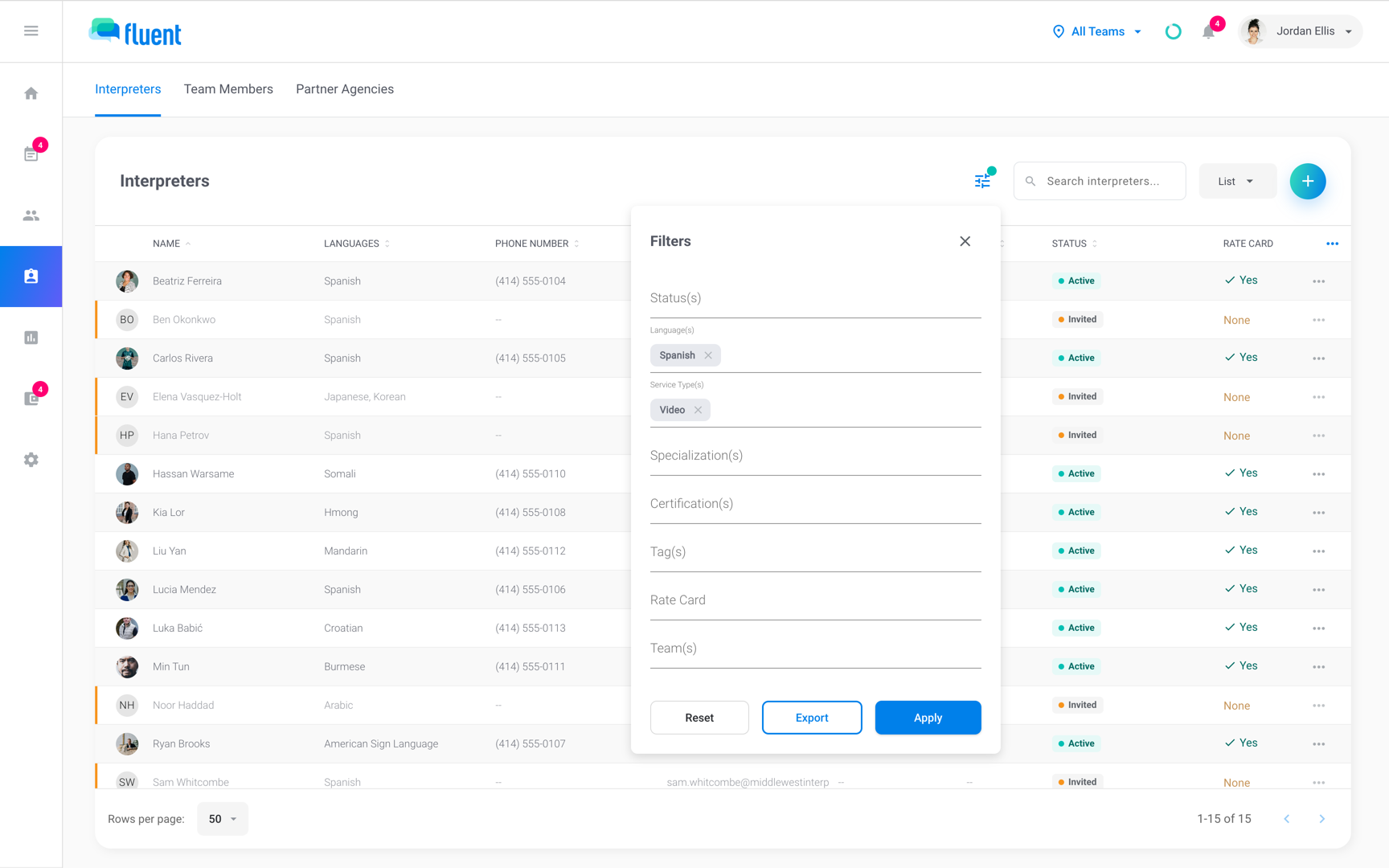
- To filter, click the filters button (the sliders icon) next to the search field.
- In the Filters panel, select values in Status(s), Language(s), Service Type(s), Specialization(s), Certification(s), or Tag(s).
- Click Apply.
Each filter shows as a chip next to the filters button. Remove a chip to drop that filter, or click Reset in the Filters panel to clear them all.
The list has more ways in when you need them:
- Open a profile: Click a row to open the interpreter's profile. See Interpreter profiles.
- Teams: When you're on more than 1 team, the list has a Team column and a Team(s) filter.
- Rate cards: The Rate Card column says whether each interpreter has a pay rate card. Filter Rate Card by None to find who still needs one.
- More columns: Click the ⋯ button at the right end of the column headers and pick fields under Column Fields, such as Dialects, Certifications, or Hire Date.
- Availability: Select Availability in the view menu next to the search field to see who is free on a day. See Manage interpreter availability and time off.
- Export: Click Export in the Filters panel to download the interpreters that match your search and filters. Fluent asks for a verification code before it downloads the CSV file. See Export data.
Interpreter statuses
Each row has a status chip. The list shows Active and Invited interpreters by default, so select a status in Status(s) to see the others.
| Status | What it means | Shows by default |
|---|---|---|
| Active | Accepted the invite and created an account | Yes |
| Invited | Invite sent, no account yet | Yes |
| Deactivated | Someone at your agency deactivated them | No |
| Revoked | Your agency canceled the invite | No |
To follow up on an Invited or Revoked row, see Invite interpreters.
Use the row menu
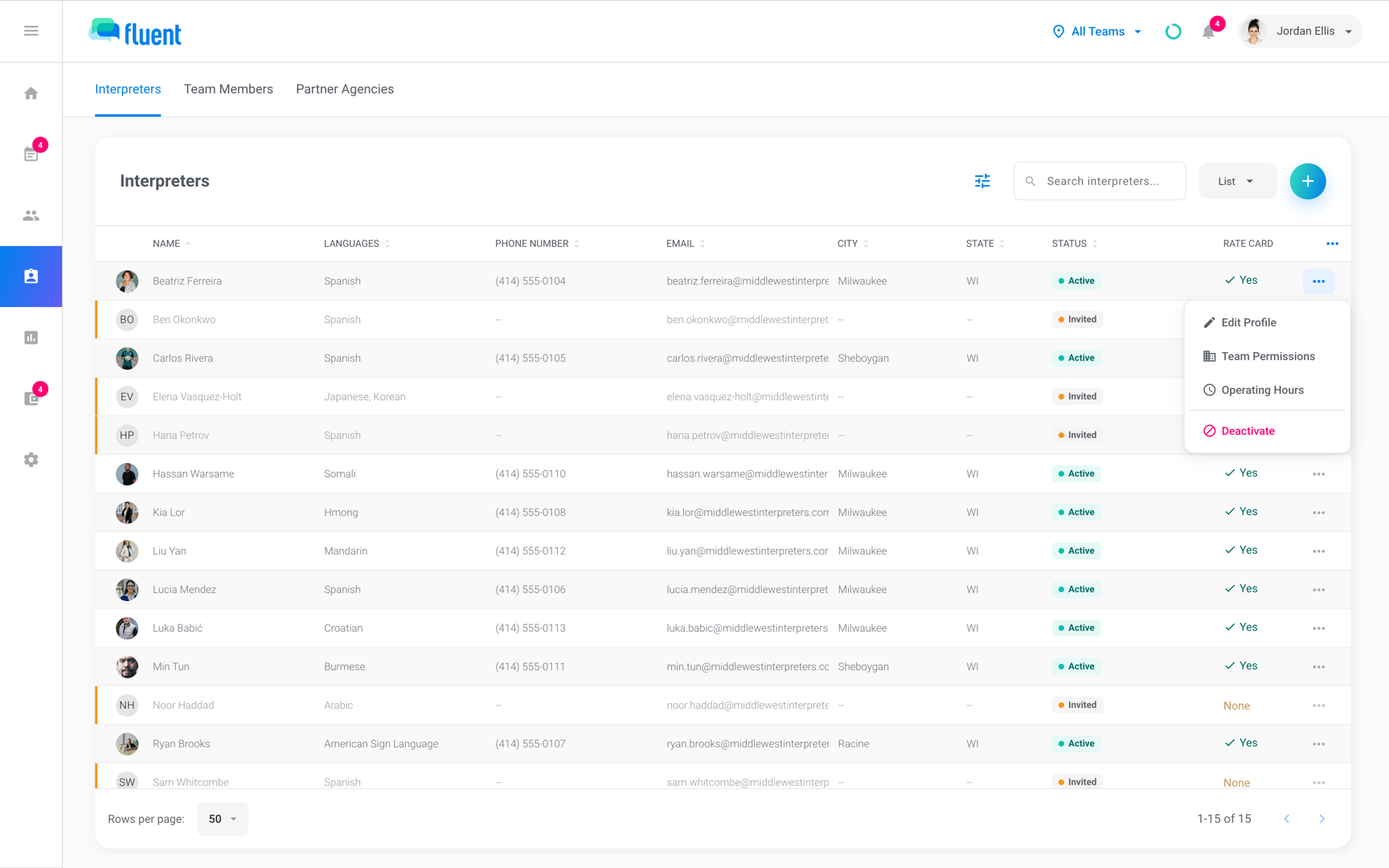
The ⋯ menu at the end of an interpreter's row holds the changes you make to that one interpreter. Each action has its own article.
- Edit Profile: On an Active or Invited row, opens the interpreter's profile editor. See Interpreter profiles.
- Team Permissions: On an Active row, chooses which of your teams the interpreter is on. See Manage teams.
- Operating Hours: On an Active row, opens the interpreter's pay rate card in Billing › Rates, where their operating hours and pay rates are set. It doesn't change their availability. See Interpreter rate cards.
If Billing › Rates has no rate card to open for the interpreter, Operating Hours shows a message instead.
Deactivate an interpreter
Deactivate an interpreter who no longer works with your agency. Fluent takes them off their upcoming appointments.
- Go to Team › Interpreters.
- Open the ⋯ menu at the end of the interpreter's Active row and click Deactivate.
- In the "Suspend user access?" dialog, click Confirm.
Fluent shows "{name} has been deactivated", and the row moves to Deactivated.
- Upcoming work: Their upcoming appointments go back to unassigned, so you can assign someone else.
- Closed-out appointments: Canceled, Late Cancel, Declined, and Missed appointments keep the interpreter and their status.
Rules and limits
- Deactivated and Revoked interpreters stay off the list until you select their status in Status(s).
- The list shows the teams selected in the team menu in the top bar. See Teams.
- Edit Profile and Team Permissions are greyed out for a person whose staff role is equal to or above yours.
- Team Permissions is greyed out on your own row.
Troubleshooting
I can't find an interpreter
They may be outside the list's default view.
- Clear the search field and remove any filter chips.
- In Status(s), select Deactivated and Revoked.
- If you're on more than 1 team, select All Teams in the team menu in the top bar.
There's no ⋯ menu on the rows
Schedulers don't get the row menu or Export. Ask an Owner, Admin, or Manager at your agency.
Team Permissions or Edit Profile is greyed out
The person also holds a staff role equal to or above yours, such as an Admin who also interprets.
- Someone else's row: Ask someone with a higher role to make the change.
- Your own row: To change your own teams, ask someone else who manages your team.