
Pay runs overview
What a pay run is, the steps it goes through from review to paid, and where you find each step in Billing.
What you'll learn
- What a pay run is and the steps it goes through, from reviewing your interpreters' pay to marking it paid.
What a pay run is
Owners and Admins work with pay runs. Each interpreter sees only their own pay statements.
Your pay schedule on Settings › Billing runs splits time into pay periods, and each period gets its own pay run. The run holds what you owe each payee for that period.
- Payees: Pay runs pay your interpreter team. Partner agencies send you their own invoice unless you add them to pay runs. See Set up billing runs.
- What it pays: The period's Complete and Late Cancel appointments, priced with each payee's rate card.
- Pay statement: Each payee gets 1 pay statement per run, with the pay for each appointment and their gross pay.
- Pay day: The schedule sets pay day a number of days after the period ends.
How a pay run moves
A pay run goes through the same steps every period, and it only moves forward.
- While the period is open, Fluent lists each payee's work as it's completed. The run reads Open, and you can start approving.
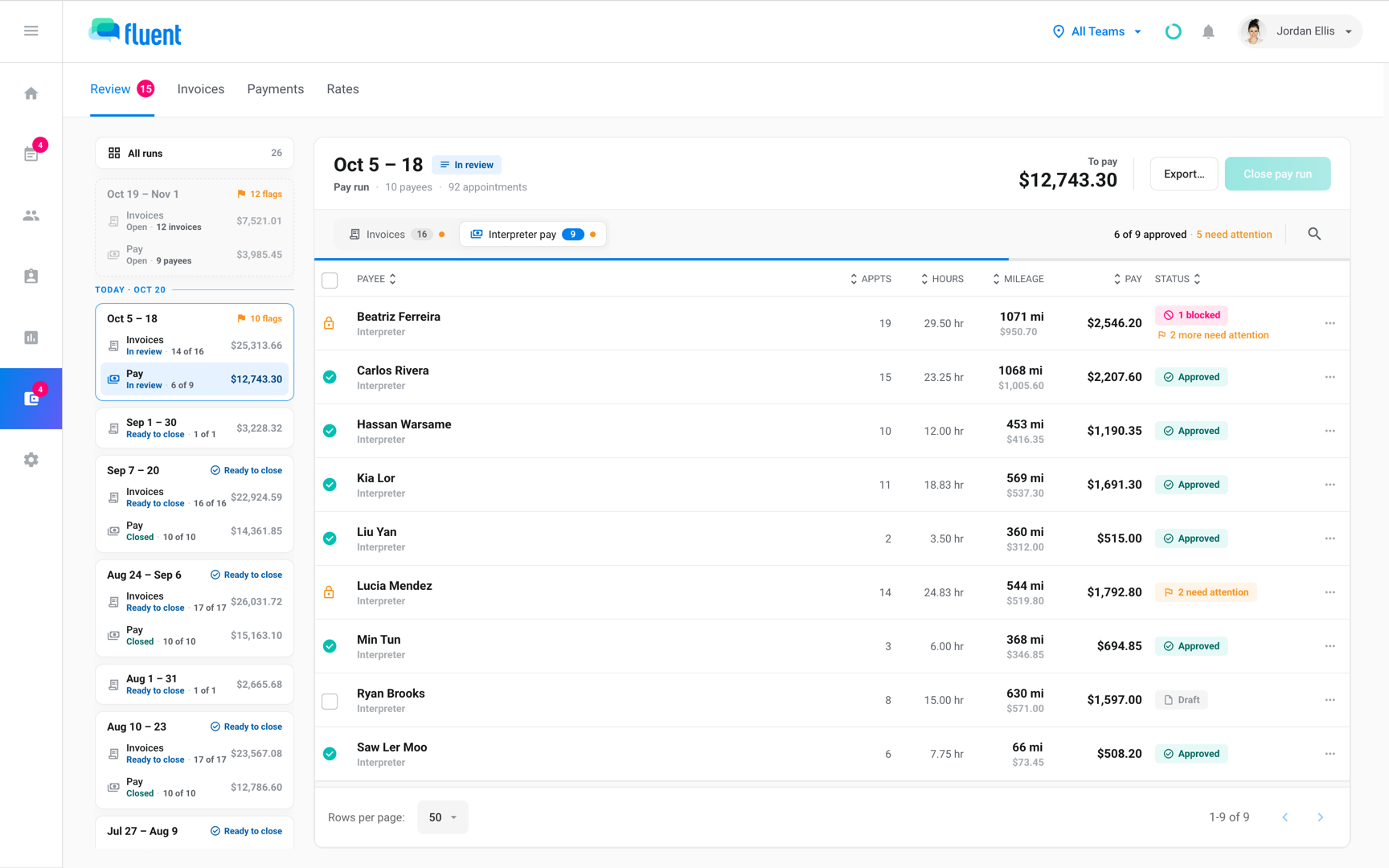
- When the period ends, the run reads In review. Check what Fluent flagged, such as an appointment with no voucher, and approve each payee. See Pay review flags.
- Once every payee is approved, the run reads Ready to close. Close it, and it reads Closed. See Review and close a pay run.
- On Billing › Payments, send the run to payout when you hand it over for payment. It reads Processing, and its pay stops changing.
- Once everyone is paid, mark the run paid. It reads Paid, Finalized shows the date, and Fluent emails each payee. See Send to payout and mark paid.
Important: After the close, you can't undo approvals.
Every status and what it means is in Invoice and run statuses.
Where you find a pay run
You review and close a run on Billing › Review, then finish it on Billing › Payments.
- Billing › Review: Click Pay runs above the list of runs to review and close your pay runs.
- Billing › Payments: This tab lists every pay run, newest period first, with its pay day and status. A run that isn't closed opens on Billing › Review.
Each run has 2 numbers that don't match.
- Billing › Review: counts the pay runs on your schedule, such as Pay run #3.
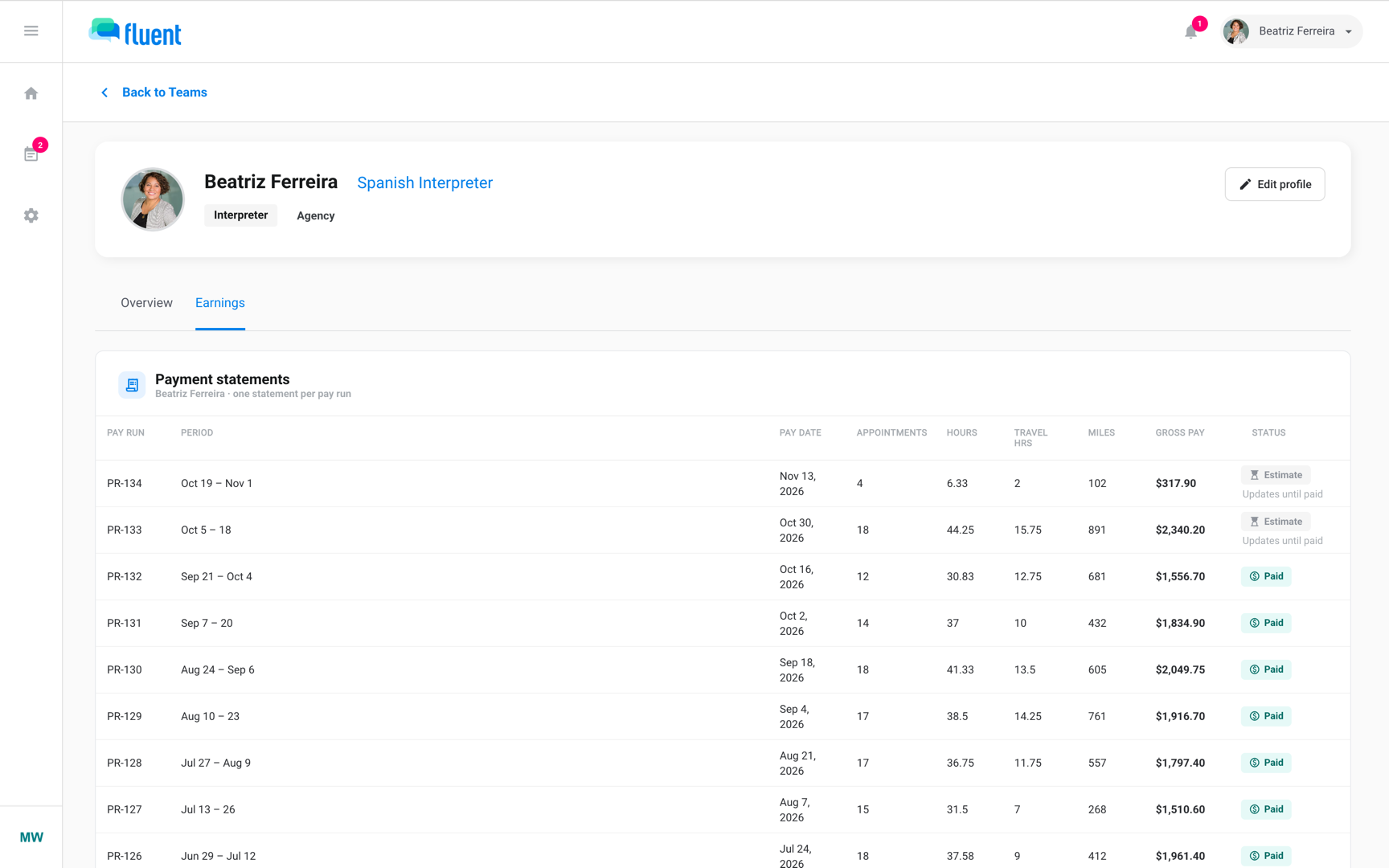
- Billing › Payments, pay statements, and the Earnings tab: show the run's record number, such as PR-12.
- Exports: use the record number too. The PDF prints #12, and the pay summary's Run column reads Pay run #12.
Corrections, exports, and QuickBooks
After you close a run, you can still correct it, download its files, and send it to QuickBooks.
- Corrections: If a voucher edit or a rate change would pay a closed statement differently, the statement shows the difference for you to answer. See Correct a closed pay run.
- Exports: Download each payee's pay statement as a PDF, or the run's pay summary as a CSV or Excel file. See Export pay statements.
- QuickBooks: With QuickBooks connected, Fluent creates 1 QuickBooks bill per payee from a closed run. See Send a pay run to QuickBooks.
What payees get
Payees hear from Fluent once per run, when you mark it paid. Approving, closing, and sending to payout email no one.
Each interpreter and partner agency the run pays gets 1 email with their totals. A partner agency that invoices you gets none. See Send to payout and mark paid.
Interpreters can also read their pay statements on the Earnings tab of their profile in the web app. A statement reads Estimate until you send the run to payout. See Your payment statements.
Rules and limits
- Fluent never moves money. You pay outside Fluent, then mark the run paid.
- Send to payout and Mark paid can't be undone.
- There's no button to create a pay run. Each one comes from your pay schedule.
- Fluent sets a run's pay day when it creates the run. Changing the schedule later doesn't move it.
- Pay statements show gross pay. Fluent doesn't withhold taxes or take deductions.
- You can't add a credit or fee to a payee's pay by hand. Pay a one-off amount outside Fluent.
- Only Mark paid sets a run to Paid.
Troubleshooting
"Pay runs aren't set up yet"
Your agency has no pay run schedule. Click Set up pay run schedule to open Settings › Billing runs, then set up and activate billing runs. See Set up billing runs.
"No pay runs yet"
Billing › Payments lists a run once its pay period ends, or once you first approve pay for that period on Billing › Review.