
Accept or decline interpreter requests
Open an offer from your agency in the Fluent mobile app, check the details, and accept or decline it.
What you'll learn
- How to read an offer from your agency in the mobile app and accept or decline it.
How your agency sends offers
An offer is an appointment your agency asks you to take. Your agency sends each offer in 1 of 3 ways, which decide who else gets it and how long you have to answer.
- Sent to you alone: Only you get the offer.
- Auto-assign: Your agency offers the appointment to 1 interpreter at a time, in its own order. Each one has 2 hours to answer.
- Broadcast: Several interpreters get the offer at once, and the first to accept is assigned.
Find your offers
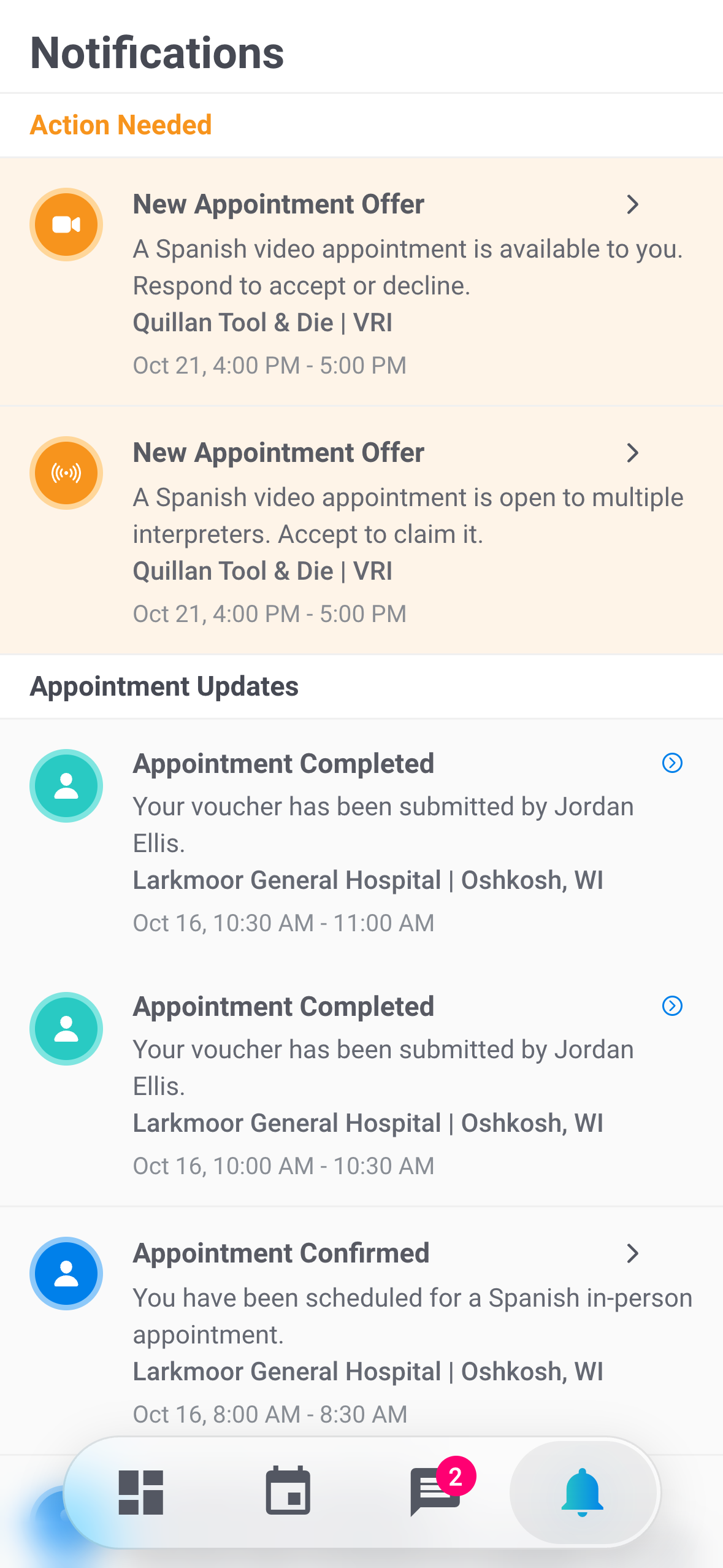
Fluent tells you about each new offer by push, on the Notifications screen under Action Needed, and by email. The push and the notification read New Interpreter Request or New Appointment Offer.
- Push or notification: tap it to open the offer. If you're signed out, it opens after you sign in.
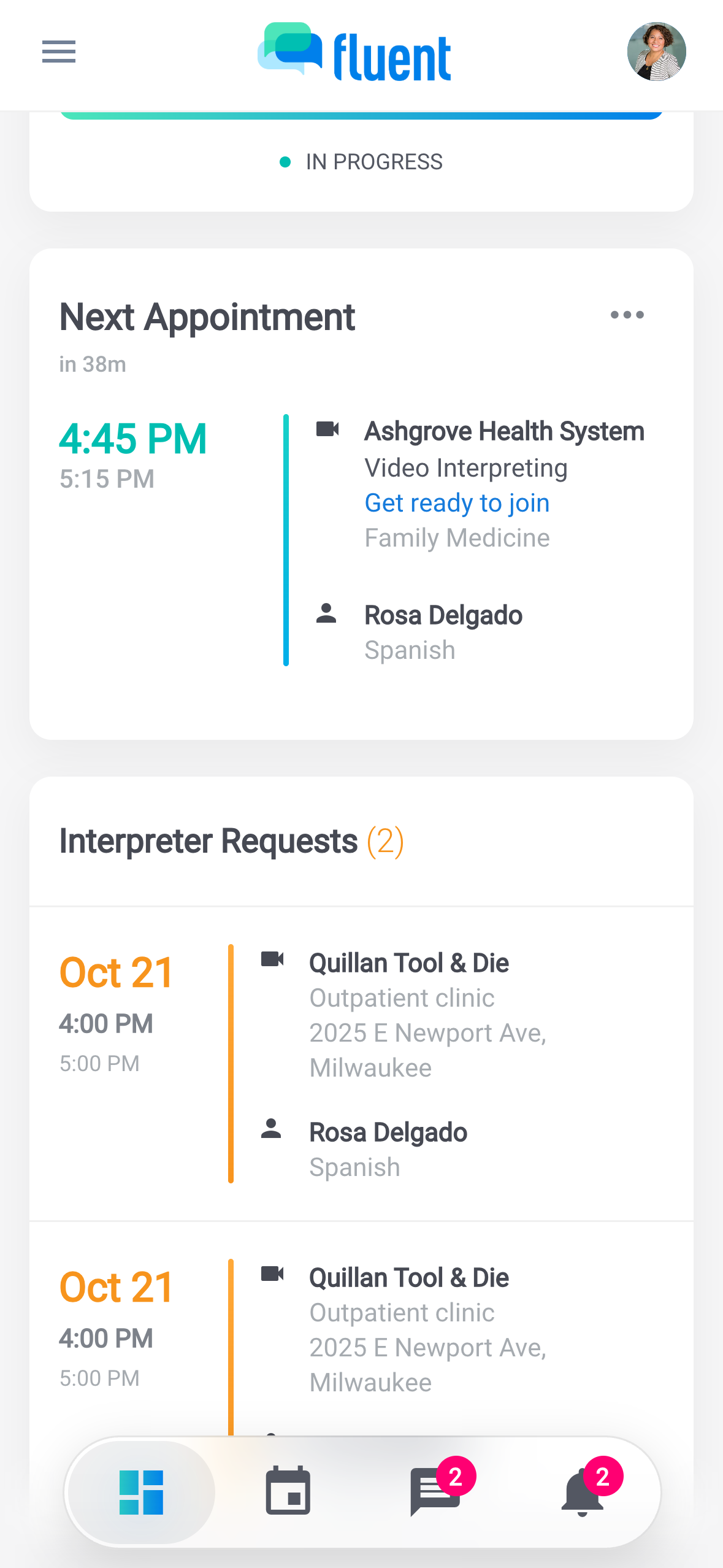
- Dashboard: open offers wait on the Interpreter Requests card.
- Email: its Accept and Decline buttons open the web app.
Read an offer
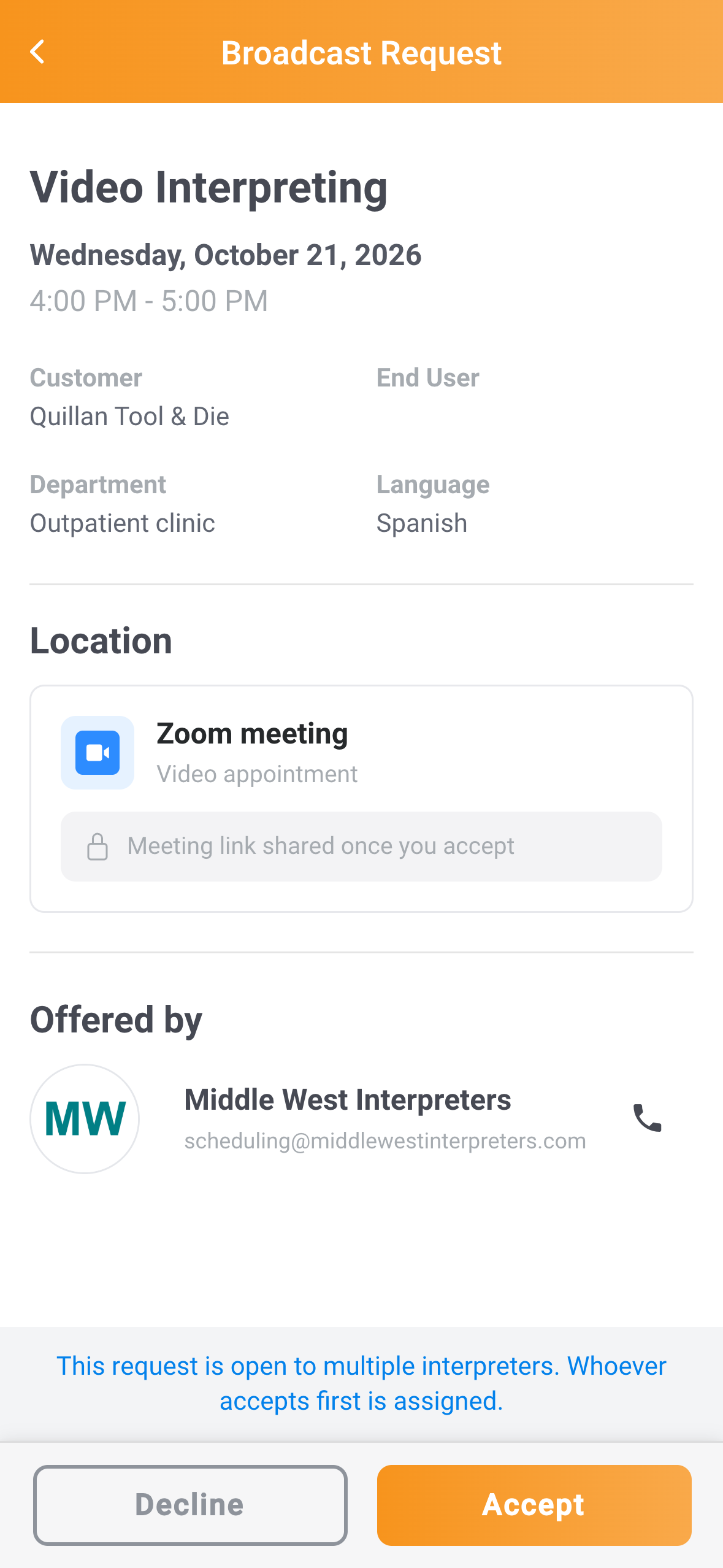
Before you answer, check when and where the appointment is. The screen is titled New Interpreter Request, or Broadcast Request for a broadcast.
- When: The date and time in your phone's time zone, with a second line in the appointment's time zone when it differs.
- What: The service, the customer, and the language.
- Where: For an In-person appointment, the address and a map you can tap for directions. For Phone or Video, a locked tile in place of the map. A Video tile names the provider, such as Zoom meeting.
- Offered by: Your agency's name, its Scheduling Contacts email, and a button that calls your agency.
Accept an offer
Accept when you can take the appointment. It's then yours, and Fluent tells your agency.
- Open the offer.
- Tap Accept.
The screen closes, and you get the notification Appointment Confirmed.
If the accept doesn't go through, the app says why:
- "You're already booked at that time, so you can't accept this appointment.": the appointment overlaps one you already hold. The screen stays open.
- "Couldn't reach Fluent. Check your connection and try again.": your phone is offline. The screen stays open, so tap Accept again once you're connected.
- "This appointment is no longer available. It may have been assigned to another interpreter.": the offer closed before you answered. The screen closes.
If the appointment is today, the Daily Confirmation screen opens 1 second later and asks you to confirm you'll attend. See Confirm today's appointments. On the day, the Next Appointment card on the Dashboard carries the Video URL or phone number.
Decline an offer
Decline when you can't take the appointment. Fluent tells your agency.
- Open the offer.
- Tap Decline.
The screen closes with no message, and Fluent confirms the decline by email. If the decline doesn't go through, the screen stays open and says why, the same way as for an accept. What happens next depends on how the offer was sent:
- Sent to you alone: The appointment goes back to your agency as Unassigned.
- Auto-assign: The offer moves to the next interpreter in your agency's order.
- Broadcast: The offer stays open for the other interpreters.
Important: You can't undo a decline in the app, and the offer doesn't open again. If you declined by mistake, call your agency.
Reminders and closing times
If you don't answer, Fluent reminds you. The offer screen doesn't show how long you have, so check the table.
| Offer | Reminder | Second reminder | When it closes |
|---|---|---|---|
| Sent to you alone | After 2 hours | None | When your agency gives it to someone else |
| Auto-assign | After 1 hour | 30 minutes before it closes | 2 hours after the offer |
| Broadcast | After 2 hours | None | When another interpreter accepts it |
To answer after a reminder, tap the reminder's push or its row on Notifications to open the offer. The offer also waits on the Interpreter Requests card.
When an offer closes without you, it leaves the Interpreter Requests card, and you get the notification Appointment Unavailable. For an Auto-assign offer, you get an email instead.
Rules and limits
- You can't accept an appointment that overlaps one you already hold as Assigned. Back to back is fine.
- The Video URL or phone details show only after you accept.
- Comments open only after you accept. To ask your agency something first, call them from Offered by.
Troubleshooting
The offer disappeared before I could answer
Another interpreter accepted it, your Auto-assign window ended, or your agency gave it to someone else or took it back. If you open it from Notifications or a push notification, the app shows "This appointment is no longer available. It may have been assigned to another interpreter."