
Notifications on mobile
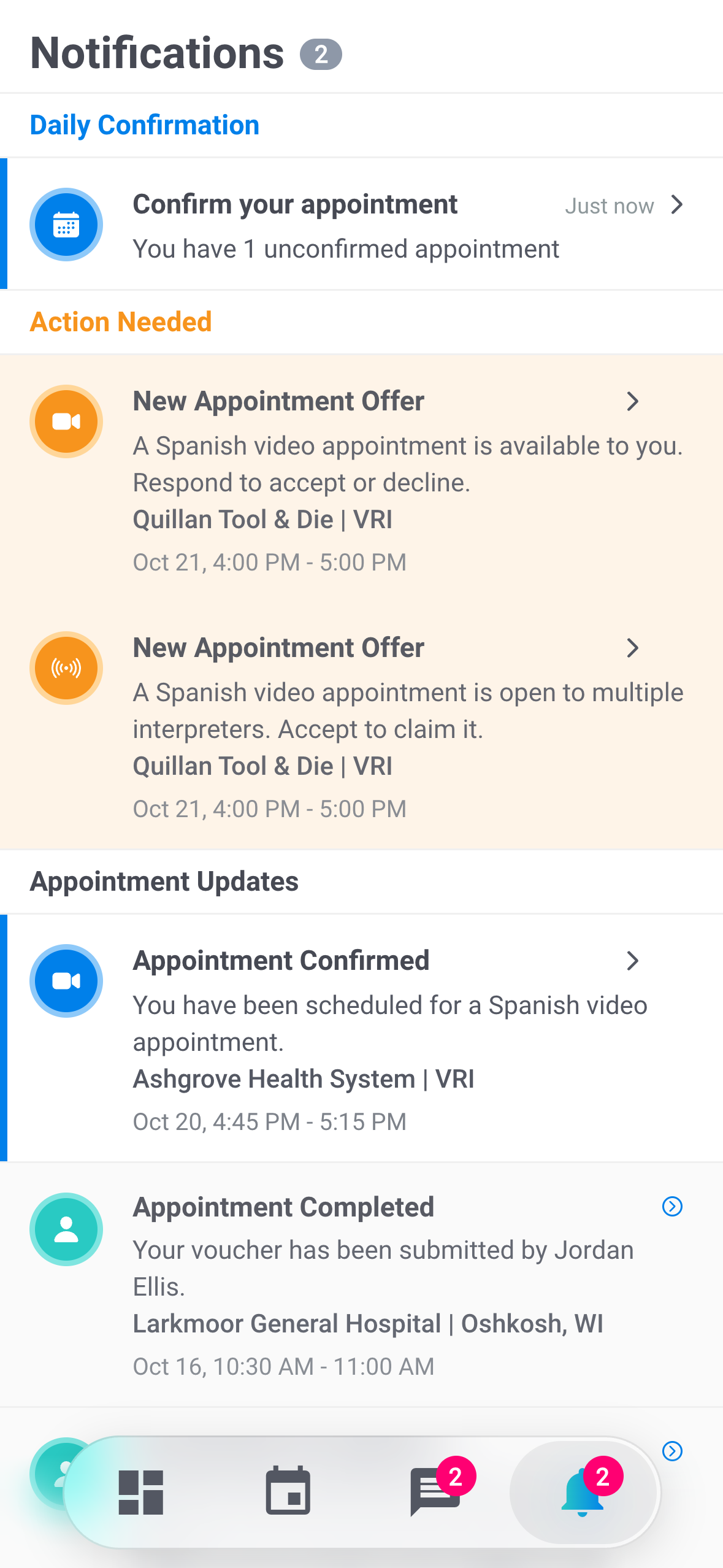
Turn push on or off, read the 3 sections of the Notifications screen, and see where each notification sits and what tapping it opens in the mobile app.
What you'll learn
- How to make sure Fluent's notifications reach your phone.
- What each notification on the Notifications screen means, and where tapping it takes you.
Turn push on or off
The Fluent mobile app tells you about new offers, reminders, and changes to your appointments, as a push notification and a row on the Notifications screen. Push is how an offer or a reminder reaches you when the app is closed.
- Interpreters: get every notification in this article.
- Team members without an interpreter profile: see their team's notifications on the screen, but only comments reach their phone as push.
- Allow or block: the app asks for permission the first time you open it. Fluent has no notification settings of its own, so your phone's settings for Fluent decide whether push shows, and you can't turn off one kind and keep the rest.
- Which phone: push reaches each phone where you signed in to the app. It keeps arriving after the app signs you out on its own, for example after 5 minutes without activity. See Set up the mobile app for when the app signs you out.
- What stops push on a phone: Sign Out in the side menu, someone else signing in to the app on that phone, a password reset, or a password change made on another device. Sign in again to get push back.
- From the web app: Devices in Settings › Login & Devices lists a phone the app signed out on its own as "Signed out, still gets offer notifications". Click Sign out on it to stop its push. See Your profile and Login & Devices.
The Notifications screen
Open the screen from the bell in the bottom bar or from Notifications in the side menu. The newest rows are at the top of each section.
| Section | What's in it |
|---|---|
| Daily Confirmation | 1 row, Confirm your appointments, while today's appointments wait for your confirmation |
| Action Needed | Offers, the check-in reminder, the voucher reminder, and Review your availability |
| Appointment Updates | Everything else about your appointments, and comments |
- Stacks: notifications about the same appointment stack under the newest one, in that notification's section. Tap the date at the right of the row to expand the stack.
- Read rows: turn grey. When you leave the screen, every row counts as read.
- Refresh: pull down on the screen.
- The number on the bell: counts your unread rows, including rows inside a stack, plus 1 while today's appointments wait for your confirmation. On iPhone, the app icon shows the same number.
- The number on the Comments tab: counts threads with comments you haven't read.
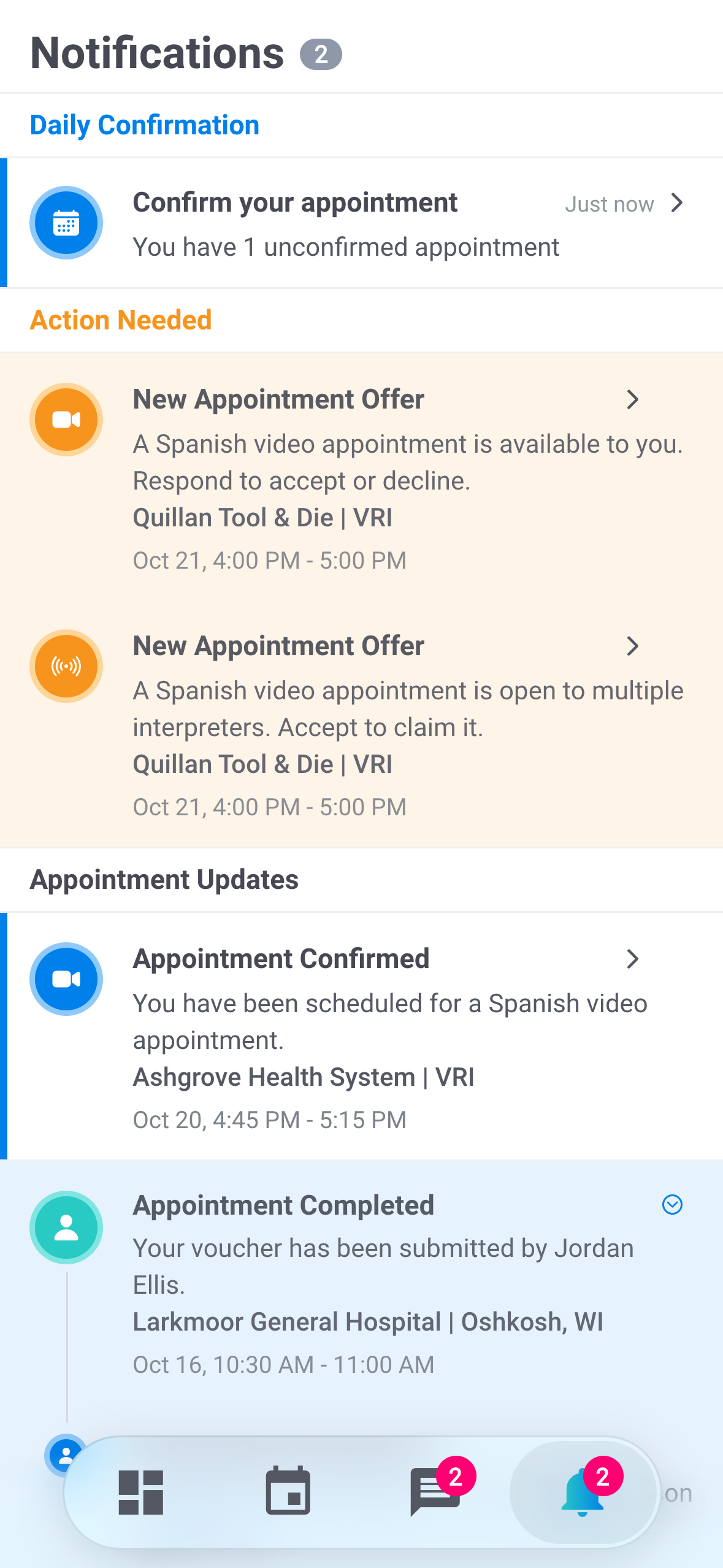
Where each notification sits and what a tap opens
Tap a row to go to the screen it's about. A push opens the same screen, except where the table says otherwise, and after you sign in if you were signed out.
For when Fluent sends each one, and the emails that go with them, see Interpreter notifications.
| Notification | Section | What opens |
|---|---|---|
| Confirm your appointments | Daily Confirmation | Daily Confirmation |
| New Interpreter Request, New Appointment Offer, Offer still open | Action Needed | The offer, with Accept and Decline |
| Offer waiting for your answer, Offer still available, Offer expiring soon | Appointment Updates | The offer, with Accept and Decline |
| Appointment starting soon | Action Needed | The Dashboard |
| Complete your voucher | Action Needed | The appointment's details |
| Review your availability | Action Needed | Your availability |
| New Comment, Mentioned You | Appointment Updates | The appointment's comments |
| Appointment Assigned, Appointment Confirmed | Appointment Updates | The appointment's details |
| Appointment Time Changed, Appointment Canceled, Appointment Canceled Late, Missed Appointment, Appointment Completed | Appointment Updates | The appointment's details. The push opens the app only |
| Appointment Declined, Appointment Unassigned, Appointment Unavailable | Appointment Updates | Nothing. The appointment isn't yours anymore |
Rules and limits
- A push has no Accept or Decline buttons. Tap it to open the offer in the app.
- While the app is open, a new notification shows no banner. The row appears on the screen, the number on the bell goes up, and the app plays a short sound.
- The push for a comment names who commented and never includes the comment. The row on the screen shows the first part of the comment.
- Only the newest Review your availability row shows, and it leaves the screen once you've read it.
- If you're on your agency's team and also have an interpreter profile, the screen lists your team's notifications next to your interpreter notifications.
Troubleshooting
I don't get push notifications
Your phone blocks notifications for Fluent, or push stopped on this phone: you tapped Sign Out, someone else signed in on it, your password was reset, or it was changed on another device. Allow notifications for Fluent in your phone's settings, then open the app and sign in.
I can't open this notification
Appointment Declined, Appointment Unassigned, and Appointment Unavailable rows don't open anything, because the appointment is no longer yours.
"This appointment is no longer available. It may have been assigned to another interpreter."
You opened an offer that closed after the notification was sent. Pull down on the screen to refresh it. See Accept or decline interpreter requests.
The bell shows 1 after I read everything
Today's appointments aren't confirmed, so the Confirm your appointments row stays. Tap it and confirm them. See Confirm today's appointments.
For email and web app problems, see Troubleshoot notifications.