
Export data
Download appointments, interpreters, partner agencies, or rate cards as a CSV file from the list's Filters panel, after you enter a verification code.
What you'll learn
- How to download a list, such as your appointments or interpreters, as a spreadsheet you can work with outside Fluent.
Who can export
Organizations have no Team lists or Billing, so they export Appointments only.
| List | Agency Owners and Admins | Agency Managers | Organization Owners, Administrators, and Managers |
|---|---|---|---|
| Appointments | Yes | Yes | Yes |
| Team › Interpreters | Yes | Yes | No |
| Team › Partner Agencies | Yes | Yes | No |
| Billing › Rates | Yes | No | No |
Other roles have no export. Invoices and pay statements export from Billing instead. See Export invoices and Export pay statements.
Export a list
Narrow the list to the rows you want, then export it and confirm with the code Fluent sends you.
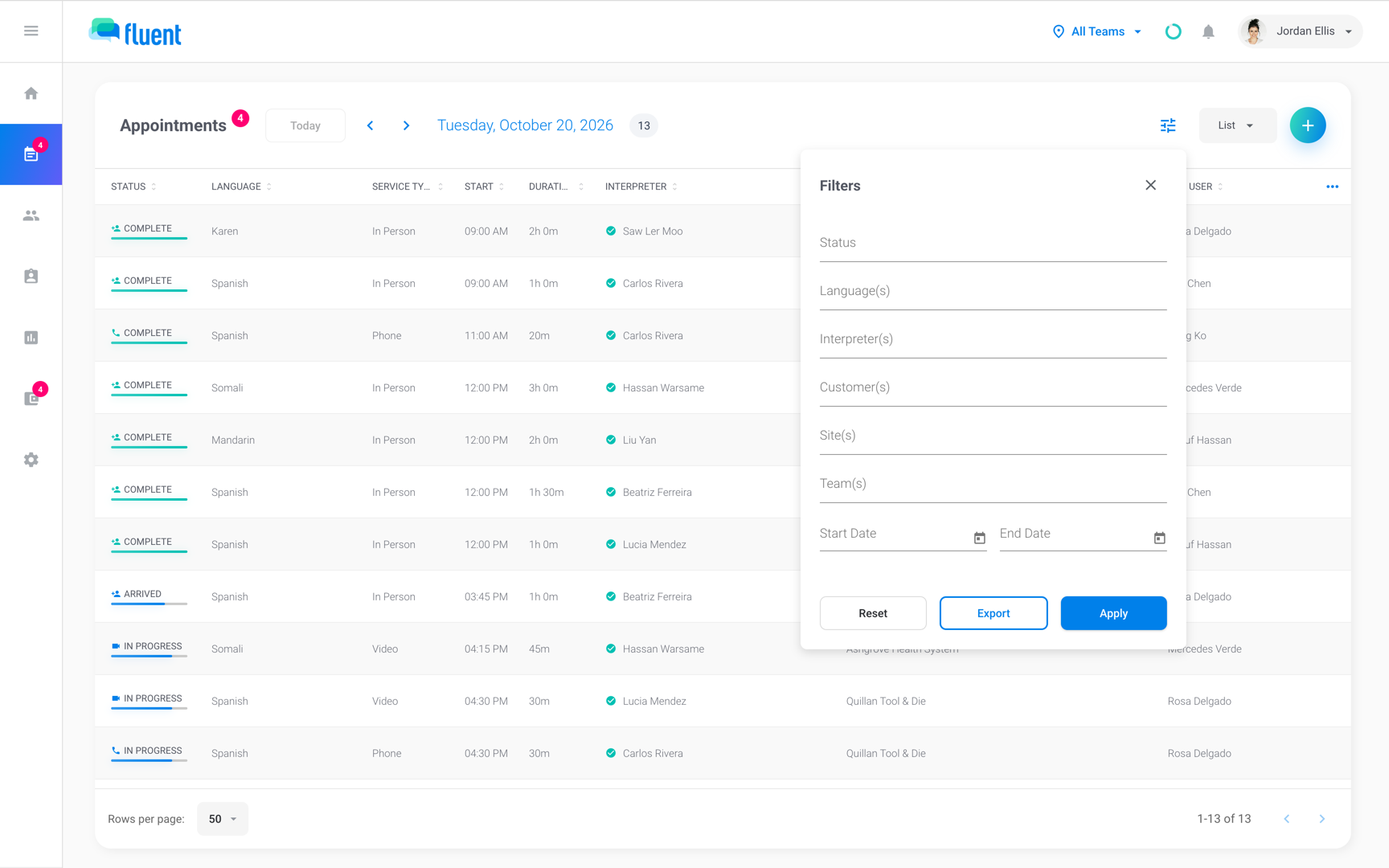
- Go to Appointments, Team › Interpreters, Team › Partner Agencies, or Billing › Rates.
- Click the Filters icon above the list. The Filters panel opens.
- Set the filters you want. On Appointments, click List, then select a Start Date and an End Date.
- Click Export. Filters you set count even if you didn't click Apply.
- If the "Two-Factor Verification" dialog opens, enter the 6-digit code and click Verify.
The CSV file downloads in your browser. On the Team lists, Fluent also shows "Export completed successfully".
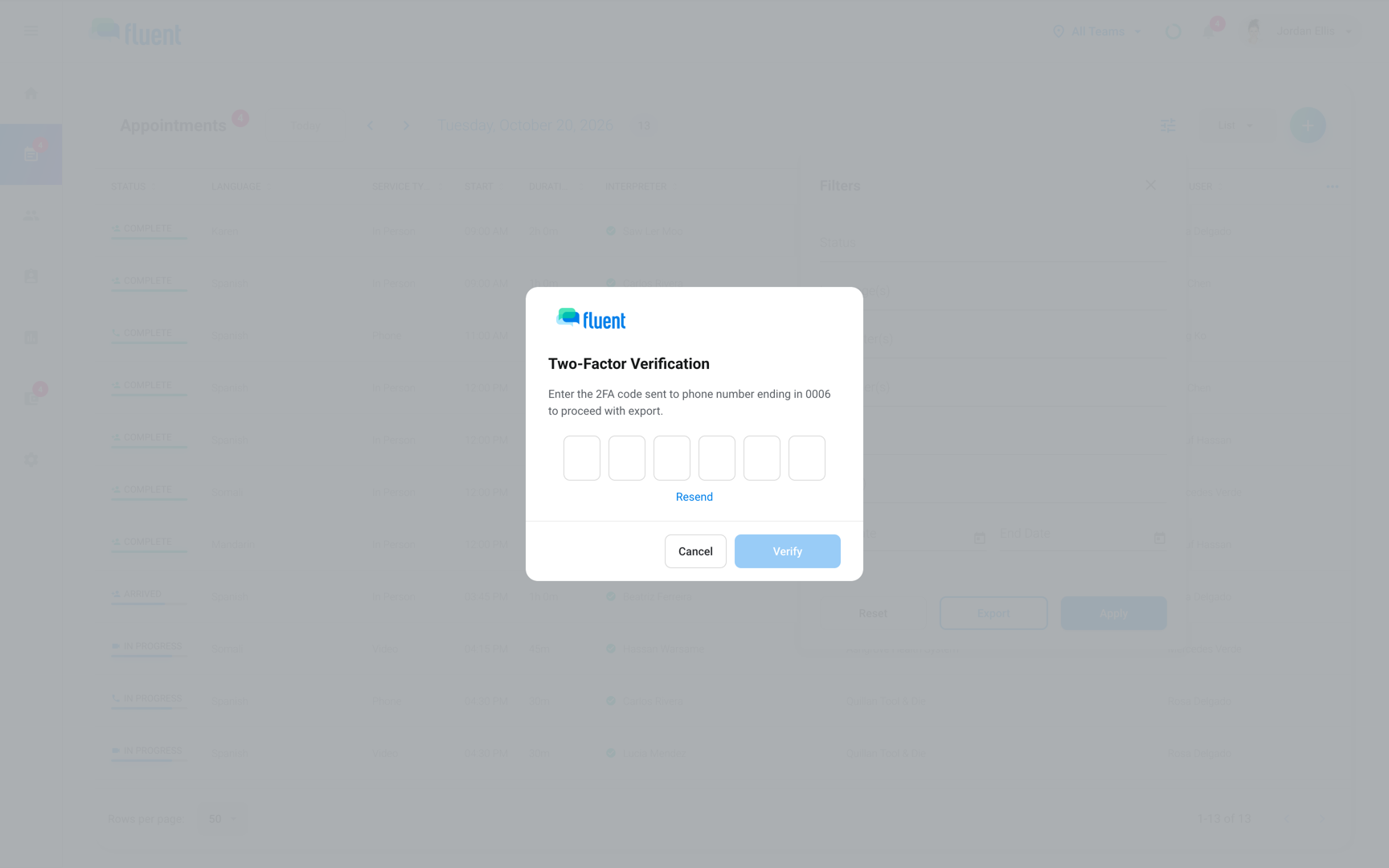
Where the code goes depends on your two-factor authentication:
- Text message: Fluent texts the code to the phone you use for two-factor authentication, and the dialog shows its last 4 digits.
- Email: if your account doesn't use text-message codes, Fluent emails the code instead, with the subject "Your verification code".
Click Resend for a new code, or Cancel to stop the export.
What's in each file
Each list exports its own set of columns. You can't choose them, except on Billing › Rates.
Appointments
The file follows the list's sort order and holds up to 5,000 appointments.
- Dates: With a Start Date and End Date, the file covers that range. Without them, it covers only the day shown at the top of the list.
- Columns: Every Appointments column, in the table's order, including columns you hid from the list.
- Times: Duration, Voucher Duration, Response Time, Requested Prior to Appt., and Arrival Prior to Appt. read as hours, minutes, and seconds, such as 01:30:00. Date reads as 10/20/2026.
Important: The file can include each LEP client's name and date of birth. Store and share it as protected health information. See HIPAA and the BAA.
Team lists
The Team exports are contact lists for the interpreters and agencies you work with.
- Team › Interpreters: The interpreters that match your search and filters, with contact details, status, languages, teams, and appointment count.
- Team › Partner Agencies: Every partner agency, with its primary contact, the contact's email, and its number of interpreters. Search doesn't narrow it.
- A partner agency's interpreters: Click a partner agency, then its Interpreters tab. The file lists that agency's interpreters with their languages and appointment counts. Search and filters don't narrow it.
With no Status(s) filter, Team › Interpreters exports Active and Invited interpreters only, the same as the list shows. To include others, select Deactivated or Revoked in Status(s) first.
Rate cards
Export a rate card list to see every price in one spreadsheet. In Billing › Rates, click Customer, Interpreter, or Partner, then export.
The file has 1 line per rate card and language group, with today's prices. Price headers name their unit, such as In-person Regular ($/hr).
- Columns: each line starts with the rate card's name and who it applies to, then has the columns the table shows. Show or hide columns before you export.
- Search and filters: apply to the file too.
Rules and limits
- One code covers your exports for the next 9 minutes. After that, the next export asks for a new code.
- An emailed code works for 10 minutes.
- Fluent records each Appointments and Team › Interpreters export. If it can't record one, the export doesn't run.
- Customers, Team › Team Members, and Reports have no export.
Troubleshooting
The Filters panel has no Export button
Your role can't export this list. See Who can export above, and ask someone who can.
"Invalid code. Please try again."
The code is wrong or out of date, or it's an emailed code more than 10 minutes old. Click Resend and enter the newest code.
After many tries in a short time, Fluent stops accepting codes for up to 15 minutes. Wait, then export again.
The Appointments file has only one day
You exported without a date range. In List, select a Start Date and an End Date, then export again.
The Appointments file stops at 5,000 rows
An export holds up to 5,000 appointments. Export a long period in shorter date ranges.
Deactivated interpreters are missing
Team › Interpreters exports Active and Invited interpreters unless you filter by status. Select Deactivated in Status(s), then export again.
Nothing downloads after I enter the code
No row matches your filters and dates. Widen the dates or clear filters, then export again.
- Team lists: show "No data available to export".
- Appointments: shows no message.
- Billing › Rates: the file still downloads, with only its header row.
"Failed to export data"
A Team list export didn't finish. Export again.