
Interpreter rate cards
Set what you pay each interpreter per appointment, share one rate card across your interpreter team, and give one person their own rates.
What you'll learn
- How to set what you pay your interpreters for each appointment, and share those rates across your team.
- How to give one interpreter rates of their own without changing anyone else's pay.
Before you start
- Settings › Operating hours has at least 1 profile, because every rate card names one in its billing rules. See Operating hours.
- Each interpreter has at least 1 language pair on their profile. See Interpreter profiles.
How a rate card works
Owners and Admins at your agency manage interpreter rate cards. Interpreters never see their own rate card.
- Services: the rate card sets a rate for each service you pay: In-person, Video, and Phone.
- Travel: it can also pay mileage and travel time.
- Billing rules: decide how Fluent counts paid time, such as rounding and what a late cancel pays. See Billing rules.
- Languages: the rate card has none of its own. It pays every language pair on each interpreter's profile, including pairs added later.
- Cancellation policy and merge gap: the rate card has neither. The customer's rate card decides whether a cancel is late and which visits merge.
Set up a rate card for one interpreter
Start from the interpreter's profile when they're paid rates of their own. The new rate card pays only them.
- Go to Team › Interpreters and click the interpreter.
- Click the Rates tab, then click Edit rates. Edit Profile opens on its Rates tab.
- Click Create rate card. The rate editor opens with the interpreter already added.
- Under Interpreting services, enter the Regular rate for each service you pay.
- If you pay for travel, turn on Mileage or Travel time under Travel & mileage and enter the rates.
- Click Billing rules and fill in each rule.
- Under Effective from, select This pay period, or Another date today or earlier. Next pay period is greyed out with "A first pay card starts today or earlier".
- Click Save changes, or Next when the rates reach a draft pay run. After Next, enter a Reason and click Save rate change.
Fluent shows "Pay rate card created for {name}." and the interpreter's Rates tab shows the rate card.
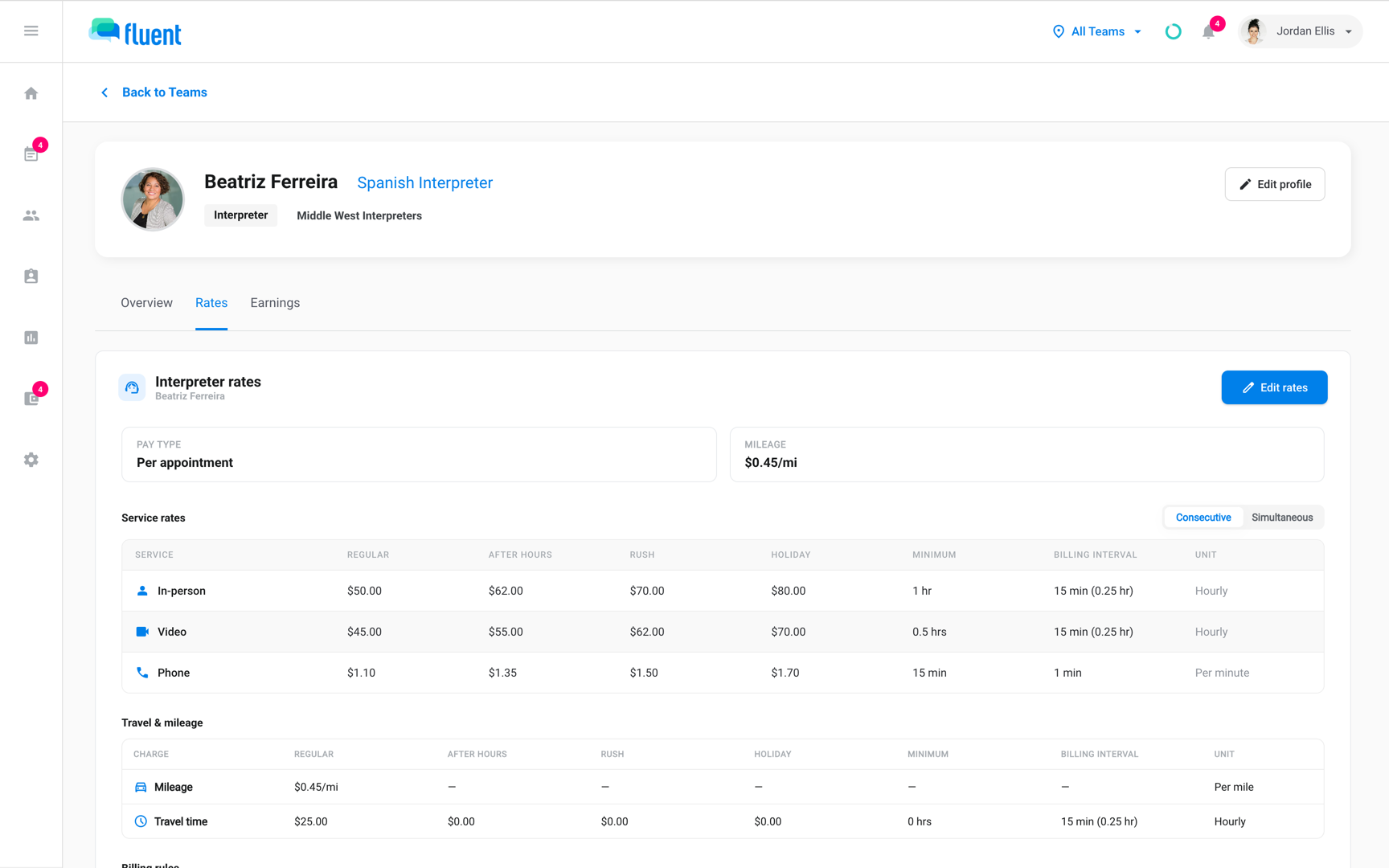
For Rush and Holiday rates, click Edit rate types. In pay review, Set up pay rates on an interpreter's No pay rate card flag opens the same editor.
Share a rate card between interpreters
When several interpreters are paid the same rates, put them on one rate card. A change to it then changes pay for all of them.
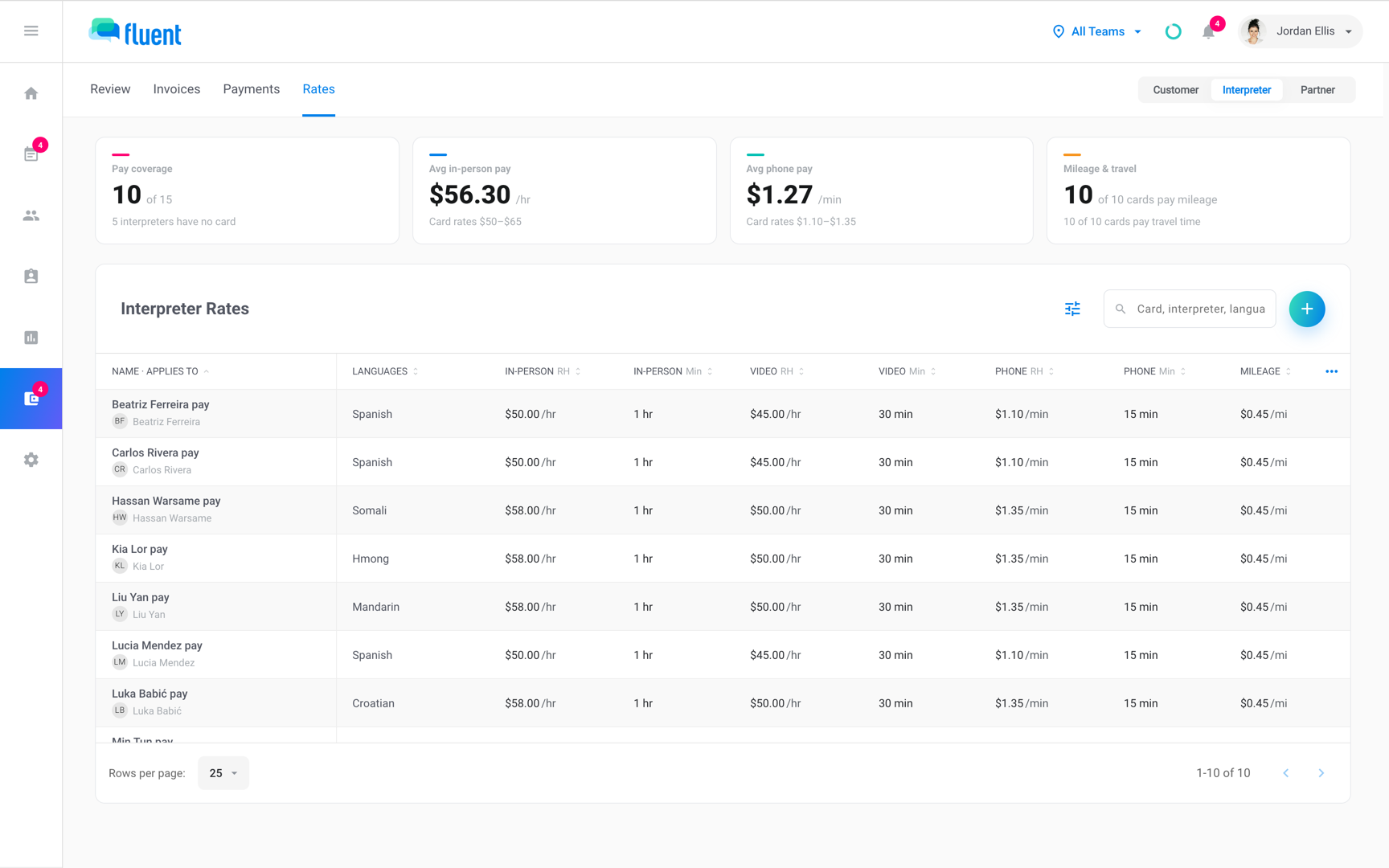
- Go to Billing › Rates and select Interpreter.
- Click +. The rate editor opens.
- Click the title, which reads Untitled rate, and enter a name.
- Under Applies to, click Add interpreter and select each interpreter this rate card pays.
- Set the rates, billing rules, and Effective from date as in the steps above, then click Save changes.
Fluent shows "Interpreter rate created." Each interpreter you added leaves their old rate card on that date.
Move or remove an interpreter
- Go to Billing › Rates › Interpreter, click the rate card, and click Edit rates.
- Click the interpreter's chip under Applies to and click Move to another rate….
- Click the rate card they move to, then click Move {name} onto this rate.
- In the Move dialog, pick the Applies from date and click Move.
Fluent shows "Moved onto "
To take someone off instead, click Remove from this rate on their chip and save. They have no pay rate until you add them to another rate card.
Change rates
Edit the rate card and pick when the new rates start. Fluent shows which pay runs re-price before you save.
Important: A change to a shared rate card changes pay for every interpreter on it. To change one interpreter only, give them their own copy instead.
- Go to Billing › Rates › Interpreter, click the rate card, and click Edit rates.
- Change the rates or billing rules.
- Under Effective from, select when the change starts.
- If Fluent lists approved pay runs, turn on Include to re-price them too. Their line approvals are withdrawn.
- Click Next. Fluent lists the draft pay runs the change reaches.
- Enter a Reason and click Save rate change.
Fluent re-prices those draft pay runs. Closed and paid pay runs keep their figures.
A date in the past that the rate card already covers saves as a rate correction, which rewrites the rates from that date.
Pay one interpreter differently
To change one interpreter's pay without changing anyone else's, give them their own copy of the shared rate card.
- Go to Team › Interpreters, click the interpreter, and click the Rates tab.
- Click Edit rates, then click Edit rates again on the Edit Profile Rates tab. The editor warns "Editing here changes pay for all N interpreters".
- Click Edit for {name} only. The editor reopens as a copy with the same rates.
- Change the rates.
- Under Effective from, select the date they move to the copy, then click Save changes.
Fluent confirms that {name} now pays from their own rate card. Everyone else stays on the shared one.
In Billing › Rates, the interpreter's chip menu under Applies to has the same option, Give them their own copy of this rate.
Pay different rates per language
On a rate card that pays 1 interpreter with more than 1 language pair, each pair can have its own rates.
- In the rate editor, turn off Same service rates for each language. A tab appears for each pair, starting with the current rates.
- Click a pair's tab and change its rates.
- Under Effective from, select the date, then click Save changes.
Nobody else can then be added to the rate card. To go back to 1 set of rates, turn Same service rates for each language back on.
Partner agencies' interpreters
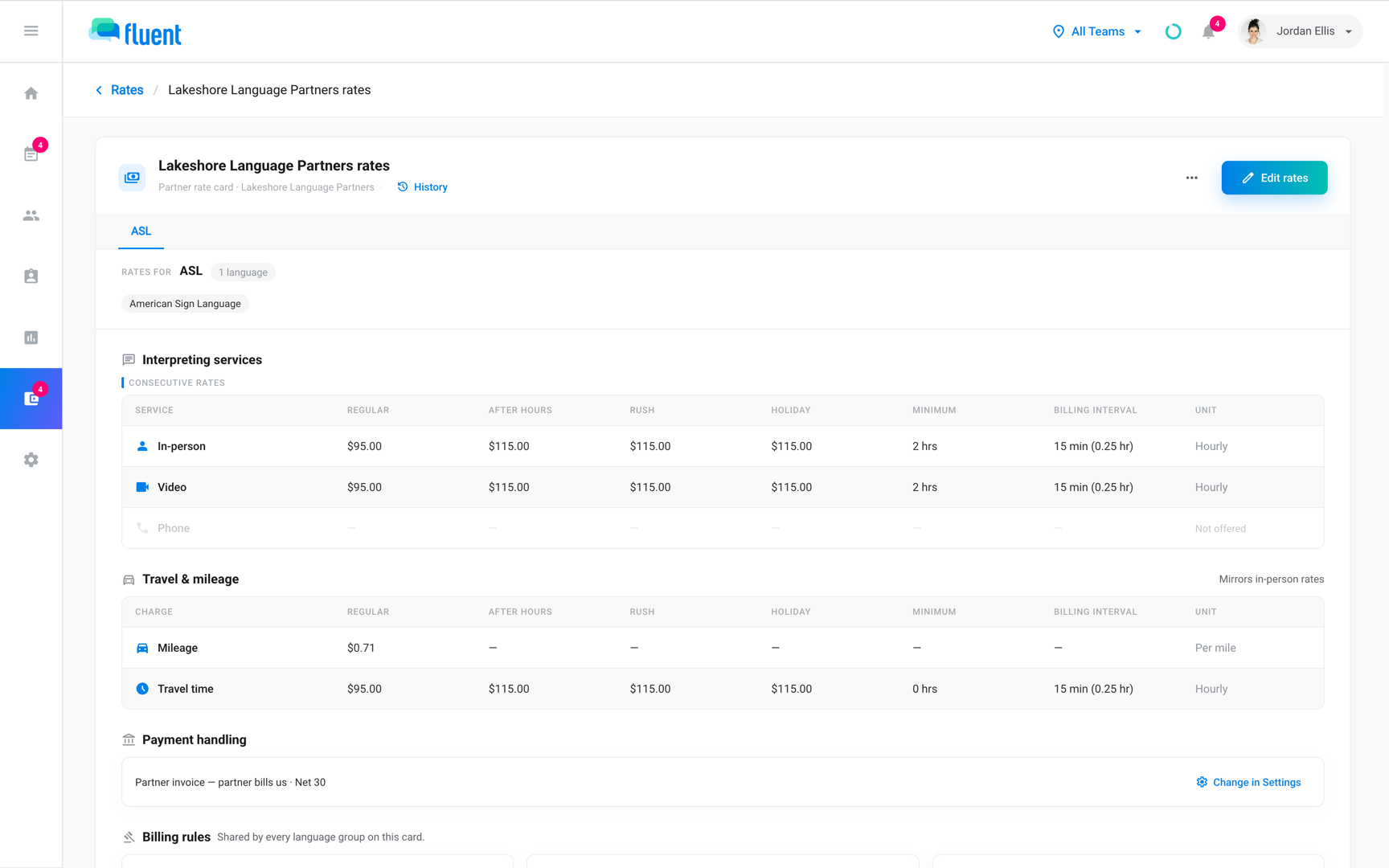
An External Interpreter from a partner agency is paid from their own interpreter rate card if they have one. Otherwise Fluent pays their work from the partner agency's rate card in Billing › Rates › Partner, 1 per partner agency.
The partner's rate card page shows Payment handling. To change it, click Change in Settings.
- Pay run: you pay the partner in your pay runs.
- Partner invoice: the partner bills you.
Rules and limits
- Every interpreter rate card pays per appointment. The editor has no hourly wage or overtime option.
- An interpreter is on 1 rate card at a time. Joining a rate card takes them off any other rate card that same day.
- An interpreter's first rate card starts today or earlier.
- An interpreter with no rate card can't be paid until you set one up.
- Adding or moving an interpreter from a date in the past needs a reason.
- An interpreter rate card can't be deleted. Remove everyone from it instead, and it stays with nobody on it.
Troubleshooting
The editor says a billing rule is blank
The banner reads "These pay rules are blank:" and names each one. Click Billing rules and fill them in.
Operating hours profile is the Profile dropdown, and Paid-time basis is Basis.
"Pick today or earlier: isn't on a card yet, so a later start would leave their work unpriced until then"
An interpreter's first rate card can't start in the future. Select This pay period, or a date today or earlier.
A statement in pay review shows Pay rules incomplete
The interpreter's rate card is missing a rule that appointment needs. Click Complete pay rules, fill in the rule under Billing rules, and save with an Effective from date on or before the appointment.
I don't see Billing in the sidebar
Only Owners and Admins at your agency see Billing. Ask one of them to set up the rate card.