
Video and phone appointments
Add the Video URL or phone details to an appointment, and see what the interpreter gets in place of an address.
What you'll learn
- How to set up a Video or Phone appointment so the interpreter can join the meeting or the call.
Before you start
- For a Video appointment, create the meeting in your video app and copy its link. Fluent doesn't save a Video appointment without one.
- For a Hosted Meeting phone call, have the conference line's link and access code ready.
Add the Video URL
Owners, Admins, Managers, and Schedulers at your agency can add a Video URL or phone details.
Paste the link from your meeting app into the appointment. Fluent gives it to the interpreter in its emails and in the mobile app.
- Go to Appointments and click +. To change an existing appointment, click it, then click Edit.
- On the Details step, fill in the date, time, customer, and language as for any appointment. See Create an appointment.
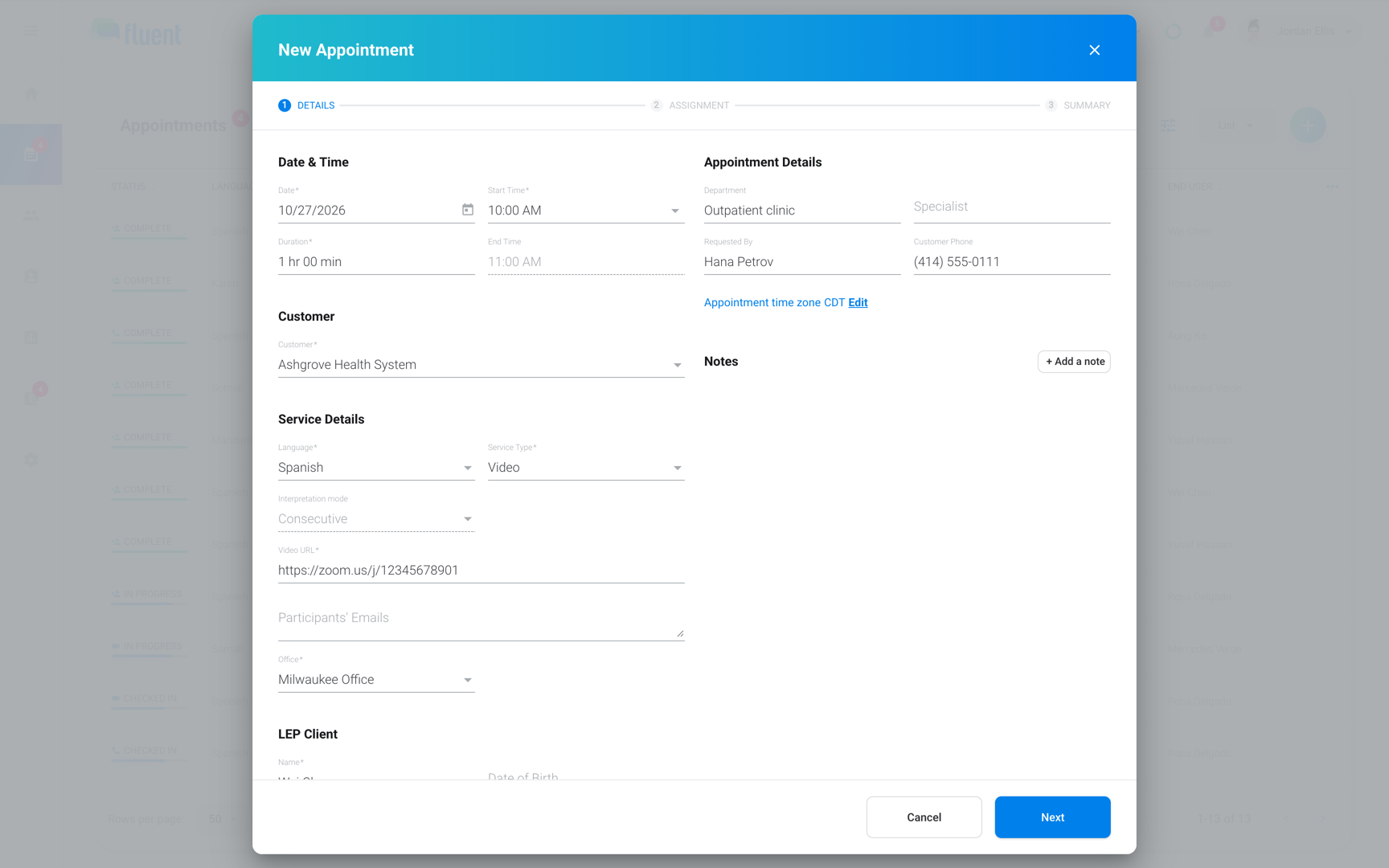
- In Service Type, select Video. Fluent hides the address fields and shows Video URL and Participants' Emails.
- In Video URL, paste the link.
- Click Next, and go through Assignment as for any appointment.
- On Summary, click Save, or Update for an existing appointment.
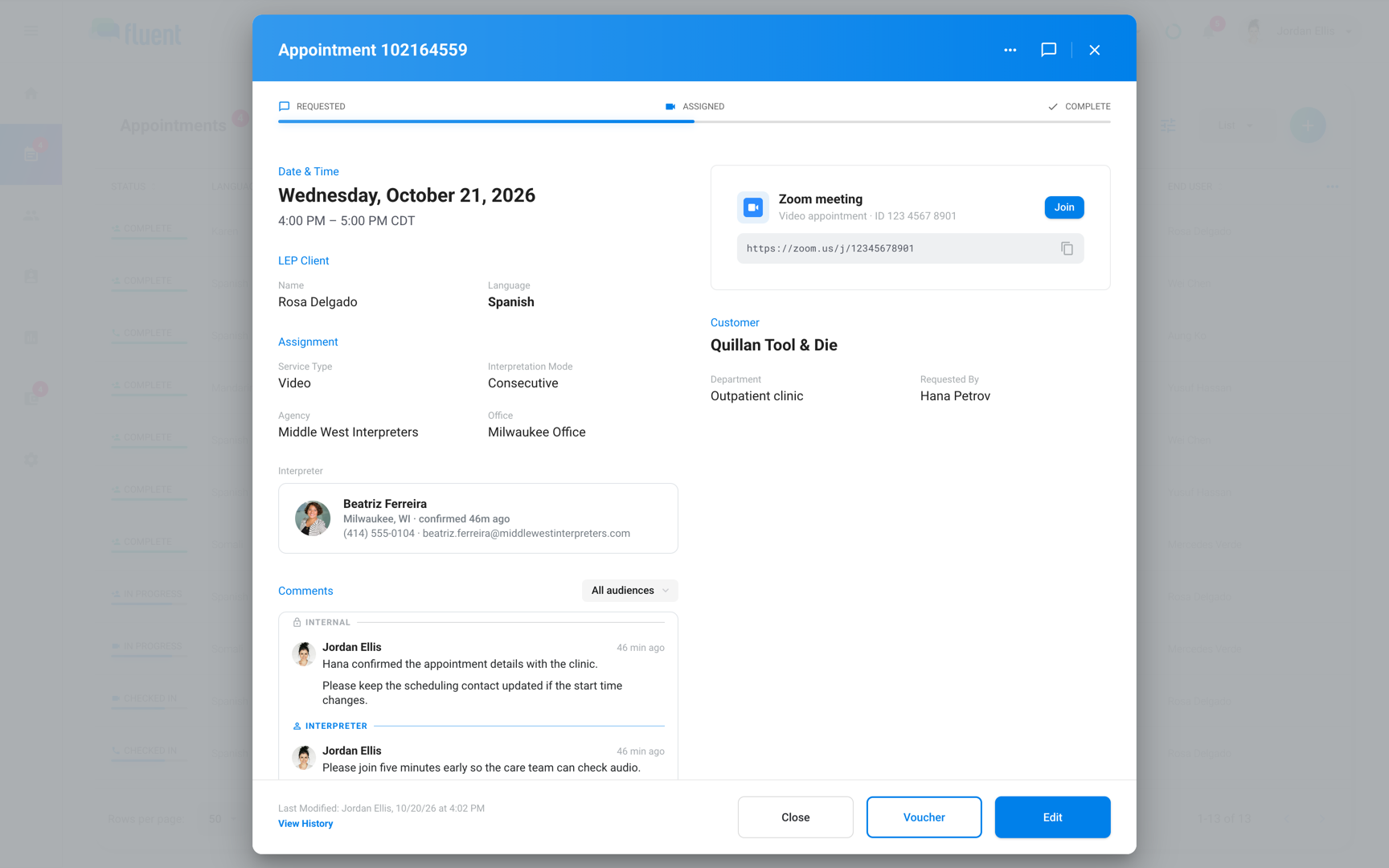
The saved appointment shows the meeting in place of the map, with a Join button. A link from any meeting app works the same.
Add phone details
For a Phone appointment, Call Direction says how the interpreter connects: someone calls them, they place the call, or everyone joins a conference line.
- Open the appointment's Details step, as in steps 1 and 2 above.
- In Service Type, select Phone.
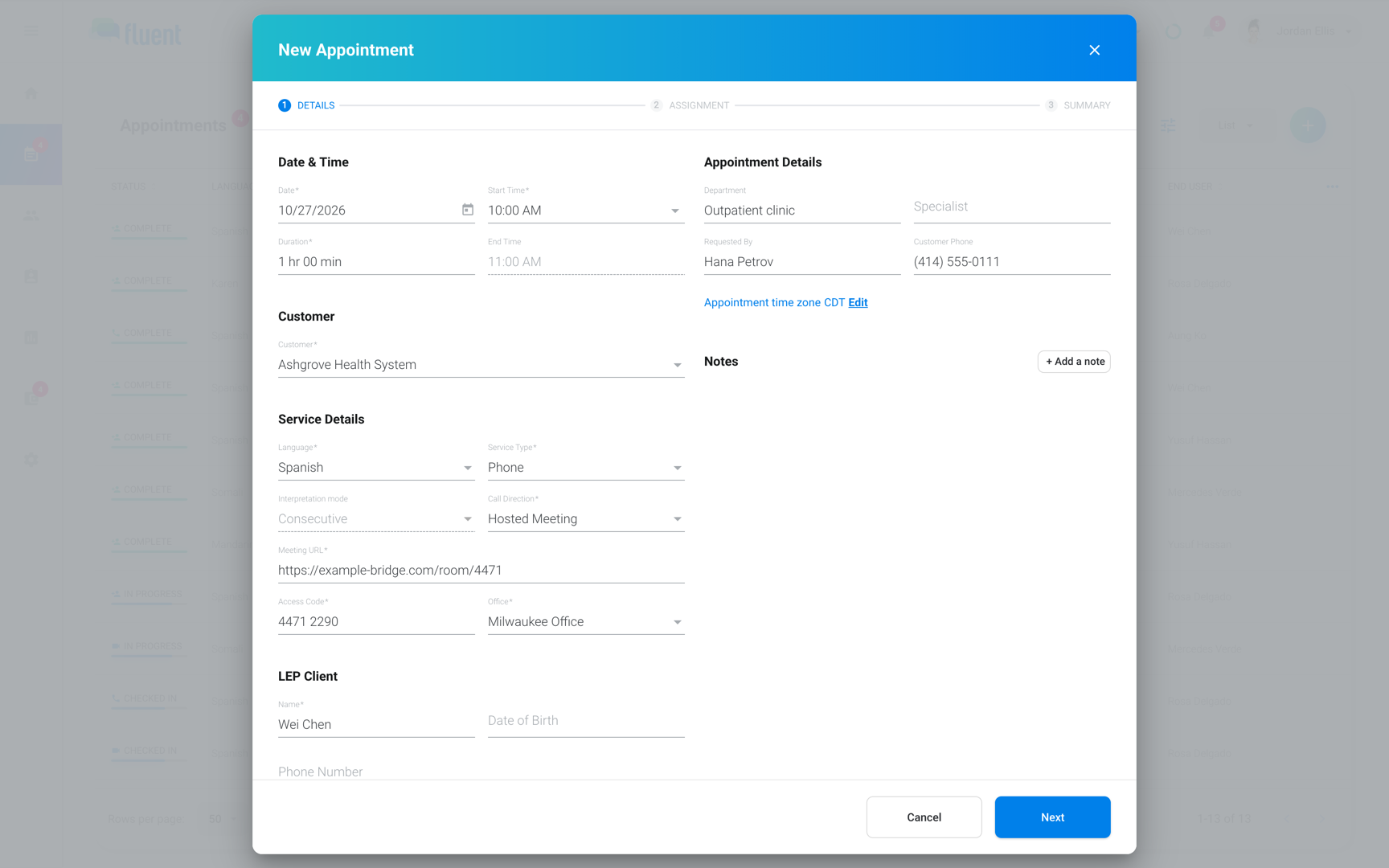
- In Call Direction, select Inbound, Outbound, or Hosted Meeting.
- Fill in the fields the table lists for your choice.
- Click Next, and go through Assignment as for any appointment.
- On Summary, click Save, or Update for an existing appointment.
| Call Direction | How the call works | What to fill in |
|---|---|---|
| Inbound | Someone calls the interpreter | Phone Number of the caller, optional |
| Outbound | The interpreter calls the number | Phone Number, required |
| Hosted Meeting | Everyone joins a conference line | Meeting URL and Access Code, both required |
Important: The mobile app shows a Hosted Meeting as an inbound call. Neither the app nor Fluent's emails give the interpreter its Meeting URL or Access Code. After the interpreter accepts, send both in a comment with Send to interpreter. See Appointment comments.
What the interpreter sees
In the Fluent mobile app, these parts differ from an In-person appointment. The steps and their timings are in Check in and track time.
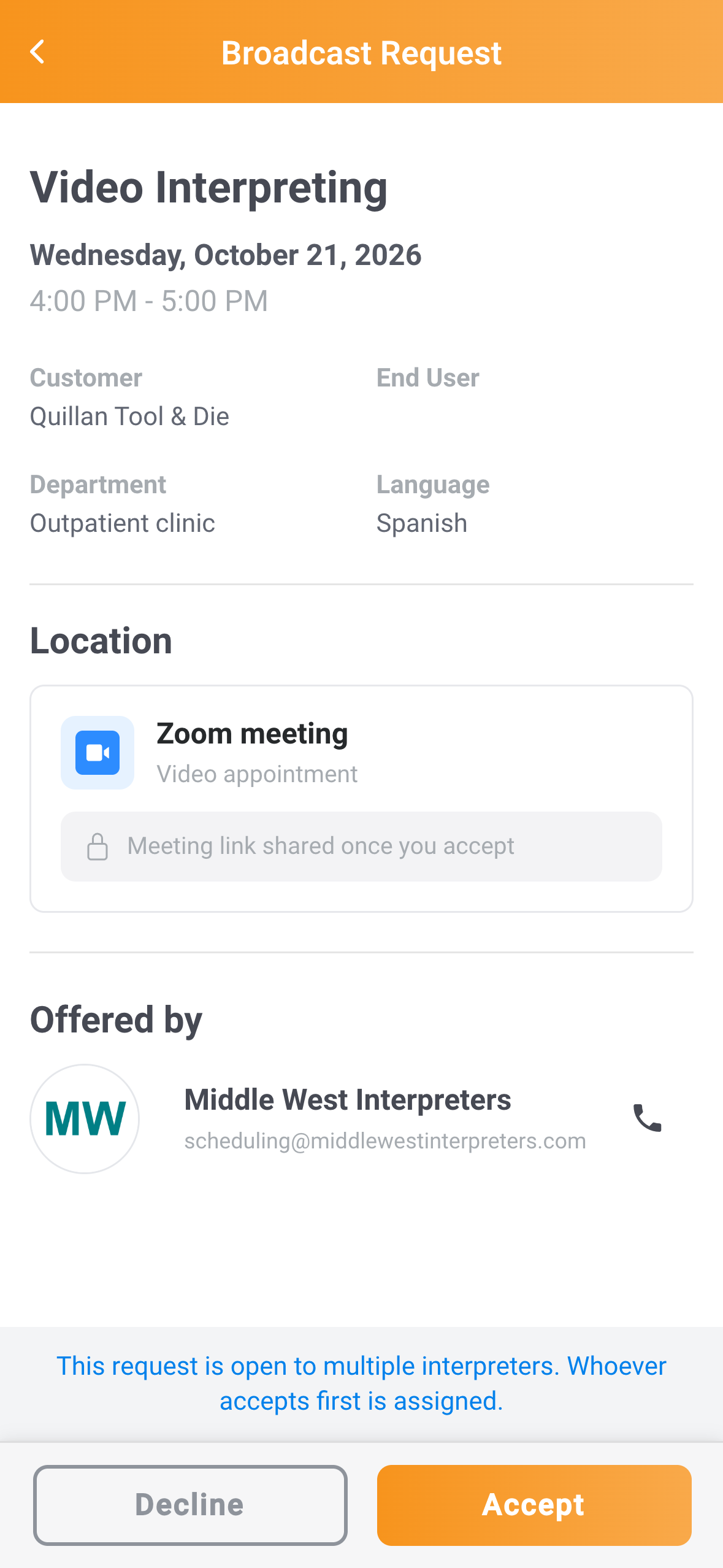
- Before they accept: The offer shows "Meeting link shared once you accept" or "Phone details shared once you accept".
- Next Appointment card: After they accept, when it's their next appointment, the card on the Dashboard shows the number for an Outbound call. For Video, Get ready to join on the card shows the link.
- At the start: They tap Check In instead of Mark Arrived. Then they tap Join Meeting for Video or Call {number} for an Outbound call, or wait for an Inbound call.
- Voucher: It records the check-in time in place of an arrival time, and has no travel fields. See Submit a voucher.
Rules and limits
- Video and Phone appointments have no address or site, so no address sets their time zone. Check Appointment time zone on Details and click Edit to change it. See How time zones work in Fluent.
- The Assignment step has no Map view for Video or Phone, and interpreter ranking leaves out distance. See How interpreter ranking works.
- Fluent doesn't create meetings or connect to your Zoom, Microsoft Teams, or Google Meet account. Create the meeting in its own app and paste the link.
- Fluent doesn't email the addresses in Participants' Emails, and the mobile app doesn't show them.
- Fluent's emails to the interpreter about a Video appointment show the Video URL, labeled "Meeting Link". Offer emails show it too, before the interpreter accepts.
- Emails about a Phone appointment leave out the phone number, the Meeting URL, and the Access Code.
- An organization that requests a Video or Phone appointment fills in the same fields.
Troubleshooting
"Please complete all required fields."
A required field on Details is empty. Each one shows a message under it, such as "Video URL is required".
- Video: Check Video URL.
- Phone: Check Call Direction, the Outbound Phone Number, and the Hosted Meeting Meeting URL and Access Code.
Fill in the field and click Next again.
The appointment shows "No phone connection details provided"
The Inbound call has no Phone Number, which is optional. The interpreter still waits for the call at the start time.
To show the caller's number, edit the appointment and add it.
The interpreter can't see the link
- Before they accept: The mobile app doesn't show the link.
- Not their next appointment: The app shows the link only on the Next Appointment card for their next appointment. For a later appointment, the link is in Fluent's emails about it.
- Hosted Meeting: Send the details in a comment.