
Agency team notifications
Every notice Fluent sends an agency team member, with its bell title, its email heading, who on the team gets it, and which ones reach your phone.
What you'll learn
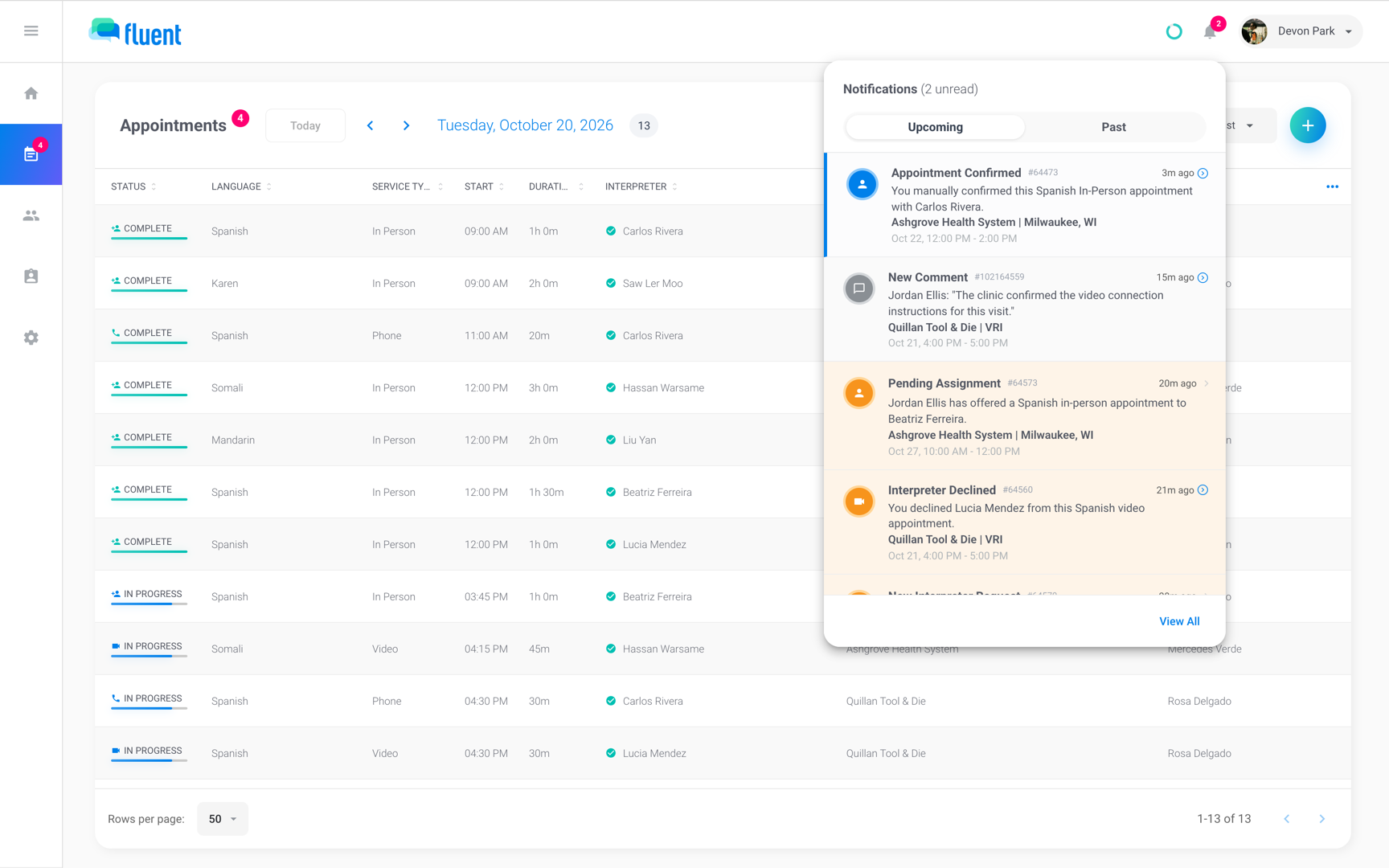
- What each notice about your agency's appointments and interpreters means, and which ones reach your email or phone.
Who gets these notices
Owners, Admins, Managers, and Schedulers get the notices for appointments on their teams. Each notice goes to the team members who can see the appointment, not to everyone at the agency.
- Appointment notices: Every team member with access to the appointment's team. If the appointment has no team, every team member at the agency. When the assigned interpreter is also a team member, they don't get a second copy.
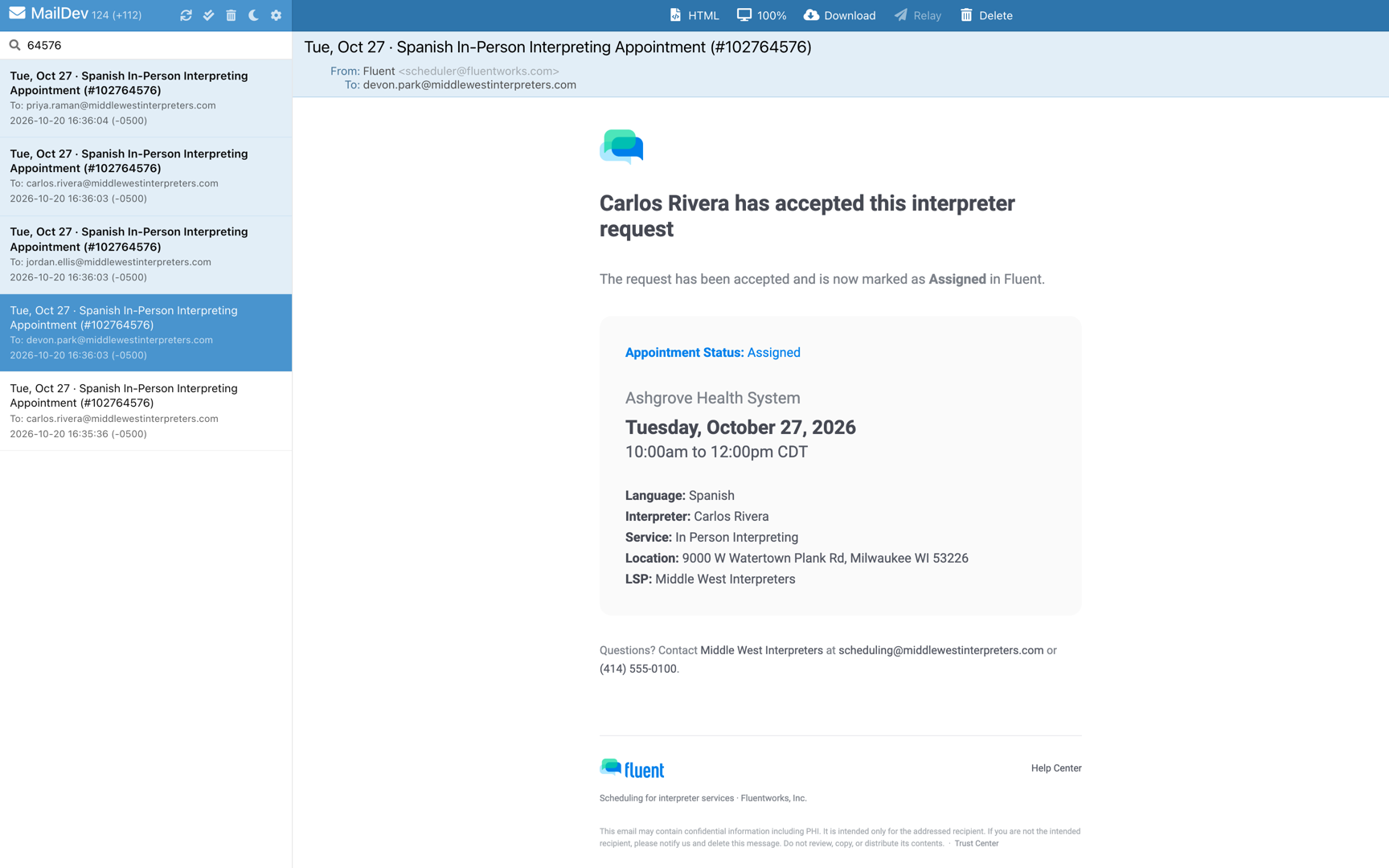
- Acceptance and decline emails: One email to each of those team members, from scheduler@fluentworks.com.
- Auto-assign and Broadcast emails: One email to the Email under Scheduling Contacts in Edit Agency, not to each team member. If that field is empty, Fluent uses the email address on your agency record.
- Availability and time off: Every team member at the agency, whatever their teams.
- Comments: Every team member who can open the appointment, by email and push: the Owner, team members on its team, and team members on no team.
- Deactivated team members: Nothing.
Every appointment email shares one subject, "{Day, Month D} · {Language} {Service} Interpreting Appointment (#{number})". The heading inside the email says what happened, and the tables below give that heading.
See Teams for how team access works.
Requests and assignment
These notices follow an appointment from the moment it's created until an interpreter holds it.
| Notice | When you get it | Push | |
|---|---|---|---|
| New Interpreter Request | Someone at the organization or a team member created an appointment | No | No |
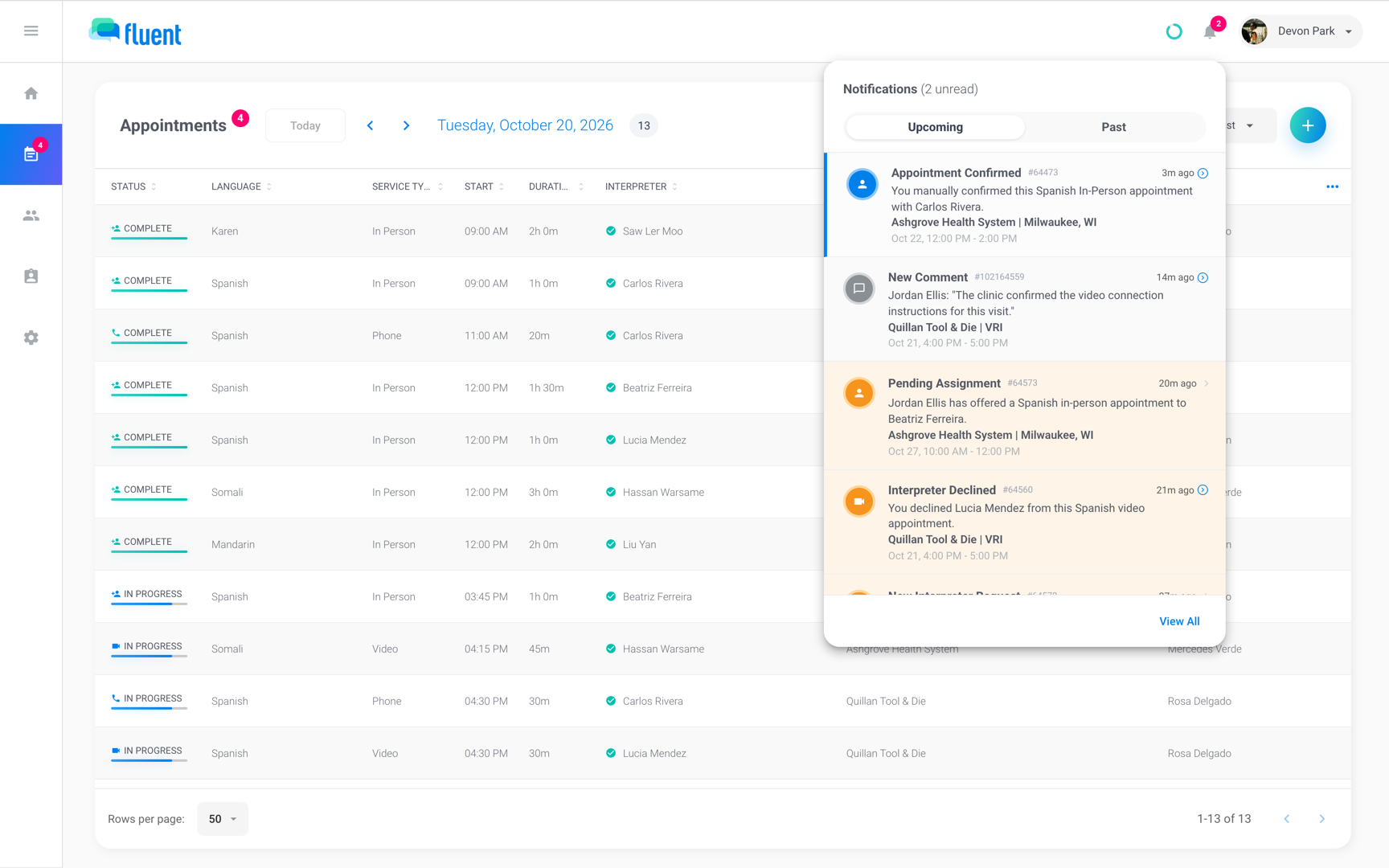
| Pending Assignment | An offer went to one interpreter | No | No |
| Appointment Confirmed | An interpreter accepted, or a team member clicked Mark as accepted | "{interpreter} has accepted this interpreter request" | No |
| Interpreter Declined | An interpreter declined an offer | "{interpreter} has declined this interpreter request." | No |
| Interpreter Unassigned | A team member removed the interpreter from the appointment | No | No |
| Appointment Declined | Your agency set the appointment to Declined | No | No |
Interpreter Declined also arrives when an interpreter declines their Auto-assign turn. See Assigning interpreters.
Auto-assign and Broadcast
While Auto-assign or a Broadcast is running, Fluent reports each step. These are the only appointment notices that also push to your phone.
| Notice | When you get it | Push | |
|---|---|---|---|
| Auto-assign in progress | Someone started Auto-assign | No | Yes |
| Interpreter didn't respond | A turn ran out and the offer moved on | "Offered: {language} {service} interpreter request" | Yes |
| Auto-assign ended | Nobody accepted; the appointment is Unassigned | "Auto-Assign Ended: {language} {service} interpreter request" | Yes |
| Broadcast sent | Someone broadcast the appointment | No | Yes |
| Auto-assign cancelled or Broadcast cancelled | Someone stopped the method; open offers withdrawn | No | Yes |
| Broadcast still unfilled | Nobody accepted, about 24 hours before the start | "Broadcast Open: {language} {service} interpreter request" | Yes |
| Appointment starts soon | Nobody accepted, about 1 hour before the start | "Broadcast Open: {language} {service} appointment starts soon" | Yes |
See Auto-assign and Broadcast.
Status changes
Once an appointment has an interpreter, its status changes land in the bell only.
| Notice | When you get it | Push | |
|---|---|---|---|
| Appointment Canceled | The appointment moved to Canceled | No | No |
| Appointment Canceled Late | The appointment moved to Late Cancel | No | No |
| Appointment Missed | A team member set the appointment to Missed | No | No |
| Appointment Completed | A voucher was submitted | No | No |
| Interpreter Arrived Late | The interpreter marked arrived after the start time | No | No |
When someone at the organization canceled, the Appointment Canceled body names them. See Cancel an appointment.
Important: No email goes out for a cancel. Open the appointment from the bell to decide between Canceled and Late Cancel.
Interpreter availability and time off
When an interpreter on your interpreter team changes their hours, every team member at the agency hears about it.
| Notice | When you get it | Push | |
|---|---|---|---|
| {name} updated their availability | The interpreter saved different weekly hours | Same title, with the changed days marked | No |
| {name} added time off | The interpreter added or changed time off | Same title, with the dates | No |
| {name} removed time off | The interpreter took time off back | Same title, marked Removed | No |
Fluent sends nothing when an interpreter confirms their day. Watch the Same-Day Confirmations ring in the top bar instead.
See Manage interpreter availability and time off and Same-day confirmations.
Comments
A comment on one of your agency's appointments reaches you in the bell, by push, and by email.
- New Comment: Someone posted an Internal, Interpreter, or Customer comment.
- Mentioned You: Someone mentioned you in a comment.
You get one notice per comment and none for your own. Clicking the notice opens the appointment at that comment.
- In the bell: the row shows the first 120 characters of the comment.
- Push and email: never include the text. The email is headed "New comment: {language} {service} appointment" and has a Read the comment button.
- Edited comments: notify only the people they newly mention.
Billing
Billing sends one email to the Owner and nothing to the bell. The subject names the run and its period.
- Automated invoice run failed for {period}: A scheduled invoice run didn't finish.
- Automated pay run failed for {period}: A scheduled pay run didn't finish.
Both emails have an Open Billing button and say that Fluent retries on its own. If there's no Owner email on record, the email goes to the billing contact, then to the agency's email address.
Important: Review Billing before you run it again. The failed run can have created some documents already.
See Set up billing runs and Account and billing messages.
Rules and limits
- Fluent has no notification settings. Every notice in this article goes out.
- Push reaches phones where you signed in to the Fluent mobile app, and keeps arriving after the app signs you out on its own. Tapping Sign Out in the app's side menu stops push on that phone until you sign in again. See Sign in to the mobile app.
- The badge on the bell counts unread notices except Appointment Completed, which goes straight to the Past tab.