
How invoicing works
How Fluent turns each period's work into customer invoices, from rate cards and review to closing, exporting, and QuickBooks.
What invoicing does
Fluent turns the work your interpreters do into invoices for your customers. It prices each appointment from the customer's rate card. Each period's work becomes an invoice run, with one invoice per customer by default. You check the invoices, approve them, and close the run.
Fluent never sends invoices to your customers. You export them as files, or sync them to QuickBooks, and send them from there.
Invoicing happens in Billing, which only your agency's Owners and Admins see. See Agency roles and permissions.
Set up invoicing
Before Fluent can draft an invoice, it needs your prices and your schedule. Set these up in order.
- Add your operating hours, the days and hours your regular rates cover. A customer rate card can't price work without them. See Operating hours.
- Check your agency defaults: the rate types new rate cards start with, your default invoice terms, and your holiday calendar. See Agency defaults and holidays.
- Give each customer a rate card with your prices and billing rules. Customers who pay the same prices can share one. See Customer rate cards and Billing rules.
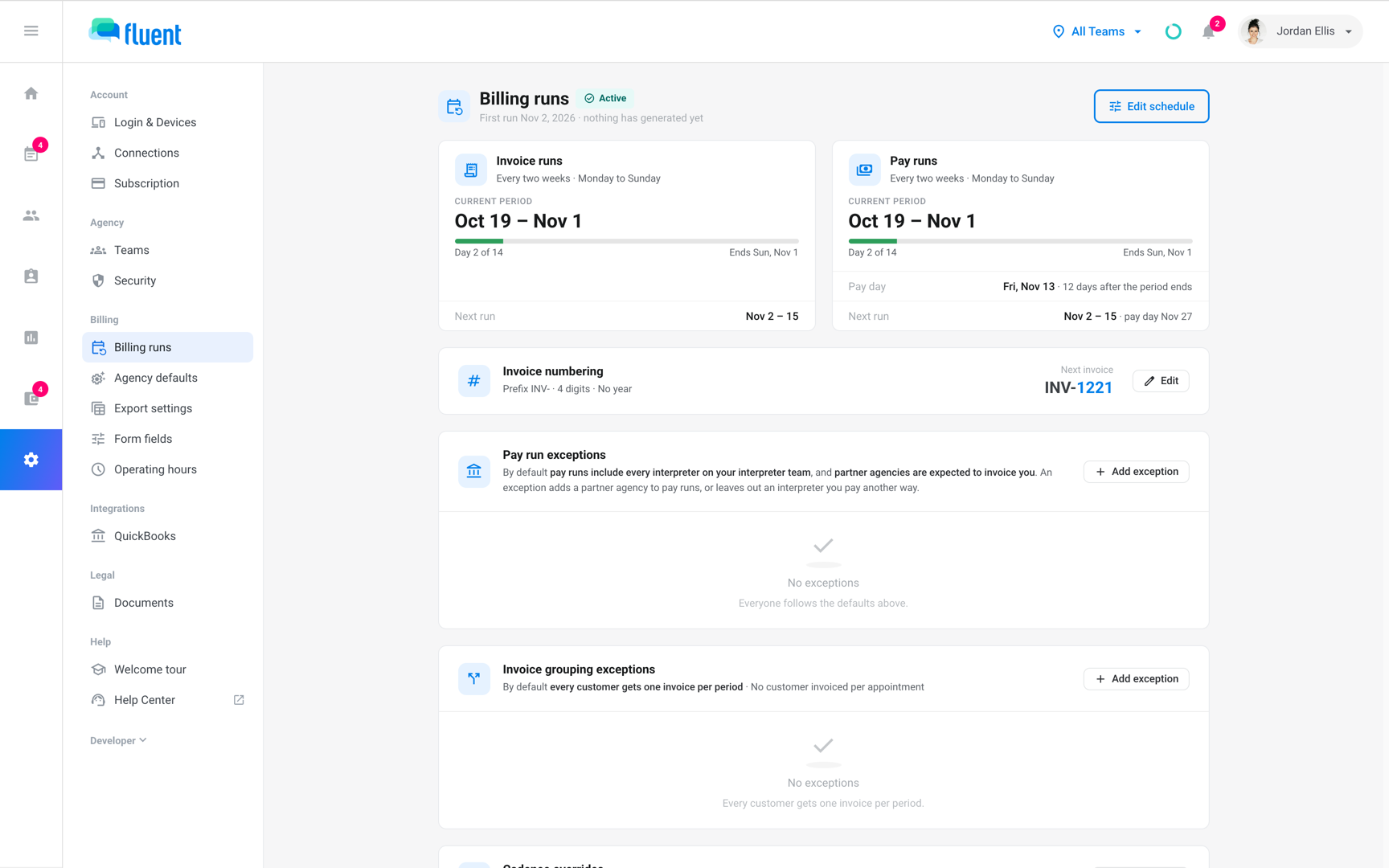
- Set up billing runs: how long each period is, the day your first period starts, and how invoices are numbered. See Set up billing runs.
- To send invoices to QuickBooks, connect it. See QuickBooks.
Each period, from draft to closed
Your schedule cuts time into periods, such as every two weeks. Each period has its own invoice run, which you review, approve, and close.
- As appointments end: Fluent adds each appointment in the current period to that customer's draft invoice, so you can review as you go. Late cancels bill too, by the rate card's cancellation policy.
- Flags: Fluent flags what needs a look before you approve, such as an appointment with no voucher. See Invoice review flags.
- Missing rates: shows on work your rate cards can't price, such as a missing rate or missing operating hours. See Fix Missing rates.
- Approve: you can approve an invoice once you've answered its flags, even before the period ends. See Review and approve invoices.
- Close: you can close the run once the period is over, every invoice is approved, and all its work is priced. Closing makes its invoices final. See Close an invoice run.
- Statuses: each run and invoice shows a status that says where it stands. See Invoice and run statuses.
- Pay runs: Billing runs setup also schedules pay runs for your interpreters, on the same periods as invoice runs or their own. See Pay runs overview.
Important: Until you close the run, an approved invoice goes back to review if a voucher edit or a rate card change re-prices it.
After you close a run
After the close, you get the invoices to your customers, track each payment, and answer any difference that comes up later.
- Export or sync: Export the invoices as PDF, CSV, or Excel files, or sync the run to QuickBooks, which creates the invoices there. See Export invoices and Sync invoices to QuickBooks.
- Track payment: When a customer pays you, mark the invoice paid. For an invoice in QuickBooks, Fluent marks it paid once QuickBooks shows it paid in full. See Track invoice payments.
- Correct a closed invoice: When a voucher edit or a rate correction changes what a closed invoice should bill, the invoice shows the difference. You can revise the invoice, bill the difference on a new document, or keep it as billed. See Correct a closed invoice.