
Appointment details and history
What the appointment dialog shows when you open a saved appointment, the buttons each person sees, and what View History records.
What you'll learn
- What the appointment dialog shows when you open an appointment.
- How to see who changed an appointment and when.
The header
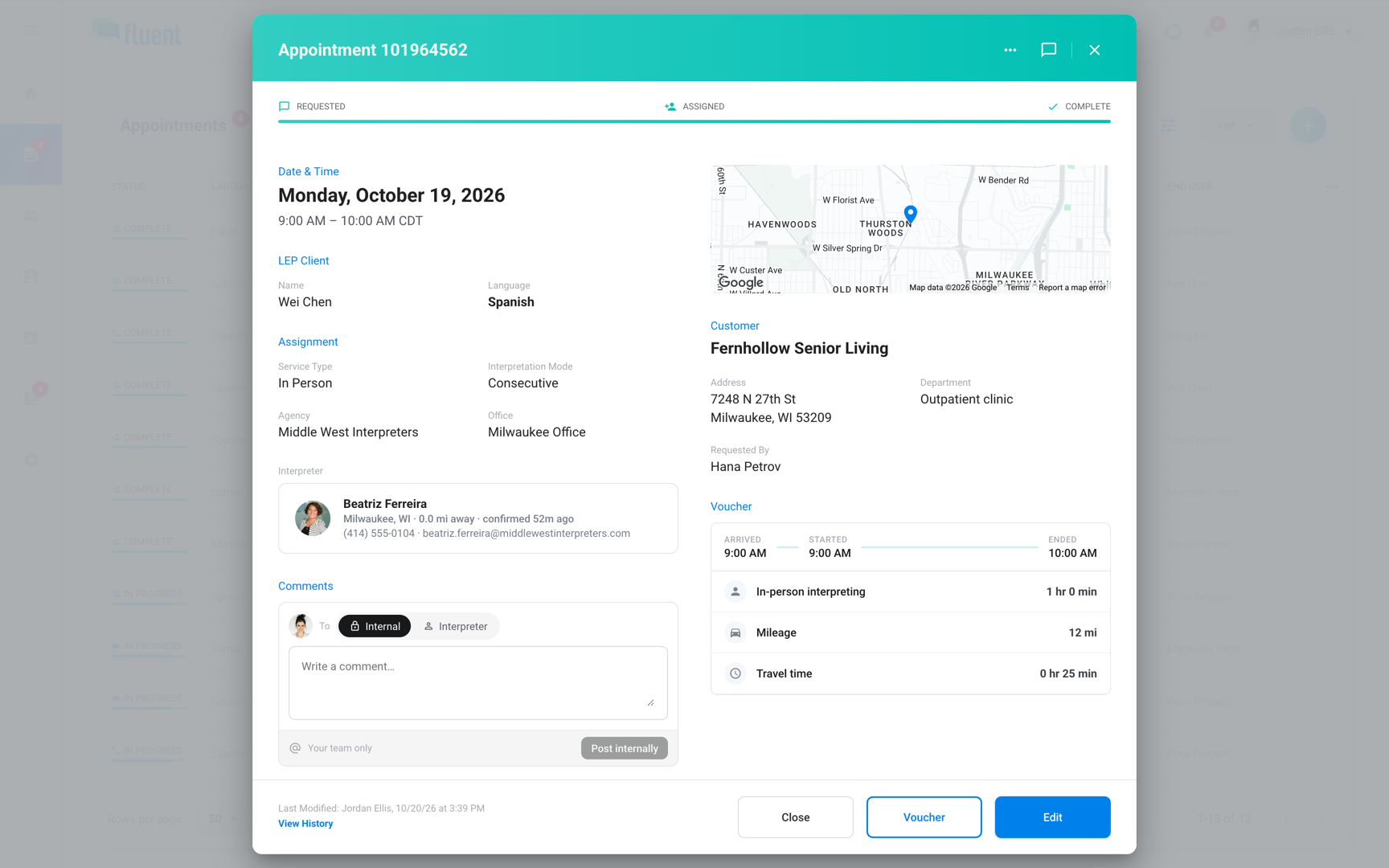
Click an appointment on Appointments, in the list or on the calendar, to open the appointment dialog. Its title is the appointment number, such as Appointment 1020345.
The header color follows the status, as Appointment lifecycle describes. The bar under it shows 3 stages, from the request to how the appointment ended.
The header also holds these controls:
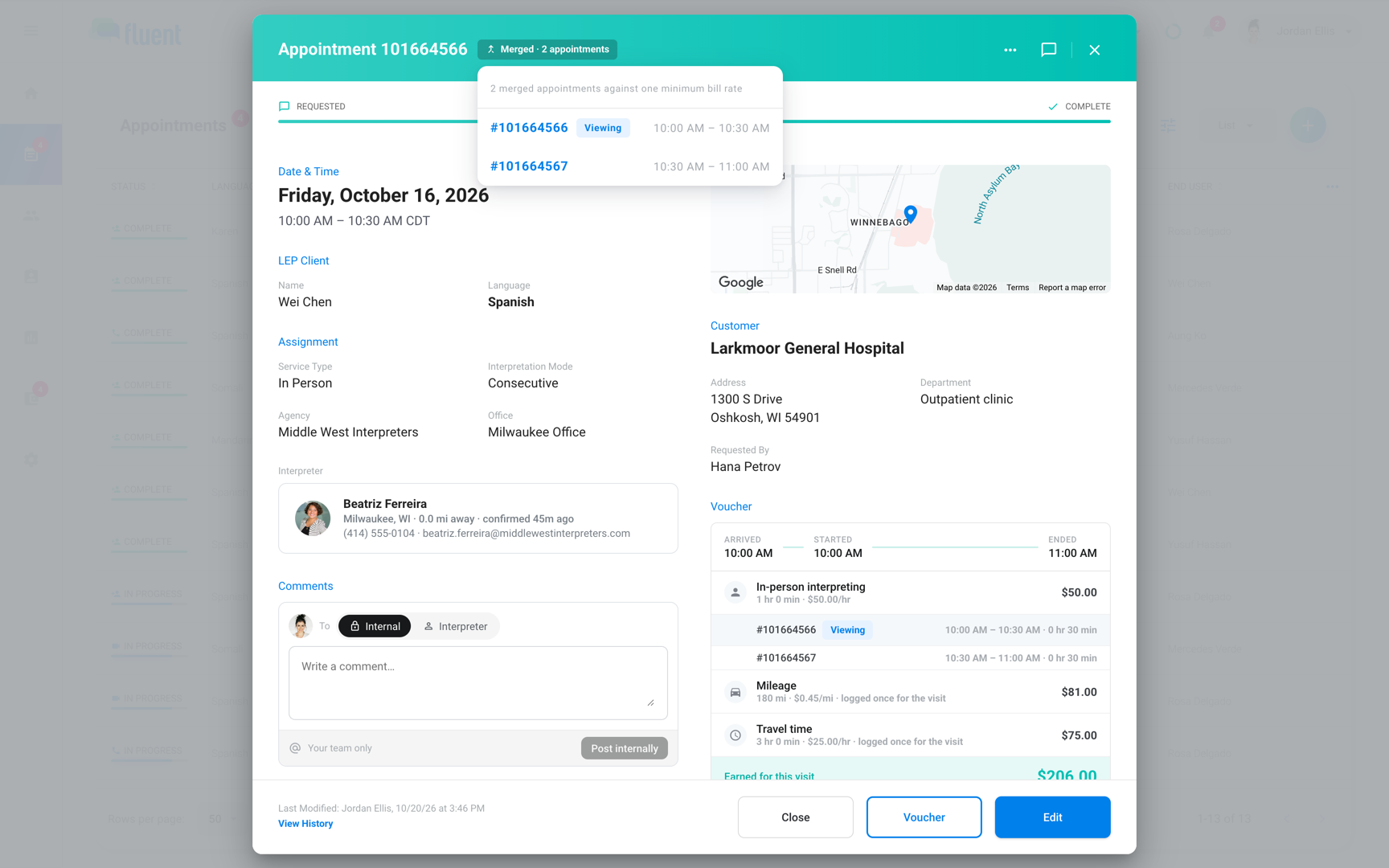
- Merged: Shows when billing has grouped this appointment with others into one visit, billed against one minimum, as in Merged · 2 appointments. Click it to list the appointments in the group with their times, and click one to open it. See Billing rules.
- Same Day Confirmation: In an agency workspace, on the day of the appointment, this switch shows whether the assigned interpreter confirmed. It shows until the voucher is submitted. To change it, click Edit first. See Edit an appointment.
- ⋯ menu: Holds Duplicate, which starts a new appointment from this one. See Create an appointment.
- Comments: The speech bubble button opens the comment thread beside the details. Its badge counts the comments you haven't read. See Appointment comments.
The details
The body holds what you check before and after the appointment: when, who, where, and what the interpreter recorded. Each field shows only when it has a value.
| Section | What it shows |
|---|---|
| Date & Time | Date and times in the appointment's time zone |
| LEP Client | Name, Language, Phone Number, Date of Birth |
| Assignment | Assignment Method, Service Type, Interpretation Mode, Agency, Office |
| Interpreter | Who's assigned, or who has the offer |
| Comments | The appointment's comment thread |
| Map | The In-person address, linked to Google Maps |
| Meeting tile | The Video or Phone link or number |
| Customer | Customer, Address, Department, Specialist, Customer Phone, Requested By |
| Voucher | Arrived, Started, Ended, mileage, travel time, signature |
- Office: The appointment's team.
- Interpreter: After an interpreter accepts, you can expand the earlier offers to see who else had the appointment and how each answered.
- Meeting tile: Click Join to open a video or hosted phone meeting, or Call for an outbound phone call. See Video and phone appointments.
- Voucher: The card appears once the voucher is submitted. To change it, click Voucher. See Enter or correct a voucher.
The footer
The footer tells you who created the appointment and who changed it last.
- Created: Who created the appointment, and when.
- Last Modified: Who made the latest entry in the log, and when. The line shows once something happens after the appointment is created.
Who can use each button
The buttons at the bottom right, and how much of the log you see, depend on your role and workspace.
| Button or link | Owners and Admins | Managers and Schedulers | Interpreters | Organization team members |
|---|---|---|---|---|
| Edit | Yes | Yes | No | No |
| Voucher | With an interpreter, unless Requested or Pending | With an interpreter, unless Requested or Pending | No | No |
| Accept and Decline | No | No | With an open offer to them | No |
| Cancel Appointment | No | No | No | Requests the organization made, before the start time |
| View History | Yes, with a Billing row | Yes | No | Yes, a shorter log |
| Pay amounts on the voucher card | Yes, once billing has priced it | No | No | No |
A team member who also has the Interpreter role sees the team member buttons. To cancel, see Cancel an appointment.
The Appointment log
Open the log when you need to know who changed an appointment, or when an offer went out. Click View History at the bottom left of the dialog.
| Entry | What it records |
|---|---|
| Created | Who created the appointment |
| Offers | Offered, accepted, declined, expired, or withdrawn |
| Broadcast and Auto-assign | Started, accepted, ended unfilled, or stopped |
| Assignment | Who assigned, reassigned, or removed the interpreter |
| Status | Old and new status, such as Assigned to Canceled |
| Service type | Old and new service type |
| Details | The names of the fields that changed |
| Voucher | Check-in, saved times, completion, and corrections |
| Same-day confirmation | Whether the interpreter or your team confirmed |
- Details entries: They name the fields, as in "Updated: Start Time", but not the old or new values.
- Late Cancel: The log writes this status as "Canceled Late".
- Billing row: At the top of the log, it names the invoice and pay run that carry the appointment, with the amounts. Before then, it shows what the appointment prices at today, or why it can't be priced, such as "the customer has no rate card".
In an organization workspace
Organization team members open the same dialog from Appointments, with these differences.
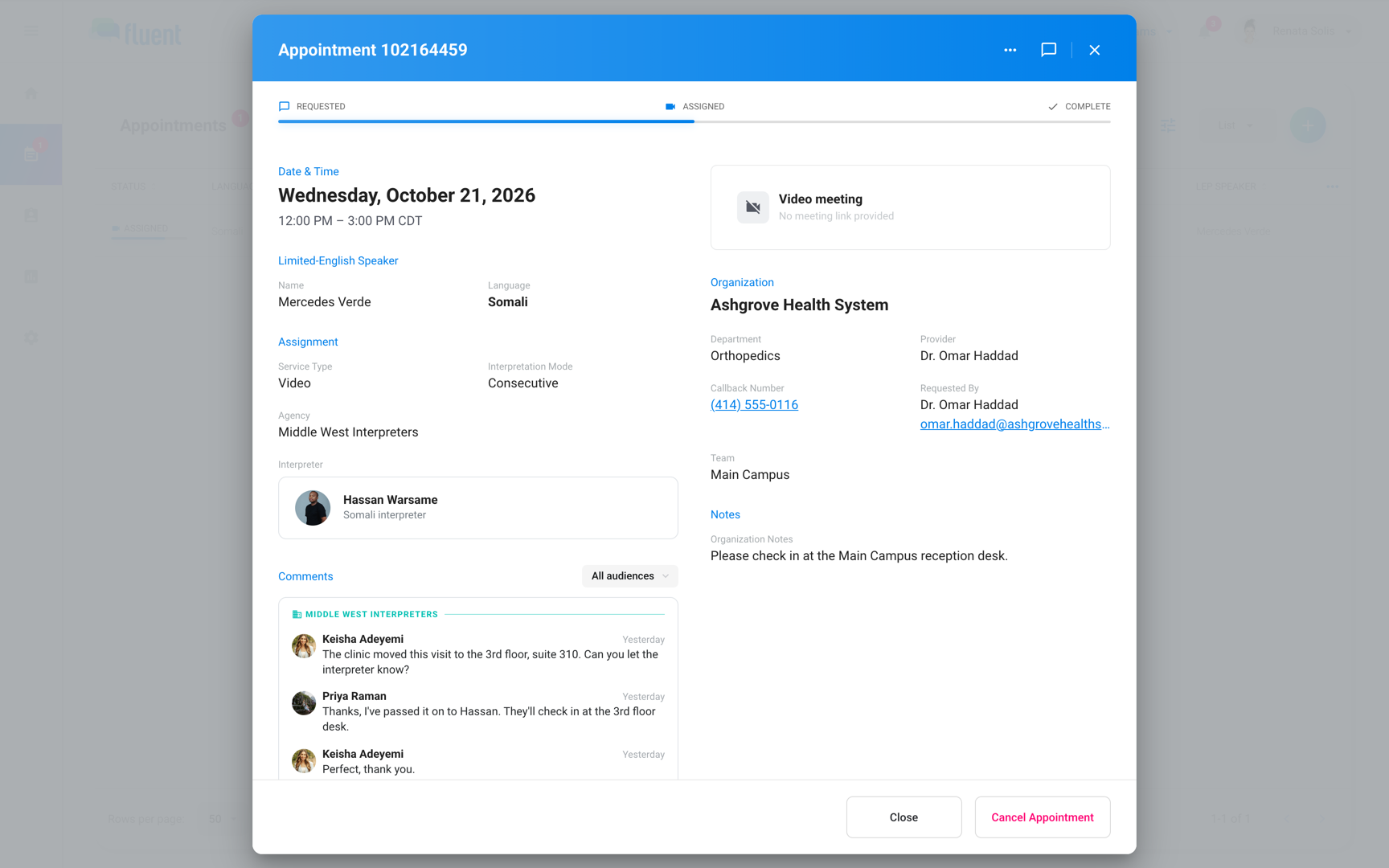
- Labels: LEP Client reads Limited-English Speaker, Customer reads Organization, Specialist reads Provider, and Customer Phone reads Callback Number.
- Assignment: Assignment Method and Office don't show.
- Interpreter: Shows Unassigned until the appointment is Assigned. Then it shows the interpreter's name and language, such as Spanish interpreter.
- Organization section: Adds Cost Center and Team when they're set.
- Log: Shows only created, status changes, service type changes, details updates, same-day confirmations, and vouchers completed by the agency's team members. It never shows offers or assignments.
Rules and limits
- Rescheduling doesn't change the appointment number.
- Emails about the appointment show the number in their subject, as in (#1020345).
- Give customers the appointment number from the title. The "ID" column on Appointments shows a different number.
- Created, Last Modified, and the log use your device's time zone, while Date & Time uses the appointment's. See How time zones work in Fluent.
- The Merged pill shows only after billing has run.
Troubleshooting
"Failed to load appointment."
The appointment no longer exists, or you no longer have access to it. Refresh Appointments, and open it again if it's still listed.
"This appointment belongs to a team you're not on. Ask your agency's Owner to add you to that team."
You can open only the appointments on your teams. Ask your agency's Owner to add you to the appointment's team, or ask someone on that team to handle it.
"Could not load activity."
This shows in place of View History when Fluent can't load the log. Close the dialog and open the appointment again.
"Patient details are hidden until your agency signs the Business Associate Agreement (BAA)."
Until your agency signs the BAA, Fluent hides the LEP client's name, phone number, and date of birth. Your agency's Owner signs it. See Legal agreements and documents.