
Cancel an appointment
Cancel an appointment, see whether it counts as a Late Cancel under the customer's cancellation policy, and see who Fluent notifies.
What you'll learn
- How to cancel an appointment that won't go ahead, and who Fluent tells.
- What decides whether a cancel counts as late, and what that means for billing and pay.
Who can cancel an appointment
It depends on your role, and on whether you work at the agency or the organization.
| Role | What they can cancel | How |
|---|---|---|
| Agency Owner, Admin, Manager, Scheduler | Any appointment your agency owns | Status menu in Edit |
| Organization Owner, Administrator, Manager, Scheduler | Requests your organization sent, before the start | Cancel Appointment |
| Organization Requestor | Requests you sent, before the start | Cancel Appointment |
| Interpreter | Nothing | Ask the agency |
Cancel as an agency
Set the status yourself in Edit.
Important: Fluent doesn't check the cancellation policy when your agency cancels. You decide whether it's a Late Cancel.
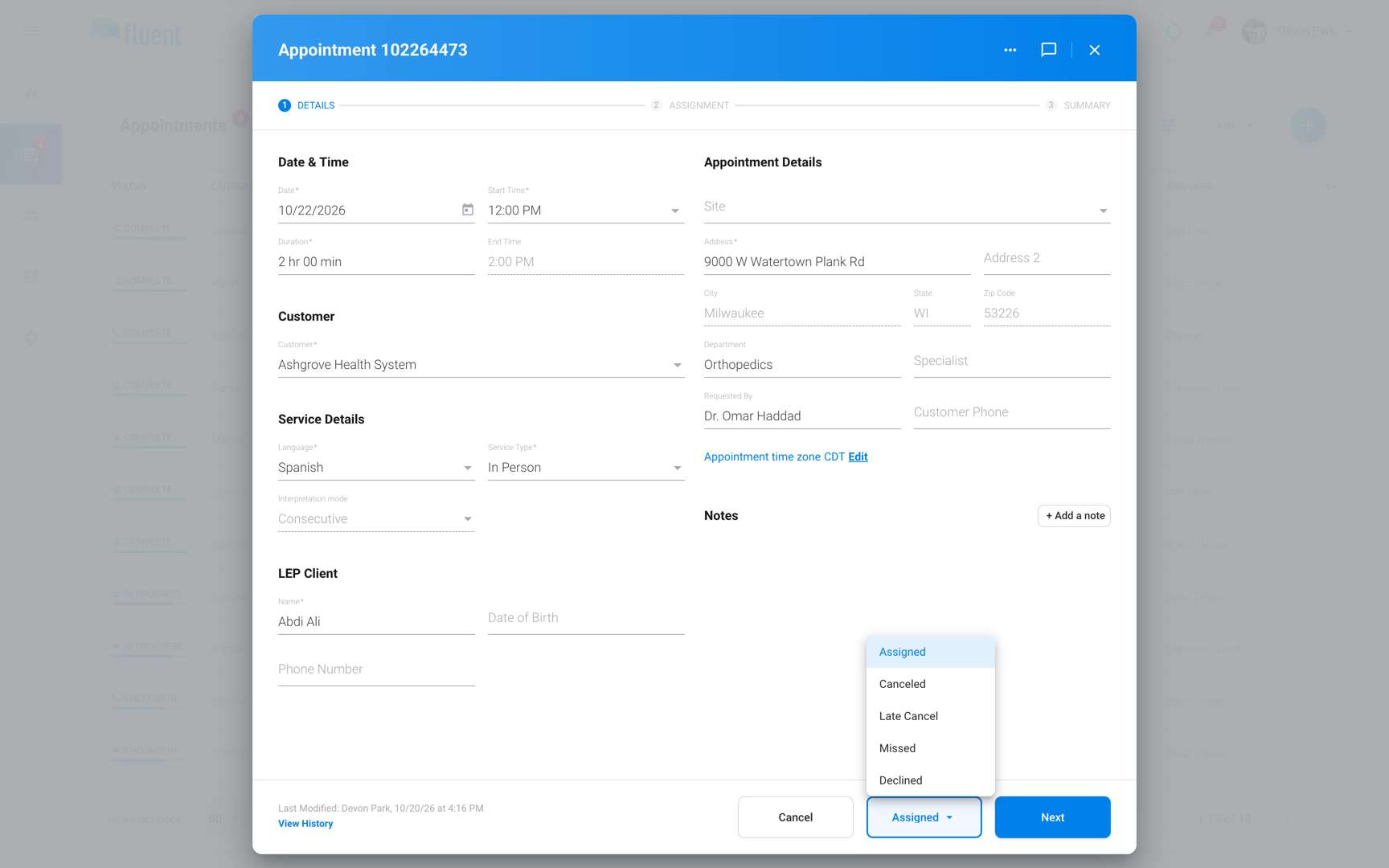
- Go to Appointments and open the appointment.
- Click Edit.
- On the Details step, open the status menu in the footer. It shows the current status.
- Select Canceled or Late Cancel.
- Click Next twice to reach Summary, then click Update.
You see "Appointment Updated" and the appointment shows the status you selected.
The same menu also has:
- Missed: The interpreter didn't show up.
- Declined: Your agency can't fill the request. Declined removes the interpreter.
Cancel a request in an organization workspace
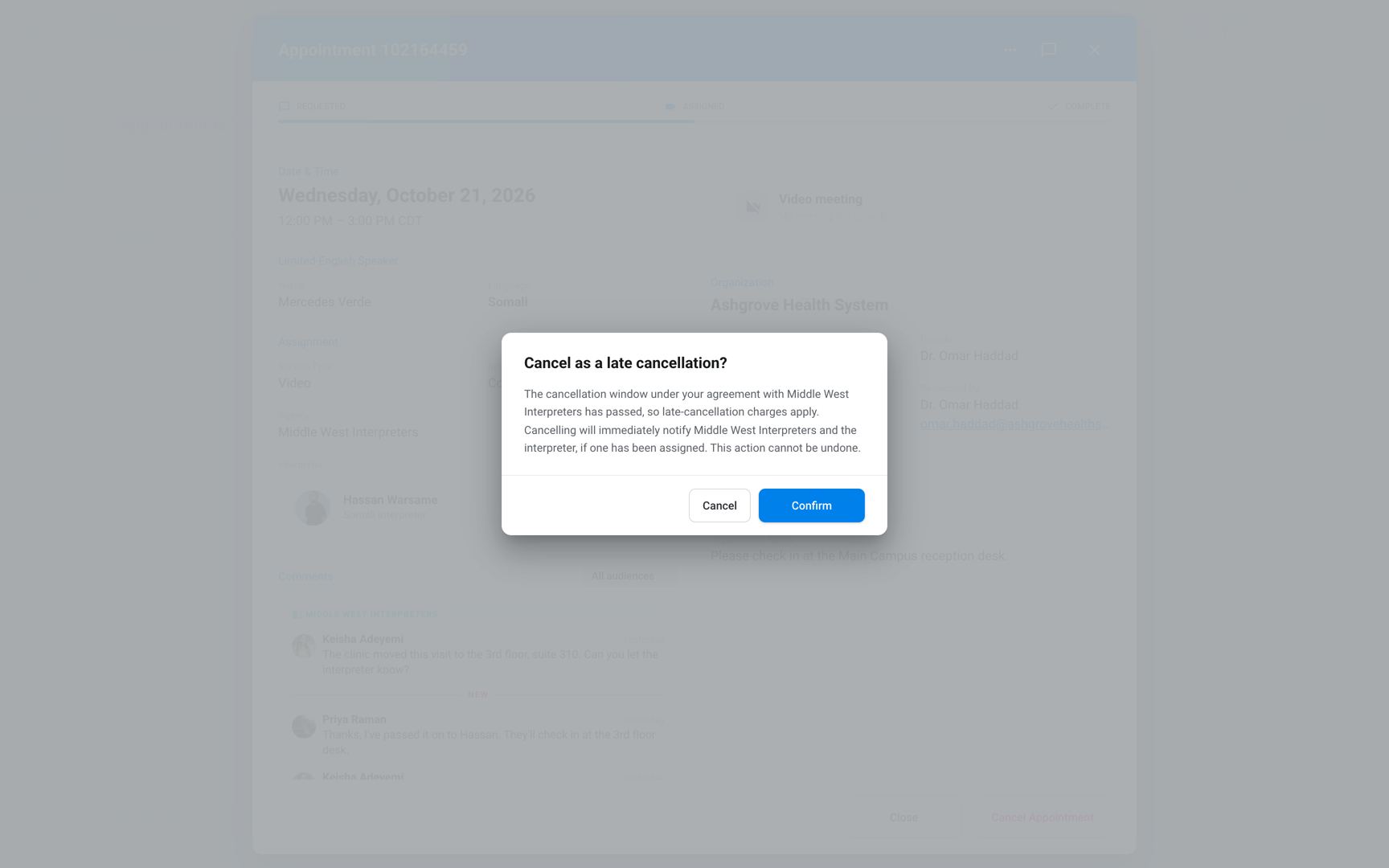
In an organization workspace, cancel a request before it starts. Fluent tells you whether the cancel is late before you confirm.
- Go to Appointments and open the request.
- Click Cancel Appointment.
- Read the dialog title, then click Confirm.
- "Are you sure you want to cancel this appointment?": The cancel is on time.
- "Cancel as a late cancellation?": The cancel is a Late Cancel.
- The cut-off passes while the dialog is open: Fluent asks again. It never records a Late Cancel you didn't confirm.
You see "Appointment cancelled", with "recorded as a late cancellation" added for a Late Cancel.
How Fluent decides a cancel is late
Fluent decides only when an organization cancels, at the moment they click Confirm. It uses the cancellation policy on the customer's rate card in effect on the appointment's date.
To set the policy, see Billing rules.
The cancellation window is the notice the customer must give. Fluent counts it back from the start time, in the appointment's time zone, to a cut-off.
- At or before the cut-off: The cancel is Canceled.
- After the cut-off: The cancel is Late Cancel.
- No rate card or no cancellation window: Every cancel is Canceled.
| Window unit | Cut-off |
|---|---|
| Hours | That many hours before the start |
| Calendar days | Same clock time, that many days earlier |
| Business days | Same clock time, that many business days earlier |
Business days skip weekends and your agency's holiday calendar in Settings › Agency defaults. For an appointment on a weekend or holiday, the count starts from the business day before.
For example, a Saturday 10:00 AM appointment with a window of 1 business day has a cut-off of Friday 10:00 AM.
Who Fluent notifies
Each status sends its own notification in Fluent. The interpreter and the organization also get an email.
| Status | Interpreter | Organization | Your agency |
|---|---|---|---|
| Canceled | Appointment Canceled | Appointment Cancelled | Appointment Canceled |
| Late Cancel | Appointment Canceled Late | Appointment Cancelled Late | Appointment Canceled Late |
| Missed | Missed Appointment | Appointment Missed | Appointment Missed |
| Declined | Appointment Unassigned | Appointment Declined | Appointment Declined |
- Interpreter: Fluent tells the interpreter on the appointment. On Canceled, it also tells an interpreter whose offer was Pending. On Declined, it tells only an interpreter who had accepted.
- Organization: Fluent tells the person who sent the request and the organization's team members on the appointment's team, except other Requestors. It tells only customers with an organization workspace, and tells them about Declined only on requests they sent.
- Your agency: Team members on the appointment's team get the notification only, with no email.
Change or undo a cancel
Only your agency can change a cancel.
- Switch between Canceled and Late Cancel: Select the other one in the status menu. Fluent sends the notices for the new status.
- Undo a cancel: Follow these steps.
- Open the appointment and click Edit.
- Open the status menu and select its first option. It names the status the appointment returns to, such as Assigned or Unassigned.
- Click Next twice, then click Update.
Important: Undoing a cancel doesn't reopen the offers the cancel closed. To offer the appointment again, use the Assignment step.
Rules and limits
- Canceled, Late Cancel, Missed, and Declined each close every open offer, and the accept and decline links in offer emails stop working. Interpreters holding a Broadcast offer get "Appointment Unavailable" and an email.
- A cancel stops a running Auto-assign or Broadcast. To stop one and keep the appointment, see Auto-assign and Broadcast.
- Fluent bills and pays a Late Cancel by the late cancel charge on the rate cards. It never bills or pays a Canceled appointment.
- The mobile app has no cancel action. Cancel from the web app.
Troubleshooting
"Ask your agency to cancel this appointment."
Your agency entered the appointment, or its start time has passed. Ask the agency to cancel it.
"Only the person who requested this appointment, or an admin, can cancel it."
Your role can cancel only the requests you sent. Ask the person who sent this one, or a team member in your organization with another role.
"This appointment is on an approved invoice, so it can no longer be canceled."
An approved invoice holds the appointment. Undo the invoice's approval, then cancel. See Review and approve invoices.
I don't see Cancel Appointment
It shows only on requests your organization sent, until they start, and not once they're Canceled, Late Cancel, Missed, or Declined. Ask the agency to cancel any other appointment.