
Export invoices
Export approved invoices as PDF, CSV, or Excel files to send or import yourself, or sync a closed run to QuickBooks.
What you'll learn
- How to get your invoices out of Fluent as files to send your customers, or into QuickBooks to send from there.
Before you start
- At least 1 invoice is Approved. See Review and approve invoices.
- To sync to QuickBooks, connect it first: go to Settings › QuickBooks and click Connect QuickBooks.
Ways to get invoices out of Fluent
Fluent never sends invoices to your customers. Choose the way that matches your next step: a file to send, a file to import, or invoices Fluent creates in QuickBooks.
- PDF: The invoice your customer receives, with your agency's logo, name, and address. You send it yourself.
- CSV: A QuickBooks Online import file, with 1 row per invoice line.
- Excel (.xlsx): The same rows as the CSV, in a workbook.
- Sync to QuickBooks: Fluent creates a closed run's invoices in QuickBooks Online, and you send them from QuickBooks.
- As you close a run: The close dialog can also export files and open the sync, and a failed download never stops the close. See Close an invoice run.
Owners and Admins at your agency can export invoices and sync them to QuickBooks.
Important: Every file names each LEP client with their date of birth in the line descriptions, so treat the files as protected health information. Fluent logs every export and every PDF download with who made it. See HIPAA readiness.
Export invoices from a run
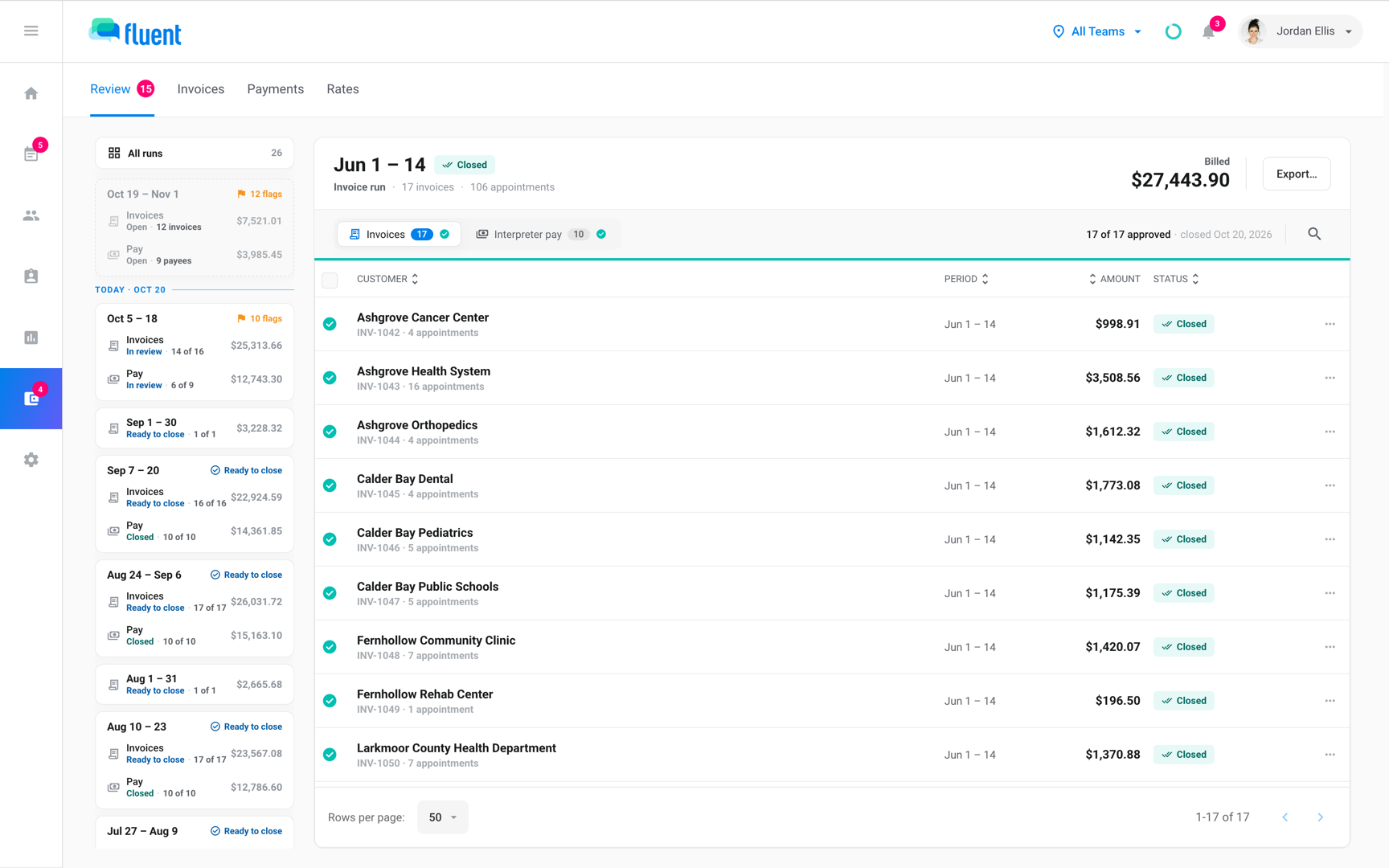
Export from the run when a billing period is ready to send. With no rows checked, Fluent exports every approved invoice in the run.
- Go to Billing › Review and open the run.
- To export only some invoices, turn on the checkbox on each approved row you want.
- Click Export… in the run header.
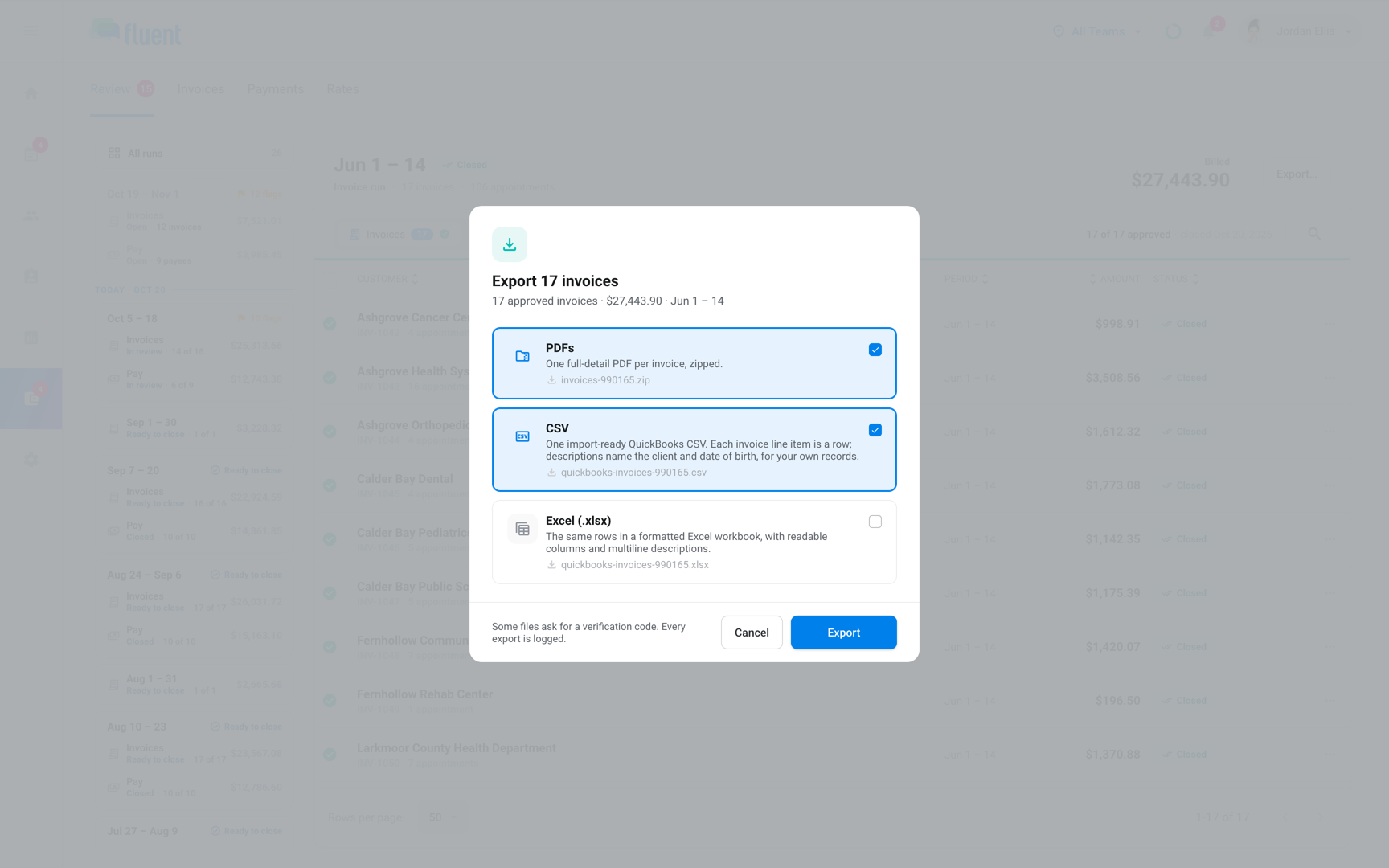
- Turn on each format you want: PDF (PDFs for more than 1 invoice), CSV, or Excel (.xlsx).
- Click Export.
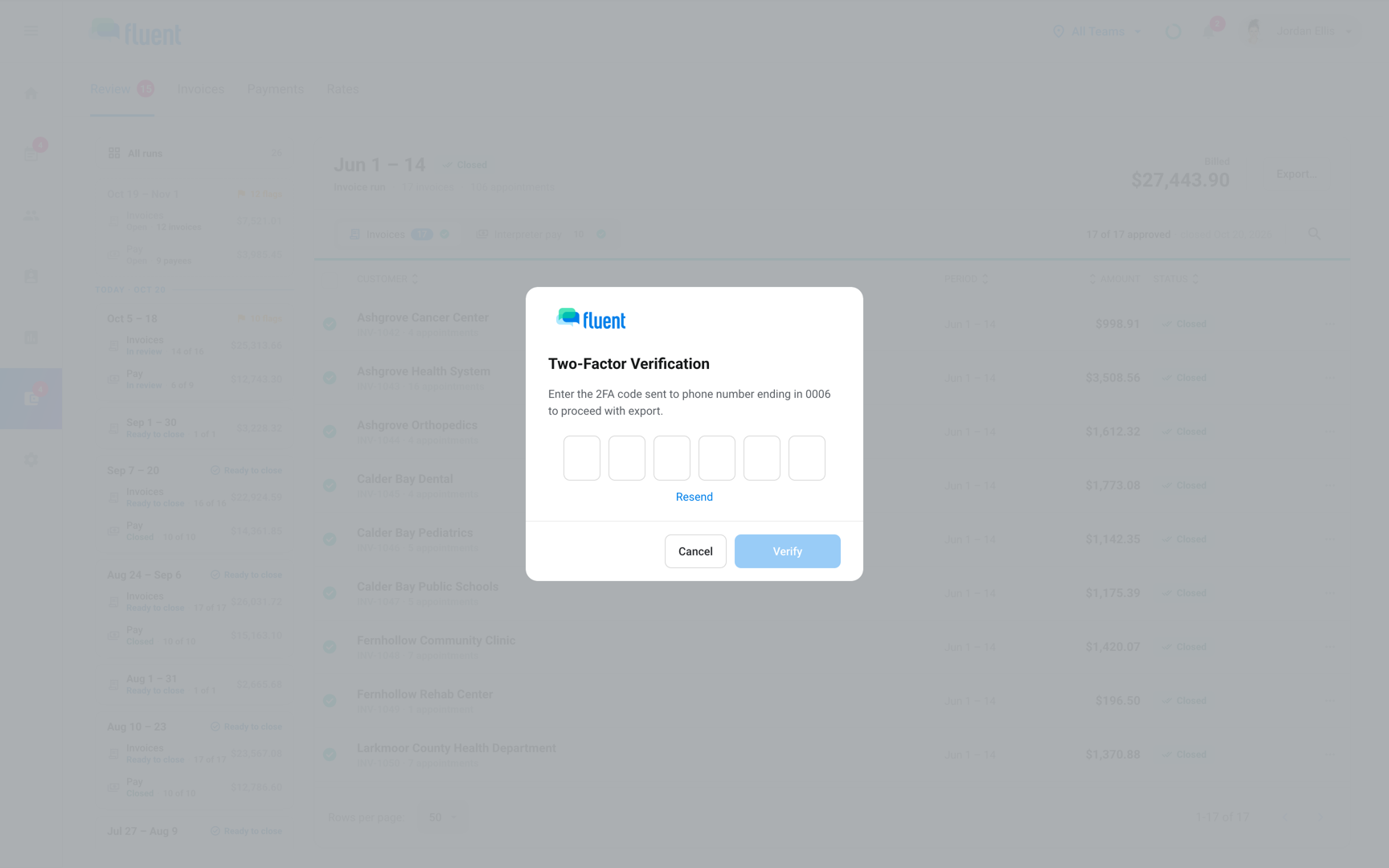
- If the "Two-Factor Verification" dialog opens, enter the 6-digit code and click Verify.
The files download to your browser, with several PDFs in one .zip file. Each invoice's Status cell gains the line "Exported
The verification code
Before any file downloads, Fluent checks that it's you with a 6-digit code. One code covers your exports and PDF downloads for the next 9 minutes.
- Two-factor authentication by text: Fluent texts the code, and the dialog shows the last 4 digits of the phone number.
- Any other account: Fluent emails the code, and it expires in 10 minutes.
- Cancel: Exports nothing.
Export one invoice
To send one customer their invoice, export it from the invoice itself.
- Open the invoice from its run, from Billing › Invoices, or from the customer's Invoices tab.
- Click Export… at the top of the invoice review. On a closed invoice, it sits in the action bar at the bottom.
- Pick the formats, click Export, and enter the code if Fluent asks for one.
The invoice's Status cell reads "Exported
To check the PDF first, click Preview invoice. The preview opens without a code. Download PDF in the preview asks for the code like an export, then saves the file and marks the invoice exported.
Sync invoices to QuickBooks
Once a run is closed, Fluent can create its invoices in QuickBooks Online, and you send them to your customers from there.
- Go to Billing › Review and open the closed run.
- Click Sync N to QuickBooks in the run header.
- In the "Sync to QuickBooks" dialog, check the invoices. For each invoice marked No match, select the customer's match in QuickBooks, or select Create new customer.
- Click Sync N invoices.
Nothing reaches QuickBooks until you click it. Each synced invoice's Status cell adds "In QuickBooks" to its second line.
Choose the CSV and Excel columns
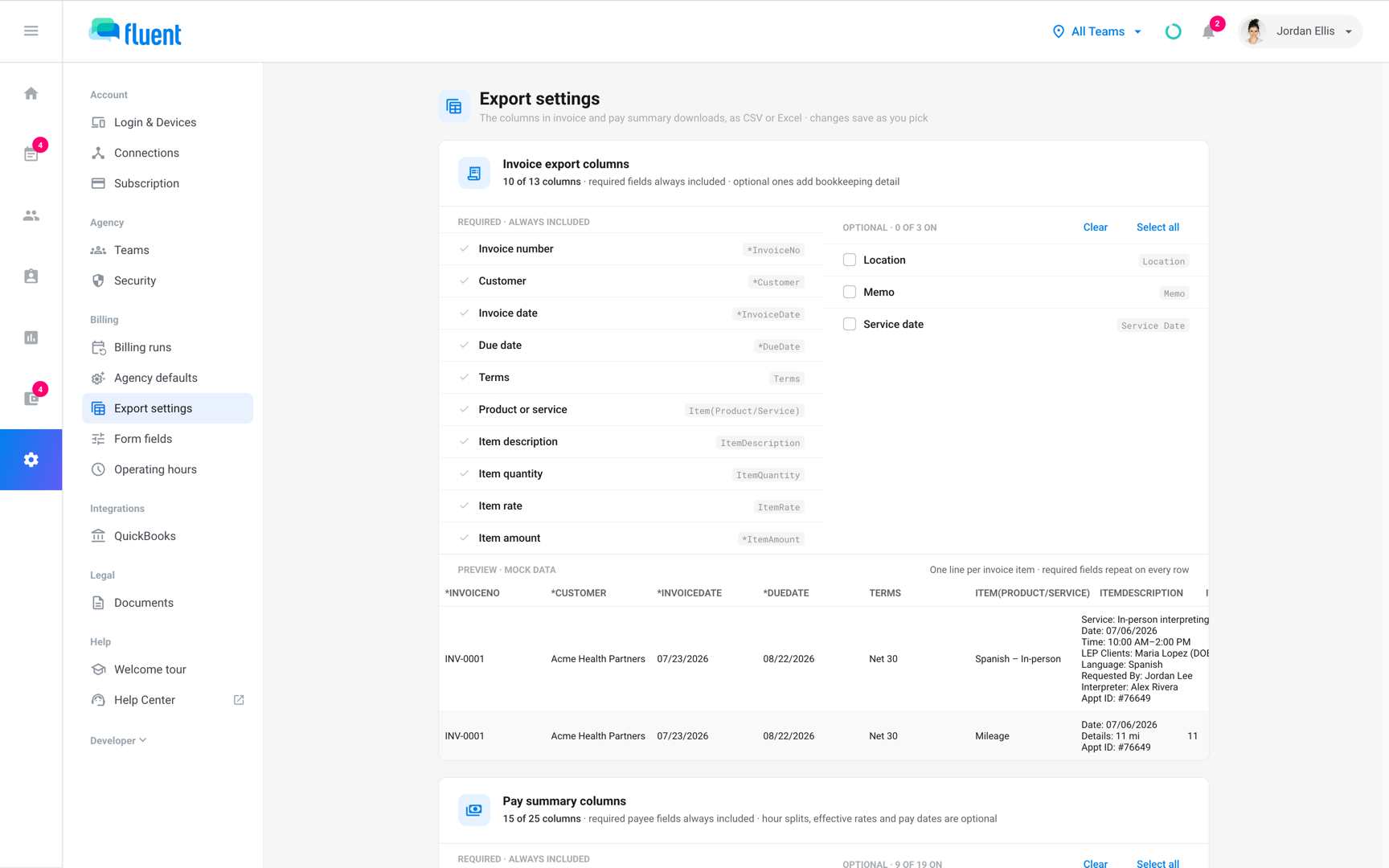
The CSV and the Excel workbook always carry their required columns, such as invoice number, customer, and due date. You can add 3 optional columns:
- Location: The Fluent team, when every appointment on the invoice belongs to one team.
- Memo: The invoice's note to the customer. On a document that corrects another invoice, it starts with "Corrects INV-0042".
- Service date: The date of the appointment.
Location and Service date also shape the invoices Fluent syncs to QuickBooks. Memo doesn't.
- Go to Settings › Export settings.
- In the Invoice export columns card, turn on each optional column you want.
Each pick saves itself, and Fluent shows "Invoice export columns saved".
After exporting
The Status cell shows what has gone out and what's left to send.
- What went out: The second line reads "Exported
", the day the first file was made for the invoice. The chip stays Approved or Closed. - What's left: In Billing › Invoices, select Not exported yet in the Status filter.
- Revised invoices: After a revision of an exported invoice, the second line turns amber. It reads "Revised
· rev N · not exported yet" until you export again.
Rules and limits
- Only Approved and Closed invoices export. Drafts are left out.
- The CSV and the Excel workbook skip invoices whose run isn't closed and invoices with nothing to bill.
- A PDF exported before the close can go out of date. Until then, a voucher change can still send the invoice back to review and change its numbers.
- At most 200 invoices export at once.
- If one format fails, the others still download.
Troubleshooting
Export… is greyed out
No invoice in the run is Approved. Approve at least 1 invoice, then click Export….
"Invalid code. Please try again."
The code you entered is wrong or has expired. Click Resend and enter the new code.
The code never arrived
Fluent texts the code to your two-factor authentication phone, or emails your sign-in address.
- Check that phone, or your inbox and spam folder for "Your verification code".
- In the dialog, click Resend.
- If the phone number is wrong, change it on Settings › Login & Devices. See Two-factor authentication.
My CSV or Excel file is missing invoices
The missing invoices are in a run that isn't closed, or they have nothing to bill. The message after the export names each one.
Close the run, then export again. When no invoice qualifies, Fluent shows "Nothing to export to QuickBooks".