
Edit an appointment
Change an appointment's details, interpreter, or status in the web or mobile app, and see who Fluent notifies and what it re-prices.
What you'll learn
- How to change an appointment's details, interpreter, or status when plans change.
- What your change does to invoices and pay runs that already include the appointment.
What you can change
Owners, Admins, Managers, and Schedulers at the agency that owns the appointment can edit it. You can change an appointment until its voucher is complete.
- Details: Change the time, address, language, customer, or any other field.
- Interpreter: Offer the appointment to someone else, unless Auto-assign or Broadcast is running.
- Status: Set Canceled, Late Cancel, Missed, or Declined by hand.
- Same-day confirmation: Record it yourself on the day of the appointment.
- From your phone: Change the details in the Fluent mobile app.
Change the details
Most edits happen on the Details step: a new time, a new address, or a different language.
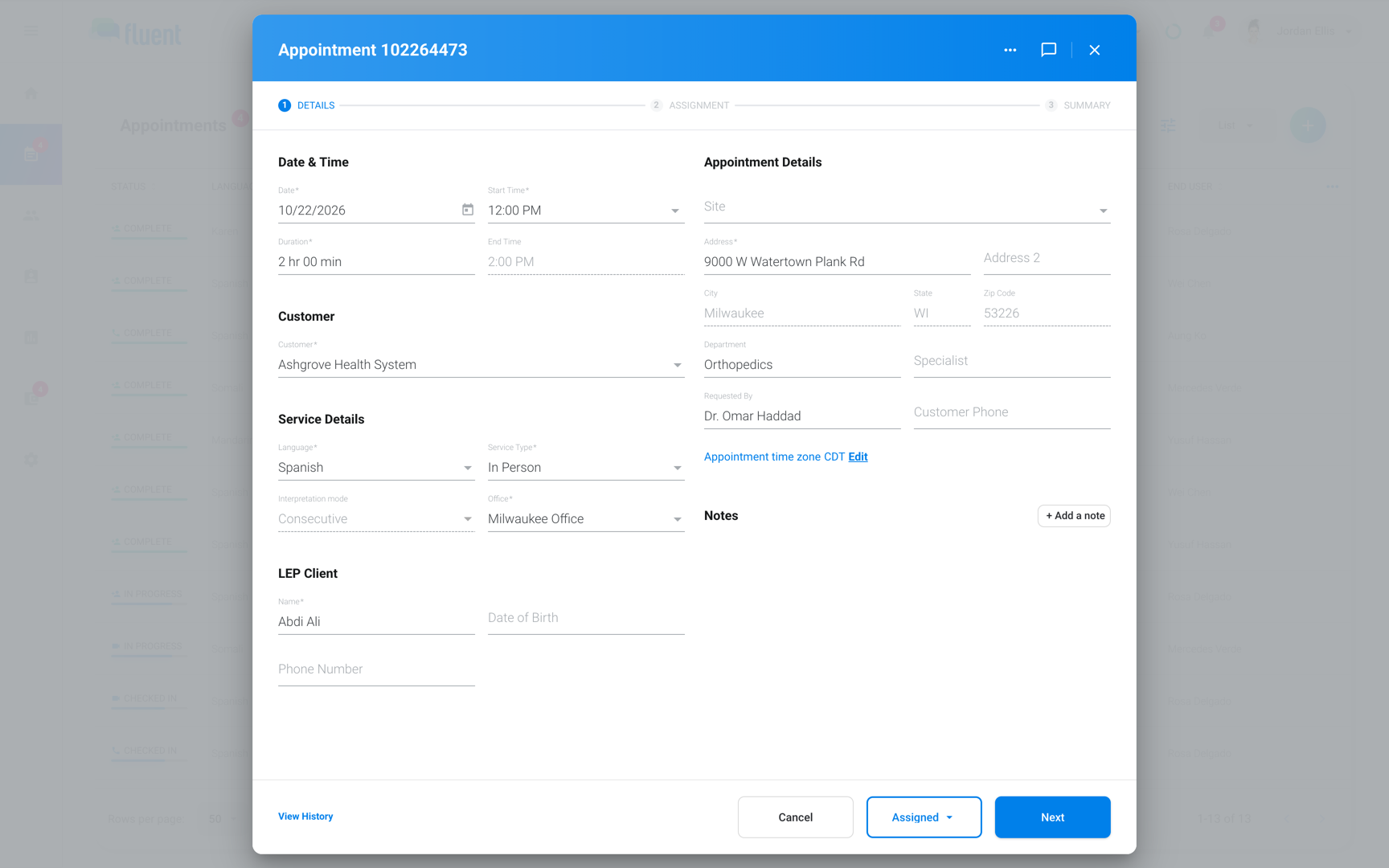
- Go to Appointments and click the appointment in the list or on the calendar.
- In the appointment dialog, click Edit.
- On the Details step, change the fields you need.
- Click Next twice to reach Summary.
- Click Update.
You see "Appointment Updated".
- Start or end time moved: The interpreter gets the notification Appointment Time Changed, by app and push.
- Any other change: Tell the interpreter yourself, for example in the appointment's comments.
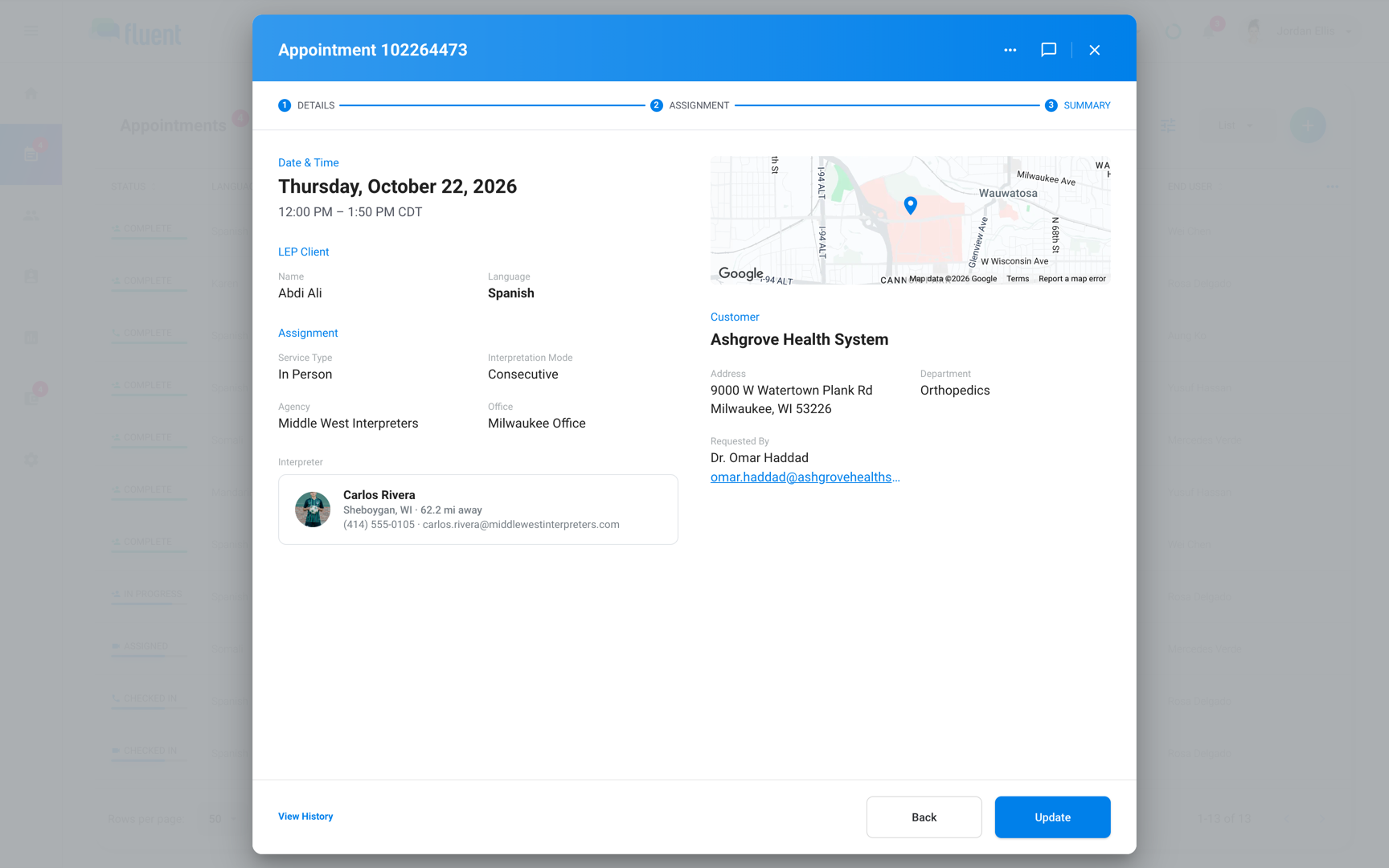
Important: If you change Language, Fluent removes the interpreter and sets the status to Requested. Select an interpreter for the new language on Assignment before you click Update.
To leave without saving, click Cancel on the Details step. The appointment keeps its status.
Change the interpreter
When the interpreter can't make it, offer the appointment to someone else.
- In Edit, click Next on the Details step.
- On Assignment, select the new interpreter.
- Click Next, then click Update on Summary.
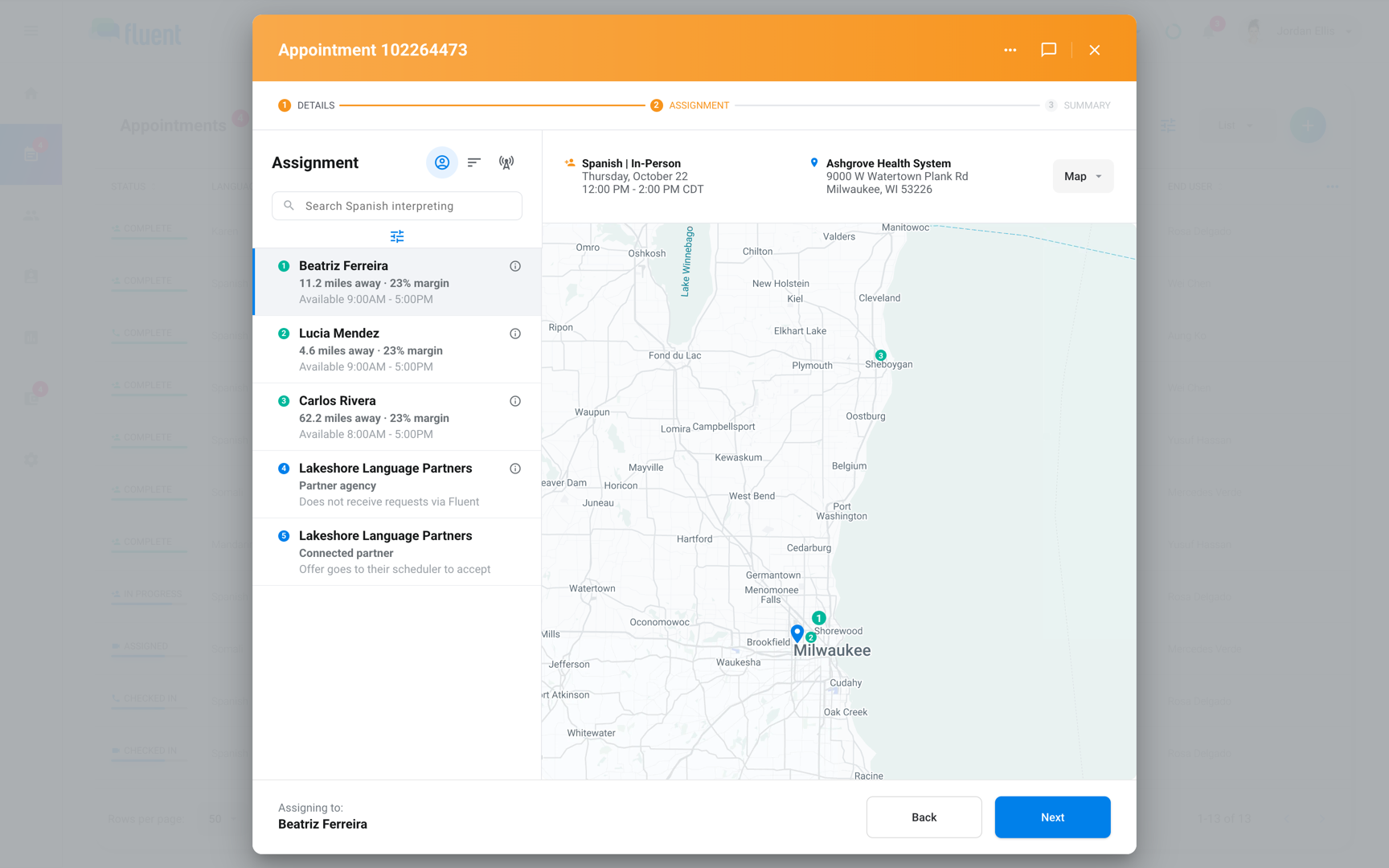
Fluent turns your choice into an offer. See Assigning interpreters.
- The interpreter you replaced: Gets the notification Appointment Unavailable. If they had accepted, they get Appointment Unassigned by app, push, and email instead.
- Auto-assign or Broadcast running: The Assignment step is read-only. Click Cancel method first. See Auto-assign and Broadcast.
Change the status by hand
Use the status menu to record what happened outside Fluent, such as a cancel by phone or an interpreter who didn't attend.
- In Edit, on the Details step, open the status menu in the footer. It shows the current status.
- Select the status you want.
- Click Next twice to reach Summary, then click Update.
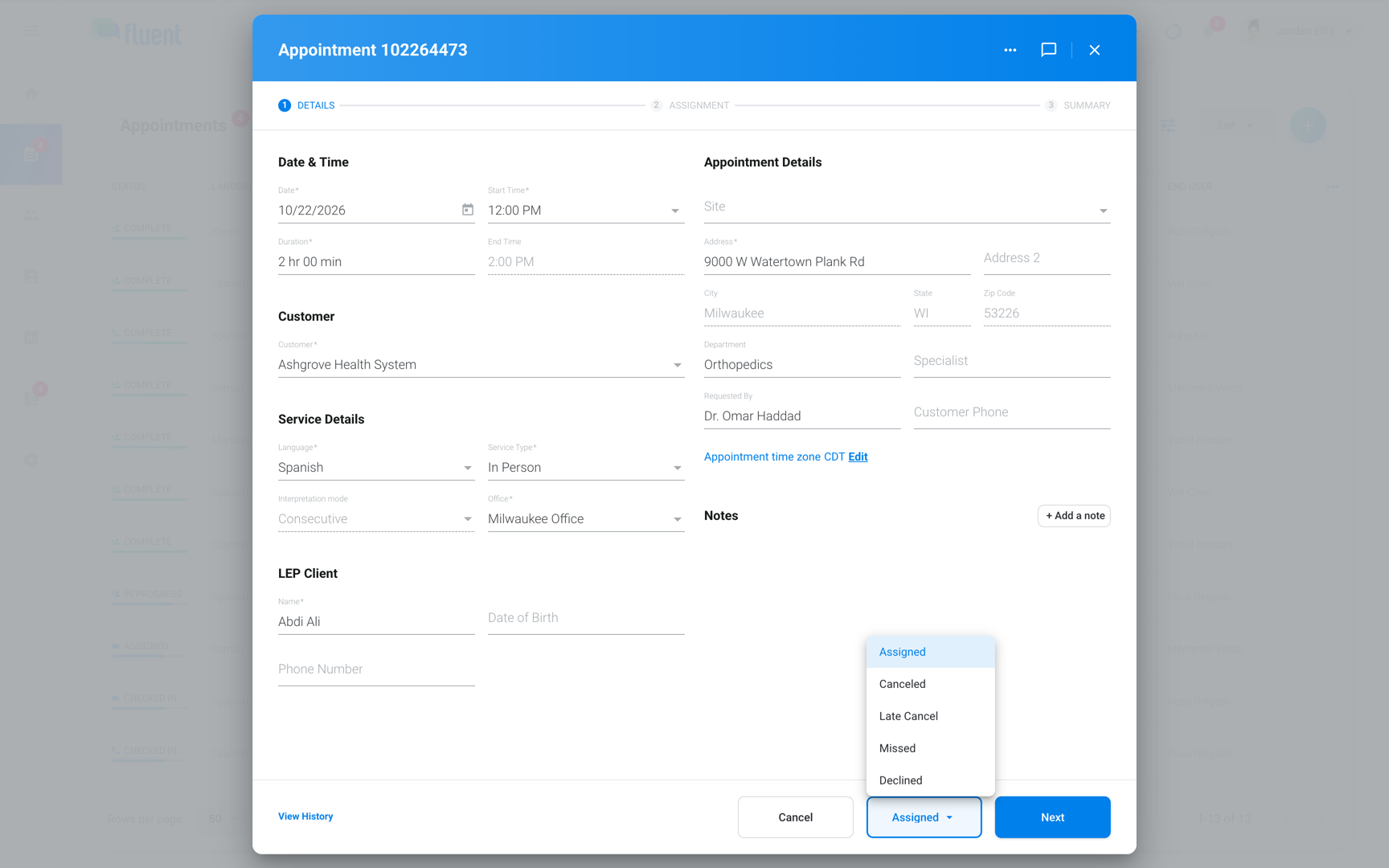
- Canceled: Cancels the appointment with no charge or pay.
- Late Cancel: Cancels it with the late cancel charge and pay.
- Missed: Records that the interpreter didn't attend.
- Declined: Closes a request your agency can't fill, and removes the interpreter.
- First row, such as Assigned or Unassigned: Clears a status you set by hand. With an interpreter on the appointment, select Assigned here when you arranged coverage outside Fluent.
To cancel, and for who Fluent notifies, see Cancel an appointment.
Record a same-day confirmation
On the day of the appointment, you can record the interpreter's same-day confirmation yourself. The switch shows once an interpreter is saved, until the voucher is complete.
- Open today's appointment and click Edit.
- Turn on Same Day Confirmation in the dialog header.
- Click Next twice to reach Summary, then click Update.
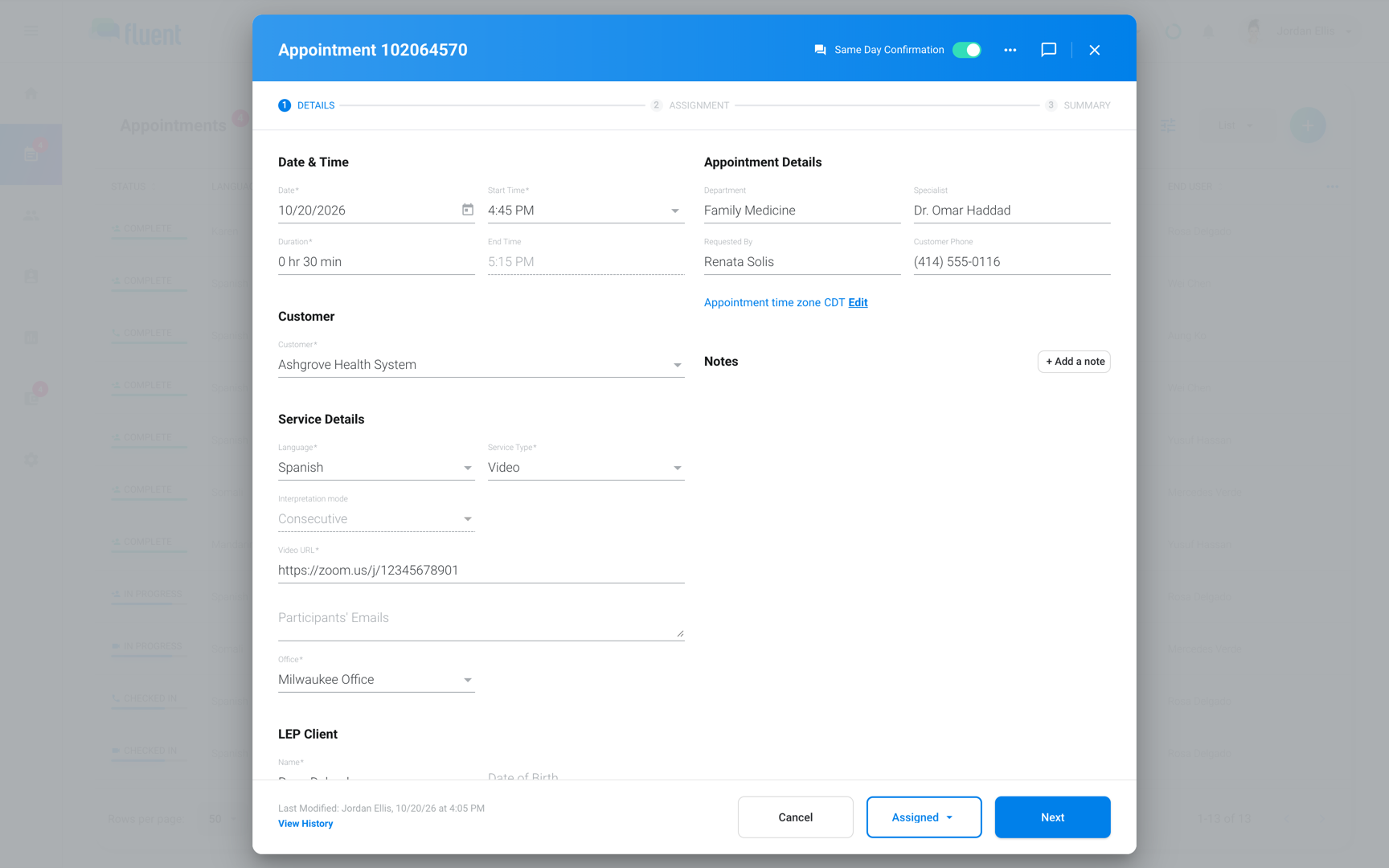
The status changes to Assigned. See Same-day confirmations.
Edit in the mobile app
From your phone, you can change an appointment's details. For the interpreter, the status, or a cancel, use the web app.
- Open the appointment and tap the Edit appointment icon (a pencil) in the header.
- Change Customer, Site, the service type, Language, Starts, or Ends.
- Tap Save.
You see "Appointment updated."
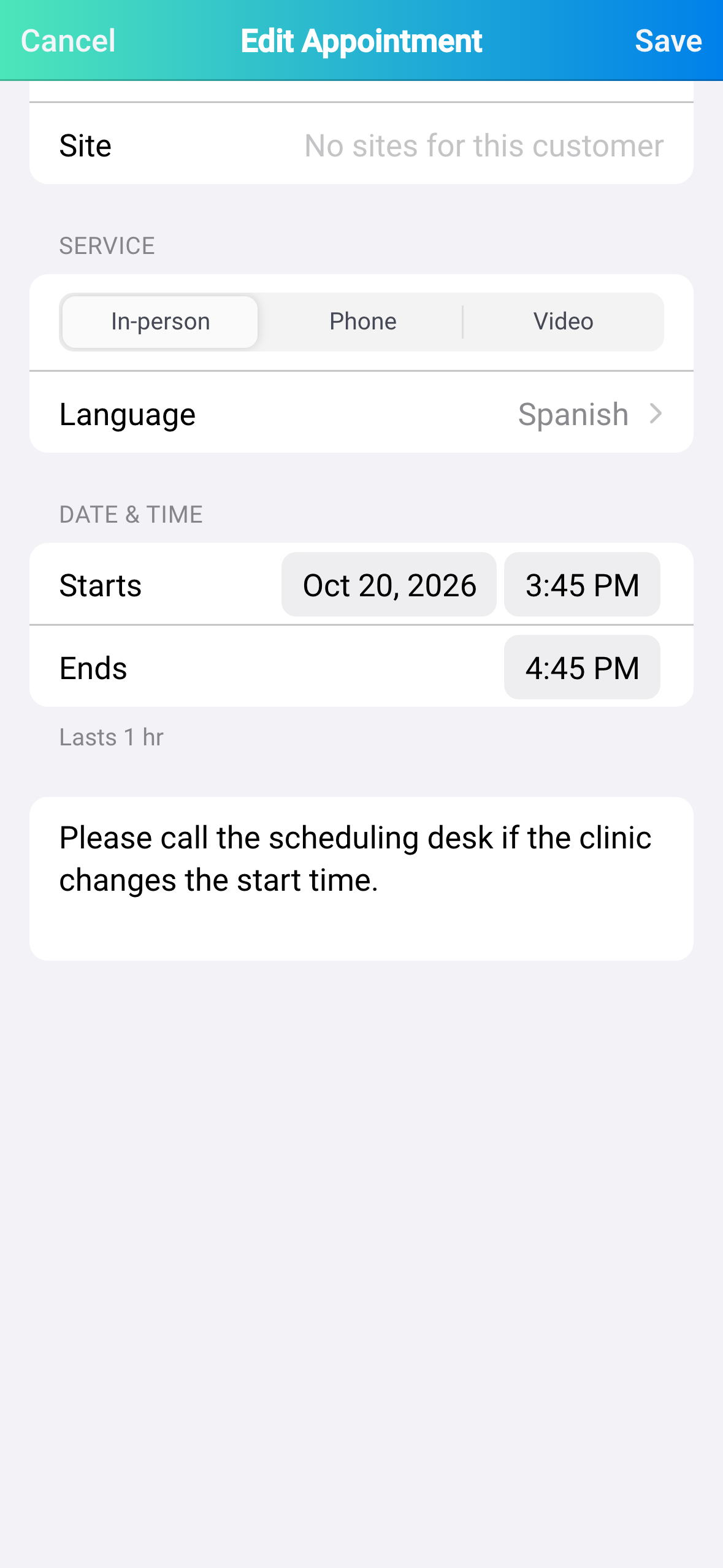
See Manage appointments on mobile.
What your change re-prices
Saving a change to the time, time zone, status, customer, site, address, interpreter, Service Type, Interpretation mode, or language re-prices the appointment.
- Draft, In review, or Approved invoices: Fluent rebuilds them. An Approved invoice whose lines change goes back to In review.
- Closed invoices: They keep their lines and show Needs a correction decision on Billing › Invoices.
- Pay runs that aren't closed: Fluent rebuilds them. When the appointment's pay moves by $1.00 or 1% or more, its earning approvals are withdrawn.
- Closed pay runs: They keep their lines, and the difference shows on the pay statement in Billing › Payments.
See Review and approve invoices and Review and close a pay run.
See who changed what
Click View History at the bottom left of the appointment dialog to open the Appointment log. For a details edit, it lists the names of the fields that changed, not their old and new values.
Rules and limits
- Canceled, Late Cancel, Missed, and Declined close every open offer. Selecting the first row afterwards doesn't reopen them, so offer the appointment again on Assignment.
- The status menu has no Requested, Pending, Broadcast, or Complete. Offers and the voucher set those.
- Only a new In-person address, or a zone you select with Edit beside Appointment time zone, changes an appointment's time zone.
Troubleshooting
"The voucher for this appointment is complete, so the appointment can no longer be edited."
A complete voucher locks the appointment, status included. Click Voucher in the appointment dialog and correct the times or mileage there. See Enter or correct a voucher.
I don't see Edit
Only agency team members see Edit. Interpreters with no team member role don't, and organization team members see Cancel Appointment on their own requests instead.