
Your profile on mobile
See what your profile in the Fluent mobile app shows, what its numbers count, and which details you change in the web app instead.
What you'll learn
- What your profile in the mobile app shows, and where to change each detail.
What's on your profile
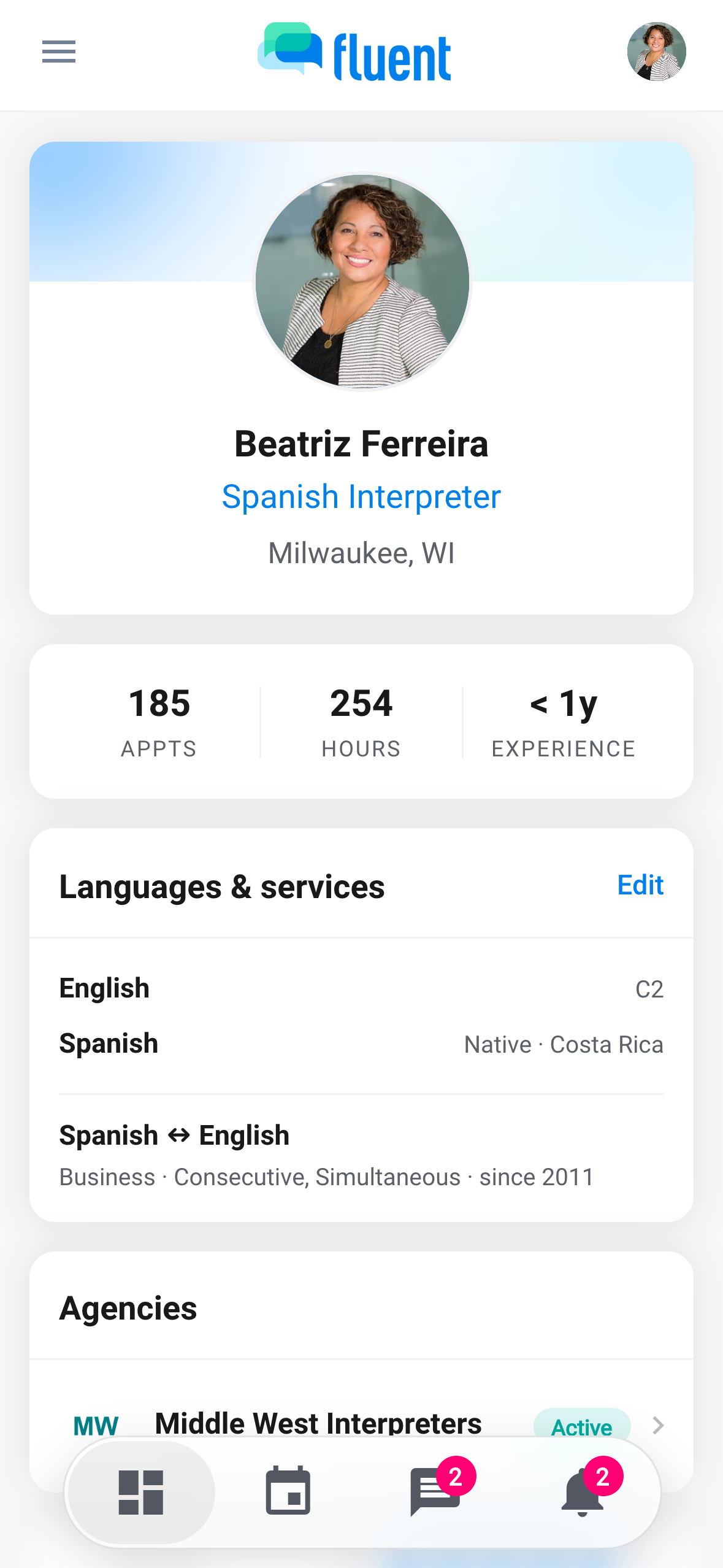
Open your profile from your avatar at the top right of the Dashboard, or tap your name at the top of the side menu. From top to bottom:
- Your name and photo: Under your name, the app shows the languages you interpret, such as Spanish Interpreter, then your city and state and the month you started, such as "Since Mar 2024".
- Appts, Hours, and Experience: 3 numbers about your work at your agency. The next section says what each one counts.
- Agencies: Each agency you belong to, with the month you joined it.
- Availability: The days and hours you can work in a usual week, and your total hours per week.
- Time Off: Your upcoming time off. Dates that have passed drop off the card.
- Sign-in: The Face ID switch, or Touch ID on a phone with a fingerprint reader. The card shows only on a phone with Face ID or Touch ID set up.
Availability and Time Off show only for interpreters. A team member at your agency without the Interpreter role sees their name, the numbers at 0, Agencies, and Sign-in.
What the numbers count
The 3 numbers under your name count your work at your agency.
| Number | What it counts |
|---|---|
| Appts | Every appointment assigned to you, including upcoming ones |
| Hours | Time on your submitted vouchers, in whole hours |
| Experience | Whole years since your hire date. Without a hire date, since your first appointment, or the day your account was created |
Change your availability, time off, and Face ID
These are the details you keep up to date from your phone.
- Availability: Tap Edit hours on the Availability card to set your days and hours.
- Time Off: Tap + on the Time Off card to add time off, or tap an entry to change it.
- Face ID: Turn the switch on the Sign-in card off or on.
The steps are in Set your availability and time off and Sign in to the mobile app.
What you change in the web app
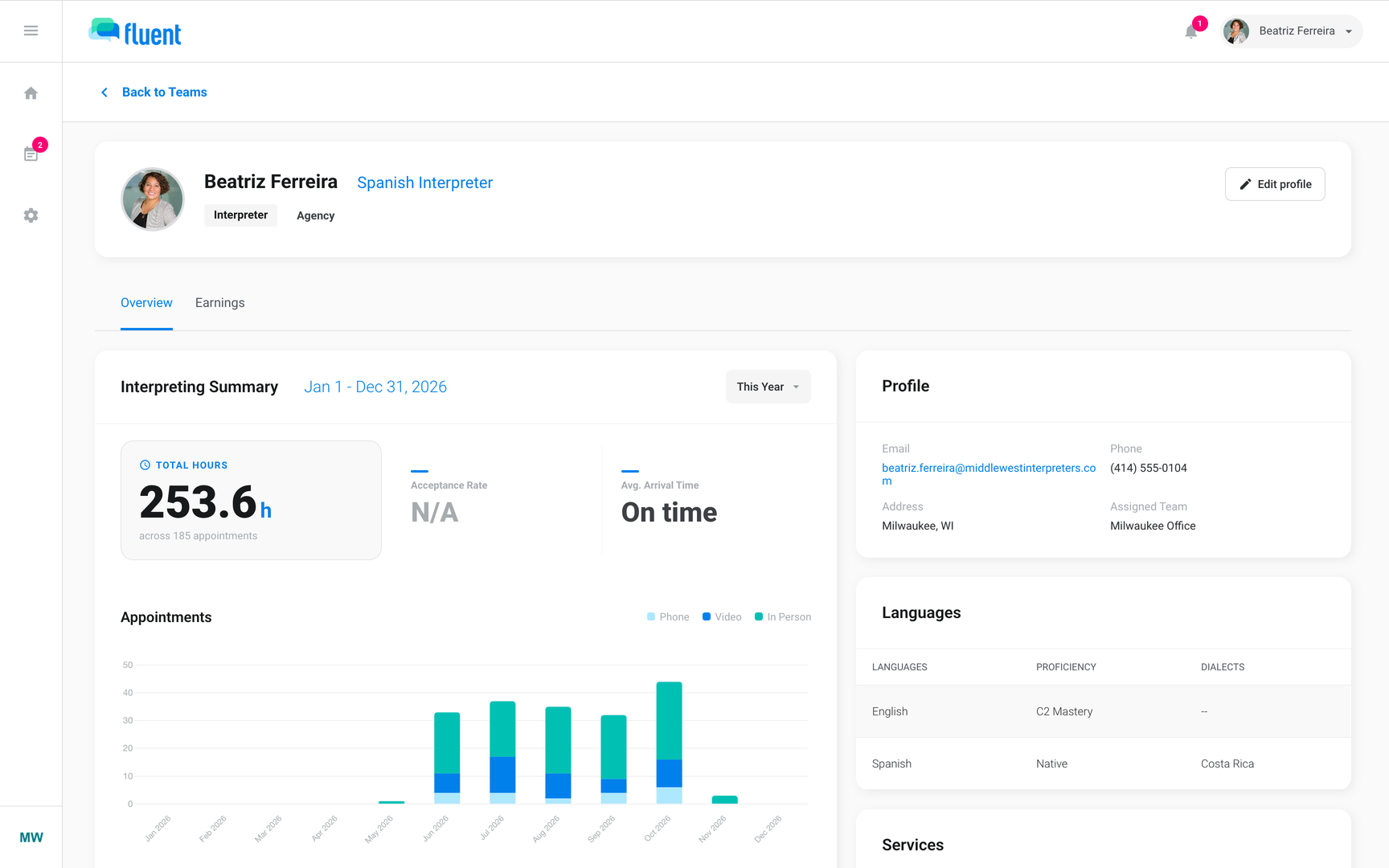
The mobile app has no screen for editing the rest of your profile. Sign in to the web app with the same email and password, and change it there.
- Photo, name, phone, and address: Change them with Edit profile on your profile.
- Languages and services: Change them on the Languages & services tab of the same editor.
- Password and two-factor phone: Change them in Settings › Login & Devices.
- Your pay: Your pay statements are on the Earnings tab of your profile. The mobile app doesn't show them.
The steps are in Your profile and Login & Devices and Your payment statements.
Troubleshooting
My Hours look low
Hours counts only the vouchers you've submitted. Submit the appointments on the Incomplete Vouchers card on your Dashboard, and their time is added. See Submit a voucher.
The line under my name is blank
Your profile has no language besides English. Add your languages in the web app, on the Languages & services tab of your profile.
My profile has no Availability or Time Off card
Your account is a team member at your agency without the Interpreter role. Ask your agency to turn on Interpreter on your profile.