
Activity Log and history
Find out who created or changed an appointment or voucher, and when, in the Activity Log and in an appointment's View History.
What you'll learn
- How to find out who created or changed an appointment or voucher, and when.
- How to see exactly what changed on one appointment, such as its time or address.
Open the Activity Log
Start from a profile when you want to see what someone did. Your own profile shows your activity, and a team member's profile shows theirs.
- To open your own profile, open the profile menu in the top bar and click Profile.
- To open a team member's profile, go to Team › Team Members and click their row.
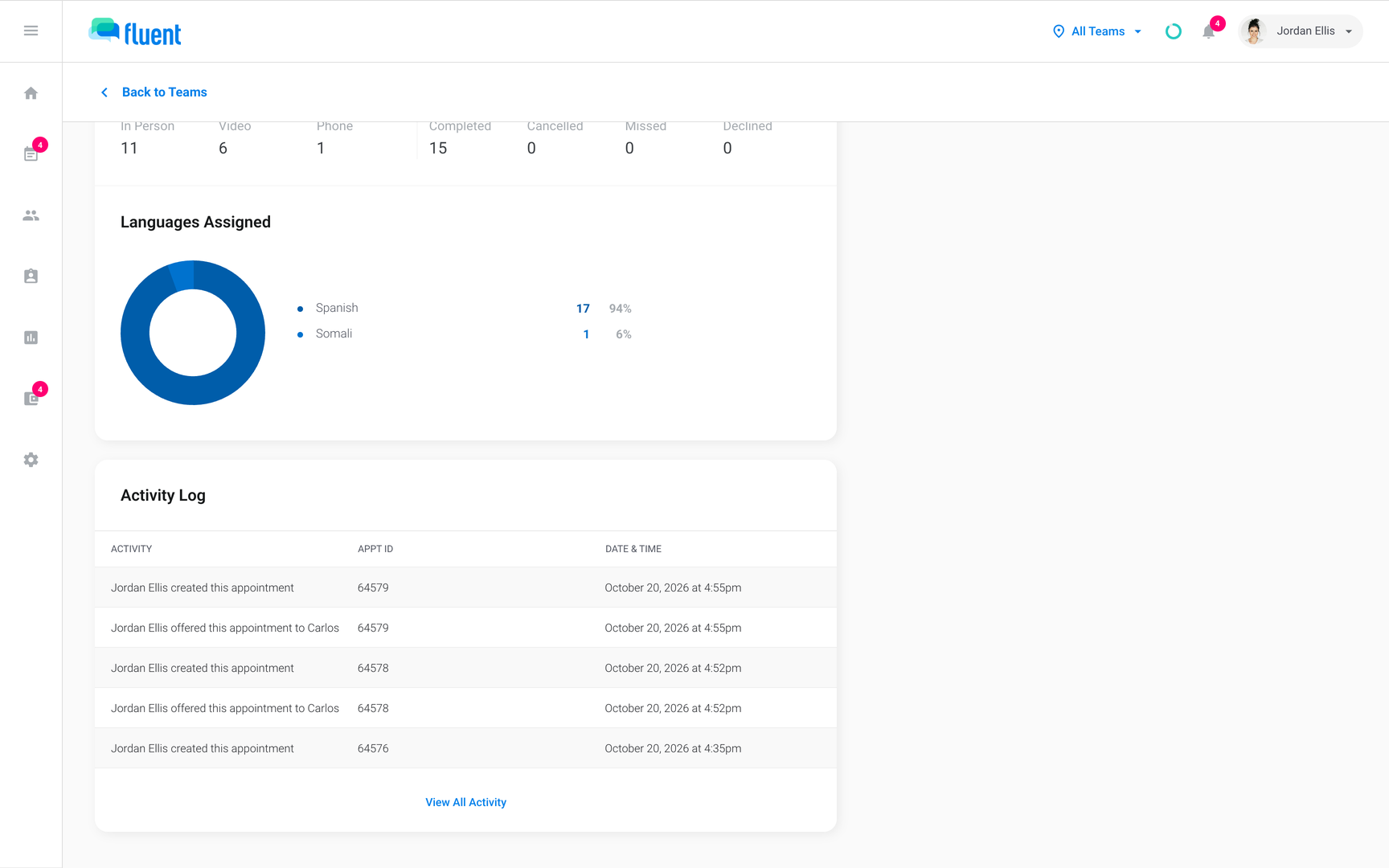
- Find the Activity Log card. It lists the person's latest actions, or "No recent activity".
- Click View All Activity.
The Activity Log opens on the last 30 days, newest first, with 50 rows per page.
Who can see whose activity
The log you get depends on your role. The page title tells you which one you have.
| Role | Sees | Page title |
|---|---|---|
| Agency Owner, Admin | Everyone's activity on your agency's appointments | Activity Log |
| Organization Owner, Administrator | Activity of people on your teams | Activity Log |
| Agency Manager, Scheduler | Your own activity | My Activity Log |
| Organization Manager, Scheduler, Requestor | Your own activity | My Activity Log |
| Interpreter | Your own activity on appointments you're assigned to, without voucher rows | My Activity Log |
- Organization Owner or Administrator on no team: sees everyone in the organization.
- Any organization's log: leaves out what the agency's team did on its appointments.
Find who did something
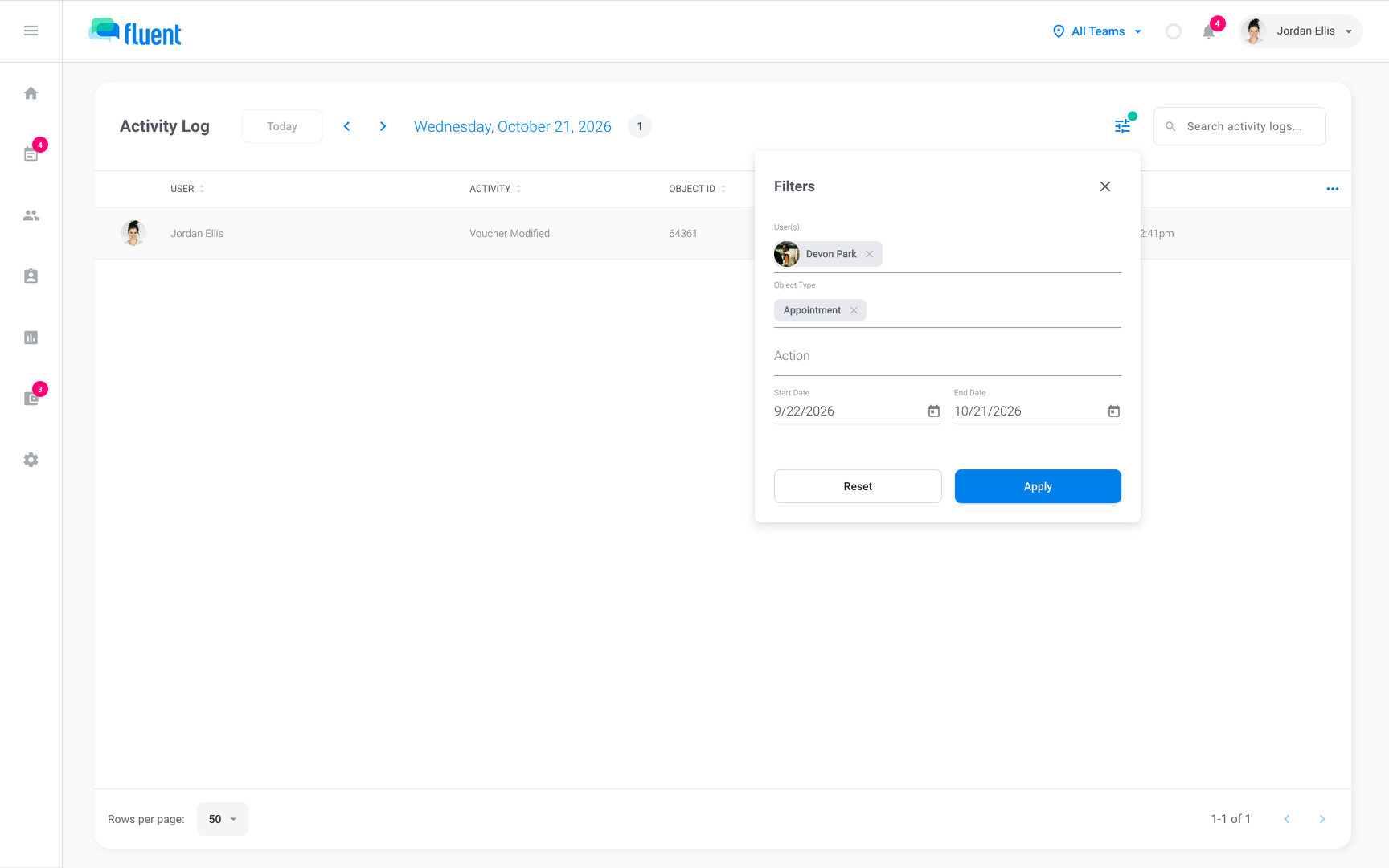
Narrow the log to the person, the kind of record, and the dates you care about, then open the appointment behind a row. The User(s) filter shows only on a page titled Activity Log.
- On the Activity Log, click the filter icon next to the search field.
- In User(s), select the person. Do this even when you came from their profile, because the log doesn't keep the person from the profile.
- In Object Type, select Appointment or Appointment Voucher.
- In Dates, select the start and end dates.
- Click Apply.
- Click a row whose Object Type is appointment.
The appointment opens in its dialog. Voucher rows don't open.
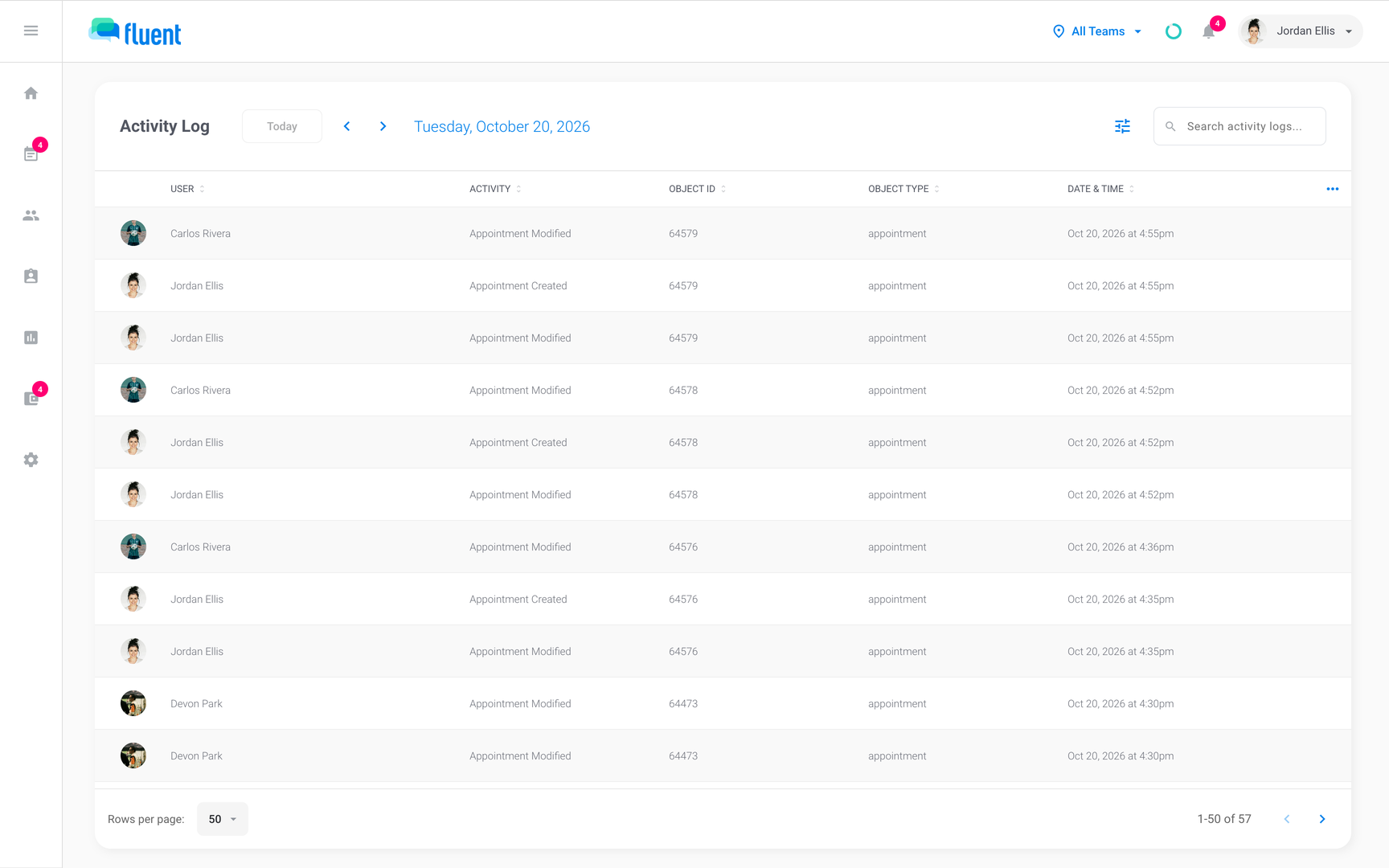
Each row shows the User, the Activity, the Object ID (the appointment's ID), the Object Type, and the Date & Time. The Activity column says one of these:
- Appointment Created: Someone created the appointment.
- Appointment Modified: Someone answered or withdrew an offer, confirmed the appointment for the day, canceled it, or changed its status. It also shows when someone picked an interpreter while creating the appointment, and when deactivating or suspending an interpreter takes them off future appointments.
- Removed interpreter: Someone took the interpreter off the appointment. The reason follows in parentheses.
- Voucher Modified: Someone saved the appointment's voucher.
See what changed with View History
The Activity Log doesn't say what changed. For that, and for edits the Activity Log leaves out, open the appointment's own log.
- Open the appointment from Appointments, or from a row in the Activity Log.
- Click View History at the bottom left, under the Created date.
The Appointment log opens. It lists the appointment's events, with who did it and when, including changes to the date, time, and address, interpreter assignments, and changes Fluent makes on its own. See Appointment details and history.
Records kept outside the Activity Log
Billing, QuickBooks, and rate cards keep their own records on their own screens:
- Invoices: Click View activity on an invoice in a closed billing period in Billing › Review. See Review and approve invoices.
- Pay runs: Click View activity on a completed payee in a pay run. See Pay runs overview.
- QuickBooks: Click View history on the QuickBooks settings page to open QuickBooks history. See QuickBooks.
- Rate cards: Click History on a rate card to see each version and its reason. See Customer rate cards.
Sign-ins aren't in the Activity Log. Each person sees their own signed-in devices, and can sign one out, in Settings › Login & Devices. See Your profile and Login & Devices.
Fluent also records views of appointment details and every sign-in on its servers, with no screen in the app. See Security overview.
Rules and limits
- The Activity Log has no export.
- No one can edit or delete an Activity Log row.
- Every workspace has the Activity Log, on every plan.
- Changes Fluent makes on its own, with no person behind them, don't appear in the Activity Log.
- The Object Type and Action filters list more choices than the log records. Only Appointment and Appointment Voucher, and Create and Edit, return rows.
Troubleshooting
I can't find the Activity Log in Settings
Settings has no Activity Log item. Open it from a profile with View All Activity.
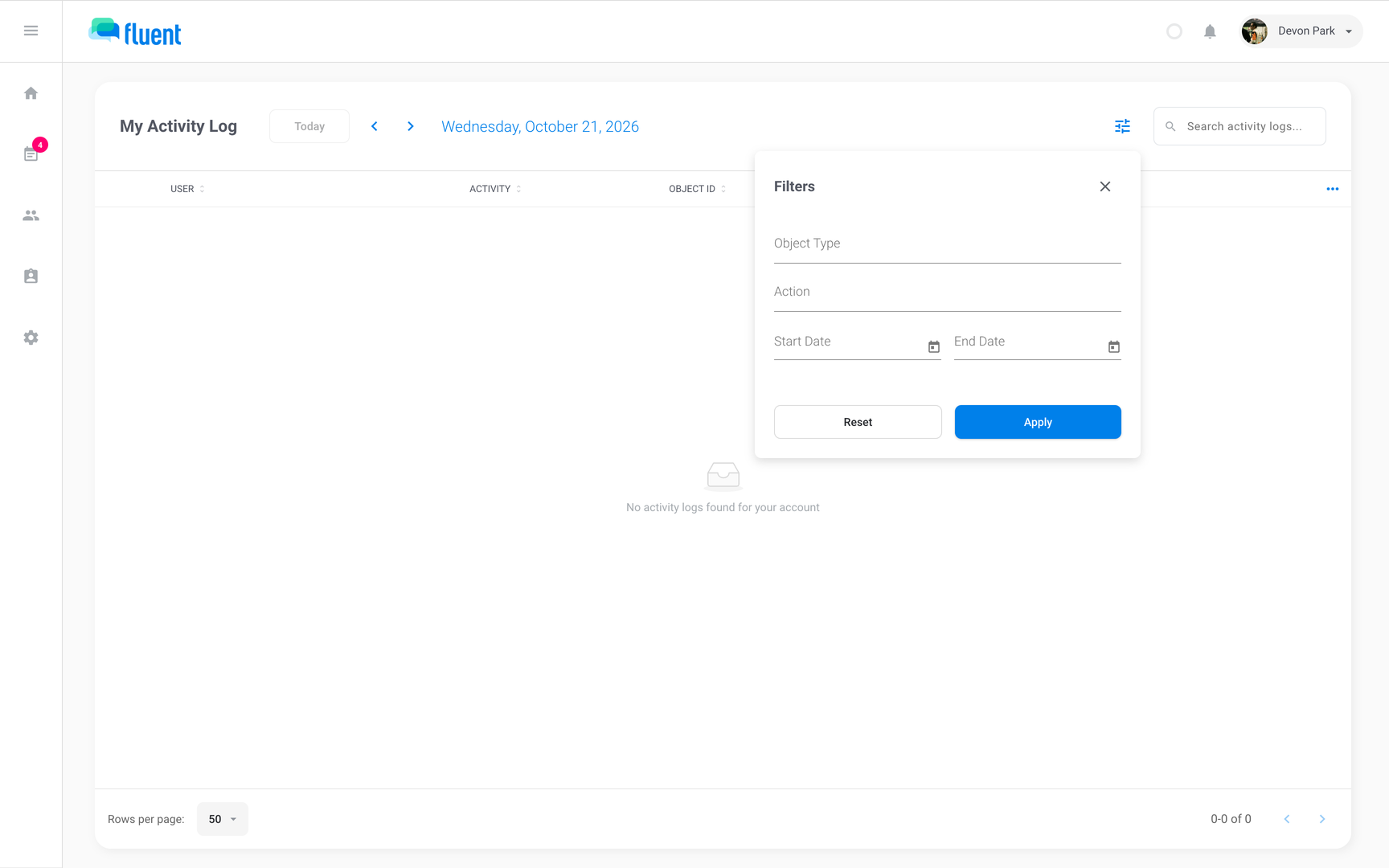
"No activity logs found for your account"
Nothing you did falls in the dates shown. Click the filter icon next to the search field, select earlier dates in Dates, and click Apply.
The log shows everyone, not the person whose profile I came from
The Activity Log opens on everyone for the last 30 days. Select the person in User(s) and click Apply.
I can't see who changed the appointment's time
The Activity Log doesn't record changes to an appointment's details. Open the appointment and click View History.